Pttrns
With the launch of iOS 16 and its subsequent versions, Apple has introduced a plethora of customization options for your iPhone’s Lock Screen. Gone are the days when choosing a wallpaper was the extent of personalization available. Now, you can not only add widgets but also alter the appearance of the clock itself.
What we cover
Step-by-Step Guide
Customizing your Lock Screen has become incredibly intuitive with the latest iOS versions. Whether you’re integrating widgets or refining your clock’s aesthetics, you can transform your iPhone’s Lock Screen into a reflection of your personality.
Here’s a simple breakdown of how to change the clock font on iOS 16 and newer devices:
Access Customization
- Start by unlocking your iPhone and navigating to your Lock Screen.
- Tap and hold on any empty space on the Lock Screen. This action will activate the customization options.
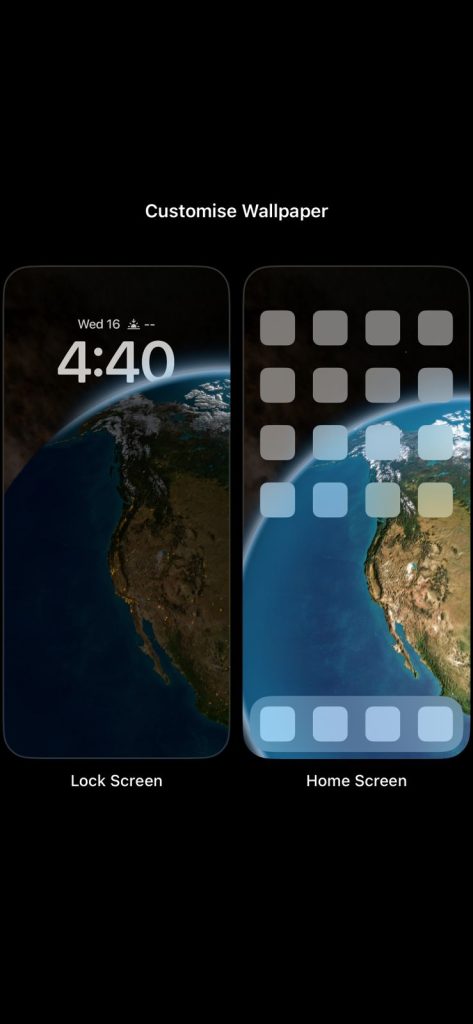
Enter Customization Mode
- Once the customization options appear, tap on “Customize.”
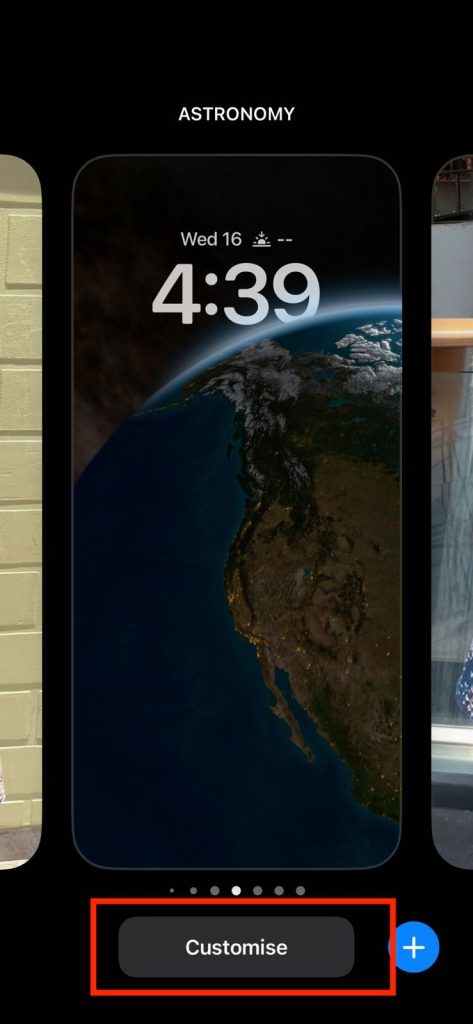
- If you haven’t yet created a custom Lock Screen, you might be prompted to set one up.
Select Lock Screen Customization
Within the customization menu, locate and tap on “Lock Screen.”
Modify the Clock Font
- Now, identify the clock on your Lock Screen and tap on it.
- You will be presented with a variety of font options to choose from.
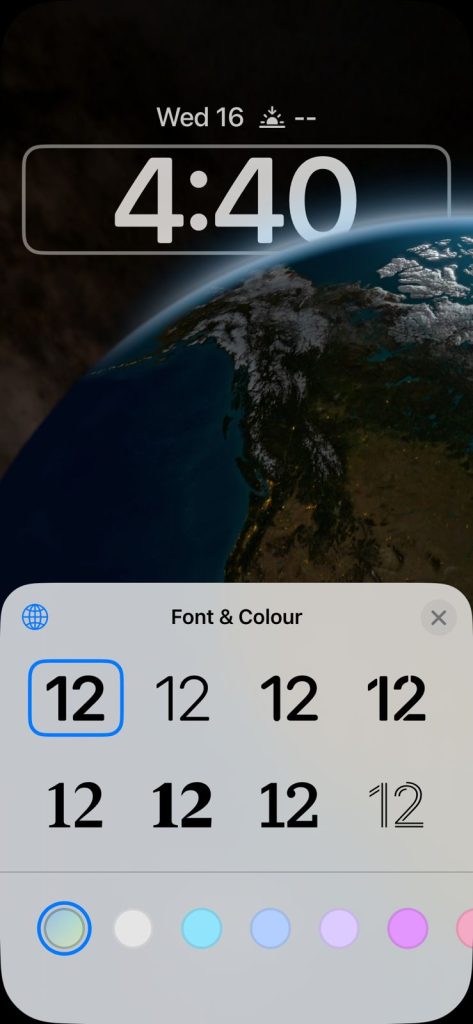
- If you wish to explore more font styles, tap the globe icon to access additional options.
Choose a Clock Color
- Apart from the font, you can also select a color that resonates with your style.
- Scroll through the available color choices.
- To create a truly unique look, tap the color wheel at the end of the color options. This will allow you to pick a custom color.
Customize the Color
- Once you’ve accessed the color wheel, you can choose your desired color using a color grid, spectrum, or sliders.
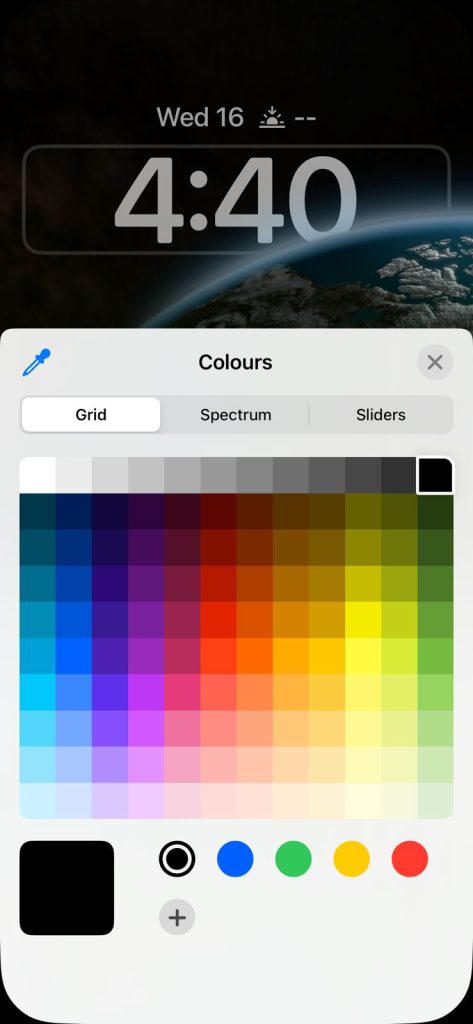
- For added coherence, you can even use the paint dropper icon to match the clock color with your wallpaper.
Adjust Color Intensity
Some color options might come with an intensity slider, which lets you control how light or dark the selected color appears.
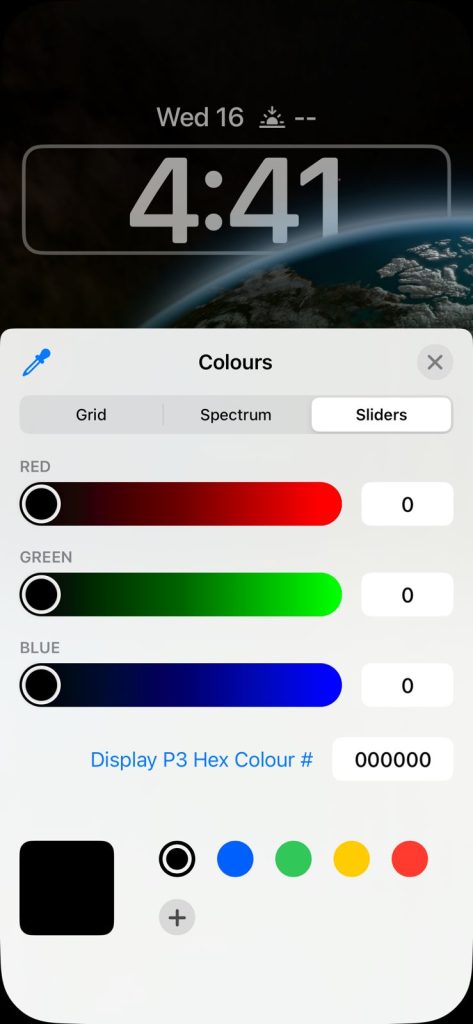
Finalize Your Selection
After selecting your preferred font and color, tap either the “X” or the background to close the customization menu.
Save Your Changes
To ensure that your new clock font settings are saved, tap “Done” in the upper right corner of your screen.
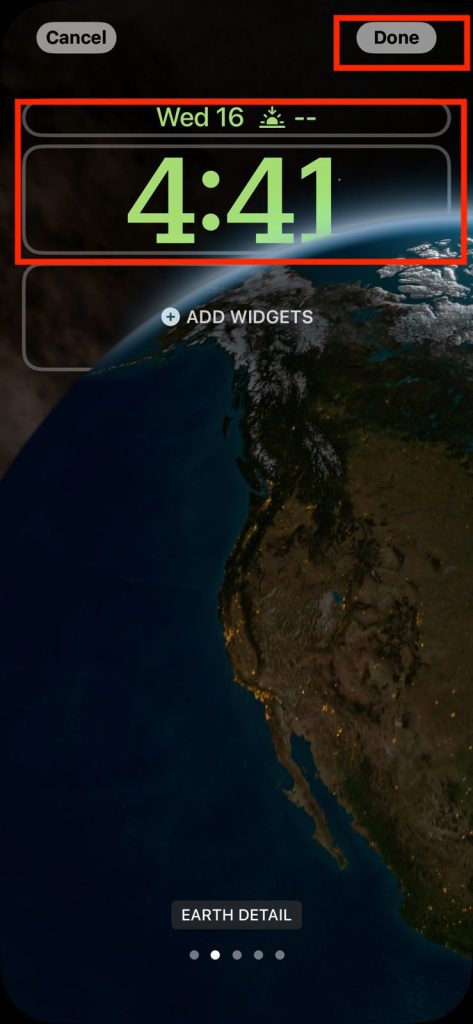
Note: The chosen clock color will also apply to widgets displayed on your Lock Screen.
Changing the Clock Size on iPhone
While altering the font of your Lock Screen clock is relatively straightforward, adjusting its size requires a slightly different approach. Follow these steps to change the font size on your iPhone’s Lock Screen:
Access Display Settings
Open the “Settings” app on your iPhone.
Navigate to Display & Brightness
Scroll down and tap on “Display & Brightness.”

Enter Display Zoom Options
Within the Display & Brightness settings, locate and tap on “Display Zoom.”
Choose Zoom Level
Here, you can opt for a different zoom level that will impact the size of various elements on your iPhone, including the Lock Screen clock.
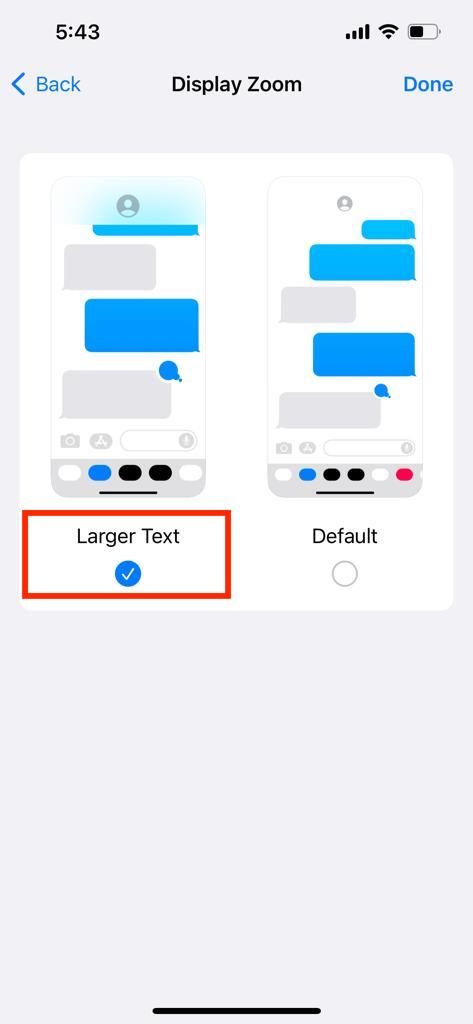
- “Larger Text” will increase text size across your device, along with enlarging app icons and other user interface elements.
- “Default” maintains the standard zoom level, which retains smaller text sizes and icons.
Apply and Save Changes
Once you’ve selected your desired zoom level, tap “Done” to save your changes.
Be aware that changing the Display Zoom setting will necessitate restarting your iPhone to take effect.
Also Read: How To Scan Multiple Pages into One PDF (Windows+Mac+Phone)
FAQs
Can I change the font size of the clock without altering the Display Zoom settings?
No, changing the font size of the clock on your Lock Screen is closely tied to the Display Zoom settings. Adjusting the Display Zoom will impact the size of various elements on your iPhone, including the Lock Screen clock.
Will changing the clock font or size affect the functionality of my iPhone?
No, changing the clock font or size is purely cosmetic customization and won’t affect the core functionality of your iPhone. It’s designed to allow you to express your personal style and preferences.
Can I revert to the default clock font and size if I don’t like the changes I made?
Yes, if you’re not satisfied with the changes you made to the clock font or size, you can easily revert to the default settings. Simply go back to the clock customization options and choose the default font and size.
Is the clock font customization available on all iPhone models running iOS 16 and newer?
Yes, the clock font customization is available on all iPhone models running iOS 16 and its subsequent versions. This feature enhances the personalization options for a wide range of devices.
How often can I change the clock font and size on my Lock Screen?
You can change the clock font and size on your Lock Screen as often as you’d like. The customization options are there for you to experiment with and adjust according to your preferences.
Will the chosen clock font color apply to widgets on my Lock Screen?
Yes, the color you select for the clock font will also be applied to widgets displayed on your Lock Screen. This creates a cohesive and visually appealing appearance across your Lock Screen elements.