
 Pttrns

Magic Write is an AI assistant offered to assist users when working on Canva. If you have access to Canva Pro and want to use Magic Write to ease the design development process, follow the steps featuring a simple demonstration to get started and learn how to use it.
Use Magic Write in Canva
- Start by navigating to Canva on your browser and open the project you are working on from the Recent designs section. If you haven’t started yet, navigate to Create a design and choose a design to get started.

- After the new or existing design is loaded, select the Magic button on the bottom-right of the page. Alternatively, you can bring up the Canva assistant using / and select any options under Magic Write.

- You can find Magic Write on the top. However, if you couldn’t find it, search for it in the provided search box.
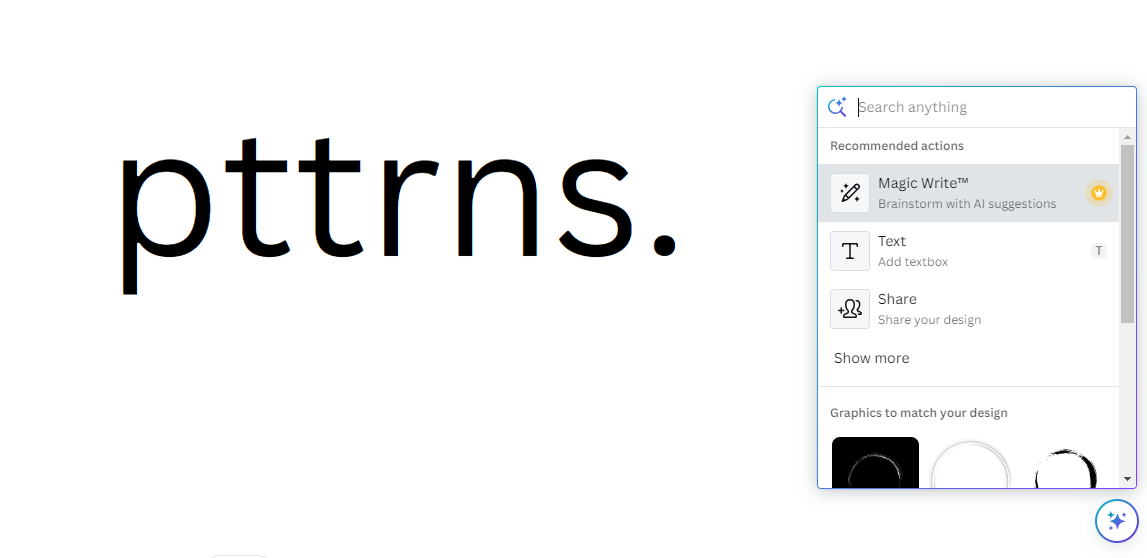
- On clicking Magic Write, you’re provided with an input box. Now, enter a few words and click on the Generate button for Magic Write to generate content.

- However, if you have a text to begin with and it is inside a text box, select it. Now, from the options displayed, click Magic Write to find different AI (Summarize, Expand, Rewrite, and Edit) and exclusive tools available according to the selected text.

- When selecting any tool/option that fits your requirement, wait for a while, and you will find Magic Write to start generating the results accordingly (Here is a Magic Write generated content attached below for reference).

Wrapping Up
Congratulations on learning how to use Magic Write in Canva!
While Magic Write is easy to use, it is important to experiment with it to get the desired results. Also, change the text in case of an undesirable result to prevent getting struck.





