Pttrns

What we cover
Why use screen sharing software?
Screen sharing software allows users to broadcast their computer screen to others remotely. It enables real-time collaboration, remote troubleshooting, online presentations, virtual meetings, and more. Businesses, educators, customer support teams, and individuals can benefit from using a screen sharing application.

These platforms make it easy to demonstrate concepts, provide visual aids, collaborate on projects, and assist others from afar. They eliminate geographic barriers and allow people to connect face-to-face through their devices. With high-quality video, audio, and screen sharing capabilities, these tools are invaluable for productive online interactions.
Do you really need a screen sharing app/software?
With the rise of remote work and e-learning, screen sharing has become a necessity for many. Though it may not be required for all users, it provides immense value in the right contexts.
Screen sharing shines for tasks like:
- Conducting virtual meetings where visuals are key
- Providing remote tech support or tutoring
- Collaborating on projects in real-time from different locations
- Delivering engaging virtual presentations or lectures
- Explaining concepts that are easier shown than described
The ability to broadcast your screen to others online has countless useful applications. While alternatives like sharing files exist, the interactivity of screen sharing is extremely beneficial. We recommend considering a dedicated screen sharing platform if visual collaboration is a regular part of your work or learning.
How to choose the best screen sharing software?
With many options on the market, it’s important to weigh several factors when selecting screen sharing software:
- Compatibility: Ensure the software works on your devices (Mac, Windows, Linux, mobile)
- Ease of use: The platform should be intuitive and easy to operate
- Interactive features: Look for annotation tools, whiteboards, chat, etc.
- Price: Consider free or freemium options unless advanced features are needed
- Security: Verify the software uses encryption and protects privacy
- Integration: See if it integrates with tools you already use
- Number of participants: Some offer higher capacity for large meetings
- Recording: Check if cloud recording and playback is supported
- Customer support: Review if onboarding, training, and troubleshooting help is available
- Reviews: Research real customer feedback and satisfaction
Avoid choosing software that doesn’t have the compatibility, features, or reliability your use case requires. Analyze options against your needs to determine the best fit.
Best Screen Sharing Software
Let’s dive into the top software choices for seamless screen sharing and online collaboration:
Best Screen Sharing Software – At a Glance
| Criteria | Zoom | Google Meet | Zoho Meeting | Slack | Microsoft Teams | TeamViewer | Skype | GoToMeeting | Webex Meetings |
| Key Features | Meeting, webinar, chat, phone | Video meetings | Online meetings, webinars | Messaging, video call | Meetings, chat, file collaboration | Remote access and support | Video call, chat, screen share | Online meetings | Video conferencing |
| Free Version | Yes, 40min limit | Yes | Yes, 3 participants | Free version available | Yes | Free for personal use | Yes | No | Yes |
| Ease of Use | Very easy | Easy | Moderately easy | Easy | Easy | Moderate learning curve | Very easy | Easy | Moderately easy |
| Mobile Support | Apps for iOS, Android | Apps for iOS, Android | Apps for iOS, Android | Apps for iOS, Android | Apps for iOS, Android | Apps for iOS, Android | Apps for iOS, Android | Apps for iOS, Android | Apps for iOS, Android |
| Security | AES 256-bit encryption | Encrypted | SSL/TLS encryption | SSL/TLS encryption | Enterprise security compliance | SSL data encryption | Skype to Skype encryption | SSL and 256-bit AES encryption | Encrypted |
| Customer Support | 24/7 customer support | Support center resources | 24 x 7 email and in-app support | Email support | Phone, chat, email support | Ticketed email support | 24/7 support | 24/7 live customer support | 24/7 customer support |
| Price | Free – $19.99/month | Free | Free – $10/month | Free – $8/user/month | Free – $12.50/user/month | Free – $49 one time fee | Free | $12/month | Free – $29/month |
| Criteria | Zoom | Google Meet | Zoho Meeting | Slack | Microsoft Teams | TeamViewer | Skype | GoToMeeting | Webex Meetings |
Best Screen Sharing Software Reviews
Let’s take a deeper look at each of the top providers.
1. Zoom
Zoom is one of the most widely-used and highly-rated video conferencing platforms. It offers an extremely intuitive user interface and a reliable meeting experience.
- Key Features: Video/audio conferencing, screen sharing, recording, chat, breakout rooms
- Price: Free – $19.99/month
- Ratings: 4.6/5 stars (G2)
- Website: https://zoom.us
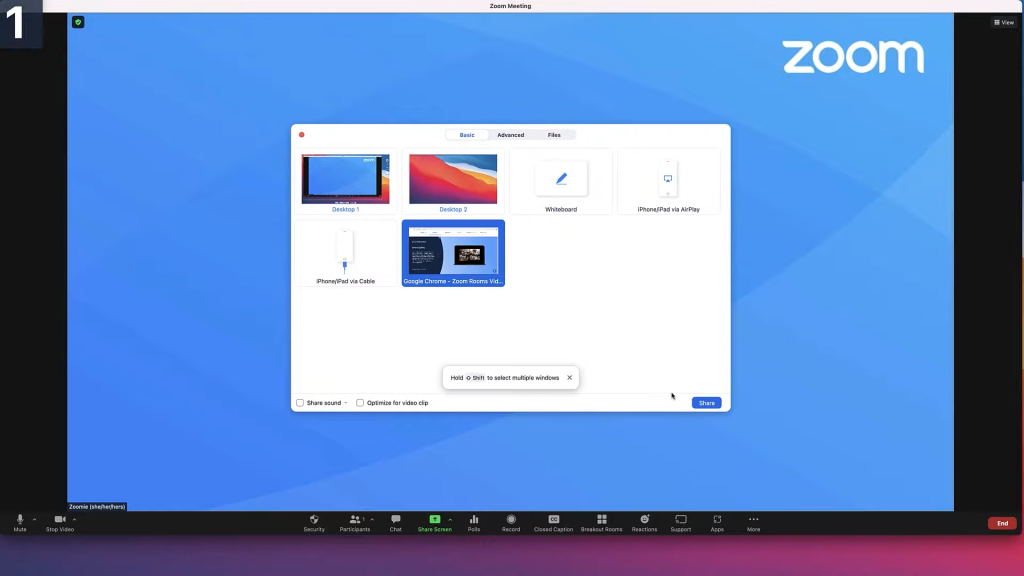
Zoom makes online meetings seamlessly easy. Its user-friendly interface allows anyone to quickly start high-quality video calls with crystal clear screen sharing. Zoom offers collaboration features like annotation tools, whiteboards, and breakout rooms. The software works great across devices from desktop to mobile.
Advanced features like cloud recording, company branding, and 1:1 meeting capabilities are available on paid plans. Zoom integrates with tools like Google and Slack to improve workflow. Top-notch customer service and reliability make Zoom a go-to solution.
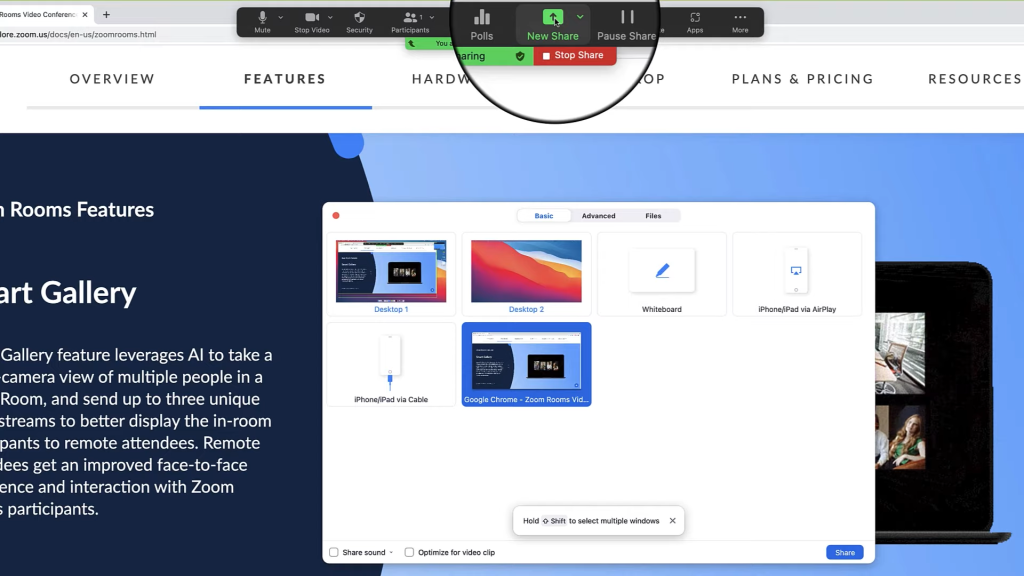
Key Features
- HD video and audio
- Annotate on shared screens
- Virtual backgrounds
- Breakout rooms
- Cloud recording
Why Consider
Zoom is ideal for those wanting a reliable, full-featured platform for meetings, webinars, teaching, and collaboration. The ease of use and quality make it our top choice.
2. Google Meet
As Google’s premium video conferencing tool, Google Meet streamlines joining virtual meetings with just a link. It’s a great easy-to-use option.
- Key Features: Video calling, screen sharing, secure meetings
- Price: Free
- Ratings: 4.5/5 stars (Capterra)
- Website: meet.google.com
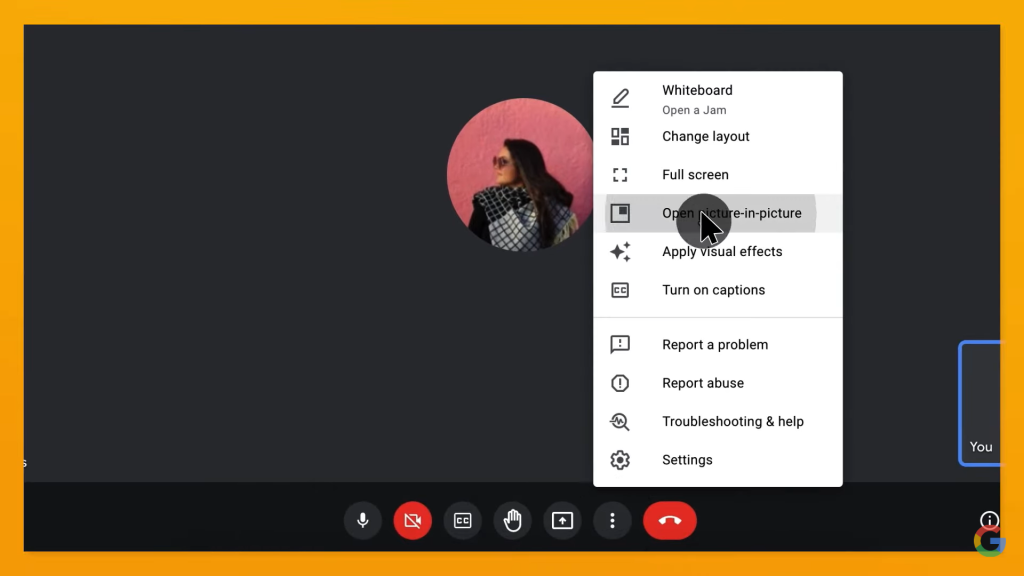
Google Meet makes joining meetings seamless with no downloads required—just click a link. It provides reliable enterprise-grade video calling integrated into Gmail and Google Calendar. Screen sharing works smoothly. Features like real-time captions and attendance tracking add value.
While the free version offers unlimited calls up to 60 minutes, upgrades like larger meetings, cloud recording, and advanced admin controls come with Google Workspace plans. Google Meet is best for those already using Google’s web tools.
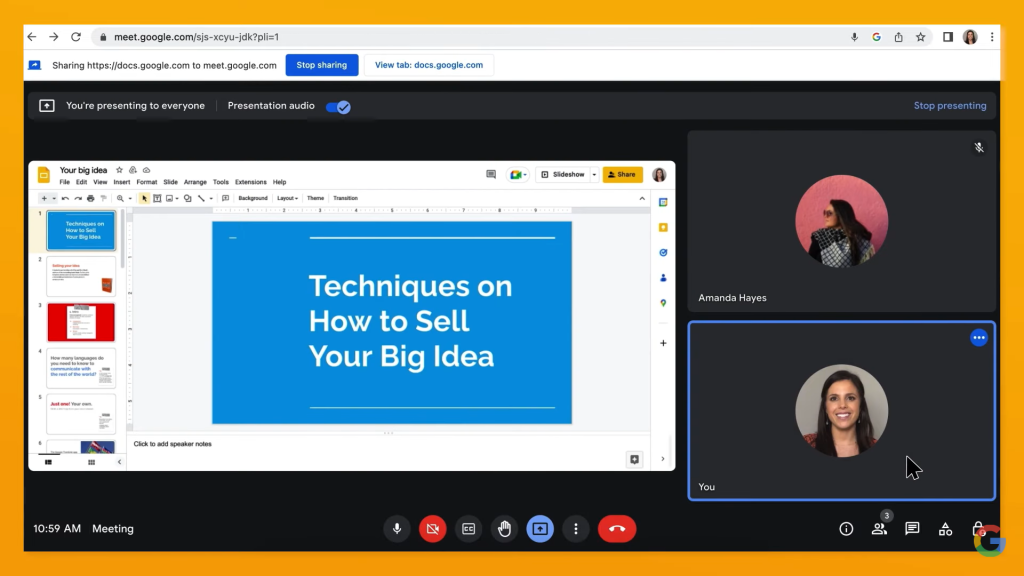
Key Features
- Easy joining via links
- Attendance tracking
- Noise cancellation
- Works in browser
- Integration with G Suite
Why Consider
Google Meet removes friction from joining and hosting meetings. It works seamlessly for existing Google users.
3. Zoho Meeting
Zoho Meeting is an affordable business-focused platform for video conferencing, webinars, and screen sharing. It packs useful features into a straightforward interface.
- Key Features: HD video, multi-presenters, recording, chat
- Price: Free – $10/month
- Ratings: 4.5/5 stars (GetApp)
- Website: zoho.com/meeting
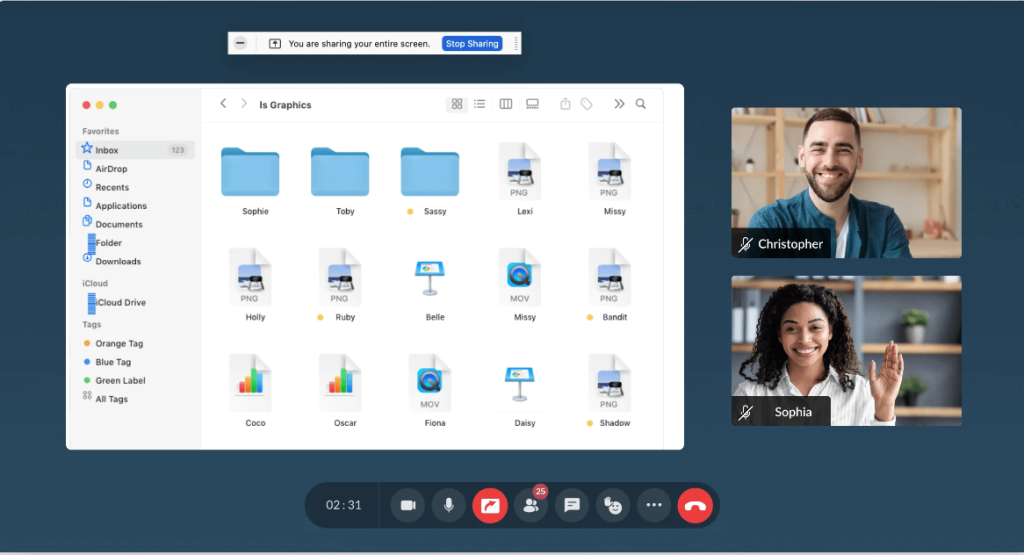
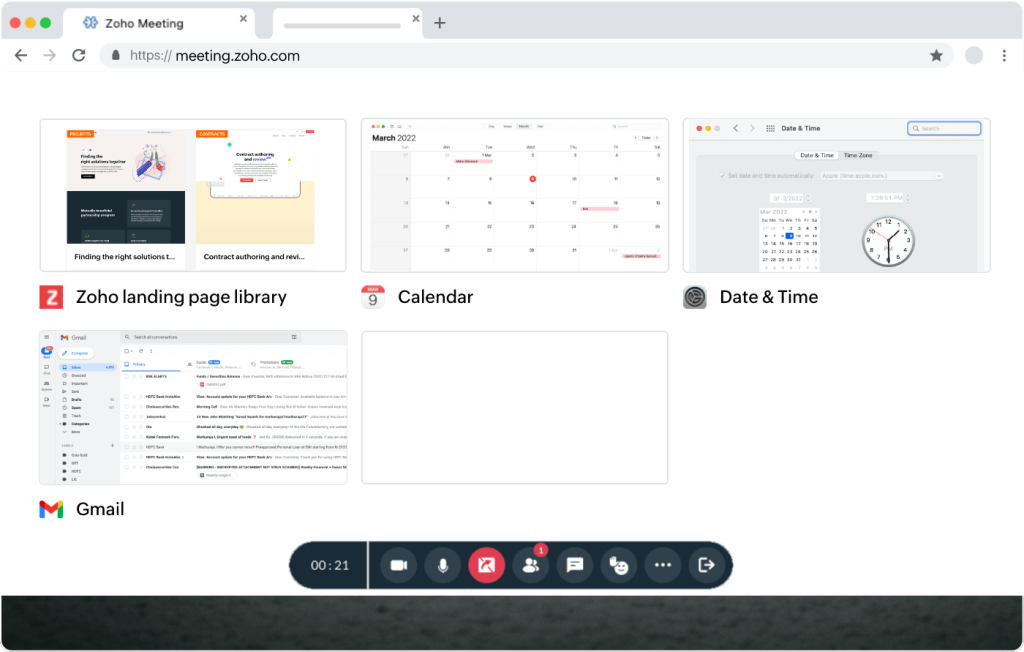
With Zoho Meeting, even free accounts allow up to 100 participants per meeting. The software makes it easy to host webinars with multiple presenters. Polls, Q&A, chat, and multi-sharing streamline engagement.
Meeting recordings are saved to the cloud for convenient playback later. Zoho Meeting integrates into tools like Zoho CRM to connect sales and meetings. Custom branding options and administrative controls provide a professional experience.
Key Features
- Webinars with multiple presenters
- Cloud recording
- Active speaker view
- Chat and polls
- CRM integration
Why Consider
Zoho Meeting offers full-featured video meetings and webinars at an affordable price point. It’s great for sales and marketing teams.
4. Slack
Slack makes team communication and collaboration easy with video calls, screen sharing, and tons of integrations.
- Key Features: Messaging, video calls, screen sharing, integrations
- Price: Free – $8/user/month
- Ratings: 4.4/5 stars (Capterra)
- Website: slack.com
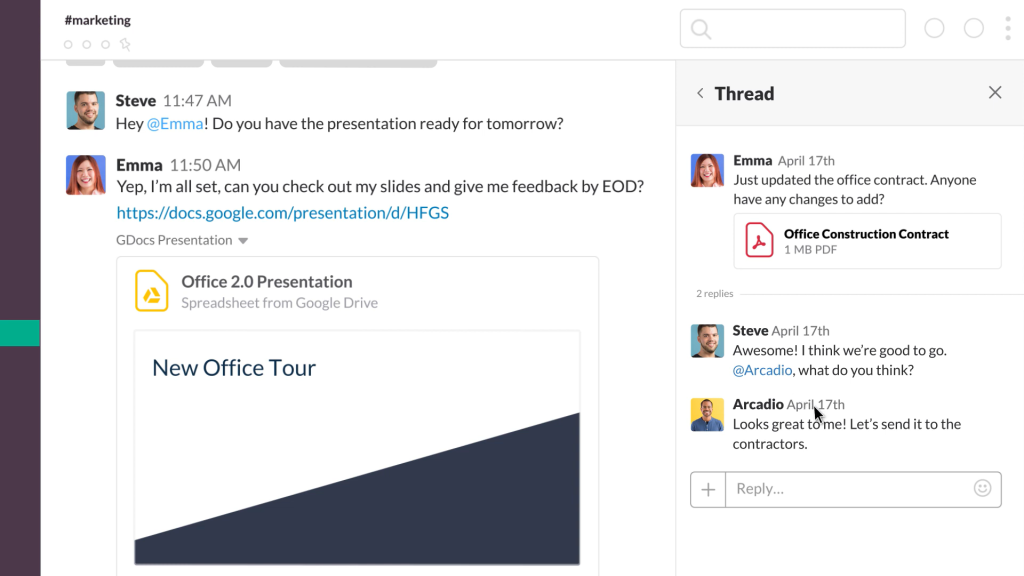
While best known for team messaging, Slack also enables audio and video calls between teammates. Screen sharing works right in the browser to easily collaborate over documents and apps. With widely-used channel-based messaging, Slack is perfect for quick discussions augmented by video.
Slack connects seamlessly into popular apps like Google Drive, Salesforce, GitHub, and more. While the free version is quite capable for small teams, larger organizations get the most value with Standard or Plus plans.

Key Features:
- Video calls in browser
- Screen share in calls
- Drag and drop file sharing
- Hundreds of integrations
Why Consider
Slack is the go-to for teams who want messaging, video calls, events, and file sharing in one app.
5. Microsoft Teams
Microsoft Teams brings together meetings, chat, file collaboration, and more in one hub for teamwork. It’s a great choice for Office 365 users.
- Key Features: Video meetings, group chat, file sharing
- Price: Free – $12.50/user/month
- Ratings: 4.5/5 stars (G2)
- Website: microsoft.com/teams
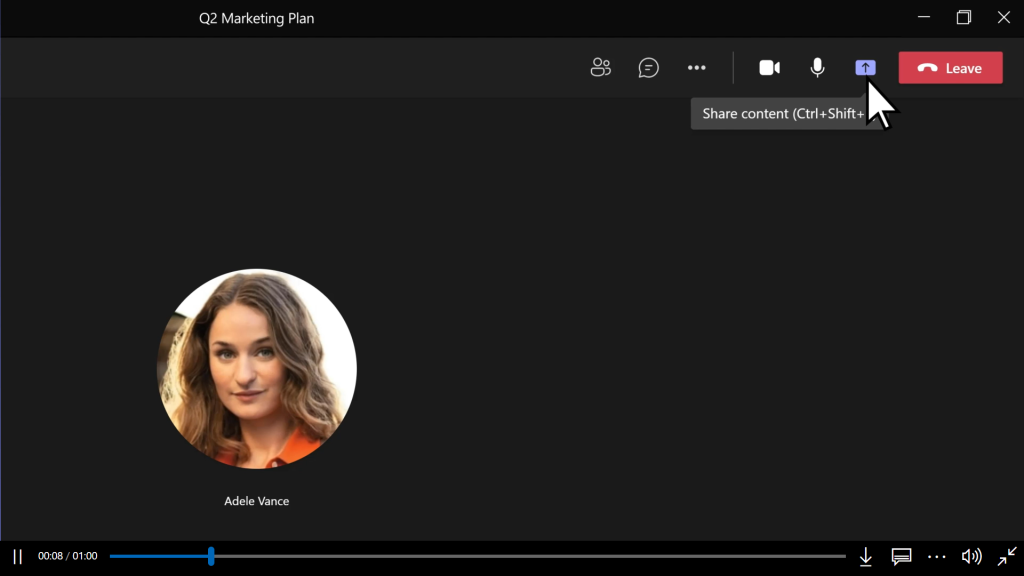
Seamlessly integrated with Office 365 apps, Microsoft Teams centralizes teamwork. Meetings support up to 250 participants with screen sharing, recording, and live captions. Private and group chats augment video discussions. The entire team can collaborate over Microsoft 365 documents in real-time.
Microsoft Teams also enables calling, shifts, task and project management. With tight Office integration and great Microsoft app support, it’s a powerful choice for enterprise teamwork.

Key Features
- Integrated with Office 365
- Unlimited chat and search
- Background blur in video
- File collaboration in SharePoint
Why Consider
Microsoft Teams brings Office 365 tools together in one place, ideal for organizations invested in Microsoft products.
6. TeamViewer
TeamViewer is remote connectivity software ideal for IT support and accessing devices remotely through screen sharing.
- Key Features: Remote access, multi-platform support, file transfer
- Price: Free for personal use, $49 one-time fee for commercial use
- Ratings: 4.5/5 stars (Capterra)
- Website: teamviewer.com
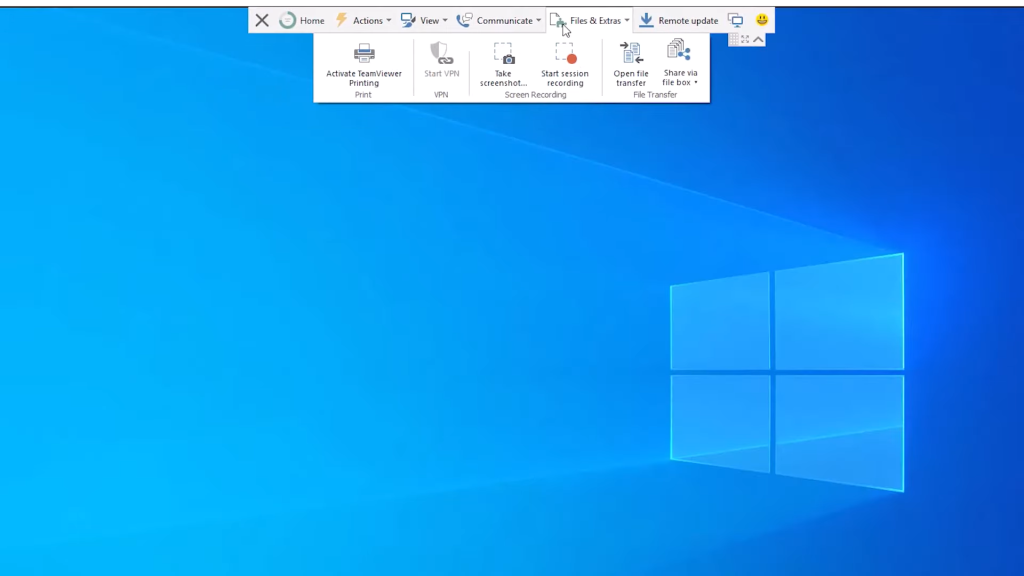
TeamViewer is a great solution for IT administrators to remotely access computers, servers, or mobile devices to troubleshoot, provide support, or manage them. It connects securely through a simple ID-based login. Collaboration features like file transfer, remote printing, and whiteboard allow you to work together.
The software runs on many platforms making it easy to provide support across Windows, Mac, Linux, Chrome OS, iOS, and Android devices. For commercial use, TeamViewer offers flexible licensing based on number of products and features needed.

Key Features
- Cross-platform remote access
- Easy remote printing
- File transfer
- Remote device management
Why Consider
TeamViewer excels at remote access across platforms, especially for IT support and management.
7. Skype
Skype pioneered video calling and remains a popular option for casual video chats and screen sharing.
- Key Features: Video calling, chat, screen sharing
- Price: Free
- Ratings: 4.1/5 stars (Capterra)
- Website: skype.com
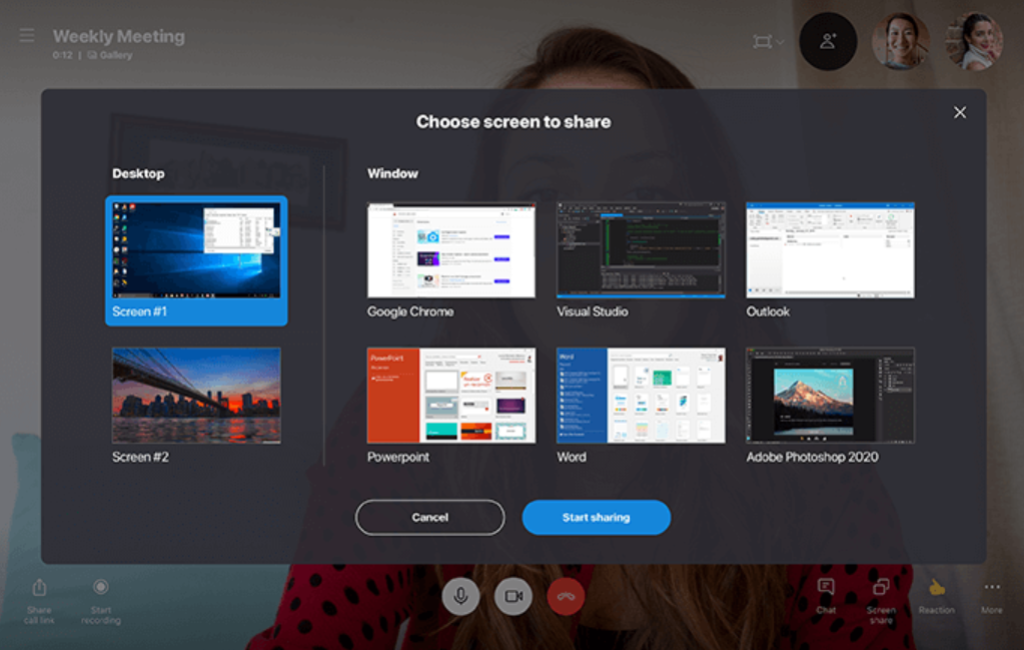
As one of the original video chat apps, Skype made staying in touch with family and friends digitally possible. It’s better suited for casual usage than professional meetings, but still allows screen sharing and call recording.
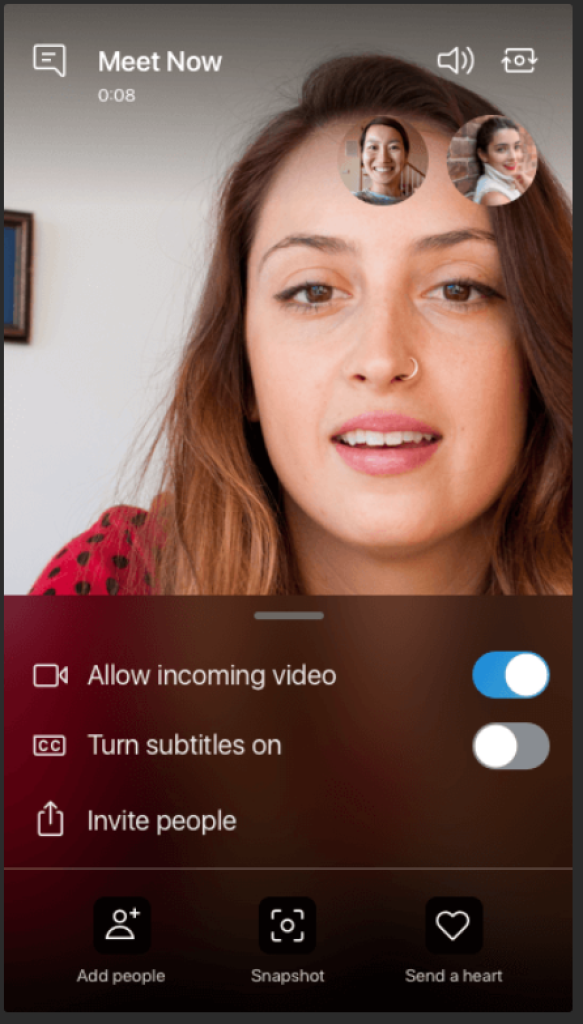
Skype runs on desktop and mobile, integrating with Outlook and Office. It also connects with Skype-enabled devices like the Xbox One for home entertainment. While the simplicity appeals to everyday users, Skype lacks some features needed for robust business video conferencing.
Key Features
- No account required for guests
- Chat and emoji reactions
- Call recording
- Background blur
Why Consider
Skype is an approachable, familiar option for personal video calls and screen sharing rather than formal business meetings.
8. GoToMeeting (formerly join.me)
GoToMeeting makes it easy to host and join meetings securely from any device. It’s a top choice for webinars and sales demos.
- Key Features: Screen sharing, mobile apps, recording
- Price: $12/month
- Ratings: 4.4/5 stars (GetApp)
- Website: gotomeeting.com
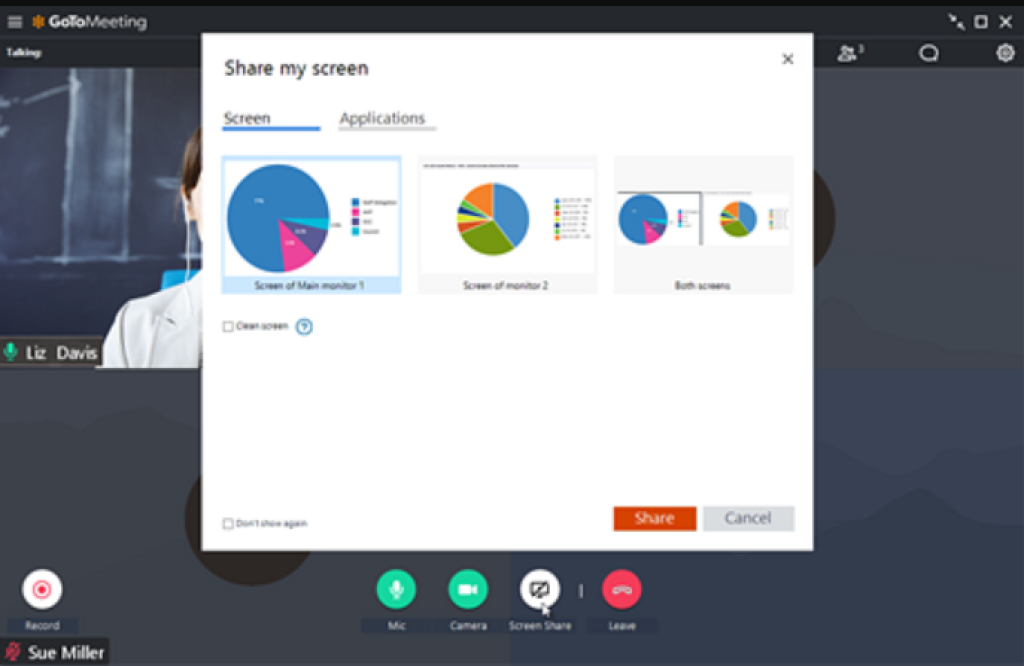
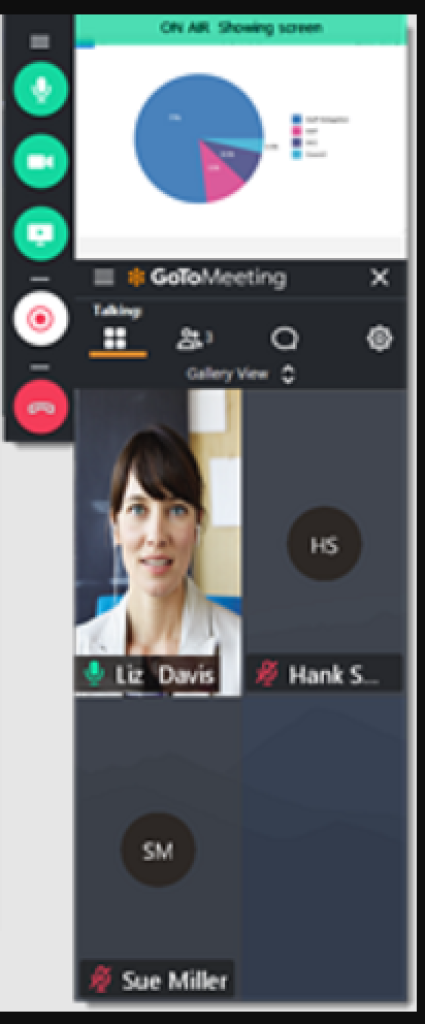
Part of GoTo’s suite of web conferencing tools, GoToMeeting (with join.me integrated) focuses on its namesake. It delivers reliable HD meetings with crystal clear audio, video, and screen sharing. The software allows up to 250 participants and provides engagement features like polls.
recordings and transcriptions make it easy to capture meetings for later reference. GoToMeeting also enables sales teams to connect with prospects through branded meeting links and custom presentations. With easy scaling for large meetings, it’s great for webinars and events.
Key Features
- One-click screen sharing
- Draw tools and annotation
- Automated transcriptions
- Mobile apps
- 24/7 customer support
Why Consider
GoToMeeting excels at hosting large meetings, webinars, and presenting sales demos from any device.
9. Webex Meetings
Webex Meetings facilitates seamless video conferencing, screen sharing, messaging, and more in one platform. It’s a leader in unified business communication.
- Key Features: Video meetings, screen share, messaging, integrations, analytics
- Price: Free – $29/month
- Ratings: 4.3/5 stars (GetApp)
- Website: webex.com
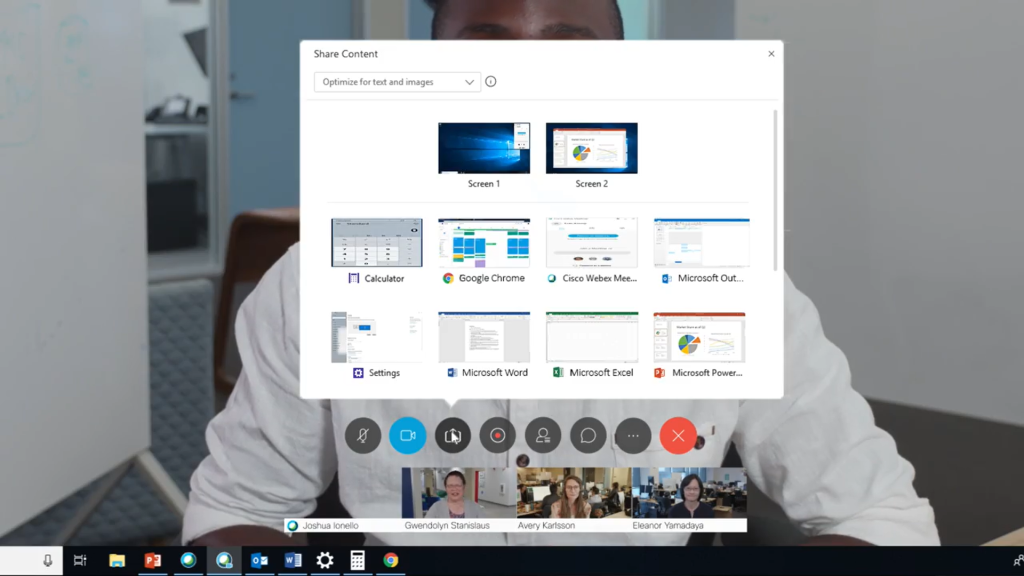
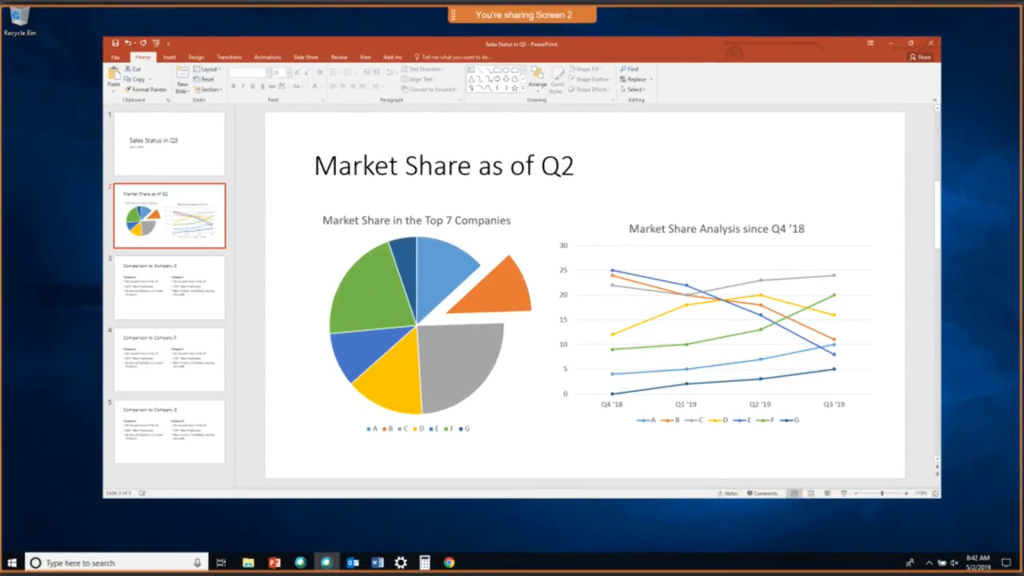
Webex Meetings offers powerful enterprise-grade tools while remaining easy to use. Meetings support up to 1,000 participants with polling, Q&A, and screen sharing. Built-in messaging and content sharing allow constant collaboration.
Robust integrations with business apps like Salesforce and analytics improve results. Reliability and security keep employee and customer data safe. Webex works smoothly across devices for constant connection on the go. For full-featured unified communication, Webex Meetings shines.
Key Features
- Meetings with up to 1,000 participants
- Team messaging and file sharing
- Real-time translations
- Robust analytics
- Enterprise security
Why Consider
Webex Meetings offers an industry-leading suite for enterprise video conferencing, messaging, content sharing, and analytics.
FAQs
Can I use screen sharing software for free?
Many providers like Zoom, Google Meet, and Skype offer free versions with time limits on meetings. Other free options have reduced features. Paid plans provide unlimited usage and more capabilities.
Is screen sharing software safe to use?
Leading providers use end-to-end encryption, secure networks, and follow protocols like HIPAA to keep data private during screen sharing. Look for security and compliance confirmation before choosing software.
What’s the difference between screen sharing and remote access?
Screen sharing just broadcasts a screen. Remote access allows control of the screen and computer. TeamViewer enables full remote access while tools like Zoom are solely screen sharing.
How can I ensure the best screen sharing quality?
Use a wired internet connection or strong WiFi signal. Close extra tabs and apps to conserve bandwidth. Enable HD video in settings if available. Test lighting and camera placement. Follow on-screen tips to optimize performance.
Conclusion
The best screen sharing software empowers hybrid teams through seamless video meetings, webinars, messaging, file sharing and more. When choosing a platform, consider ease of use, features, quality, security, and pricing. Leading providers like Zoom, Google Meet, Microsoft Teams, and Webex offer robust options for personal and business collaboration. With remote work here to stay, investing in a screen sharing solution can pay dividends now and into the future.