
 Pttrns

Cancelling a Canva subscription is easy. Learn how to do it on different platforms through the detailed steps.
If you have purchased a Canva subscription and are willing to cancel it, the steps are straightforward. However, as Canva operates seamlessly across various platforms, steps to cancel the subscription vary. To guide you through, we have included steps for each below.
Platform-Specific Steps to Cancel Canva
On PC – Web Browser
As Canva is an online graphic design tool without a standalone application on PC, the below steps to cancel Canva apply for all, irrespective of the operating system the PC is running on:
- Start by opening Canva on your browser and sign in with your credentials.
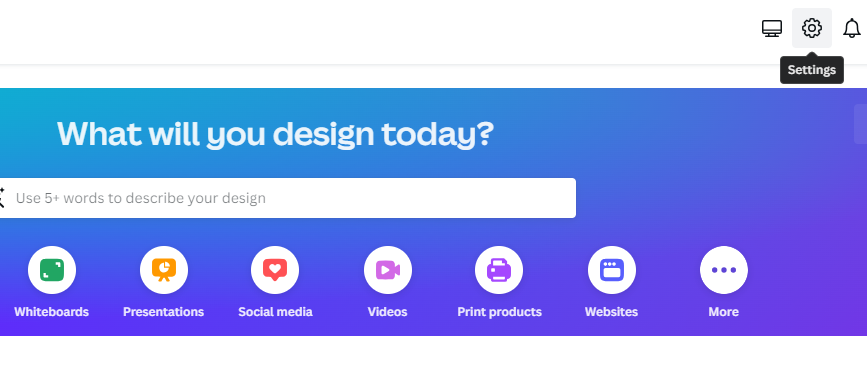
- After you’ve successfully logged in, navigate to the Gear icon on the top right corner to open Settings.
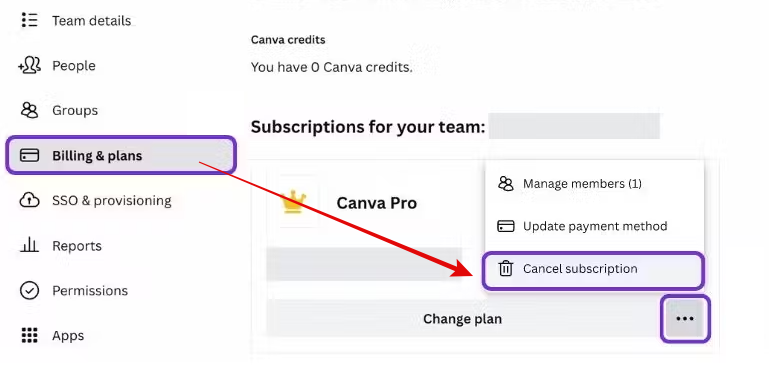
- Once you’re displayed with settings, navigate to Billings & plans on the left and click on it. Now, scroll down until you find the subscription details, click on the three horizontal dots present, and then Cancel subscription.
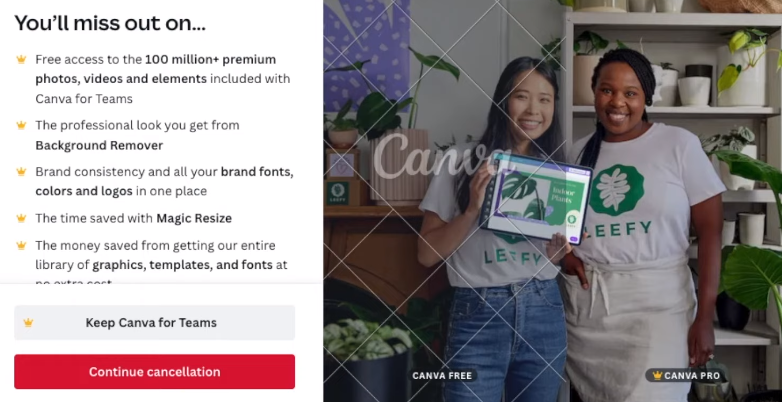
- Doing so, you’re displayed with all the features you’re going to miss on cancellation. If you want to opt-out, you can close the window. Or else proceed further by clicking on the Continue cancellation button.
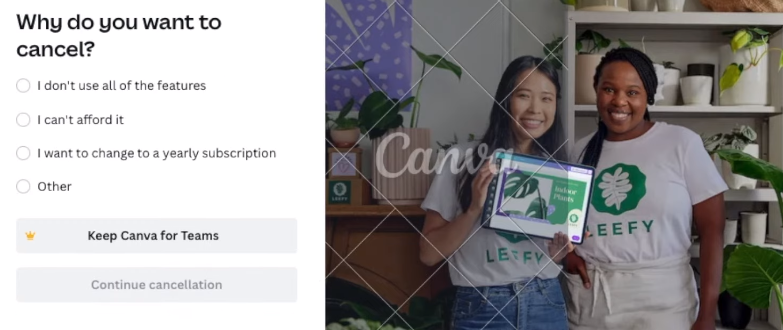
- Continuing with the cancellation process, you’re asked for the reason behind the cancellation. Now, select any reason provided and then click on the Continue cancellation button again to cancel your subscription.
On Android – Google Play Store
If you’ve purchased a Canva subscription using the conventional means of payment, you can use the above approach to cancel it. However, if you’re on Android and have purchased the subscription through Play Store, follow the below steps:
- Start by identifying the payment approach by opening the Canva app. After it is loaded, tap on the Menu in the top left corner and then on Settings. Once the settings are displayed, tap on Subscription under Personal.
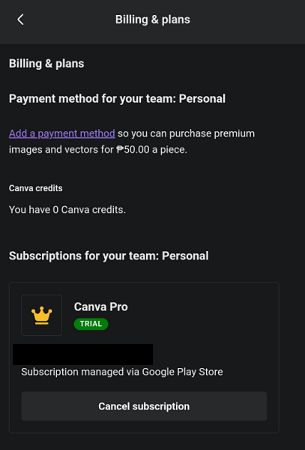
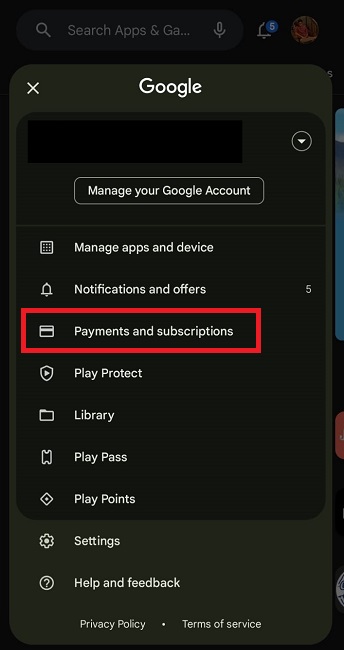
- If you’ve taken the subscription like above, open the Google Play Store. Now tap on your profile in the top right corner. Now, from the available options, tap on Payments and subscriptions.
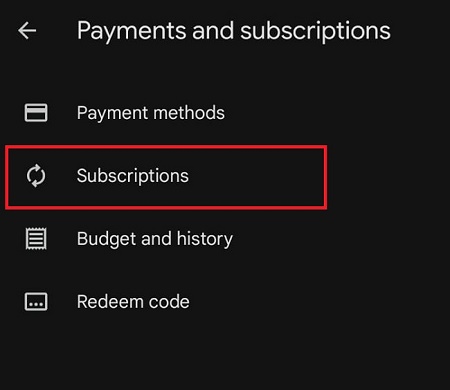
- Doing this opens a new activity featuring more options. Now tap on Subscriptions, and after you’re displayed with all subscriptions, navigate to Canva and then tap on Cancel Subscription.
Important Note: Many users have reported stating that Canva isn’t listed in the Play Store subscriptions. If you’re facing the same issue, cancel it from the Google Play workflow. Unfortunately, if it doesn’t help, reach out to Google Play Help.
On iPhone – Through App Store Settings
If you’re using Canva on an iPhone, the steps vary, as the entire subscription process is carried through App Store settings. Here are the steps for cancelling subscription on iPhone:
- Begin by navigating to Settings on your iPhone and tap on it to get started.
- Once you’re in settings, tap on your name [iCloud account].
- Doing so displays multiple options, from which tap on Subscriptions.
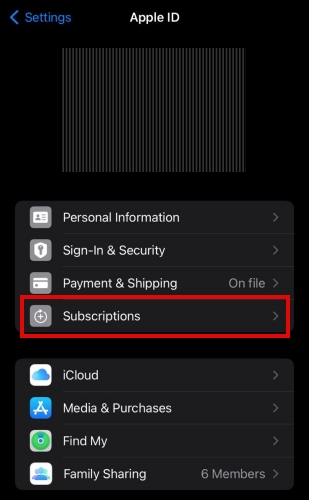
- After the subscriptions are listed, find Canva and tap on it to check its associated options. Next, tap on Cancel Subscription, and you’re done.
Wrapping Up
Congratulations on successfully canceling your Canva subscription!
While we have listed steps for all platforms, we suggest purchasing the subscription through the traditional payment modes through PC. Now, use that account to log in on other platforms to eliminate the hassle of canceling subscriptions on other platforms.





