
 Pttrns

Canva offers the flexibility to manage and create eBooks through its exclusive templates. In this guide, we will help you create an eBook in Canva through a simple demonstration to get you all covered.
Create an eBook in Canva
- Begin with navigating to Canva and sign in with your credentials. Once you’re signed in, click the Create a design button, and in the associated search box, look for eBook. Next, select the one that matches your requirements and click on it to get started.

- If unsatisfied with the Canva preset designs, use Custom Size and create a custom design by entering the Width and Height measurements.
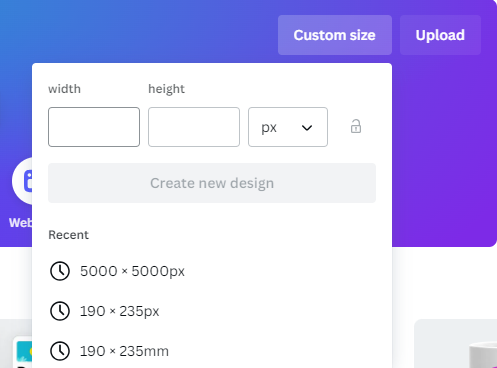
- After the new/custom design is loaded, start working on the design. Now, navigate to the Editor panel on the left and click on Design. By doing so, you’re provided with templates for eBooks. However, if you’re on a custom design, search for eBook in the search box provided.

- Now click on the template to add it to canvas. Once added, click on the text or elements to select them and make changes according to your requirements.

- After you are satisfied with all the changes and the final result, navigate to the right and click on Share. Then, from the list of options shown, select Download.

- Doing such, you will be displayed with the Download options. Now navigate to File type and select JPG or PNG from the drop-down.

Wrapping Up
Congratulations on creating an eBook in Canva!
While Canva is arguably the best way to create an eBook, if you are unhappy with the result, try other online eBook-creating software/tools or a conventional text editor like MS Word.
Related Reading
How To Create Clipping Mask in Canva





