
 Pttrns
Canva isn’t just exclusive online design software but also a decent photo editor. While it features tools for most purposes, there isn’t one to create a clipping mask. To address this, we have found a way around through the use of frames, and here are steps for it:
Create a Clipping Mask in Canva
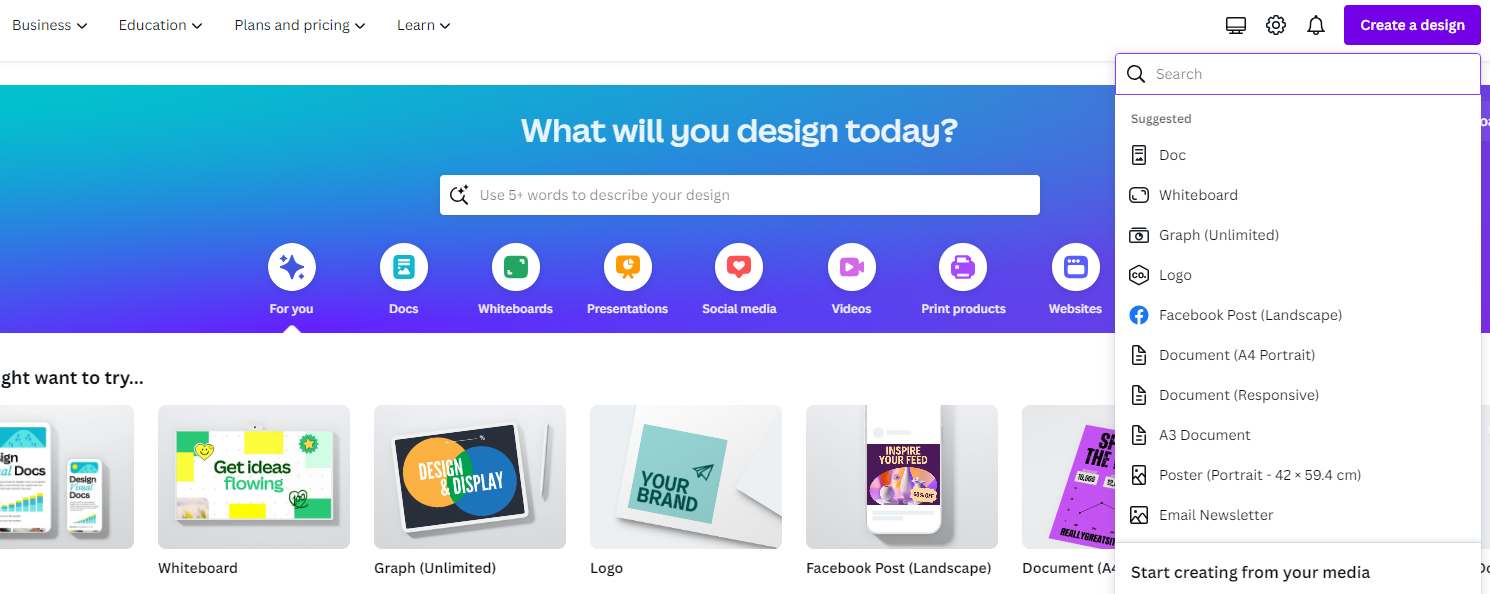
- Start by navigating to Canva and sign in with your credentials. Once logged in, click on the Create a design button and then choose a design to get started.
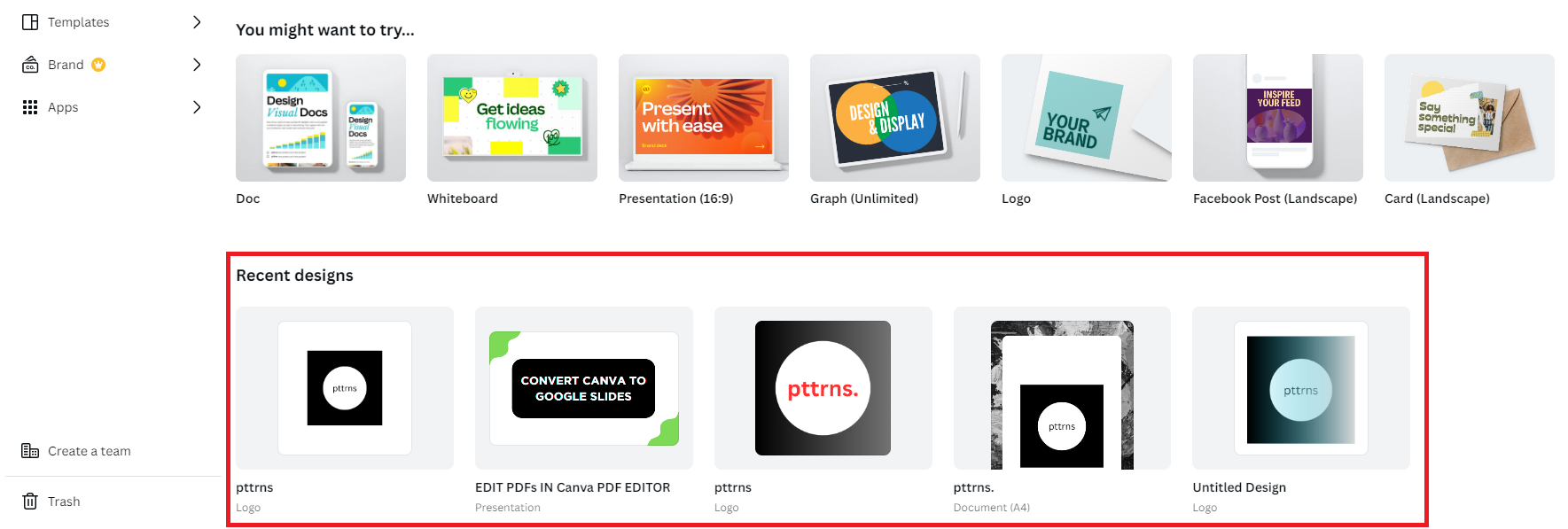
- However, if you’re already working on a project, you can open it from the Recent designs section on Canva Home.
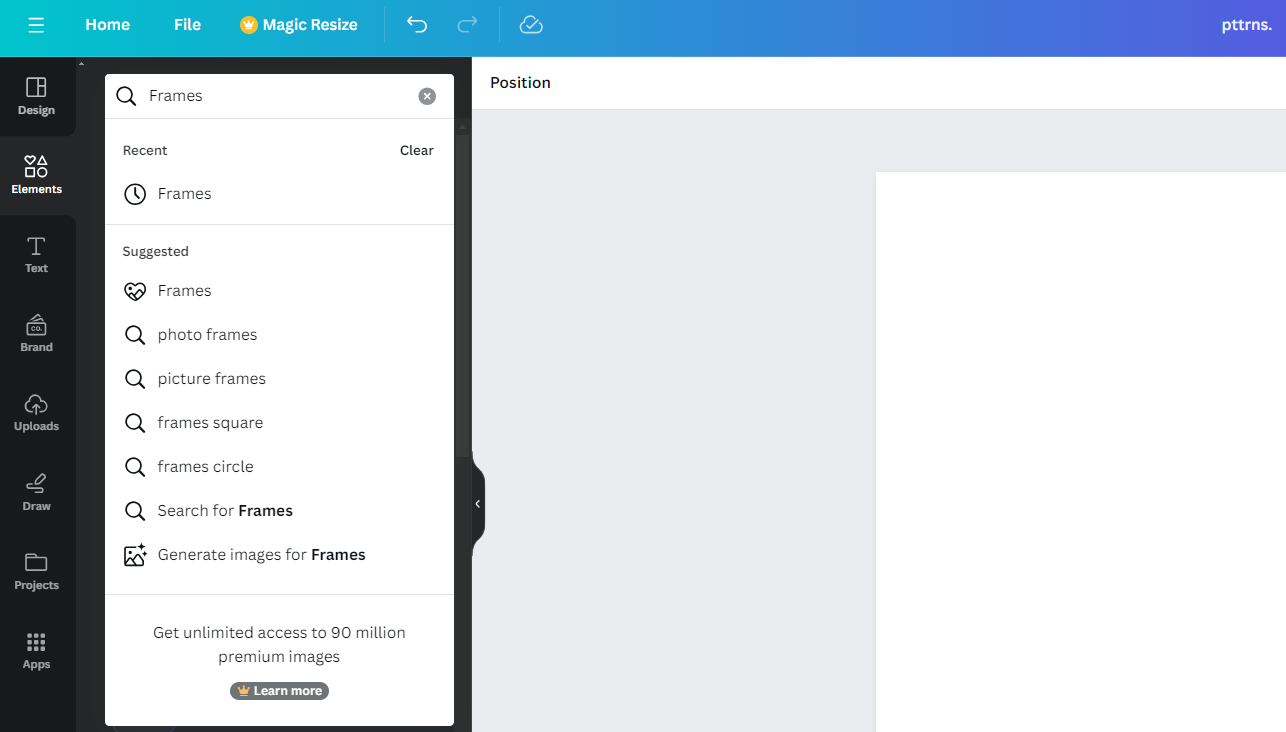
- With the existing/new design loaded, add the Frame to the canvas. To do this, navigate to the Editor panel on the left and click on Elements. Now, search for Frames in the search box associated with it and hit Enter.
- Once the results are displayed, click on Frames or See All next to it to access all available frames.
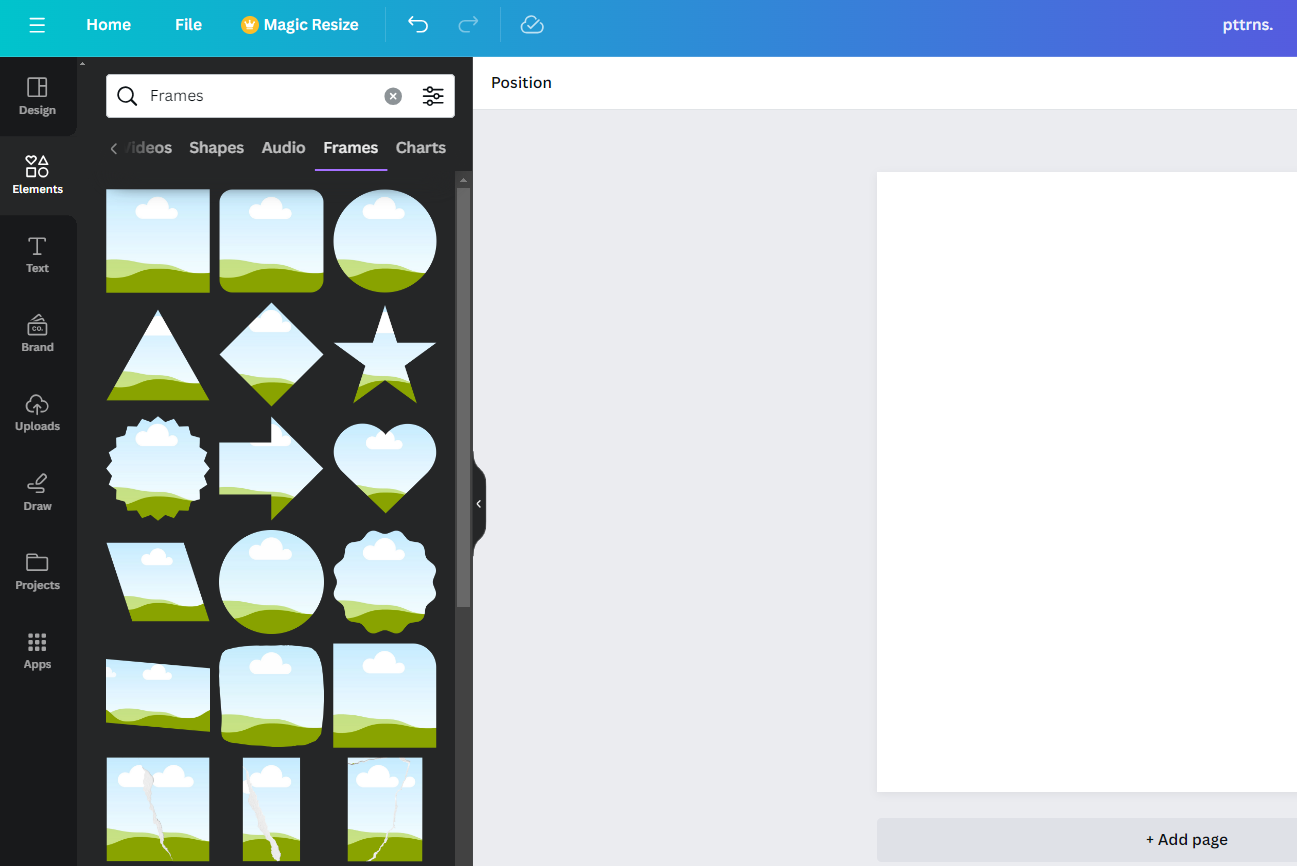
- After you’re displayed with available frames, click on the one that best matches your requirements to add it to the design.
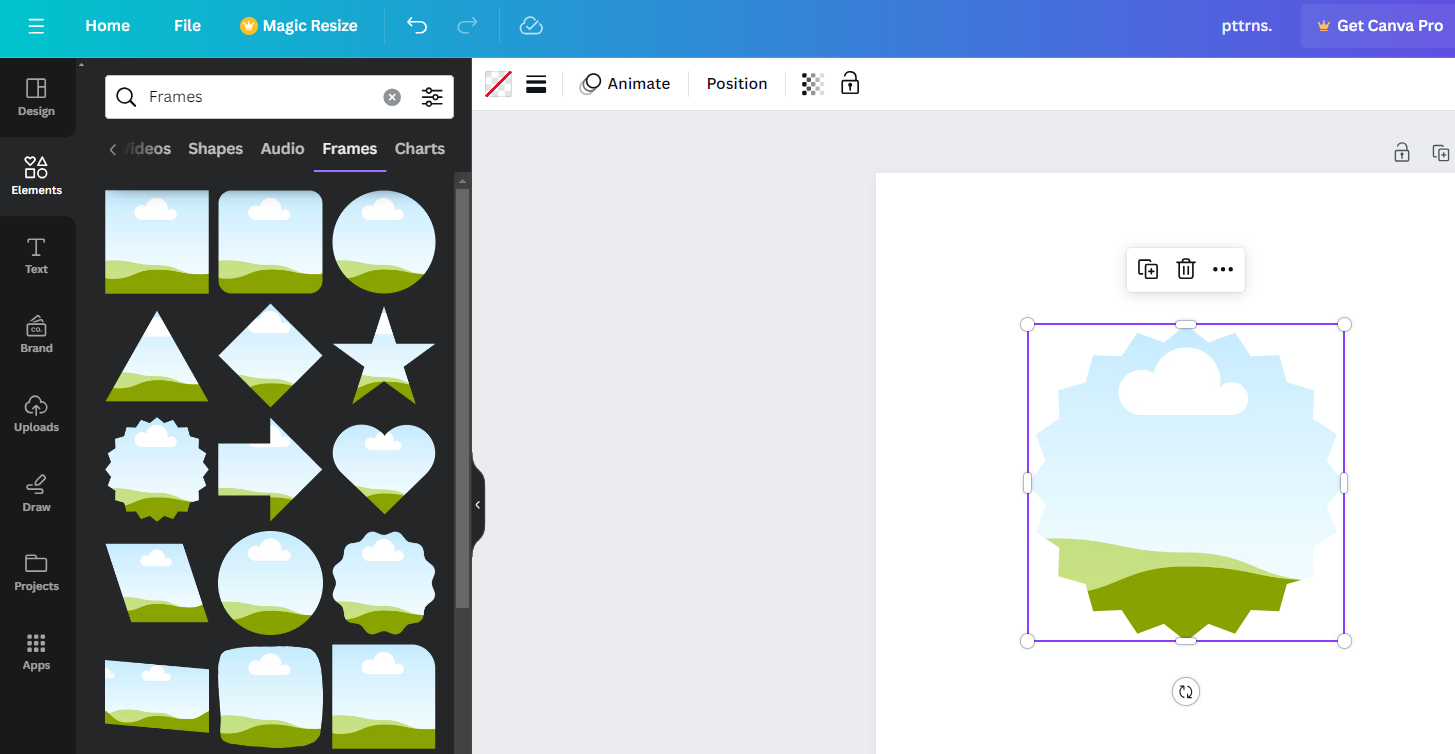
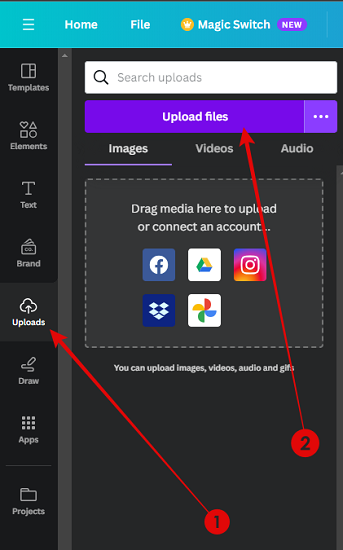
- With the frame added to the design, upload the image to Canva by clicking on Uploads from the Editor panel. Once the Uploads panel is loaded, click the Upload files button to upload the image.
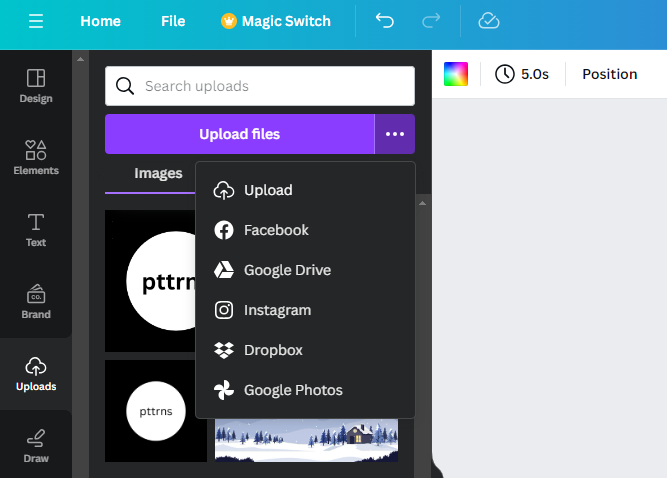
- However, if your image isn’t on your PC, click on the three horizontal dots button next to the Upload files button and select the source from which you want to upload the image.
- Now wait for the image to upload, and once done, drag the uploaded image onto the frame that is added to the design, and you’re left with a clipping mask effect.

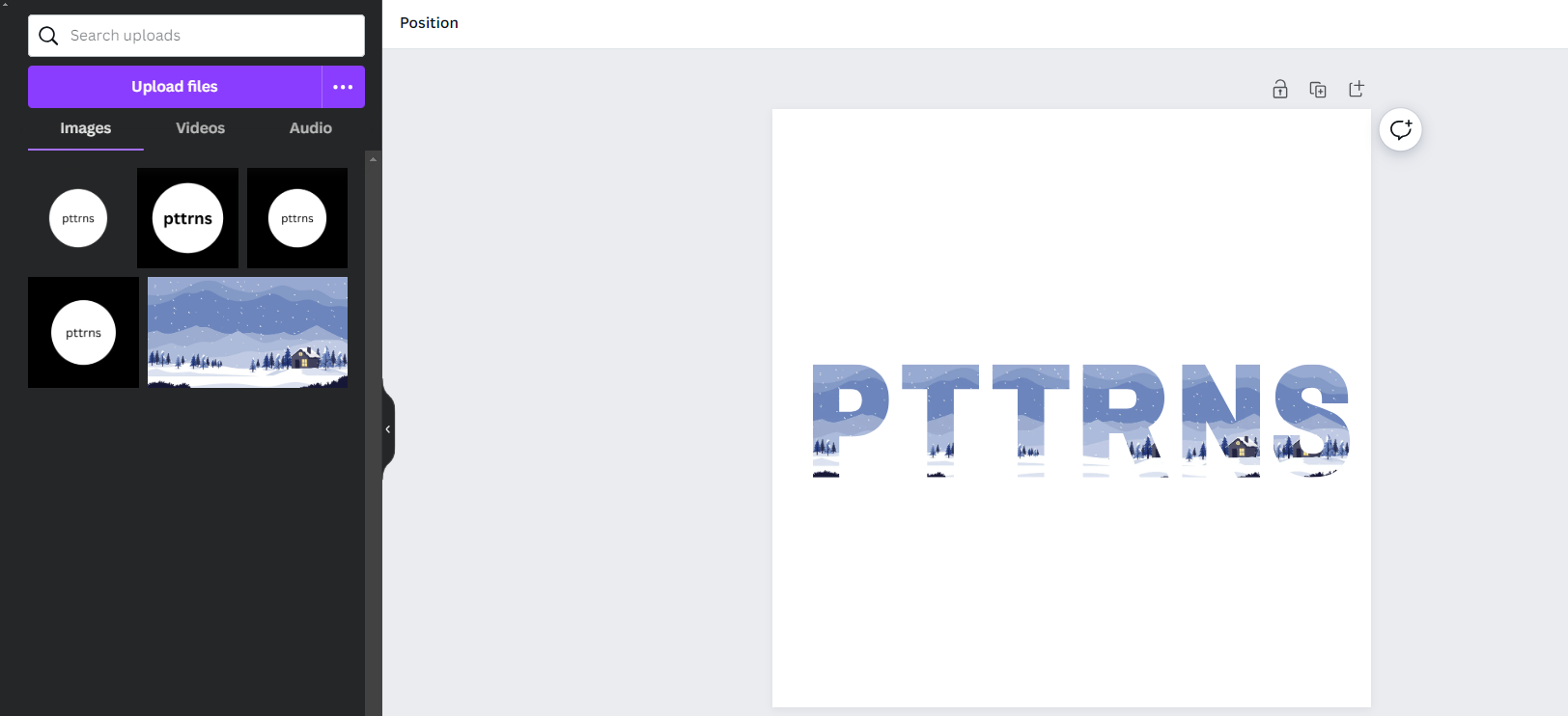
Pro Tip: To avoid undesirable results, ensure the frame and image’s dimensions match perfectly. If you’re using multiple frames, make sure that the image is well integrated, leaving no uncovered spaces like below.
Wrapping Up
Congratulations on mimicking the clipping mask on Canva!
While this isn’t the right way to create clipping masks, this is the closest you can get due to the lack of tools to create one in Canva. If you aren’t satisfied with the result or looking to create a clipping mask, leave Canva and do it on Adobe Photoshop.





