
 Pttrns
Canva features a vast collection of tools, and the best part is they are reliable for editing purposes. In this guide, we will help you add shadows to text and images in Canva through these tools so you can enhance the designs further.
What we cover
Add Shadow to Photos/Image in Canva
- Start by navigating to Canva and logging in with your credentials. Once you’re signed in and are on the Canva Home, navigate to Recent designs and click on the project you’re working on.

- However, if you haven’t started yet, click on the Create a design button and choose the design, or click on the Custom size button and enter dimensions to create a custom design.

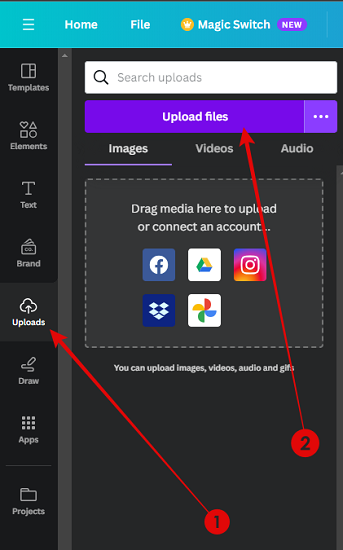
- With new/existing/custom design loaded, navigate to the Editor panel on the left and click Uploads. Now, from the uploaded images, click on any to add them to the canvas. If none exist, upload by clicking on Upload files or using free Canva images from the Elements tab.
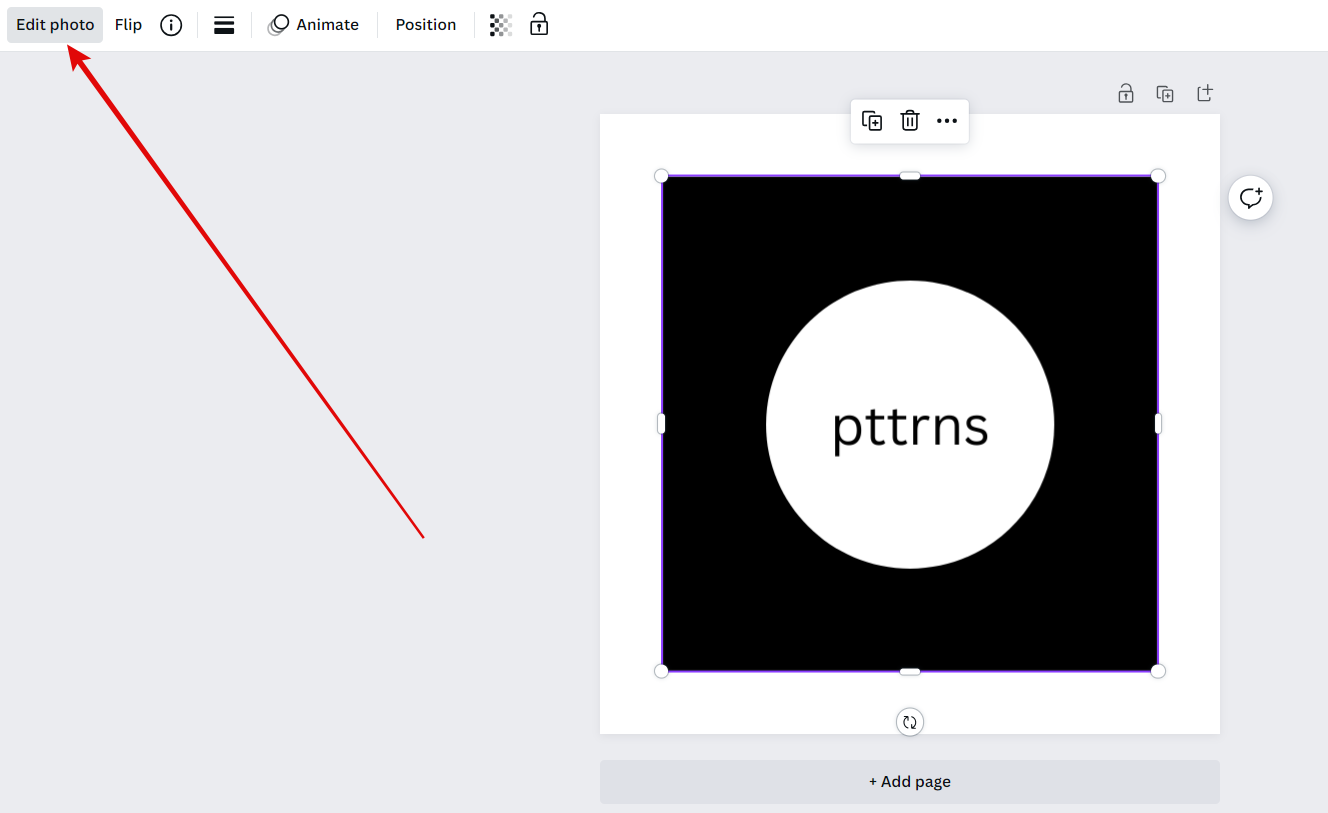
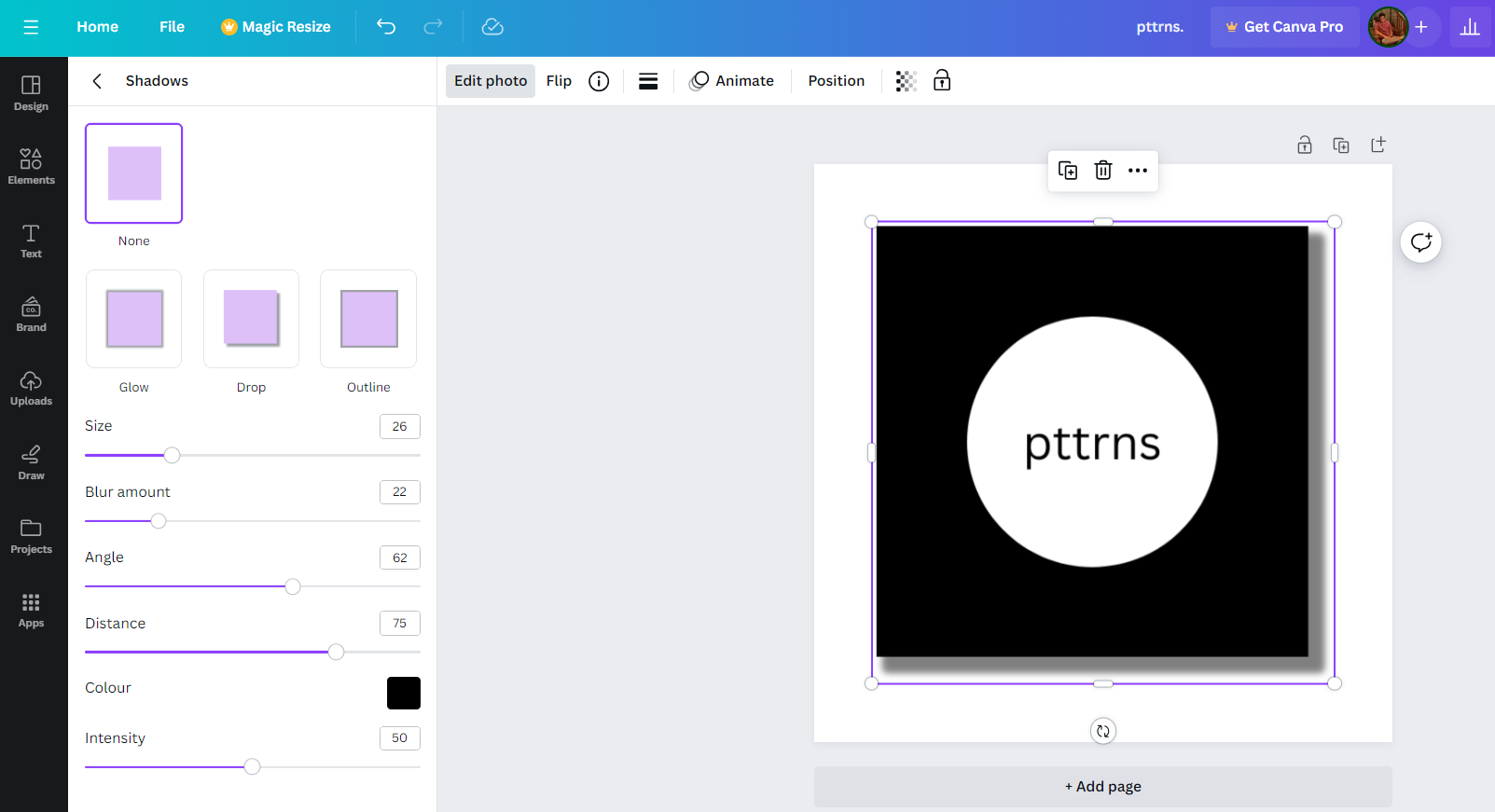
- After the image/photo is added to the design, click on it to select it. By doing so, you’re displayed with options on the top. Next, navigate to Edit photo and click on it.
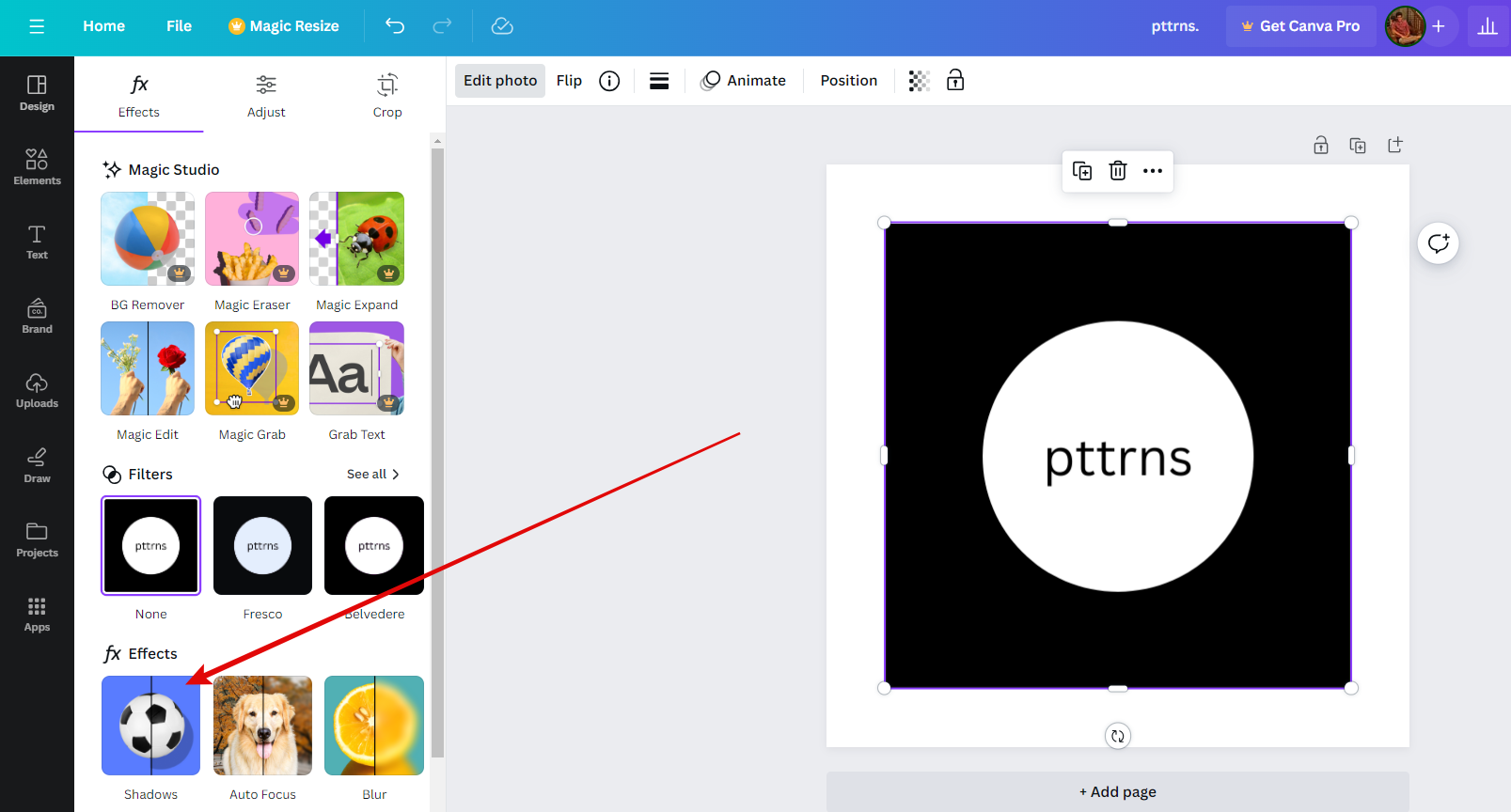
- If you have done it right, you will find the Effects tab on the left. Now, navigate to the Effects section and click on Shadows.
- On clicking Shadows, you’re displayed with the Shadows tab, where you can select between different shadows to apply to your image. While all shadow presets are useful, we suggest using the one that best matches your requirements. Also, adjust the sliders associated with the preset for better results.
Add Shadow to Text in Canva
- Refer to Steps 1-2 to open new/existing/custom design, and once done, press T to add a text box to the design.
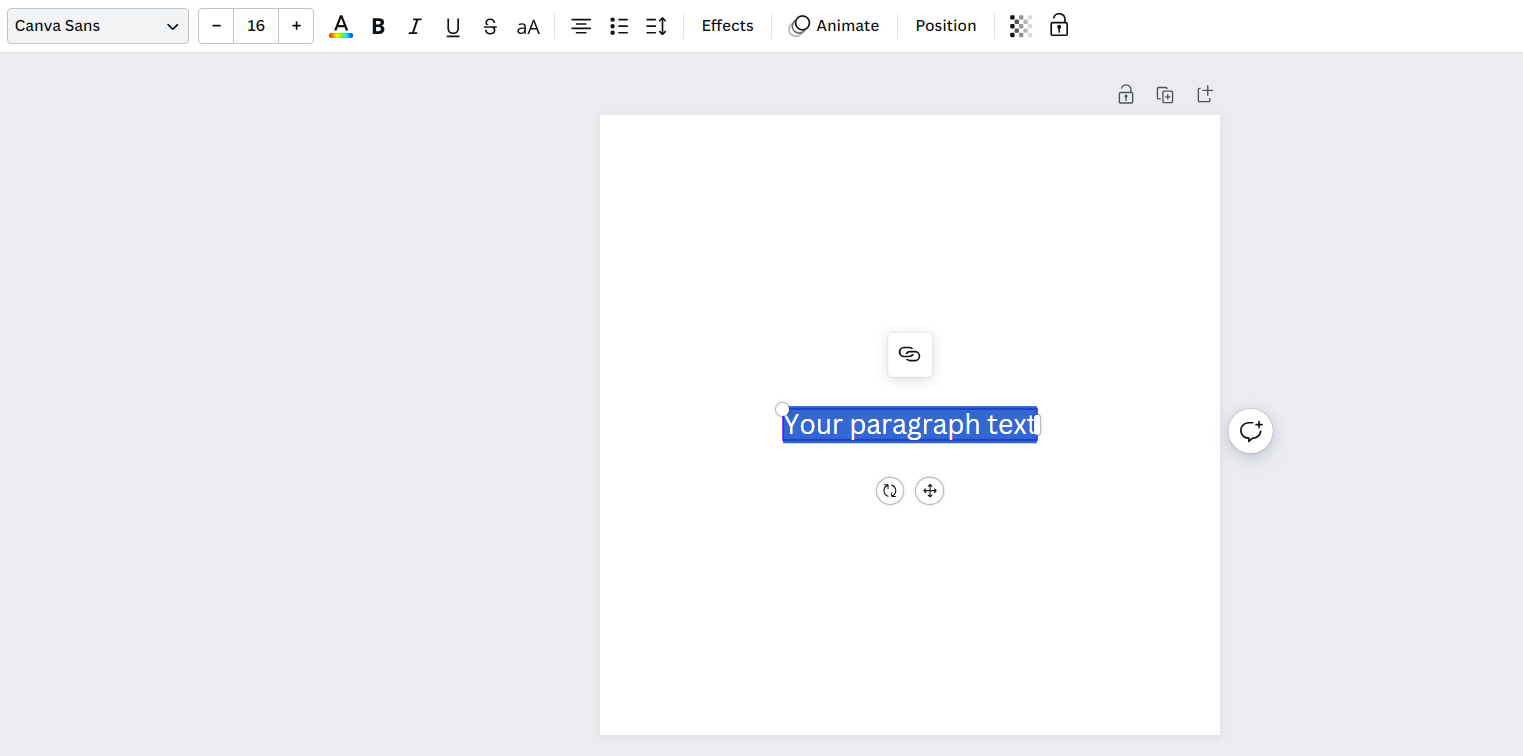
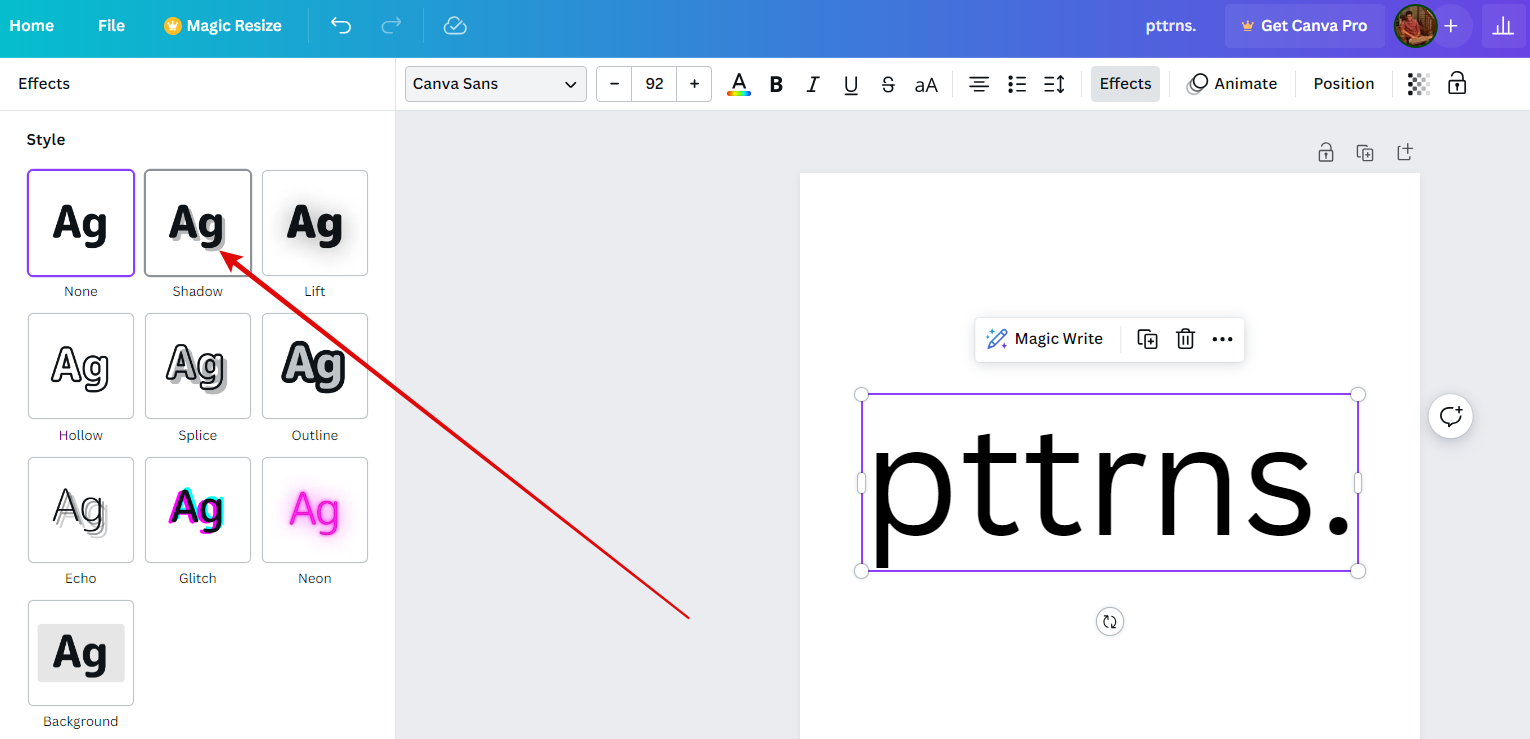
- Now replace the text inside the text box with yours and click on Effects from the options displayed at the top. By doing so, the Effects tab is displayed on the left; navigate to the Style section and click on Shadow.
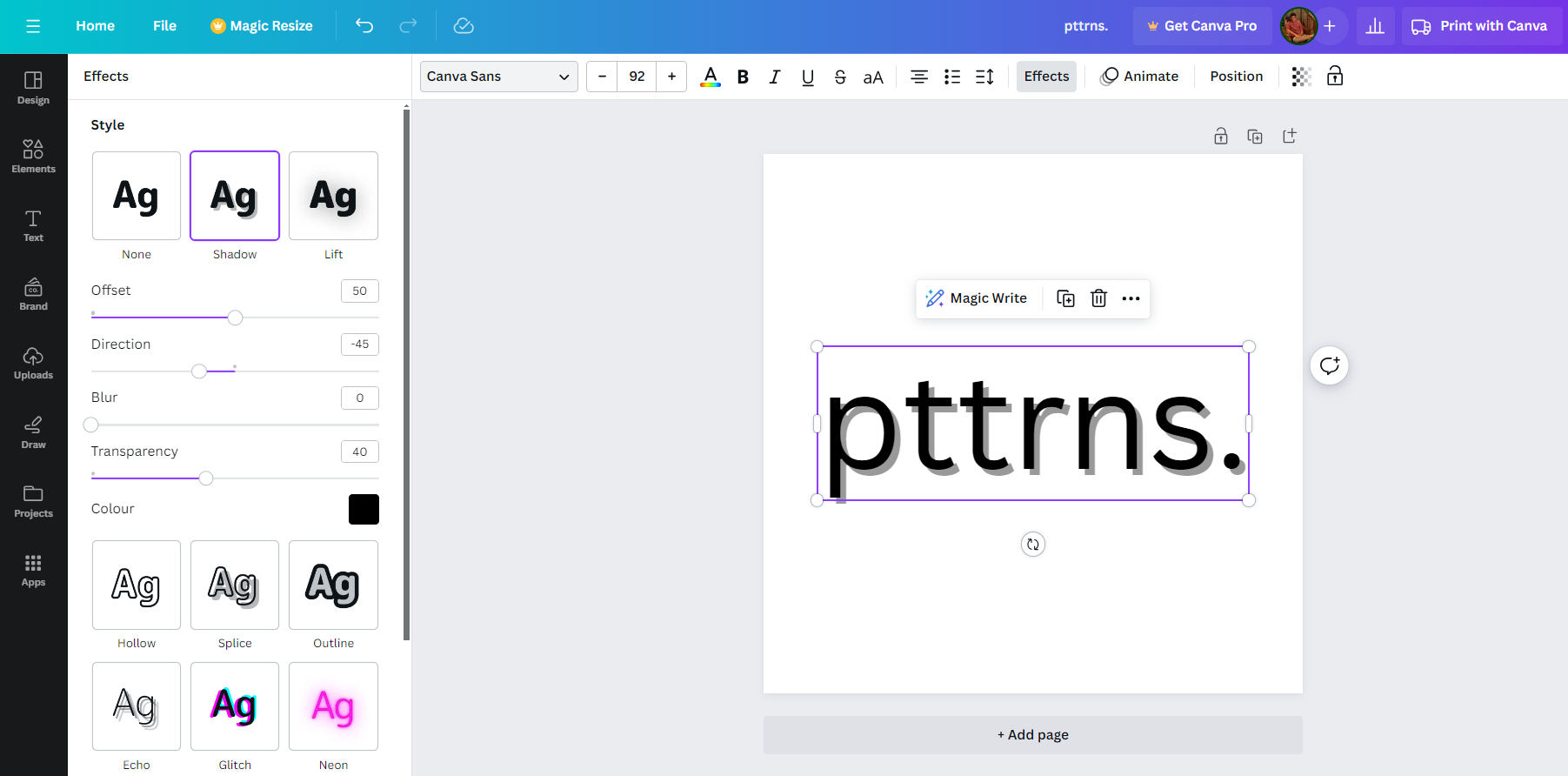
- After the shadow effect is applied, adjust the associated sliders until you’re happy with the result.
Wrapping Up
Congratulations on adding shadow to text and photos/images in Canva!
While Canva is arguably the best tool to add shadows to the text and images, if you aren’t happy with the results, use conventional photo editors like Adobe Photoshop or text editors like Microsoft Word for the best results and flexibility.
Related Reading
How To Overlay Images in Canva





