 Pttrns
Learning how to mirror an image is important as it helps you to create symmetrical designs, correct orientation issues, or design them for specific purposes like printing on certain materials or creating reflections in graphical designs.
If you’re trying to do the same, follow the easy steps below to mirror an image in Canva.
What we cover
Mirror Images on Canva – PC
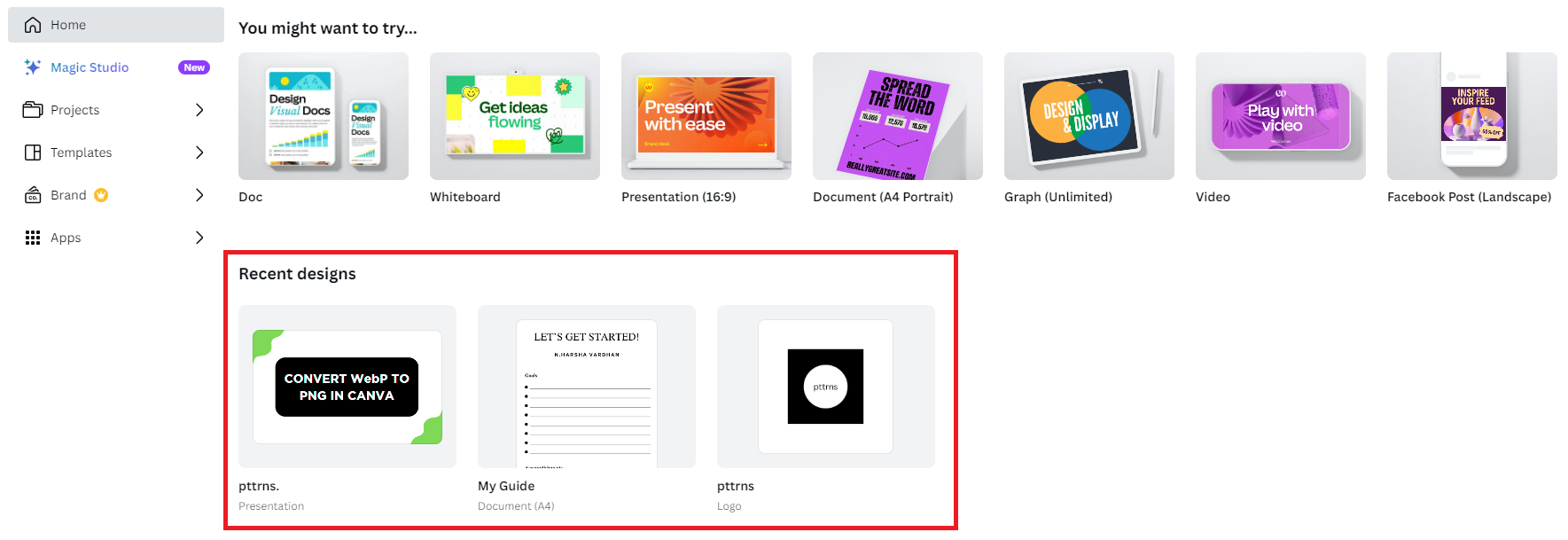
- Start by navigating to Canva and sign in with your credentials. If you’re already working on a project, open it by clicking on it from the Recent designs section.
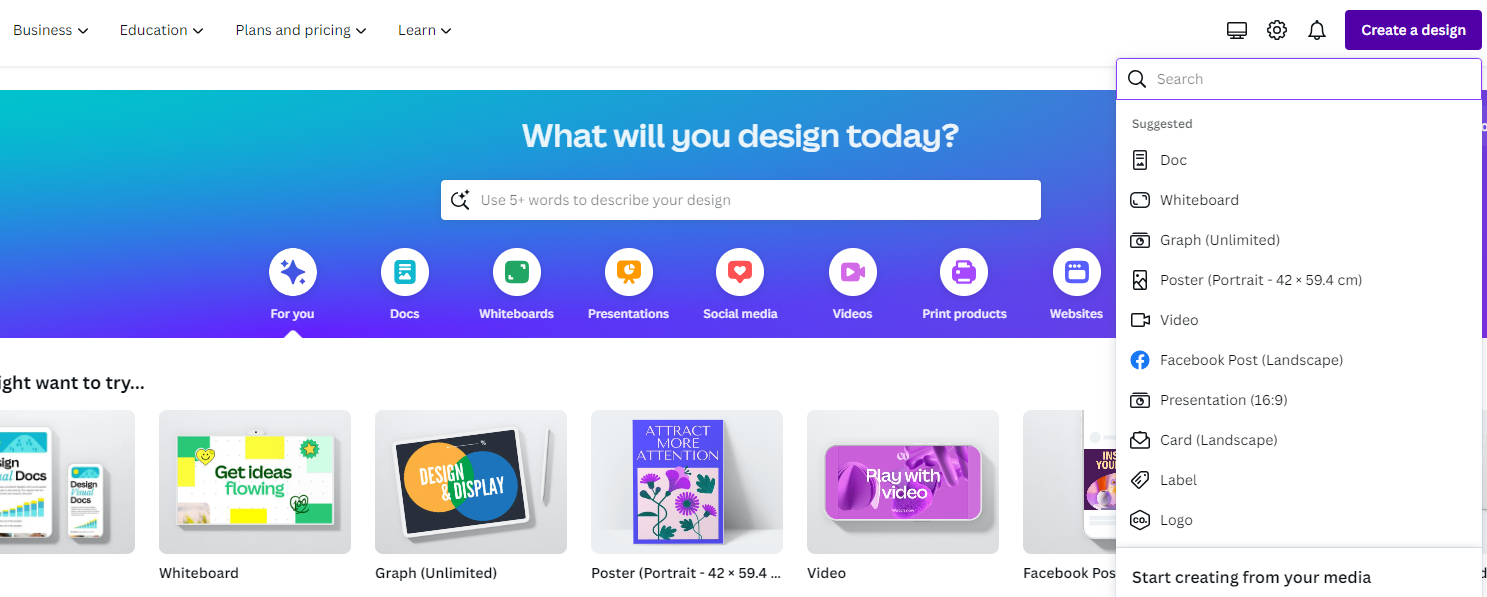
- If you haven’t started yet, do it by clicking on Create a design present at the top right corner and then choosing a design.
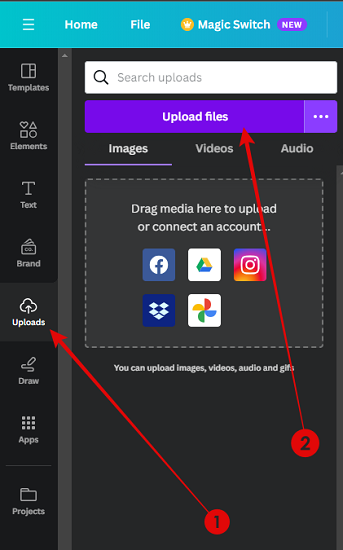
- Once the new/existing project is loaded, navigate to the Uploads option on the Editor panel and click on it. Doing so, you’re displayed with images uploaded to Canva. If there are none, click on the Upload Files button to upload on Canva.
- With the image uploaded and displayed in the Uploads section, click on it to add it to the design. Now, click on the picture that displays options on the top and click on the Flip option to mirror the image.

- The best part about Canva is it offers the flexibility to flip an image horizontally and vertically. This lets you recreate mirrored or symmetrical effects easily in Canva by flipping images both horizontally and vertically.
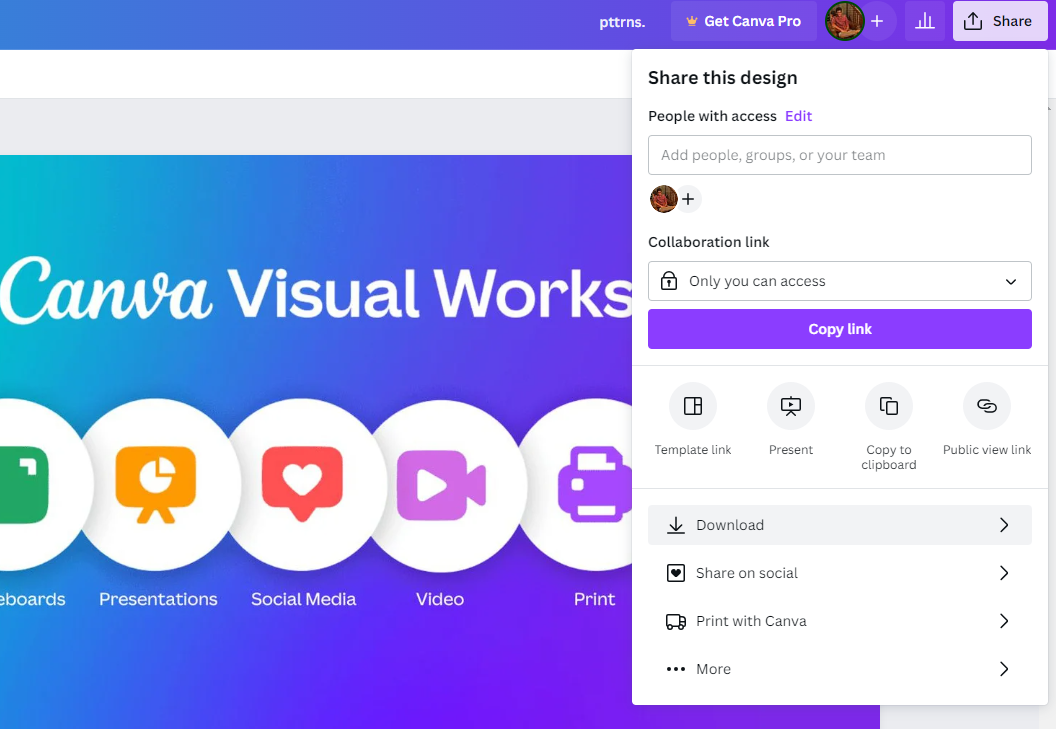
- Once you’re happy with the result, navigate to the Share button at the top right corner and click on it. Next, from the options displayed, click on Download to reveal multiple download options.
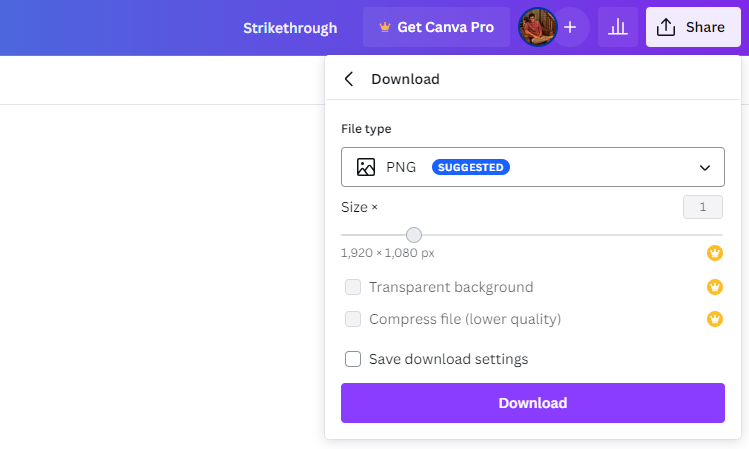
- Now, change the File type, adjust other options according to your needs, and click on the Download button.
Mirror Images on Canva – iOS & Android
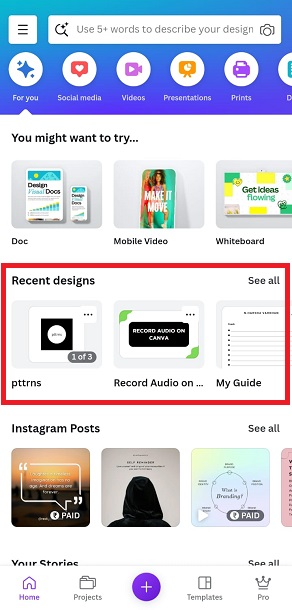
- Start by opening the Canva app on your smartphone, and once you’re on Canva Home, navigate to the Recent designs section. Next, tap on the design/project you’re working on to open it.
- If you haven’t created a project yet, tap on Plus (+), present among the options below.
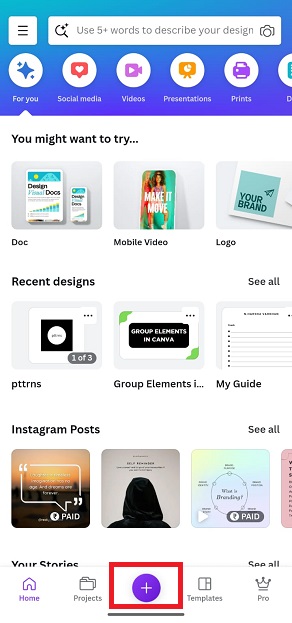
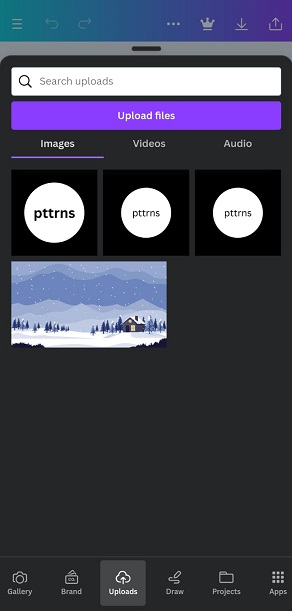
- Once the design is loaded, tap on Plus (+) to open the Editor panel. Next, swipe the options until you find Uploads. Now, tap the image displayed to add it to the design. However, if there are none, tap on the Upload Files button.
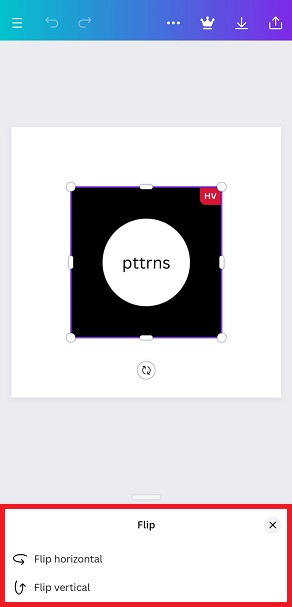
- With the image added to the design, tap on it to reveal options at the bottom. Now, swipe the options until you find Flip and tap on it. Doing so, you’re displayed with two flip options, and tapping on any flips the image.
- Once you’re happy with the result, repeat Steps 6 and 7 from the above approach, and you’re done.
Wrapping Up
Congratulations on learning how to mirror images on Canva!
If you’re not happy with the result generated on Canva, try using online image tools for ease and more customization options. However, if you’re worried about privacy working on online tools, use dedicated image editors like Adobe Photoshop or GIMP.
Related Reading
How To Curve an Image in Canva
How To Change the Shape of Image in Canva