
 Pttrns

If you have added multiple elements to a design in Canva and want to make generic changes like resizing or moving them, it would take forever when working with each individually. Hence, learning how to group elements of a design in Canva is important, and here are steps for it:
What we cover
Group Elements on Canva – PC
- Start by navigating to Canva and sign in with your credentials. Once you’re on the home screen, open the project you’re working on by clicking on it from the Recent designs section.
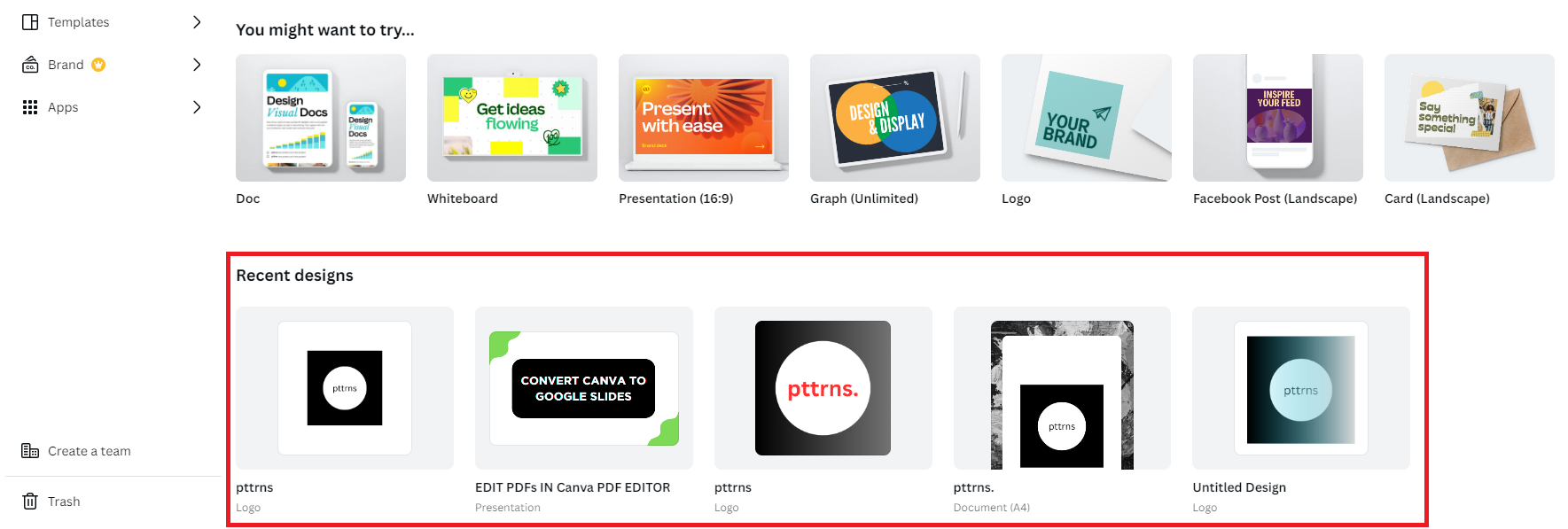
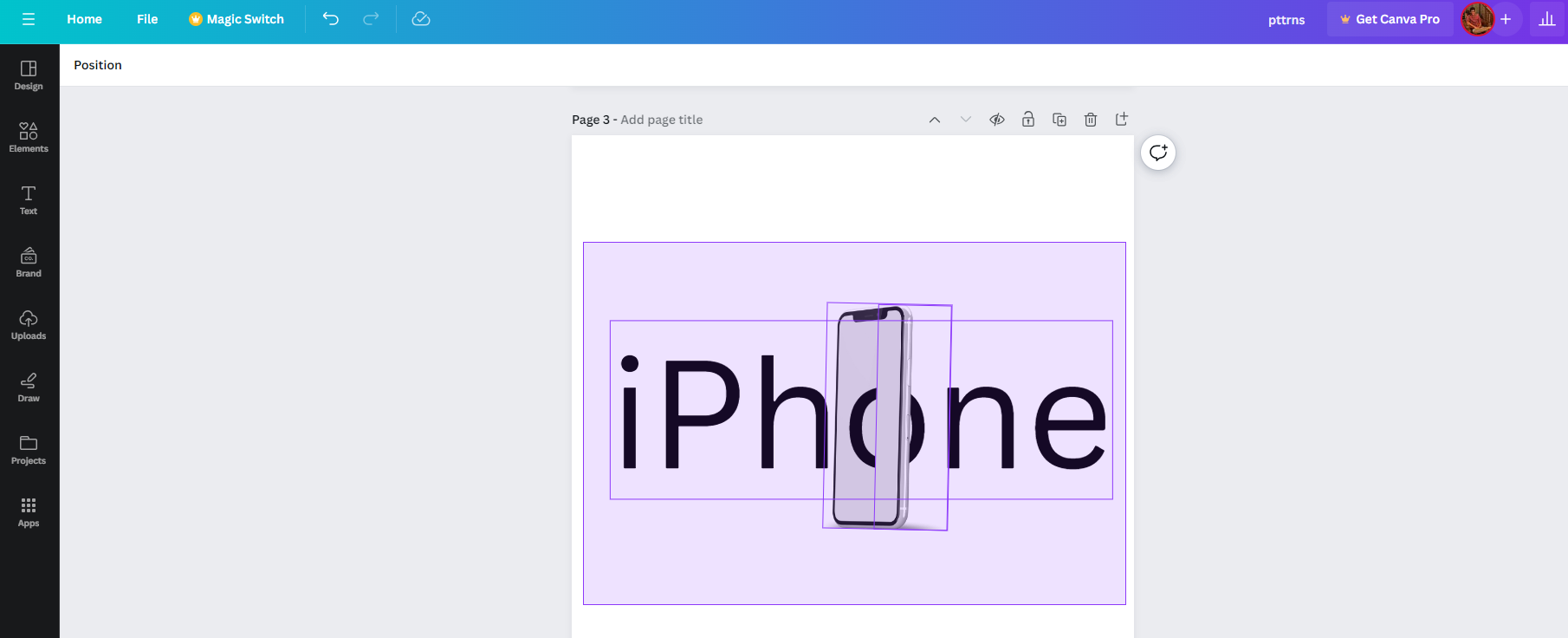
- Once the design/project is loaded, navigate to the elements and drag the cursor over them to select them. Alternatively, if you’re trying to choose specific ones of the design, click on them while holding the Shift key.
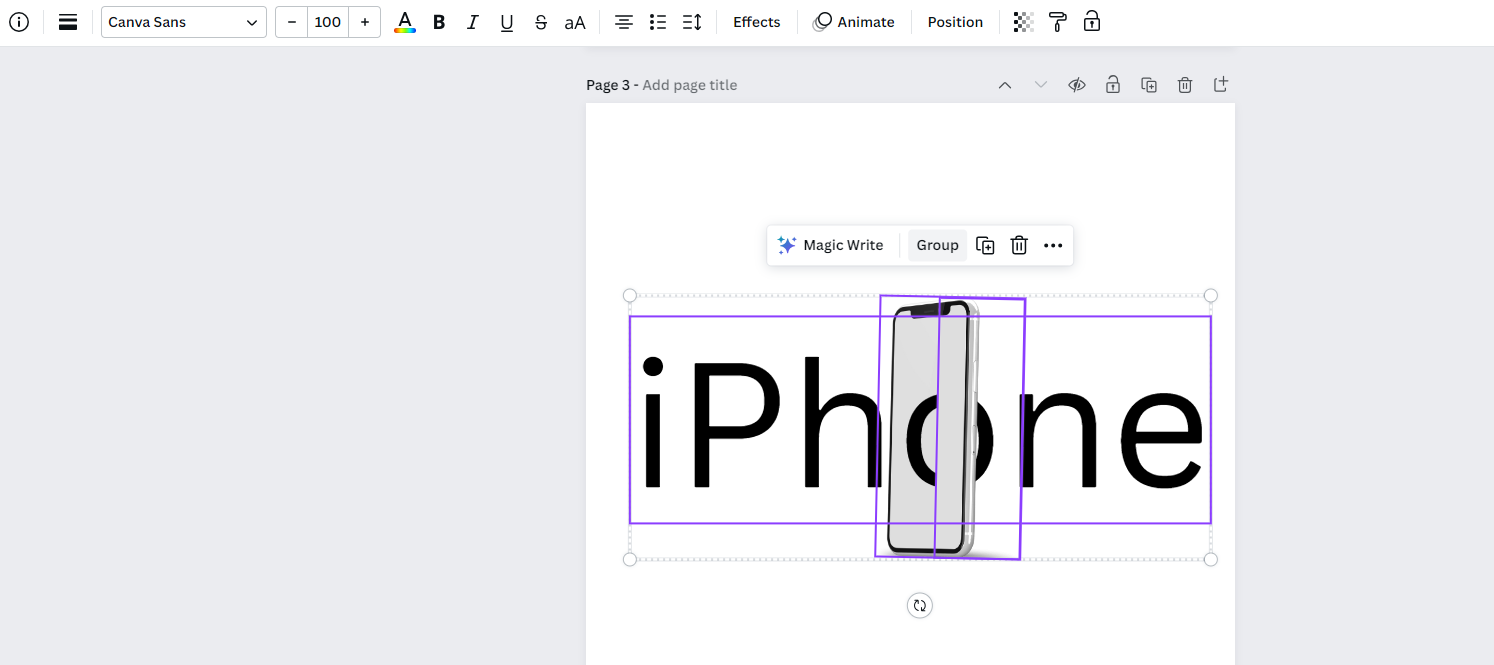
- With the elements selected, you’re displayed with options on top/bottom of the elements. Now click on the Group option to group the elements.
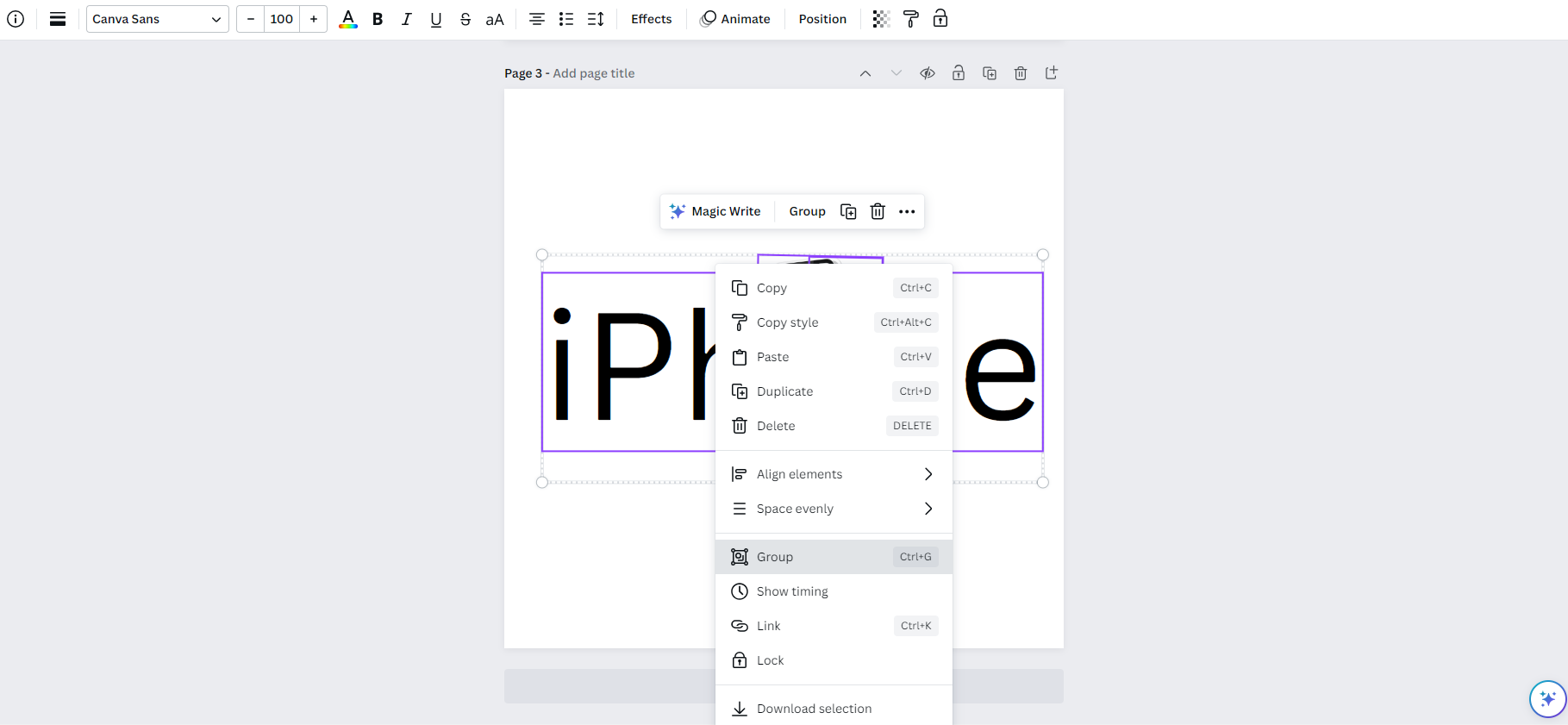
- Alternatively, if you can’t find the options, select the elements and right-click to display all available options. Now, navigate to the Group option and click on it.
- While both approaches listed in Steps 3 & 4 do the job, if you want the quickest way to group elements, begin by selecting them and pressing the Ctrl + G key combination. To undo the grouping processing, press Ctrl + Shift+ G key combination.
Group Elements on Canva – iOS & Android
While the steps for PC are straightforward, if you’re working on a design from Canva – iOS/Android, the process varies and can cause confusion. Hence, we have created steps for those using Canva on smartphones:
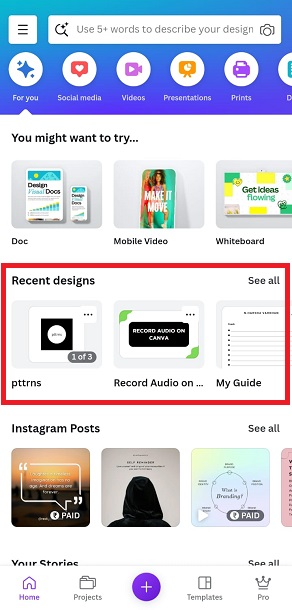
- Start by opening Canva and sign in with your credentials. Once you’re on Canva Home, navigate to the Recent designs section and tap on the design/project you’re working on to open it.
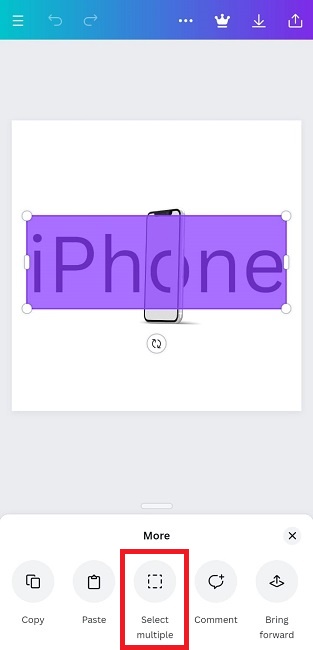
- Once it is fully loaded, long press any element on the design to display the More section at the bottom. With the options displayed, look for Select multiple and tap on it.
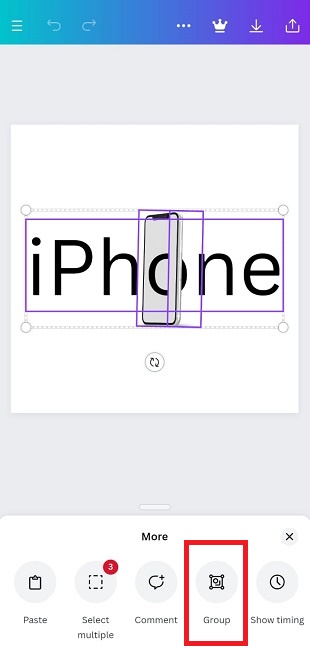
- By doing so, you can begin selecting elements of the design. Once you’re done with the selection, navigate back to More. Next, swipe left to find the Group option and tap on it to group the selected elements.
Wrapping Up
Congratulations on grouping elements on Canva!
The above listed are arguably the only approaches available to group elements on PC, iOS & Android. While there are no alternatives and complaints for this, if you want more control over the elements, prefer making the changes on Canva PC rather than on a smartphone to save time.