
 Pttrns

Freehand crop is important as it offers precise and customized image editing. Many consider this over the conventional crop as it allows creative freedom and provides the ability to remove unwanted portions effectively.
While it is an extremely useful tool, unfortunately, most tools and software don’t feature one, including Canva. To address this, we have found a way around Canva and also provided alternatives that offer better results.
What we cover
Freehand Crop Image in Canva using Frames
- Start by navigating to Canva and open the project you’re working on. Wait for it to load completely to get started.

- If you’re working on a new design, start by uploading the image by clicking on the Uploads on the left and then the Upload files button. Now, select the image you want to work from your PC or cloud.
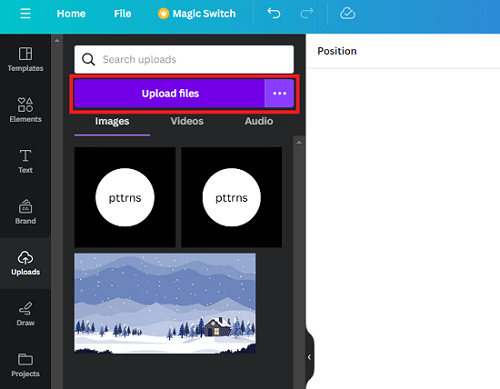
- Once the image is added, drag and drop it into the design. Next, navigate to Elements on the left, and in its associated search box, type Frames and hit Enter.
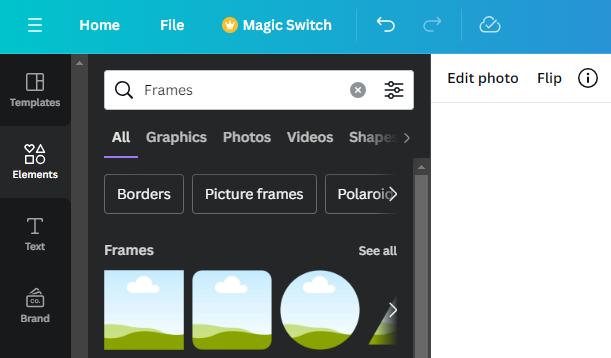
- After the results are displayed, click on See all next to Frames. By doing so, you can find multiple frames. Now drag and drop the frame to the design that matches the shape you want to crop the image.
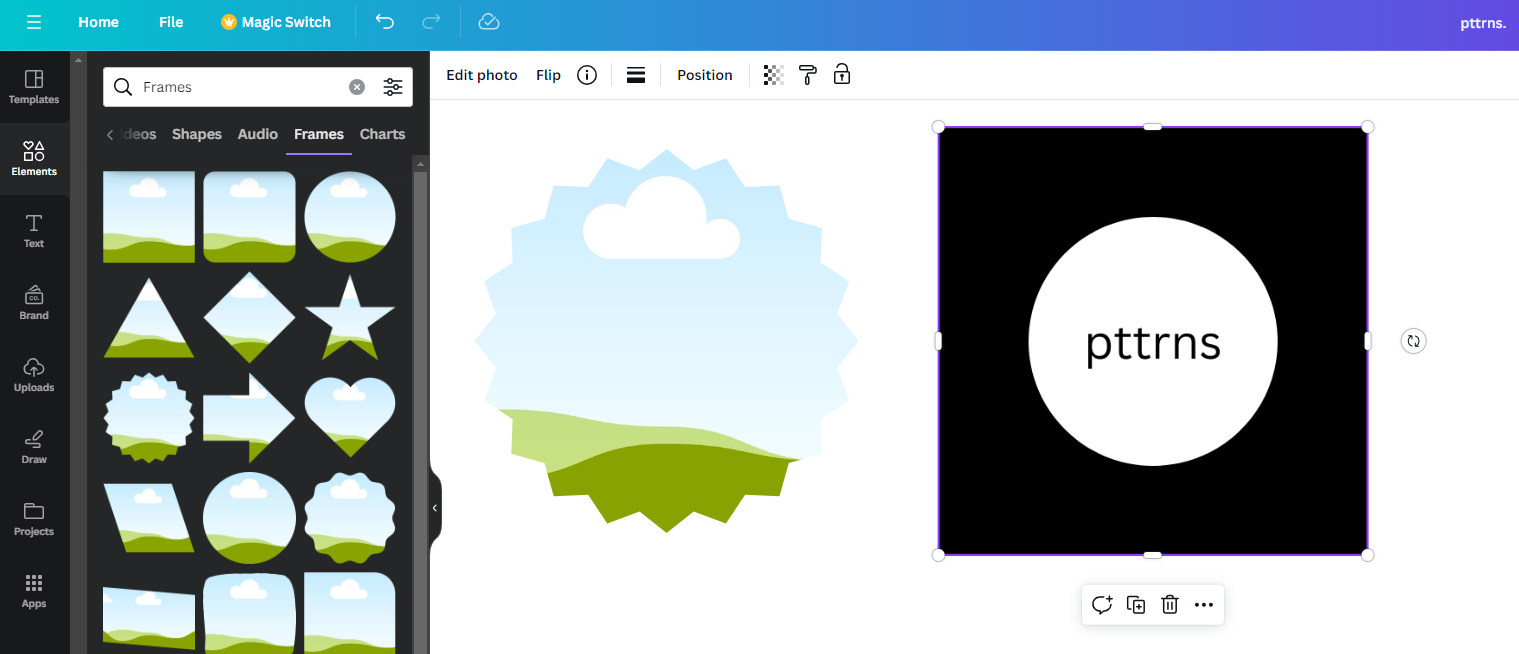
- With the frame and image placed on the design, drag the image onto the frame, and once the image preview appears on the frame, drop it.
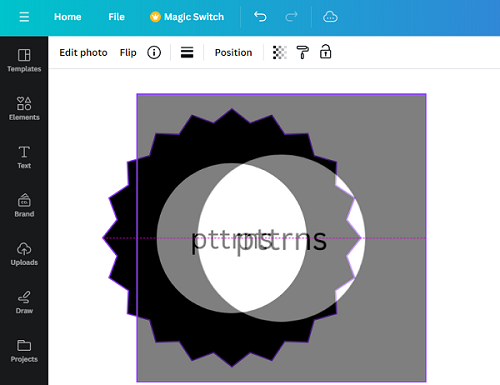
- Here is the result after the image is attached to the frame. If the image doesn’t fit into the frame as expected, change the frame for a better result.
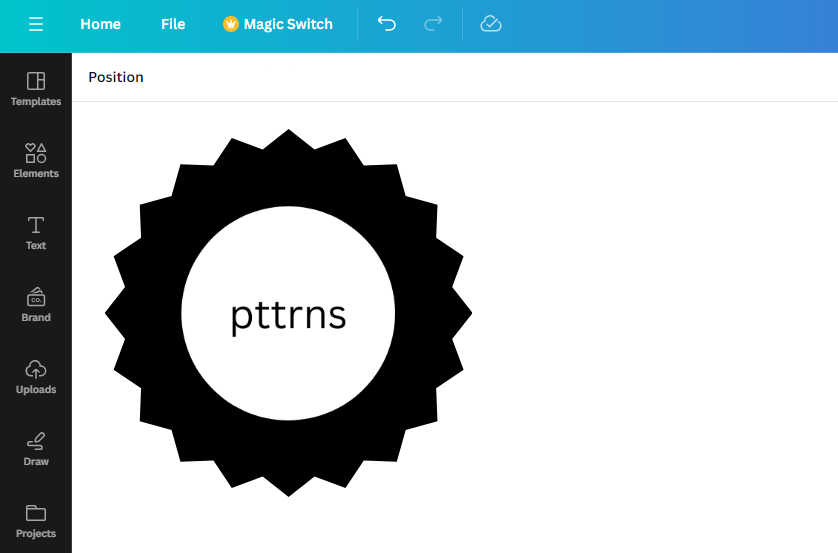
Freehand Crop an Image using Paint
With Canva lacking a dedicated tool for freehand cropping and the way around using frames rarely working, it is important to look for an alternative. For this purpose, we have searched for multiple alternatives like online tools and image editing tools, but only a few offered freehand crop tools.
Unfortunately, most of these required learning or need a subscription to use, so we relied on our all-time favorite Paint on Windows, and here are steps to freehand crop on it:
- Start by pressing the Windows key and searching for it. Paint in the Search box and click on the first result to open it.

- After Paint is loaded, click on the File option above the toolbar. Now, from the options listed, click on Open and select the image you want to work on.
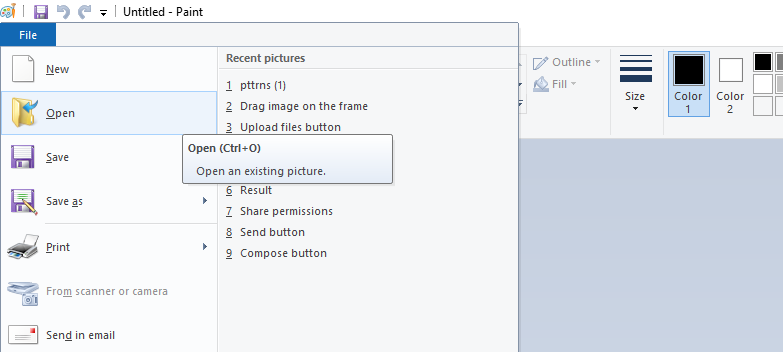
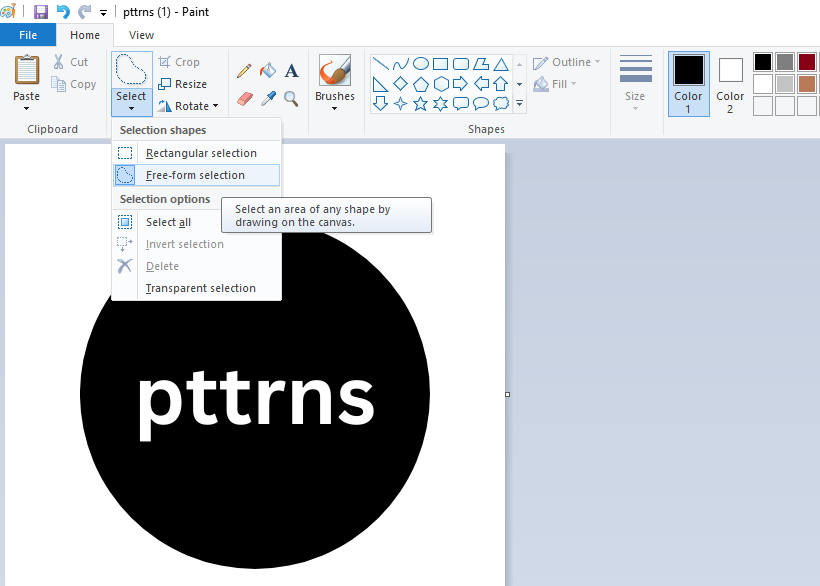
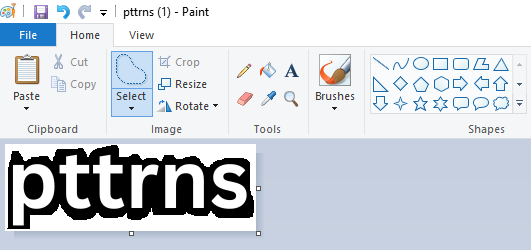
- Once the image is added to Paint, navigate to the toolbar and click on Select. Next, click on the Free-form selection to get started.
- After you have selected the area by drawing on the canvas, click on Crop next to Select.
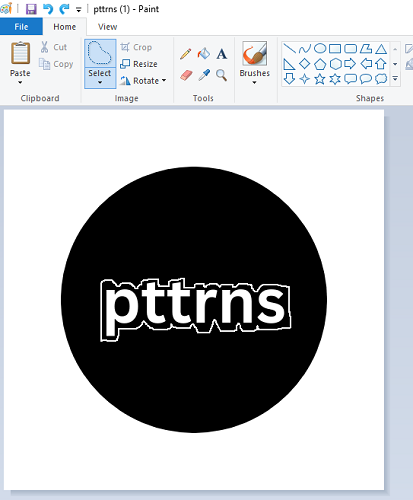
- Once you’re happy with the result, save the image by clicking on Ctrl + S, and you’re done.
Wrapping Up
Congratulations on learning how to freehand crop an image in Canva!
We suggest you use Canva only if you want to crop an image using unique shapes. If you’re looking for a reliable alternative, the best approach is Paint.
However, if you’re unhappy with both, we suggest using open-source photo editing software like GIMP or paid software like Adobe Photoshop for more control and customization.
Related Reading
How To Fix Canva Images Not Downloading





