
 Pttrns

If you have added a link to a design in Canva and if it didn’t work, there could be multiple reasons. Before getting into each and offering a fix, let’s start with recalling the steps to add a link in Canva.
What we cover
How to Add Link in Canva
- Start by opening the design you’re working on from the Recent design section on the Canva home. If you haven’t started with any, click on the Create a design button at the top right corner and select a design.
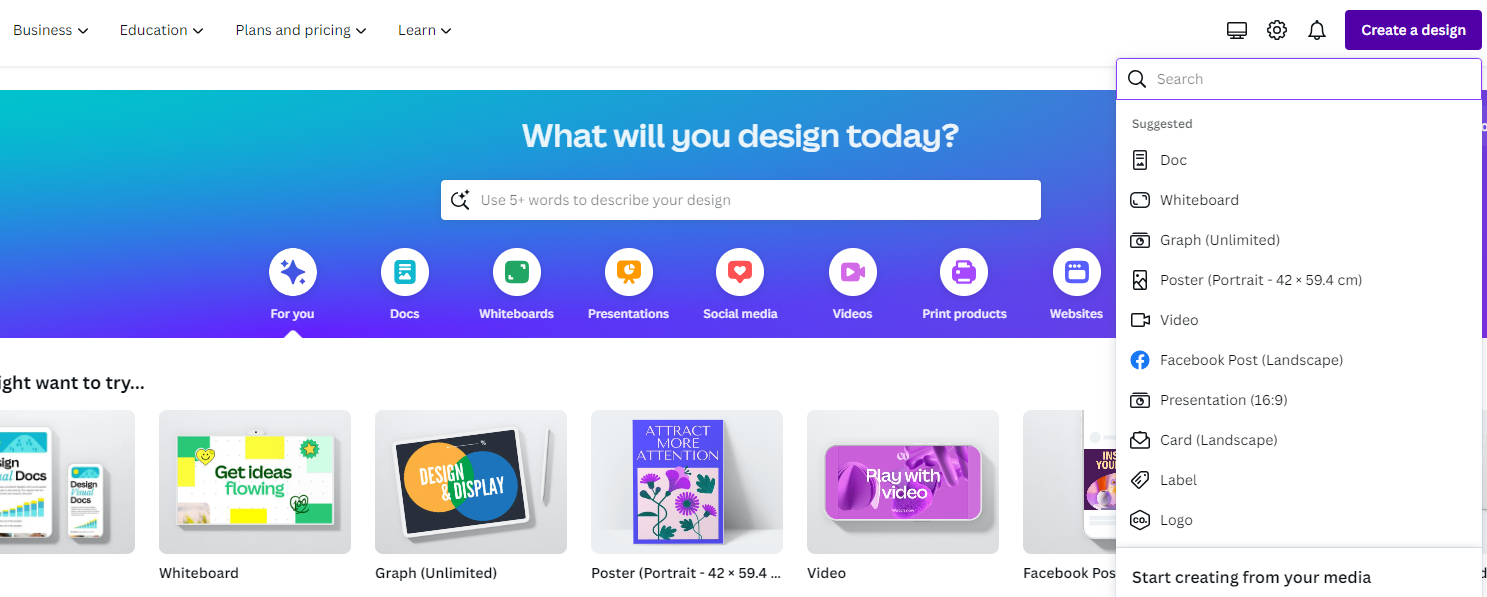
- After the design is loaded, add a text, button, or any interactable element. Once it is added, click on it to select it and press Ctrl + K / Command + K key combination to add a link.
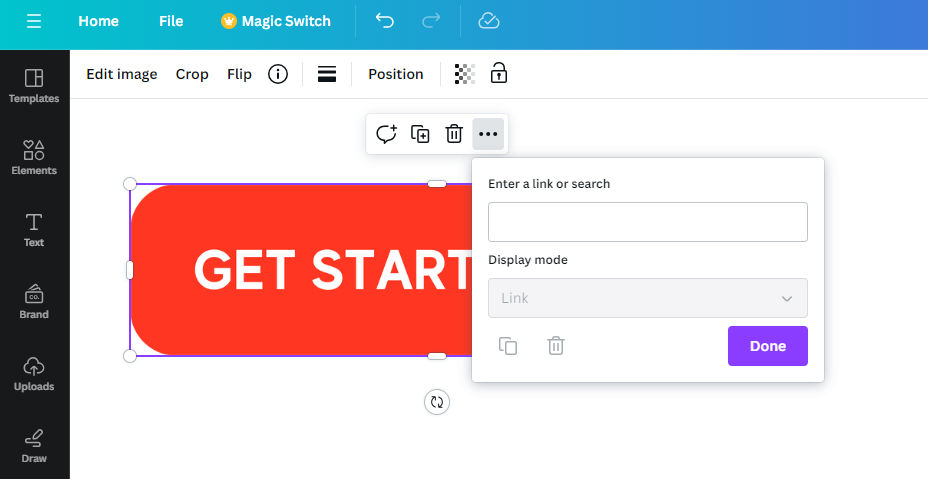
- After you’re done adding the link, click on Done, and you have successfully added the link to the design.
Fix Canva Link Not Working
Considering the above steps, which have guided you to add the link properly, you might think that there would be no issues if you followed them. While they are correct, look for below factors that can prevent the link from working:
Note: Before downloading or sharing the design, make sure to click the preview link as a safety measure to find issues with the link sooner.
- Always enter the complete URL and ensure you made no spelling mistakes like the below image before adding it to the design.
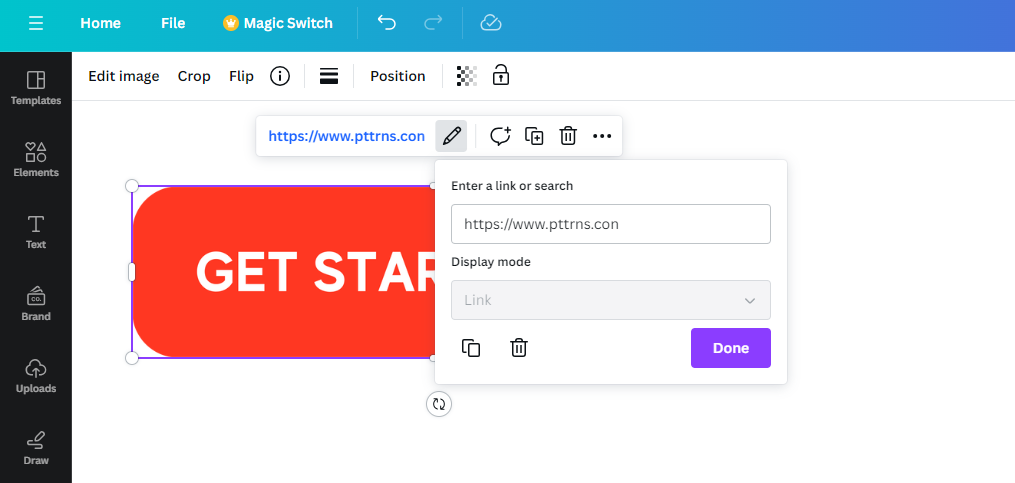
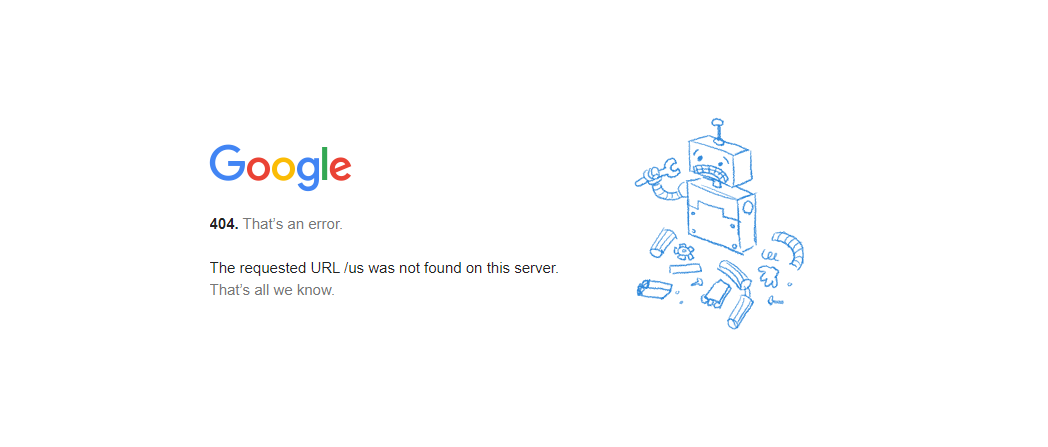
- The link that you have added might be broken [Error 404] or is blocked by Canva to keep you safe from potentially unsafe links. Hence, before adding the link, ensure it is safe and working.
- Ensure your Canva account has no access restrictions and you’re not trying to access a design using the wrong account or team to avoid a Forbidden (403) error.

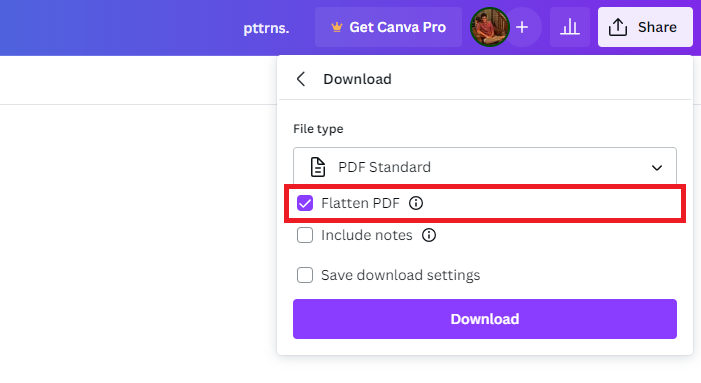
- If there is no problem with the link and the preview works fine, but after downloading, if the link cannot be interacted with, it could be due to a flattened PDF. To avoid this from happening, do not select the Flatten PDF option while downloading the PDF.
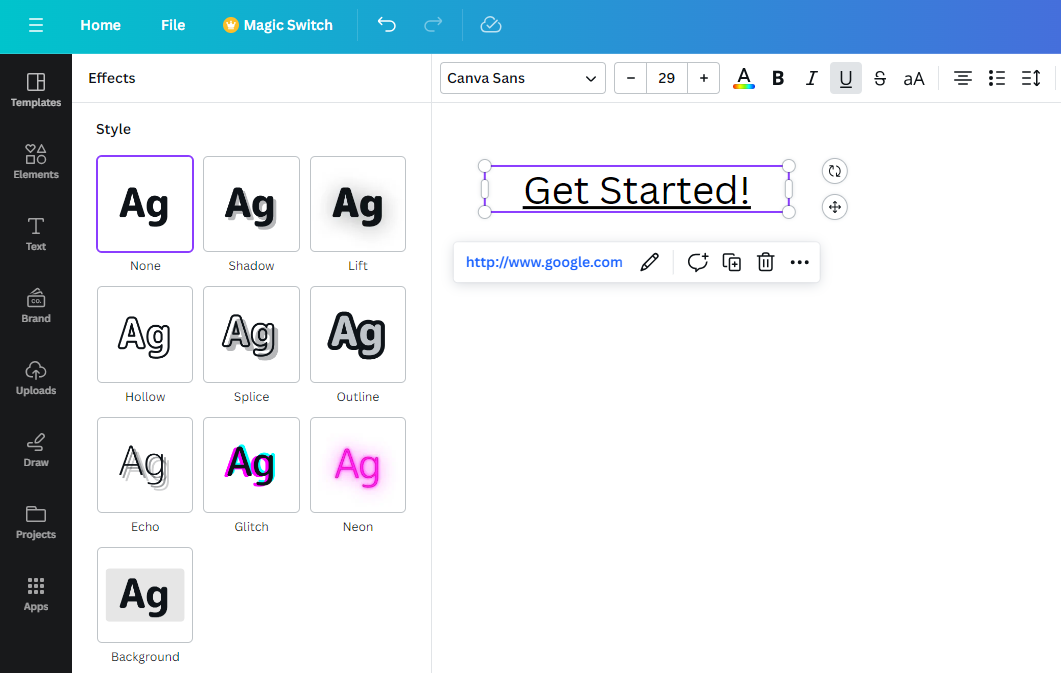
- Canva seems to have issues with certain text styles [Neon and Lift], and if you added links to the text featuring it, they cannot be interacted with. To avoid this from happening, always set the style to None.
Wrapping Up
Congratulations on fixing the issue that is preventing the Canva link from working/interacting!
The above-suggested solutions fix most issues responsible for preventing Canva links from functioning. Suppose none of the above solutions have resolved the issue. In that case, we suggest considering other alternatives like Google Slides for presentations, Adobe Acrobat for PDFs, etc., to make the links work again.





