
 Pttrns
Canva offers exclusive tools and features to work with, making it arguably one of the best design tools. While animations are offered on Canva, unfortunately, animate on click isn’t available yet.
To address this, we have tried to mimic, but none has worked. Hence, we will guide you with something similar where animation plays on set conditions, and here are the steps for it:
Animate an Element in Canva
Note: There aren’t specific steps to explain the animation process, as it can be performed in multiple ways. To give you a better understanding, we have come up with a small demonstration that guides you through the entire process.
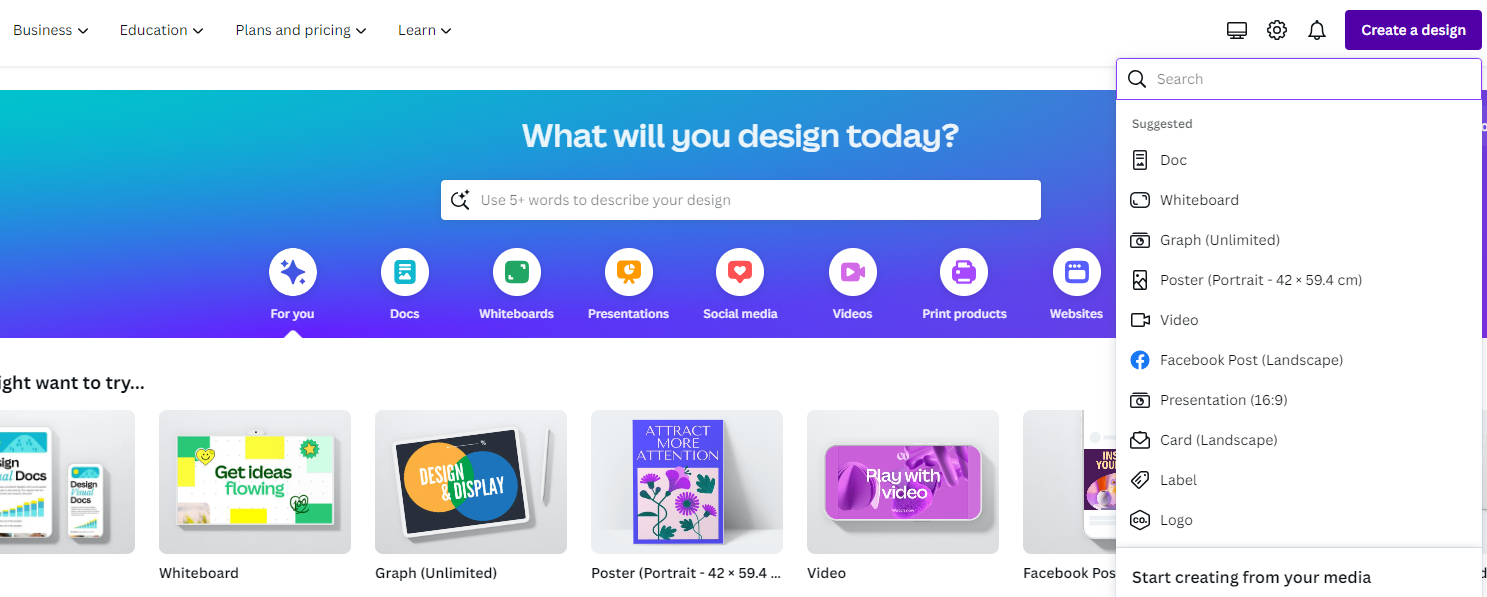
- Start by navigating to Canva and sign in with your credentials. Once you’re signed in and are on Canva Home, get started by clicking on the Create a design button and choosing a design.
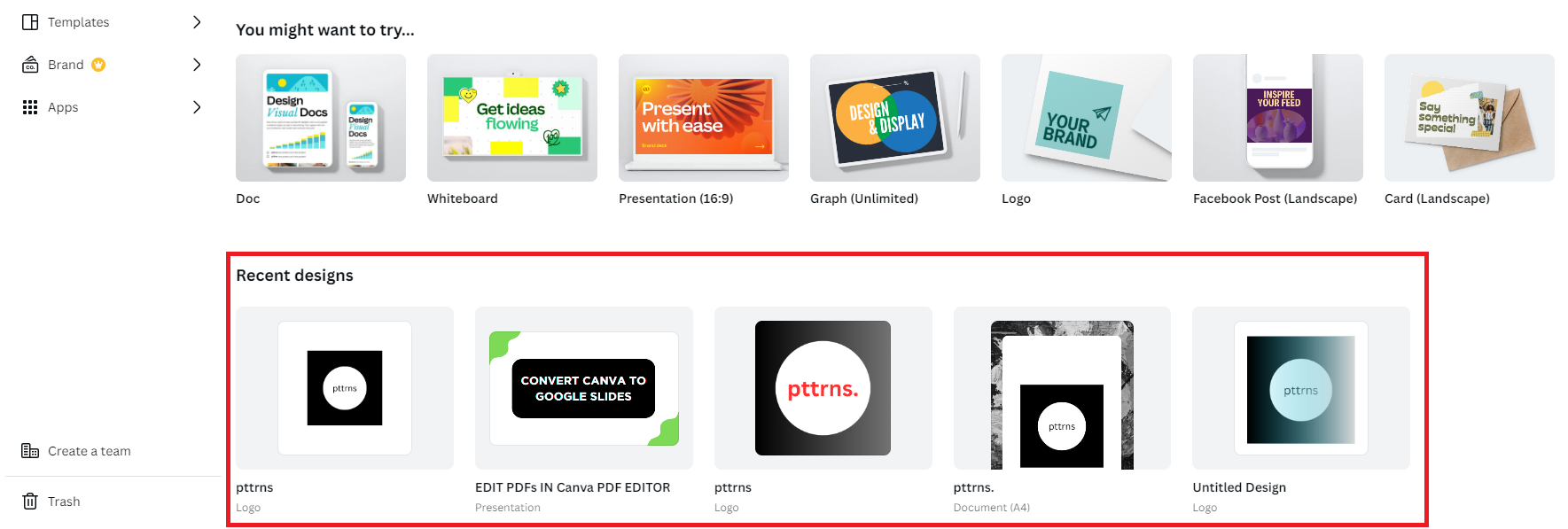
- However, if you have started working on a project, you can open it from the Recent designs section located on the home screen.
- Once the new or existing design is loaded, start by adding any element, which can be text, graphics, shape, image, etc. For demonstration, we have chosen to work with an image.
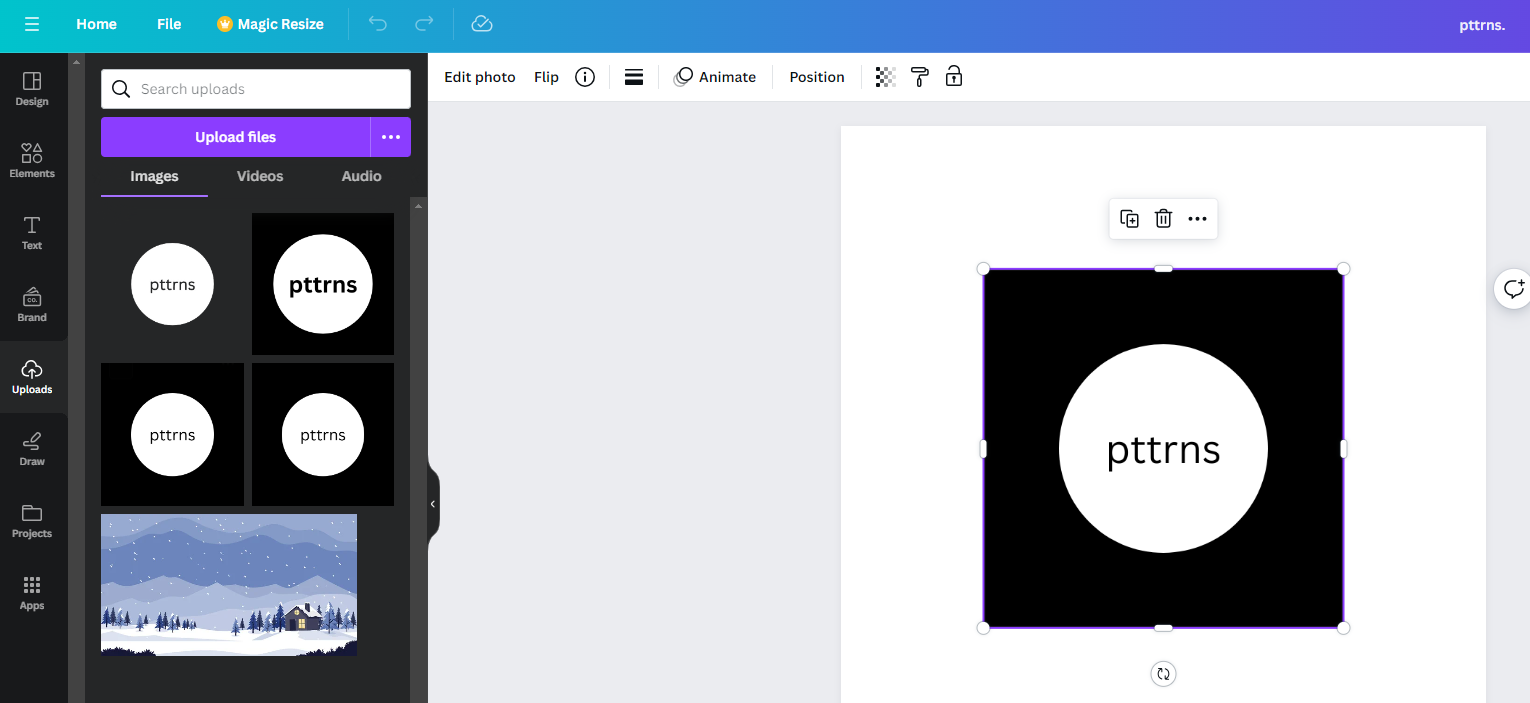
Quick Tip: To add an image to the design, click on Uploads from the Editor panel on the left. Next, click on the image you want to add to the design. If you haven’t uploaded anything yet, do it by clicking on the Upload Files button.
- With the element added to the design, click on it to reveal options at the top. Now, navigate to Animate from the available options and click on it.
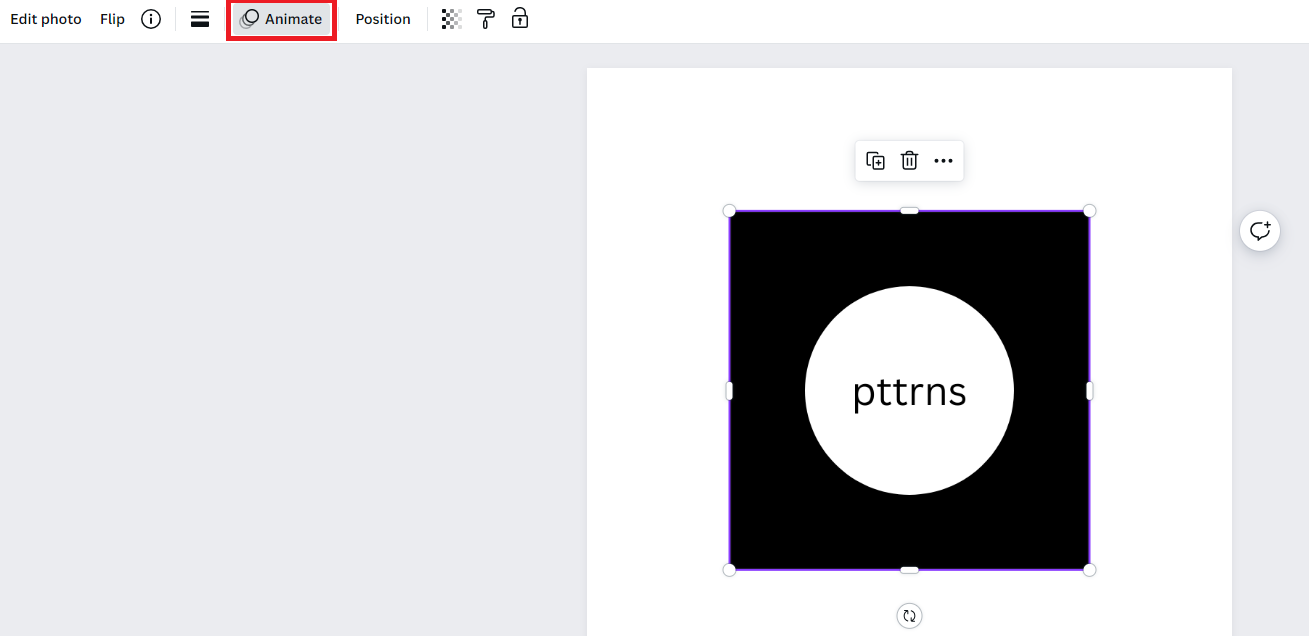
- By doing so, you’re displayed with multiple animations on the left. Now, hover your cursor on to any and look at the preview on the right. Once you’re satisfied with the animation, click on it to reveal its options.
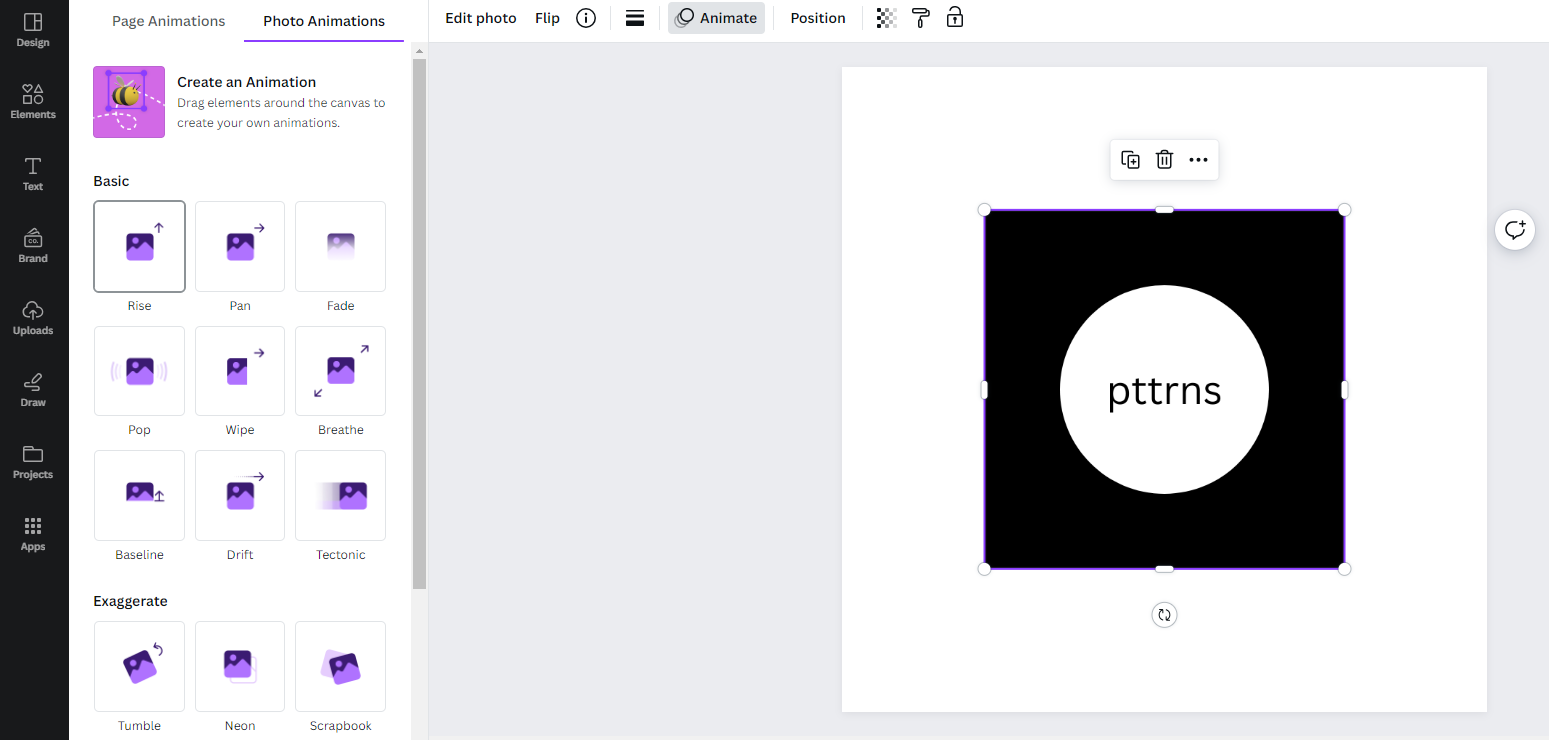
- From the available options, look for the options under Animate and set the condition. For instance, we have selected Both, which makes the animation performed on enter and exit.
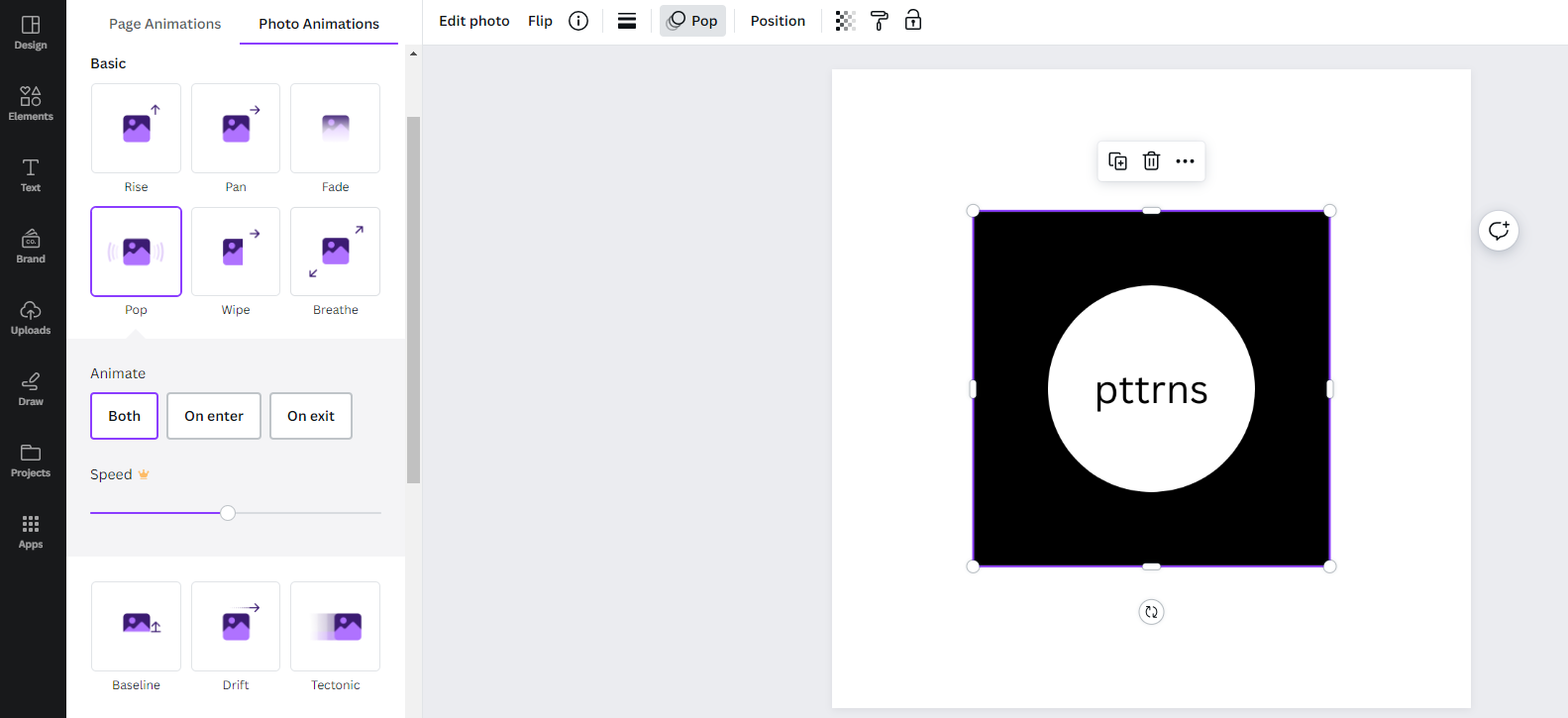
- Once you’re happy with the result, click on Share > Download > Download button to download the design. While doing so, ensure you set the File type according to your requirements. If you have done it right, you might have a result similar to the one below.

Wrapping Up
While Canva excels at most, it has turned a letdown by not offering animate on click feature/tool. Hence, we have explained how to add animations to the design as an alternative.
However, if you’re willing to leave Canva and want to achieve animate on click, you can do it on Figma, but at the cost of learning and the difficulty of adding everything manually.





