
 Pttrns
The best part about Canva is it allows you to work with different file formats, and if you’re trying to import PPT to Canva, you’re covered. In this guide, we will help you import PPTs to Canva in multiple ways so that you can get started with seamlessly managing and editing your PDFs.
What we cover
Before proceeding with the Import
While Canva is arguably one of the best online design platforms that offer flexibility to edit and manage PPT/PPTX files outside conventional software, it does have some restrictions and limitations. Here is what you have to consider:
- Canva allows the PPT/PPTX files to be imported only when they’re under 70MB. Also, the PPT/PPTX file you’re uploading must have 300 pages or slides and below.
- Ensure you find alternatives to the Charts, SmartArt, 3D objects, and WordArt, as they cannot be imported to Canva.
- If your PowerPoint consists of scanned documents or designs, it can only be processed as a single, merged image. Unfortunately, the text or design elements cannot be separated for individual editing.
Import PPT to Canva from Homescreen
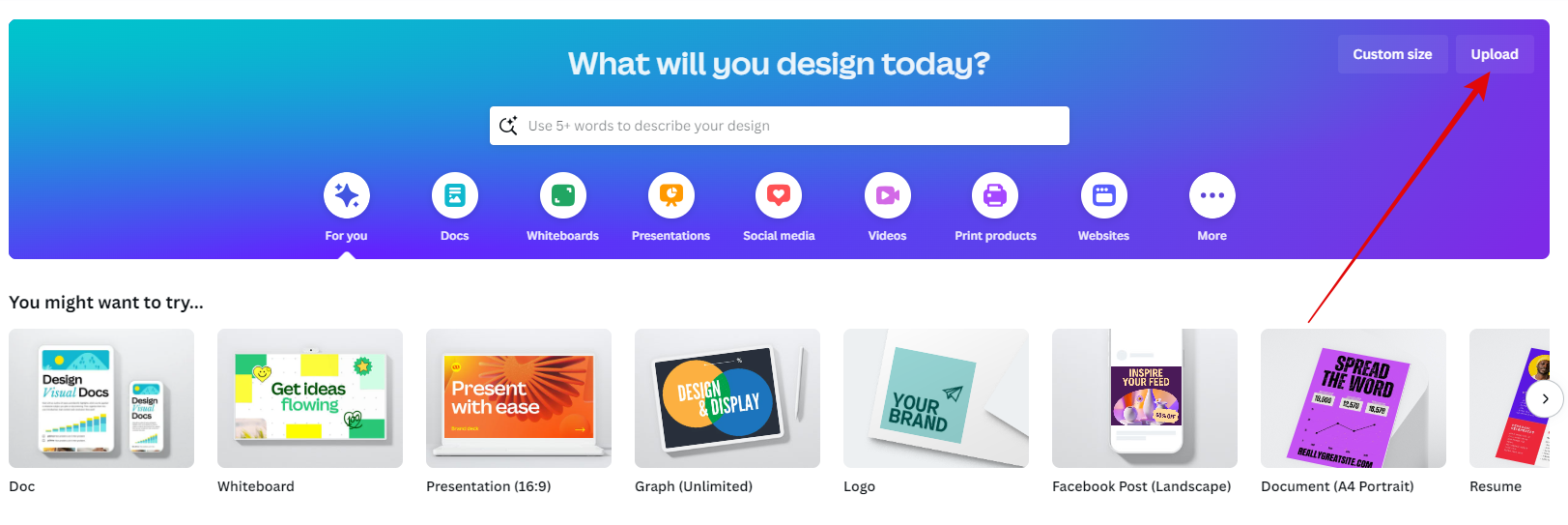
- Begin by going to Canva on your browser and logging in using your credentials. Once you’re logged in, you’ll find yourself on the Canva Home. Next, locate the Upload button in the top right corner and click on it.
- This action will open the Start from a file box. You can either drag and drop the PPT/PPTX file into the designated area or click the Choose files button to upload your PPT/PPTX file.

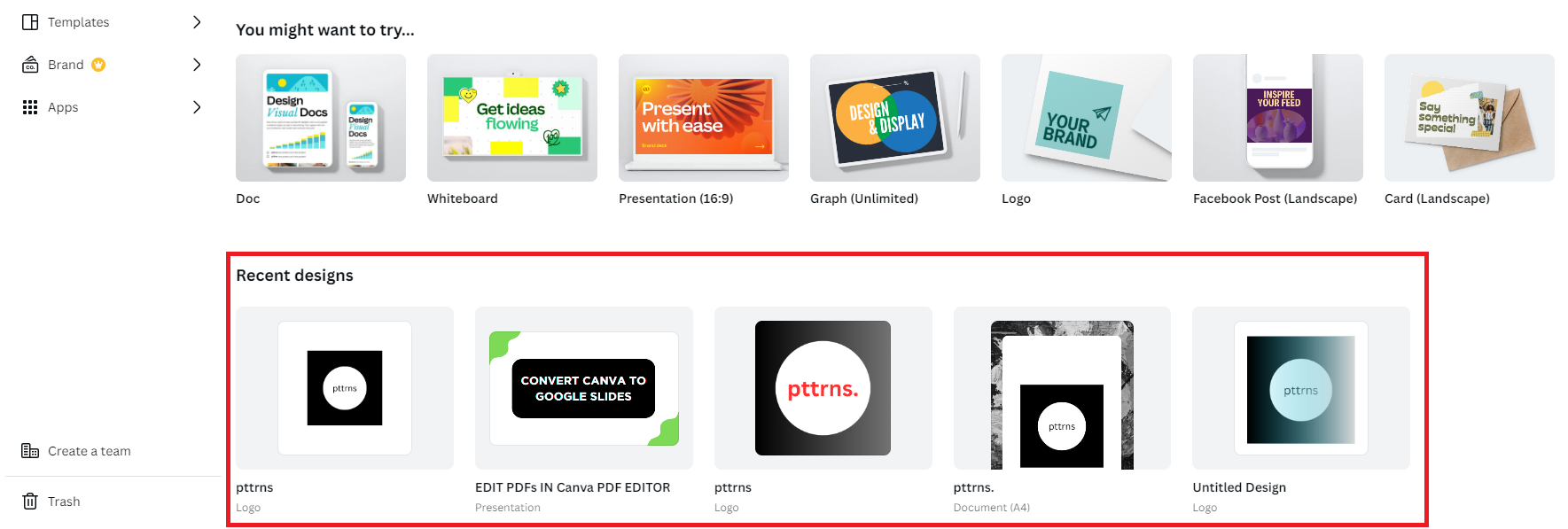
- For a more straightforward approach, skip the multiple steps above and directly drag and drop the PDF file onto Canva Home. Next, wait for the upload to complete, and once finished, it will appear as an existing project under Recent designs.
Import PPT to Canva from Canva Editor
- To access the Canva editor, it is necessary to start a new project by clicking the Create a design button. Alternatively, you can open an existing project from the Recent designs section to open the Canva editor.
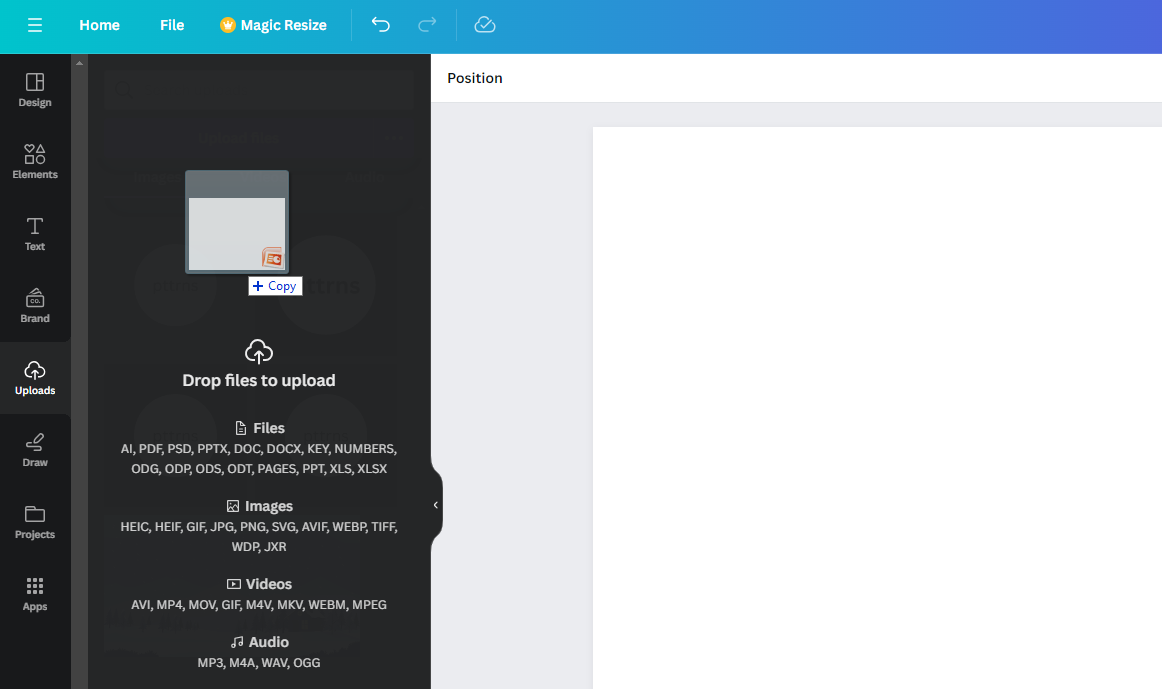
- After the Canva editor loads, go to the File Explorer on your PC, locate the PPT/PPTX you wish to upload, choose it, and drag and drop it onto the Canva Editor, as demonstrated below.
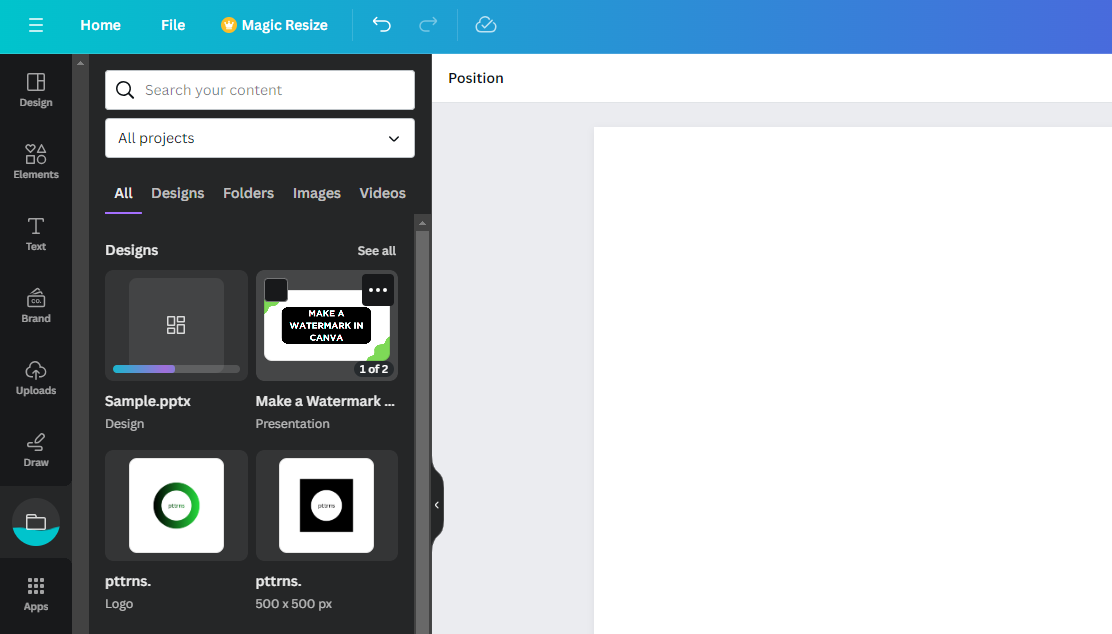
- By following these steps, you’ll observe the PPT being uploaded, and upon completion, it will appear in the Projects tab of the Editor panel.
Wrapping Up
Congratulations on importing PPT/PPTX files to Canva!
During the demonstration, we had no issues importing the PPT file to Canva and were able to edit them with ease. However, if you aren’t happy, we suggest sticking to conventional software like PowerPoint or trying to build a PPT from scratch on Canva.





