
 Pttrns
Canva is one of the prominent online design software, and arguably, only a few are aware of its PDF editor. In this guide, we will help you upload PDFs to Canva so that you can get started with the Canva PDF editor and seamlessly edit your PDFs.
What we cover
Upload PDF to Canva from its Homepage
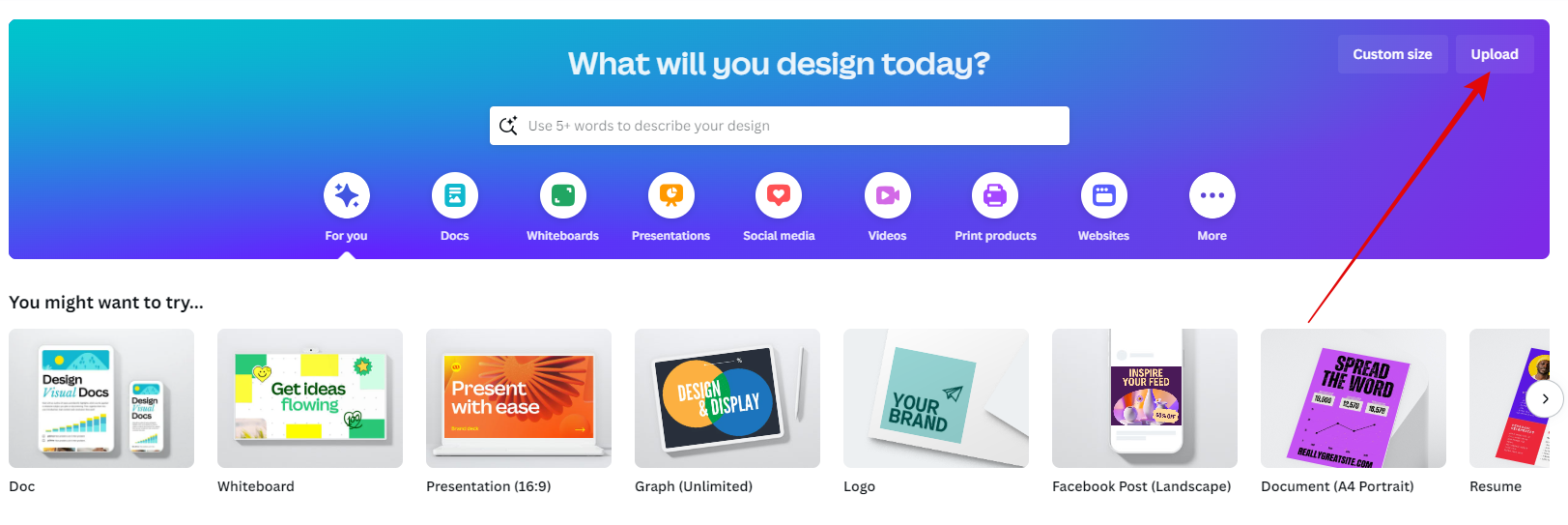
- Start by navigating to Canva and sign in with your credentials. Once you’re logged in, you’re displayed on the home screen.
- Now, navigate to the Upload button on the top right corner and click on it.
- By doing so, you’re displayed with the Start from a file box. Now, you can drag and drop the PDF file into the slot provided or click on the Choose files button and upload your PDF file.

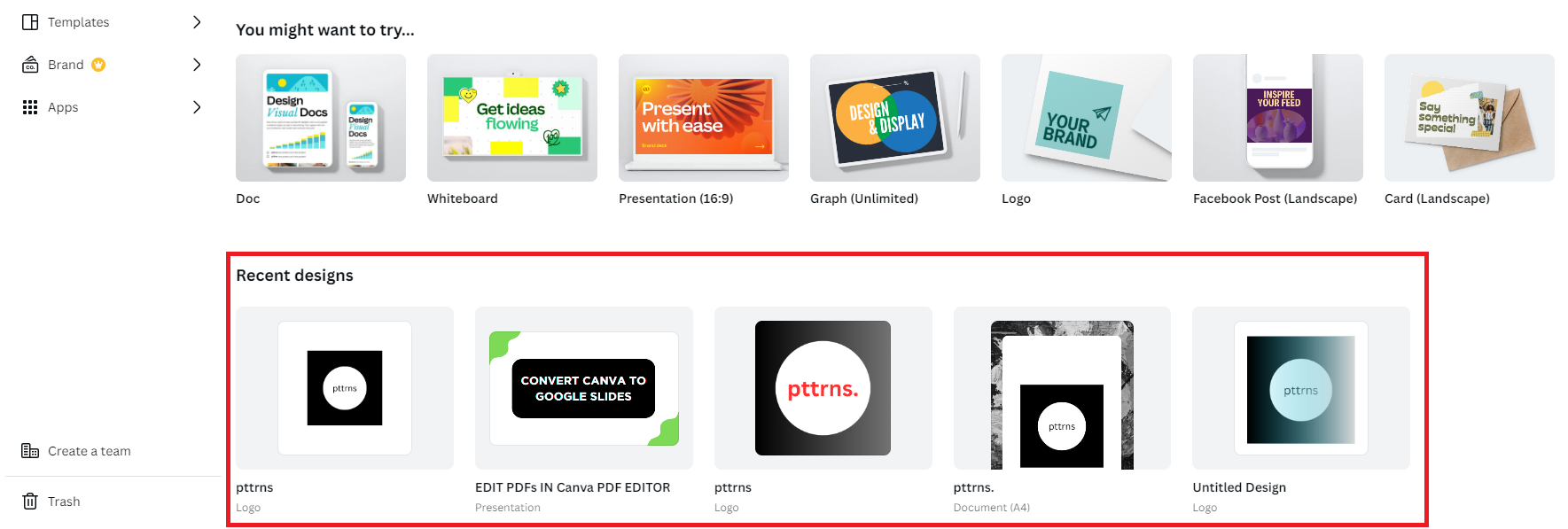
- If you don’t want the trouble of performing multiple steps above, drag and drop the PDF file on Canva Home. Now, wait for it to upload, and once done, it will be added as an existing project under Recent designs.
Upload PDF to Canva from Canva Editor
- To gain access to the Canva editor, get started with a new project by clicking on the Create a design button. Alternatively, you can also open an existing project from Recent designs to open the Canva editor.
- Once the Canva editor is loaded, open the File Explorer, navigate to the PDF you want to upload, select it, and drag and drop it on Canva Editor like below.
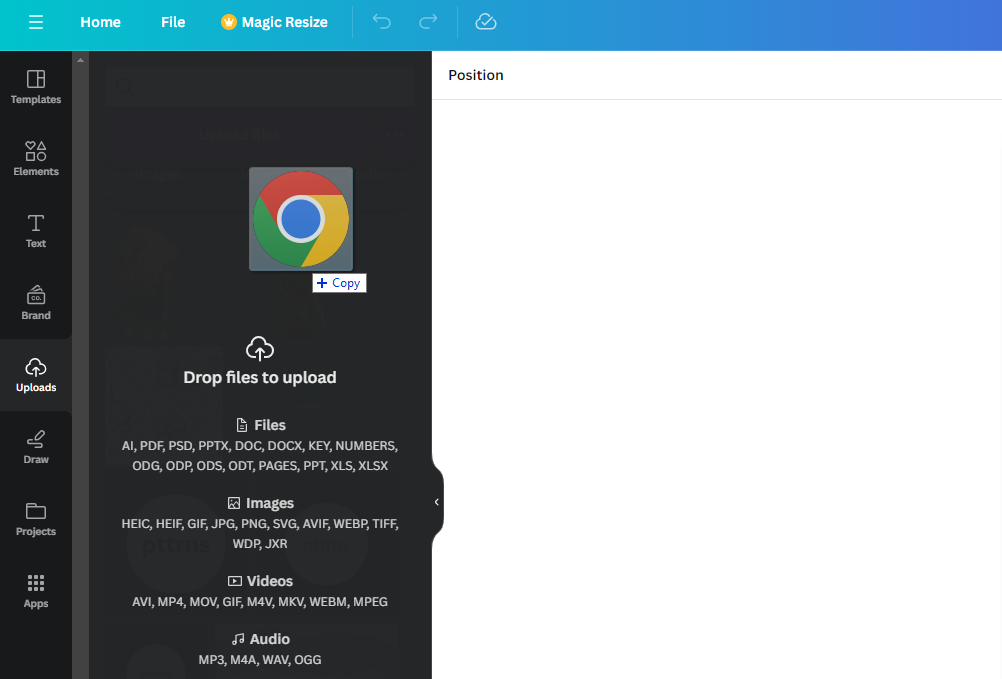
- By doing so, you will find that the PDF is being uploaded, and once it is done, it is displayed on the Projects tab of the Editor panel.

Upload PDF to Canva from Canva PDF Editor
While the above two approaches can be complex for a few, if you’re looking for a straightforward approach, check out the steps below:
- Start by opening your browser and navigate to Canva PDF Editor. Next, sign in with your credentials to get started.
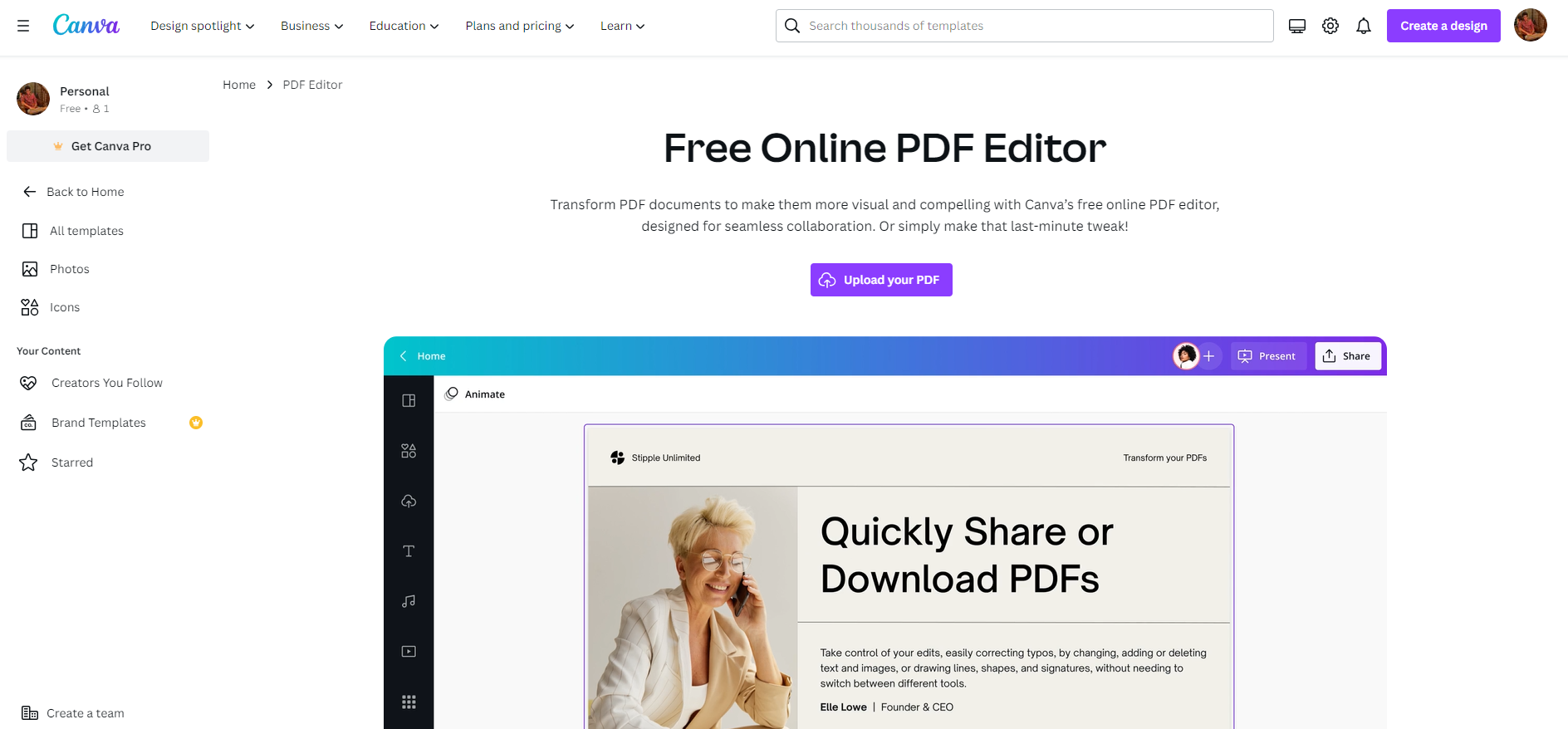
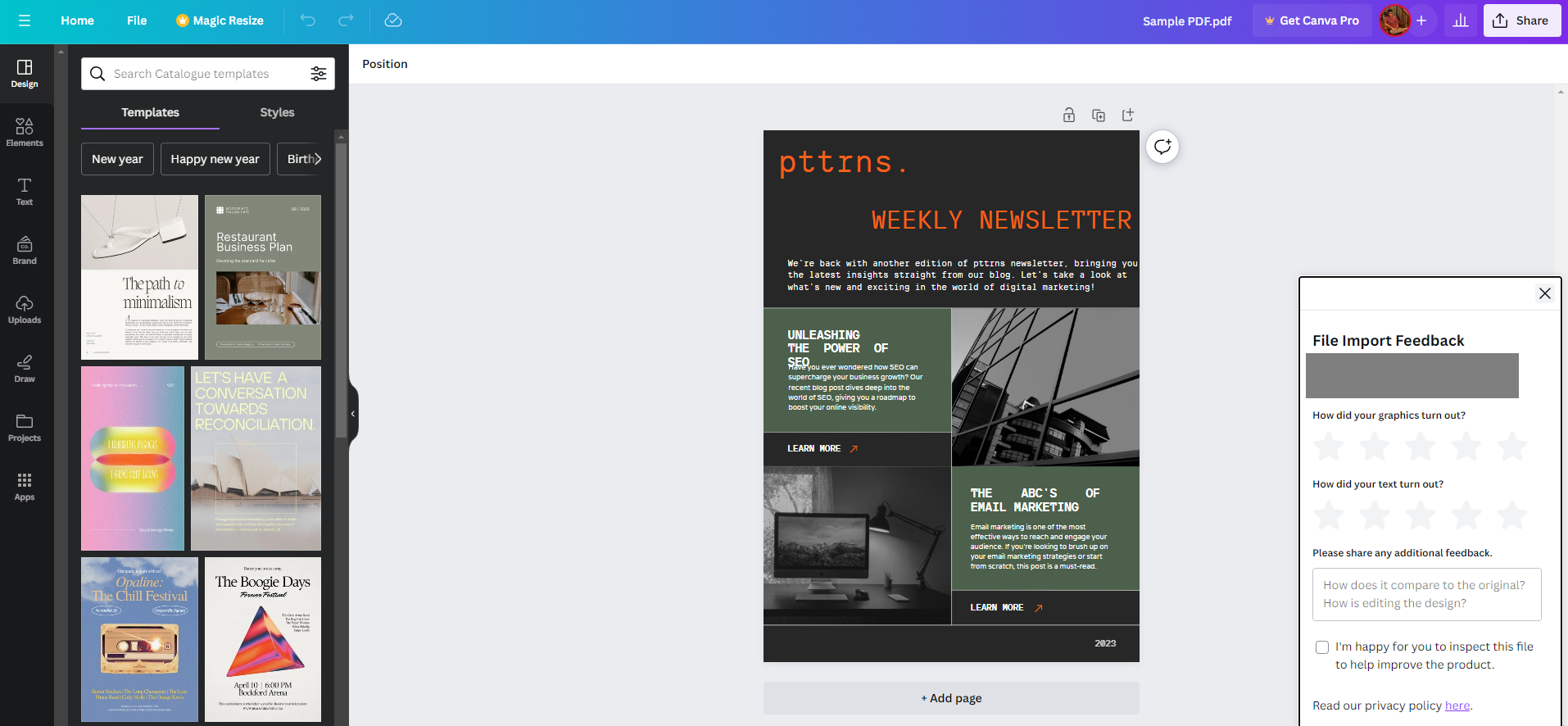
- Once the page is loaded and you’re signed in, navigate to Upload your PDF button and click on it. Doing so, you’re asked to select the PDF, and once done, the PDF is loaded onto the Canva editor.
Wrapping Up
Congratulations on uploading the PDF to Canva!
While the above approaches are arguably the available ways to upload PDFs to Canva, if you’re facing any issues, it must be due to the Cava restriction, where the PDF must not exceed 30 pages and 100MB in size.
If you aren’t happy with the Canva PDF editor, check out conventional PDF editors like Adobe Acrobat Pro DC for better results.
Related Reading
How to Scan Multiple Pages into One PDF (Windows + Mac + Phone)





