
 Pttrns
Adding tails to fonts can significantly enhance engagement and is usually used in product designs. While Canva features multiple fonts to work with, unfortunately, there isn’t any font that features tails.
To address this, we have found a way around it, which involves the need for Canva Pro. However, as we are focused on providing cost-effective solutions, the steps below will help you add tails to fonts on Canva Free.
Add Tails to Fonts in Canva
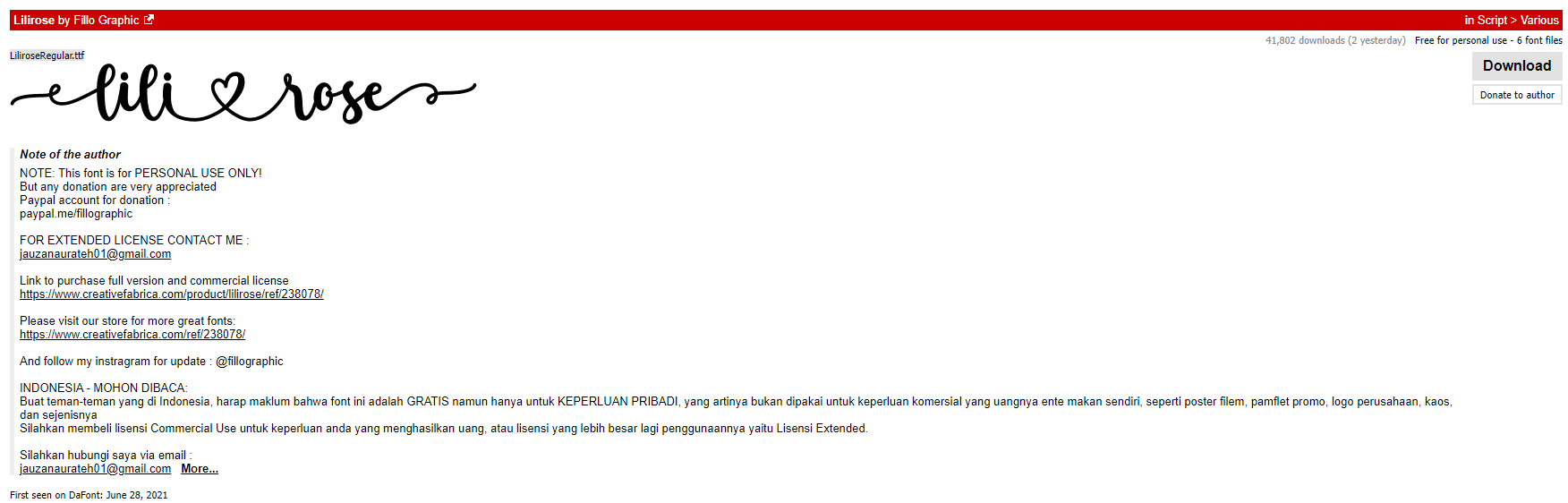
- Start by downloading any font that involves tails. For demonstration, we have downloaded Lilirose from the web. While doing so, ensure you’re downloading it from a reputed site.
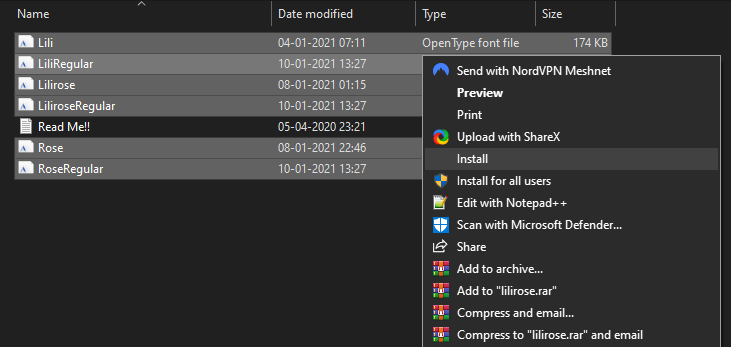
- Once the font is downloaded as a zip, extract it. Next, select the font and right-click on it to reveal options. Now click on the Install option to install the fonts on your PC.
- With the fonts installed on your PC, open Word and type the text you want to add to the design. Now select the text and change the font to Lilirose or the font you have installed.

- As you can see, the tails haven’t been added to the text yet, and to add them, open Character Map and Select the character with tails.
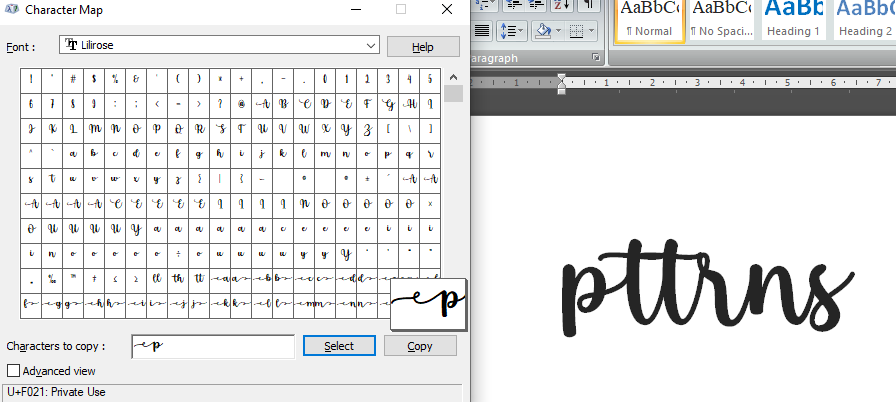
- Next, click on Copy and replace the character without tails like below. To do this, delete the character and paste the copied character in its place.
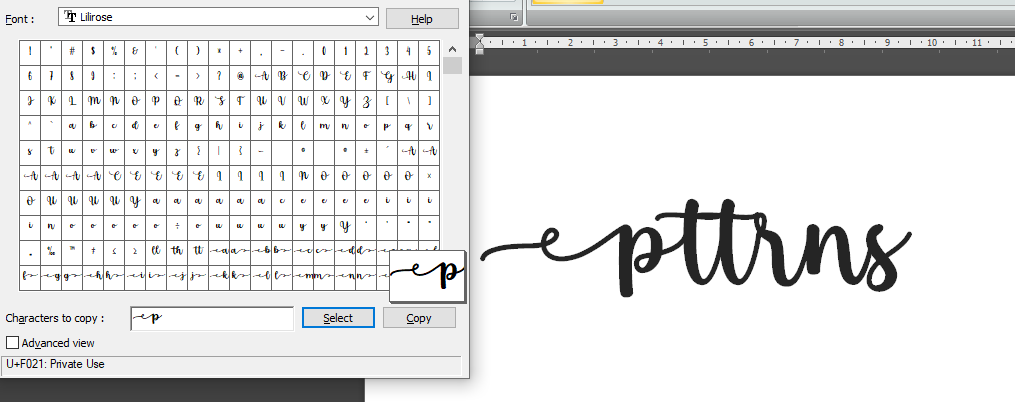
- Once done making changes, you’re left with a result like the one below. Once you’re satisfied with the result, set the font size to max and then take a screenshot using the Snipping tool.
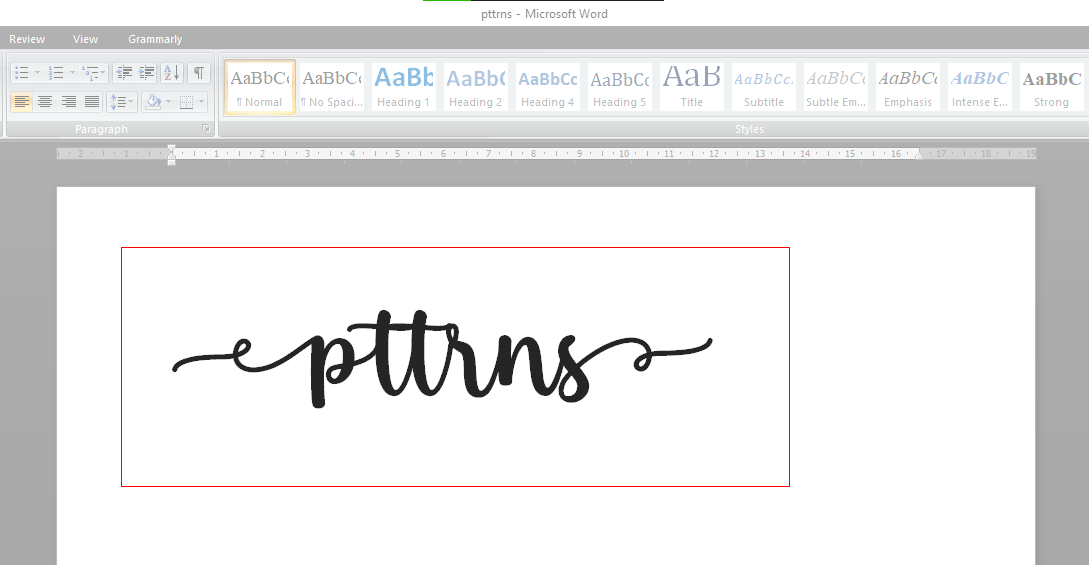
Note: Before capturing the screenshot, ensure you change the color or add effects, as the text cannot be edited once captured.
- With the text captured via the snipping tool, open your browsers and remove the background using online background removal tools like remove.bg.
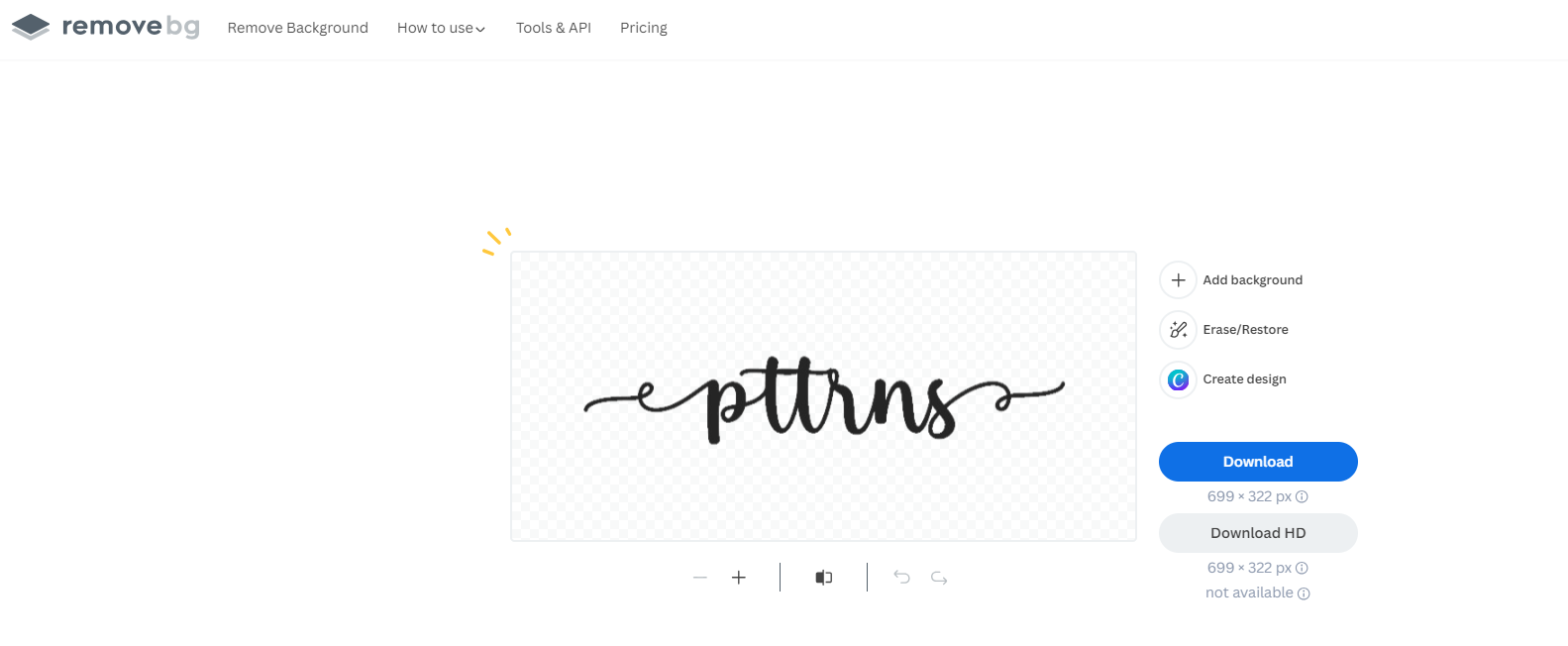
- Once you have removed the background, open Canva and get started with a new project by clicking on the Create a design button or opening an existing project from the Recent designs section.

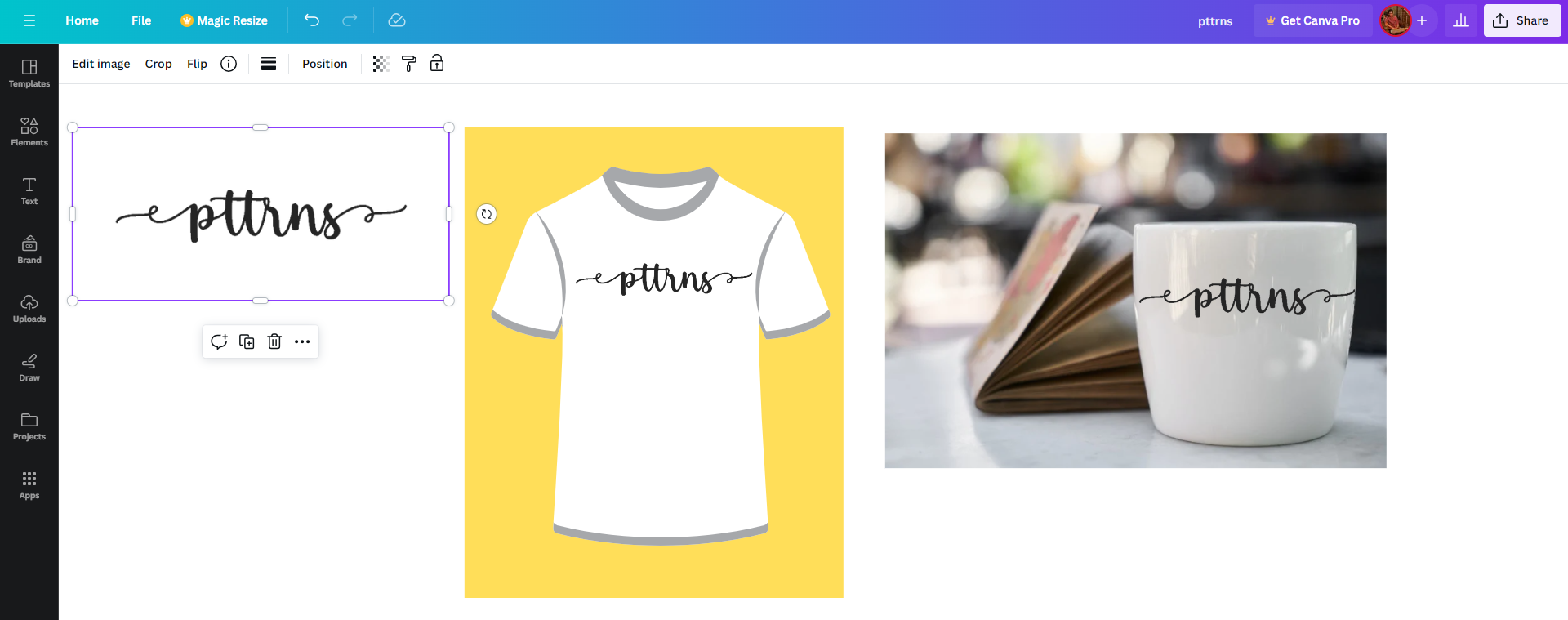
- With the existing/new project loaded, navigate to the Editor panel and click on Uploads. Now, upload the text image whose background is removed by clicking on the Upload Files button.

- Once the text image is uploaded, click on it to add it to the design. As the image is free of background, you can use it with arguably any design that matches your requirements.
Wrapping Up
Congratulations on learning how to add tails to fonts in Canva!
While the above steps lack customization, it is arguably the only way to add tails to fonts in Canva Free.
However, if you have access to Canva Pro, download the font and add it to Canva. Next, add a text box on the design, type some text, and repeat Steps 4-5 to add tails to the font without losing access to customization.





