
 Pttrns
It is important to learn how to convert Canva designs to HTML for additional accessibility and functionality. It simplifies web publishing, facilitates easy sharing, preserves design elements, and enables embedding with enhanced compatibility across various platforms.
In this guide, we will teach you how you can convert Canva to HTML in multiple ways within Canva. Here’s how to get started:
What we cover
Embed your Canva Design
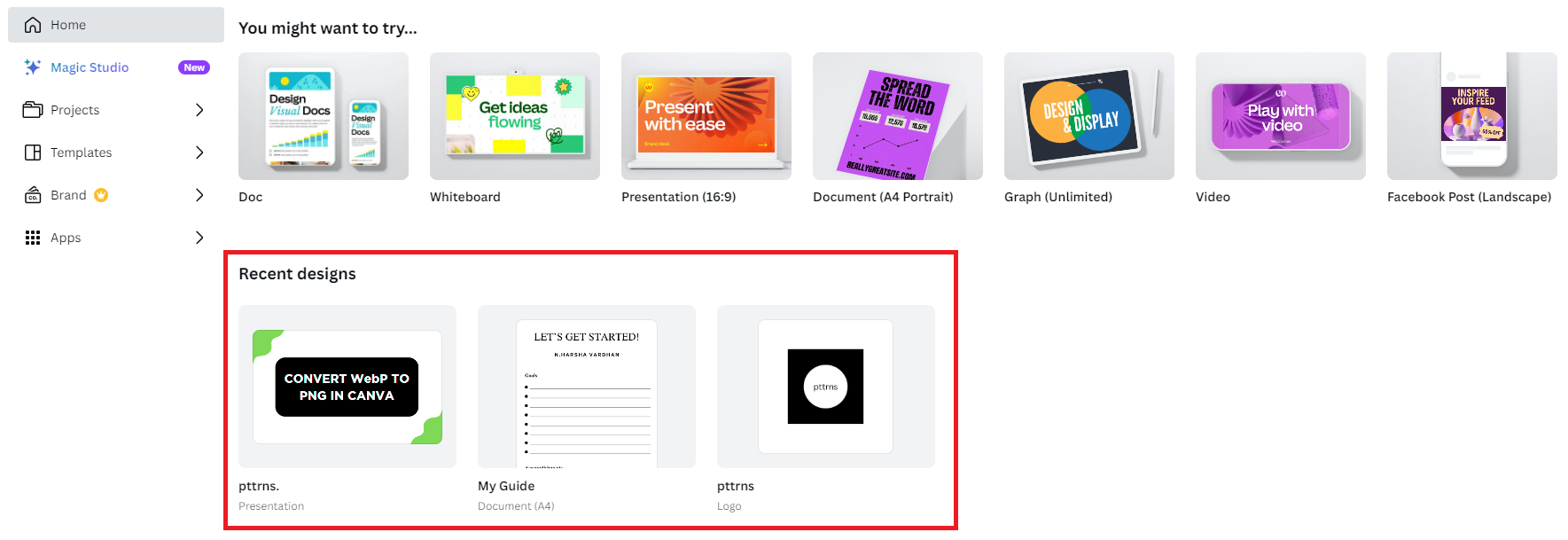
- Begin by navigating to Canva Home, and open the project you’re working on from the Recent designs section.
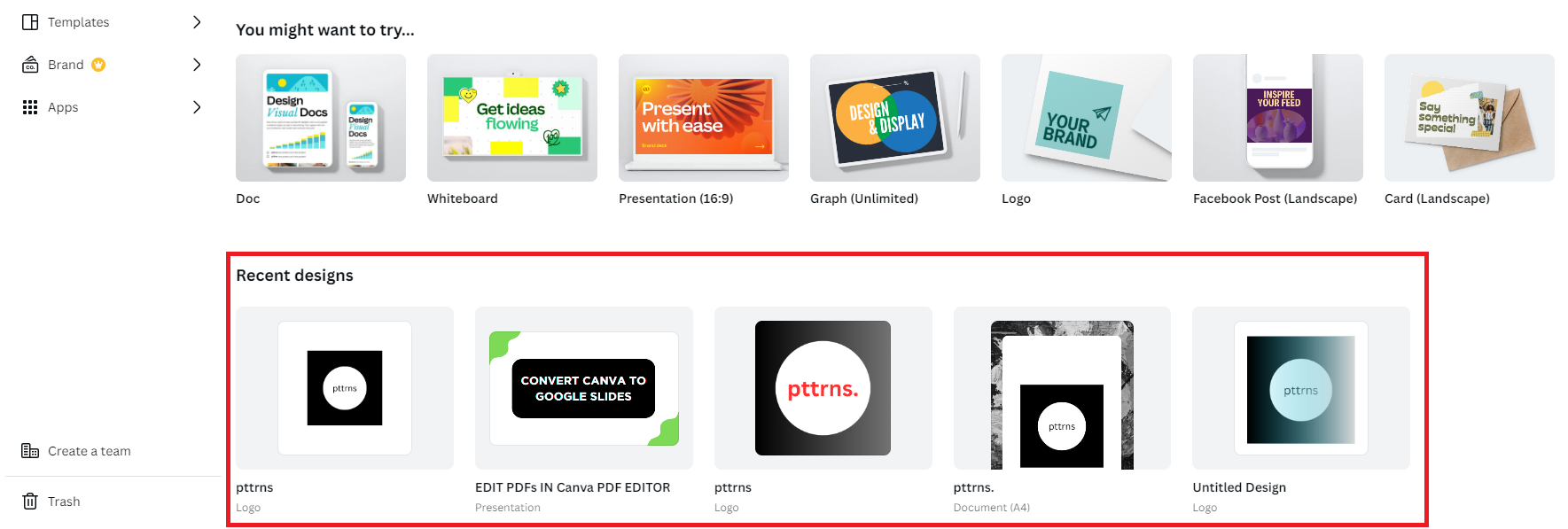
- If you haven’t started yet, do it by clicking on the Create a design button and then choosing a design.
- After the design is loaded, start creating the content, and if you need assistance, use Templates from the Design tab present in the Editor panel. However, if you have already created the content, make changes to it.

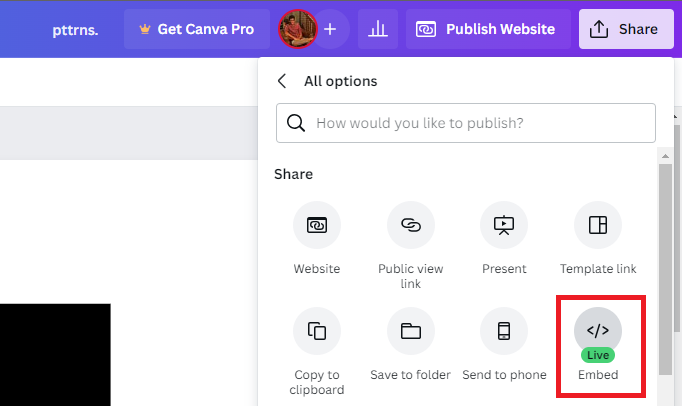
- With the design ready, click on the Share button and then More. By doing so, the All options panel is displayed. Now, navigate to Embed and click on it.
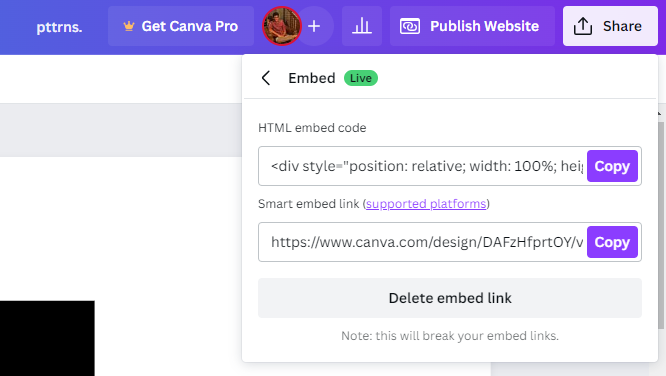
- Now, wait for Canva to generate an HTML embed link and Smart Embed Link. Next, check your requirements and choose one by copying and embedding it onto your website.
Create/Save your Canva Design as a Website
The above approach lets you convert your Canva design as HTML by embedding it. If you find it incomplete or want to get started on Canva, follow the steps below:
- Start by navigating to Canva Home, and if you’re already working on a project, open it by clicking on it from the Recent designs section.
- However, if you haven’t started yet, do it by clicking on Create a design present at the top right corner and then choosing a design.
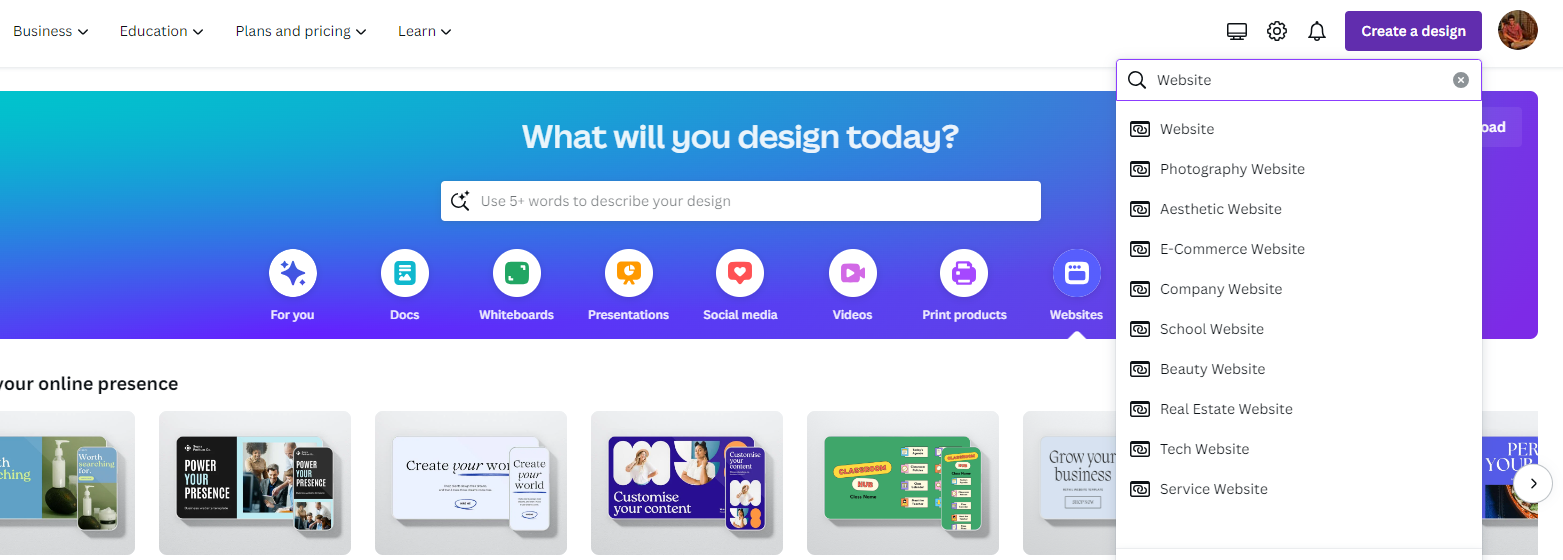
Pro Tip: While choosing the design, ensure you select Website. Doing this is important as it prevents resize issues and lets you create the content for the website.
- Once the design is loaded, make changes or create a new one. We suggest using Templates from Designs for quicker creation of engaging content.
- With the design finished and you’re happy with the result, navigate to the Share button and click on it. Now, from the options displayed, click on More.
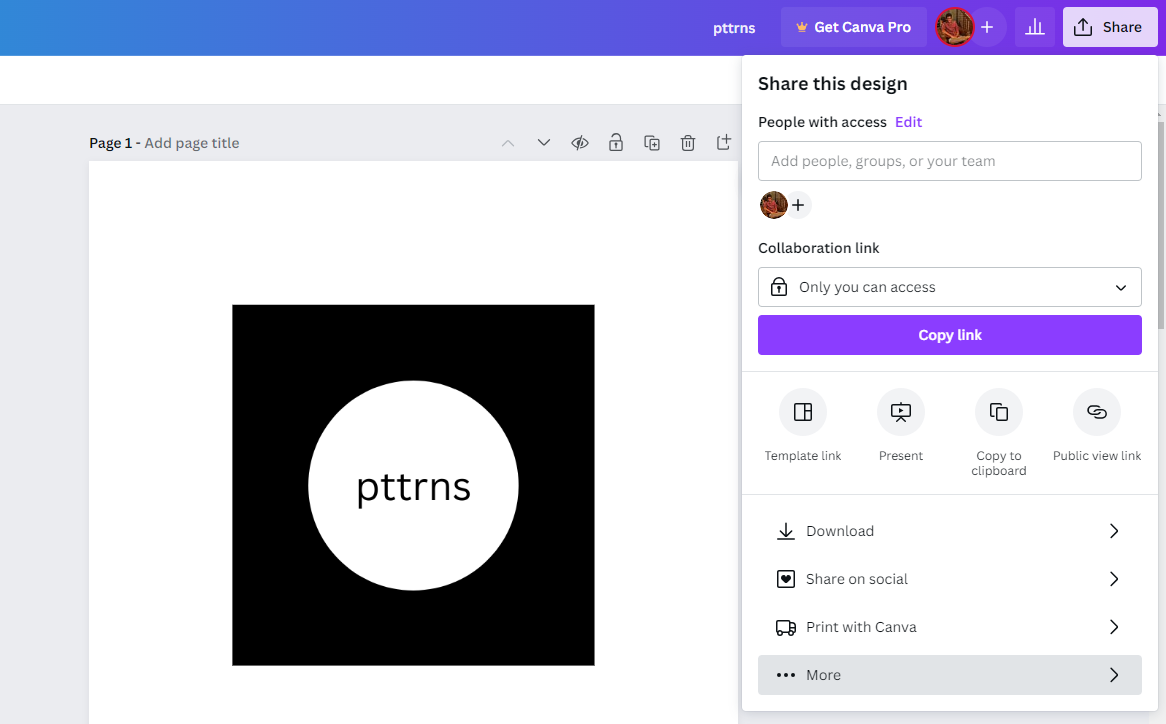
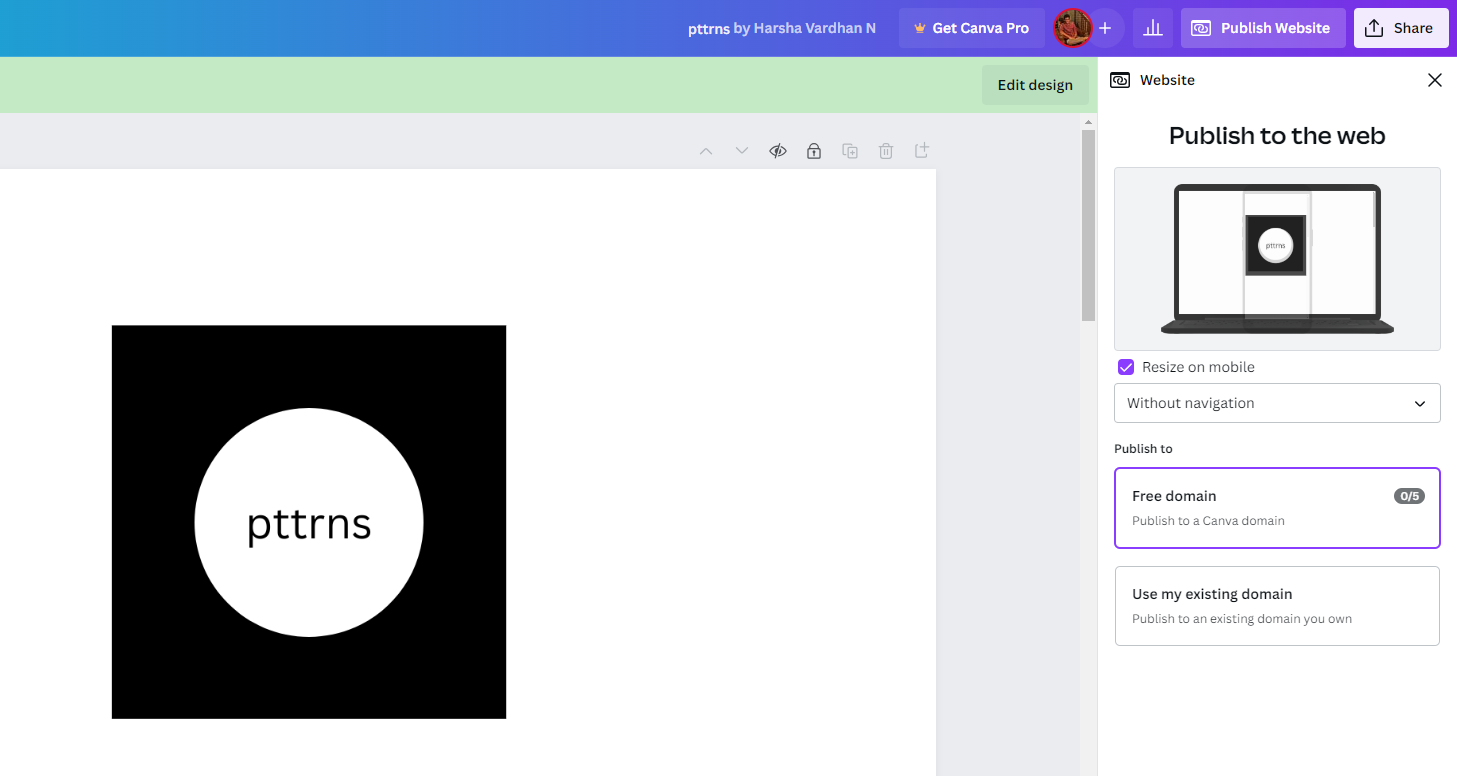
- By doing so, you’re displayed in the All options panel. Now, navigate to the Share section and click on Website. Next, click on Convert to website to start the conversion process.

- After the process gets started, manage the navigation options and select the domain. Next, fill in your domain details if you have one, or use Canva’s free domain, and you’re done.
Wrapping Up
Congratulations on converting Canva to HTML!
When working on creating this guide, we have felt that Canva’s Embed Tool works flawlessly, and there isn’t anything to complain about. However, while creating a design for a website, we felt shorthanded. Hence, we suggest checking conventional website-building websites or applications for better results.





