
 Pttrns

If you’re trying to create a policy brief to convey information and maintain brand consistency, Canva can be a great option. While there isn’t a dedicated template for a policy brief on Canva, you can create one through the steps below:
Create Policy Brief Template in Canva
- Start by navigating to Canva and sign in with your credentials. After you’re on the home page, click on the Create a design button present at the top right corner. Now, type A4 in the Search box associated with it.
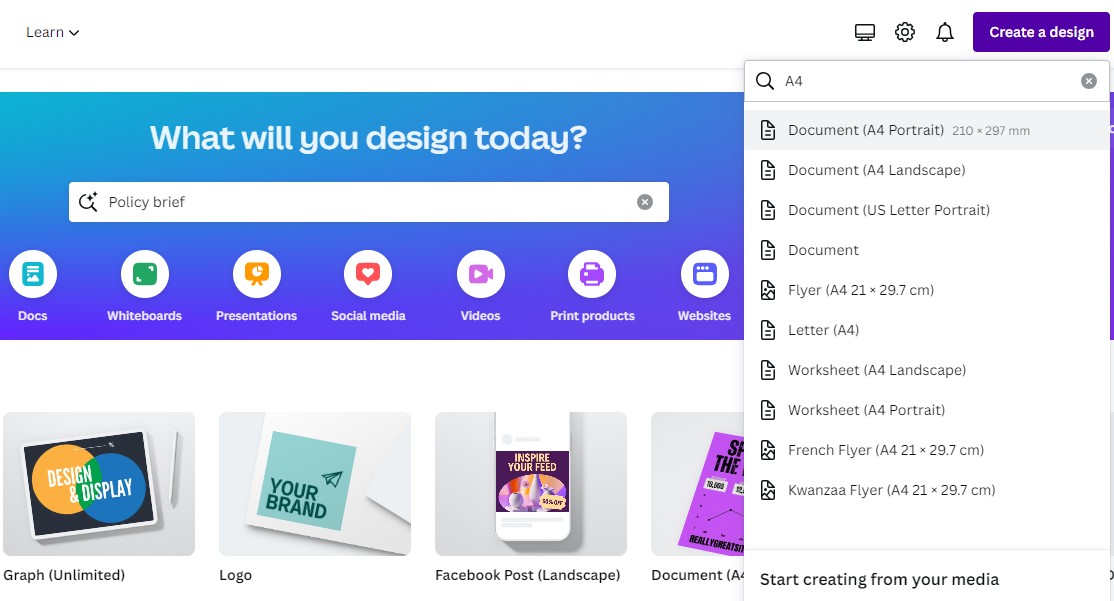
- While Policy briefs can take different formats, we have suggested A4 as it is the most used one. Once the design is created, you can start working on it.
- While there aren’t templates available for policy briefs, navigate to Design on the left and keep experimenting with the templates by searching for them in the Search box.
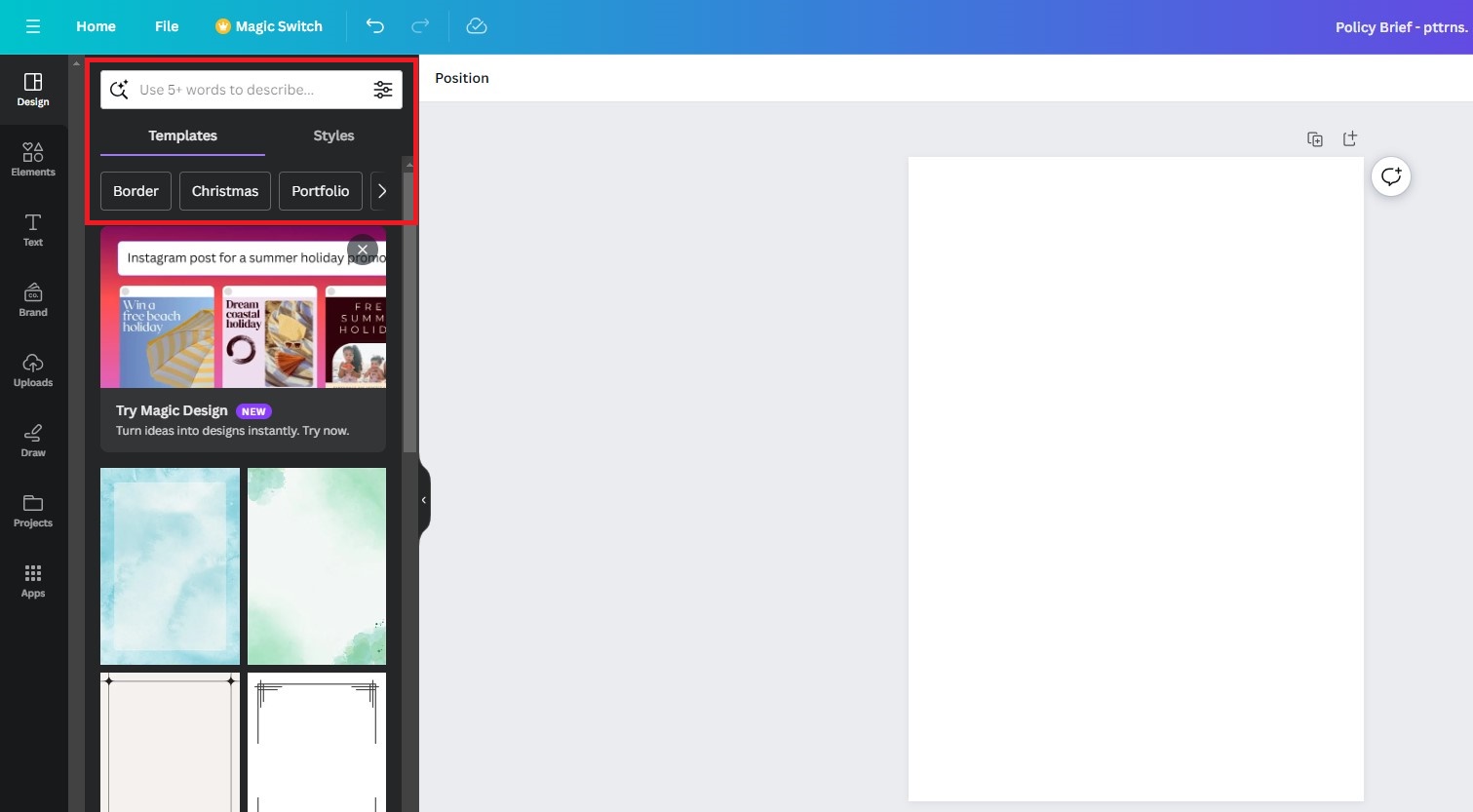
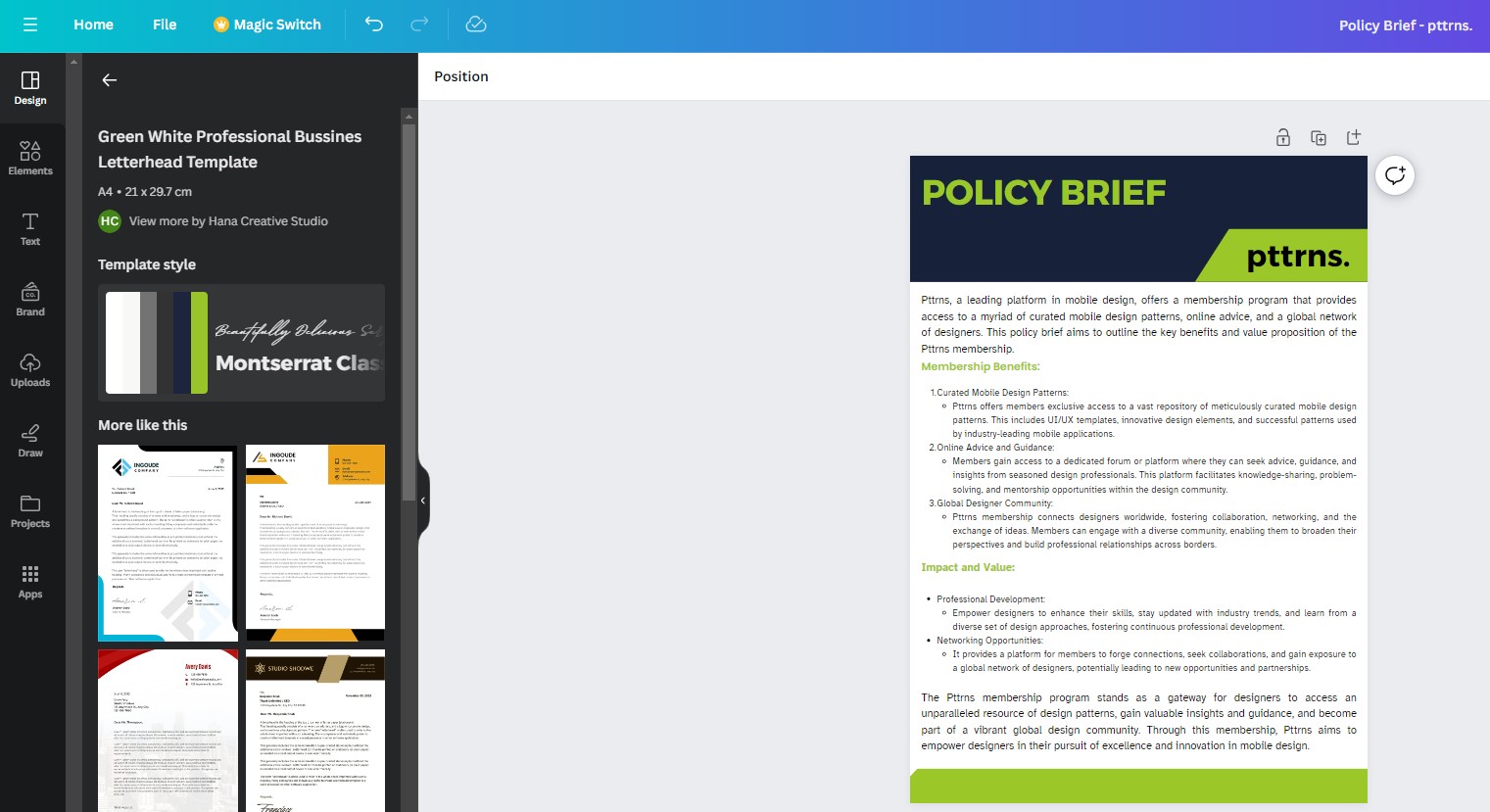
- After checking several templates, we felt the Business Letter template fits well for the Policy Brief. Alternatively, you can use the Letterhead template and make changes to it.
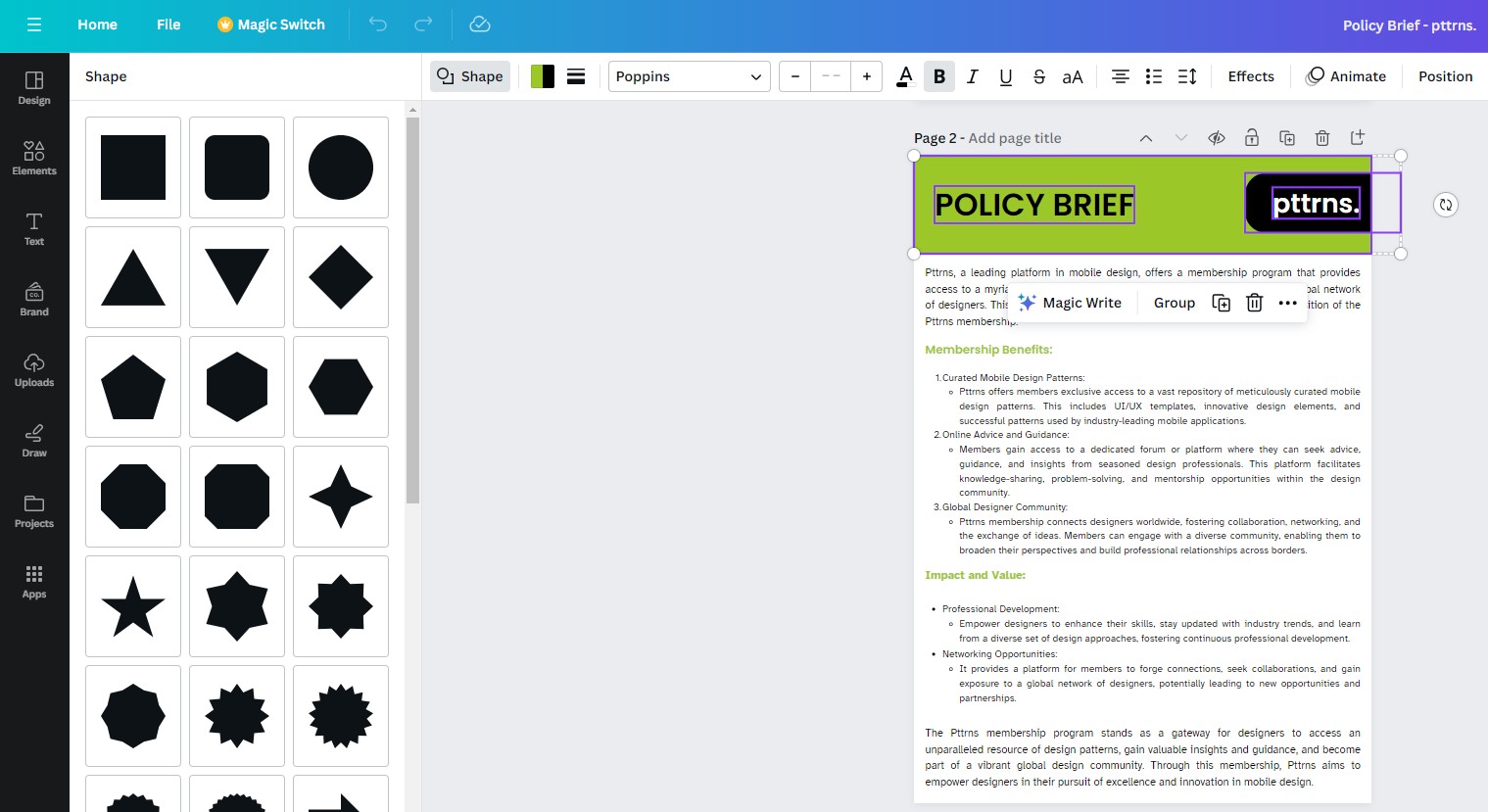
- If you aren’t happy with the templates available, you can create a custom template using basic shapes, as policy briefs don’t include many designs. Here is a custom policy brief for demonstration.
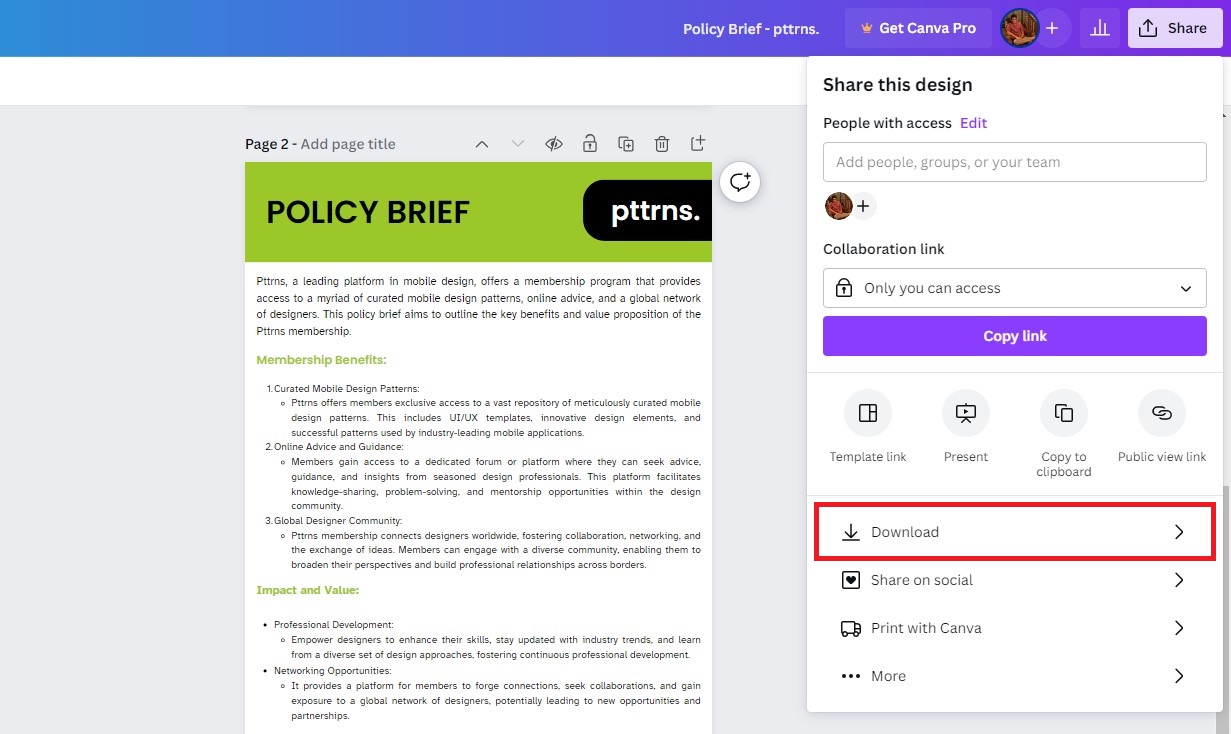
- Once you’re happy with the Policy brief you have created, click on the Share option on the top right. Next, from the options displayed, click on Download.
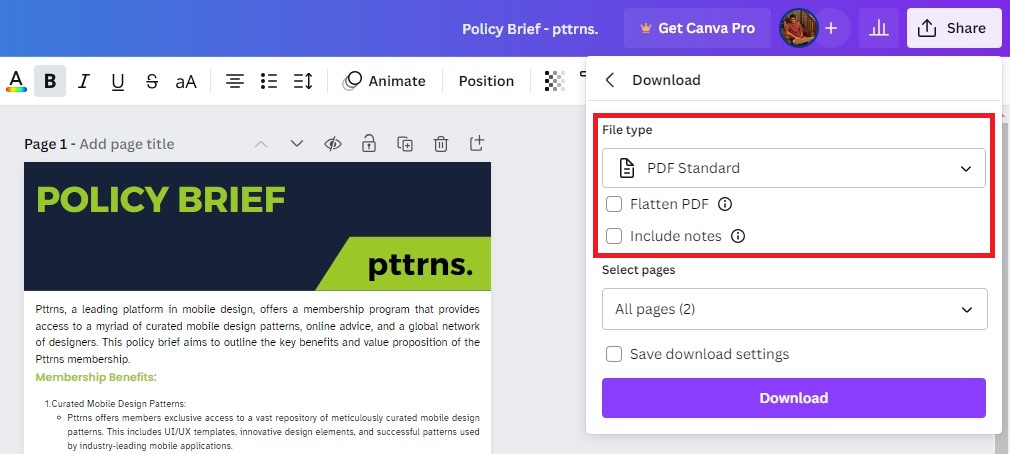
- After the Download box appears, set the File type as PDF Standard and click on the Download button.
Wrapping Up
Congratulations on learning how to create policy brief templates in Canva!
If you’re not happy with the templates offered in Canva, you can use Microsoft Word to create one by downloading templates. If you haven’t found any useful templates in Word, try downloading the free templates from the web.
Related Reading
How To Create and Customize Table in Canva





