
 Pttrns
It is important to learn how to blur video as it helps safeguard sensitive information, protect privacy, and maintain confidentiality in various contexts. While there isn’t a tool dedicated to it in Canva, in this guide, we will offer a way around that mimics the same, and here are steps for it:
Blur Video in Canva
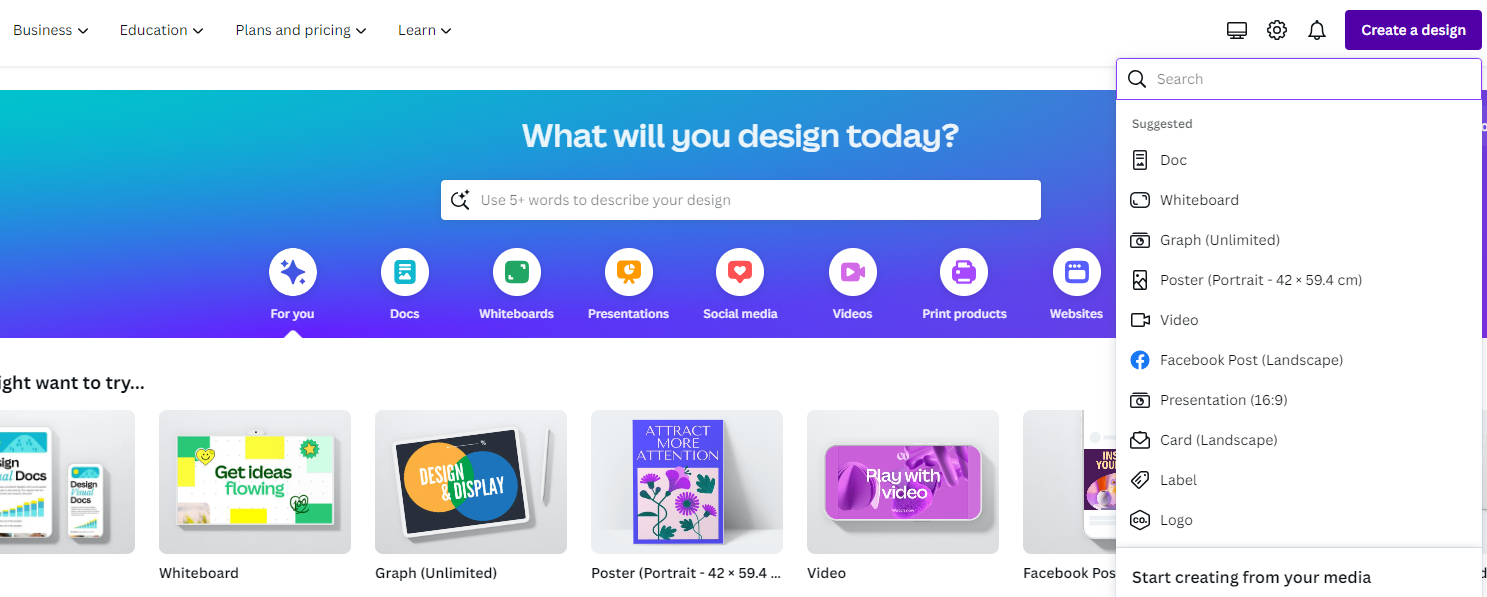
- Start by navigating to Canva and sign in with your credentials. Once you’re signed in and are on Canva Home, get started by clicking on the Create a design button and choosing a design [Video].
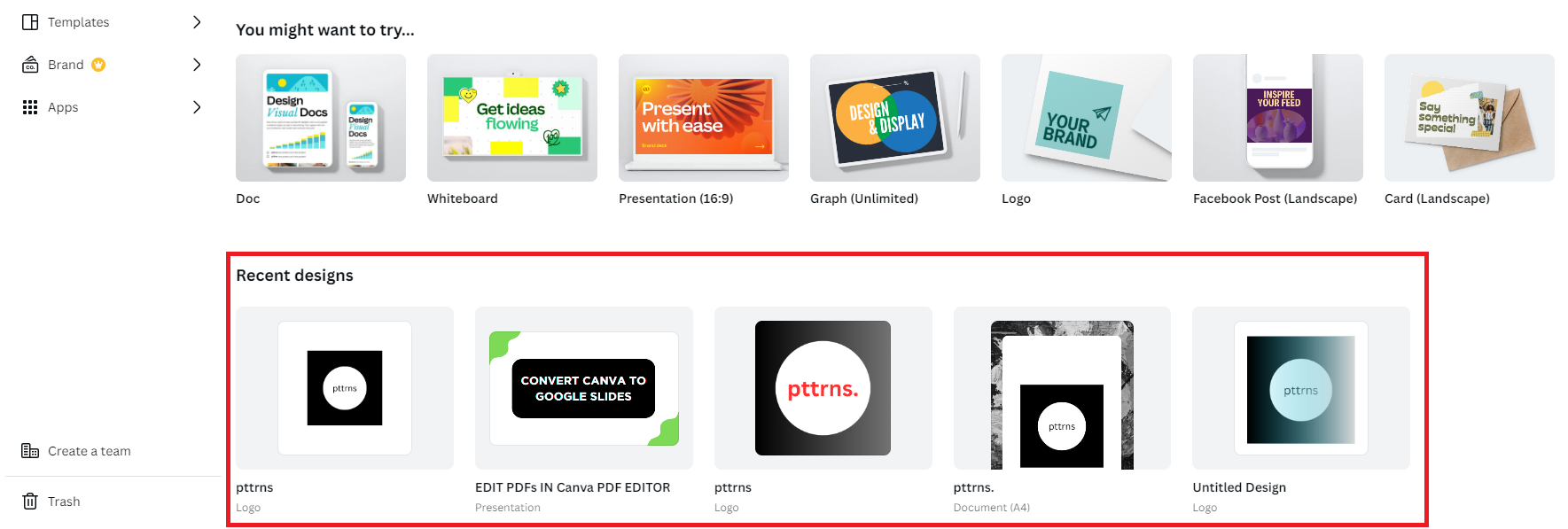
- However, if you have started working on a project, you can open it from the Recent designs section located on the home screen.
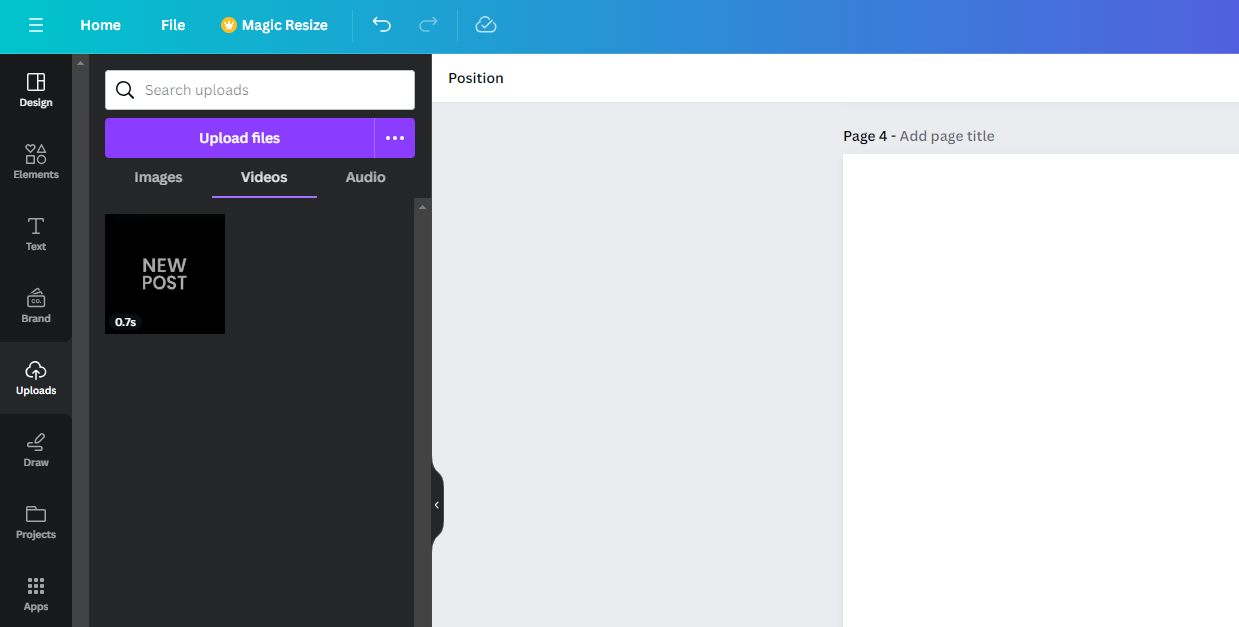
- Once the existing/new design is loaded, add a video to the design. To do this, navigate to the Editor panel on the left and click on Uploads. Now, click on the video listed, and if there are none, use the Upload Files button to upload one.
Pro Tip: Canva offers free videos to work with, and these can be used if you’re having difficulties uploading the video or don’t have one to get started.
To access these, navigate to the Editor panel on the left and click on Elements. Next, look for the video through the search box, and once you find the one that matches your requirement, add it to the design by clicking on it.
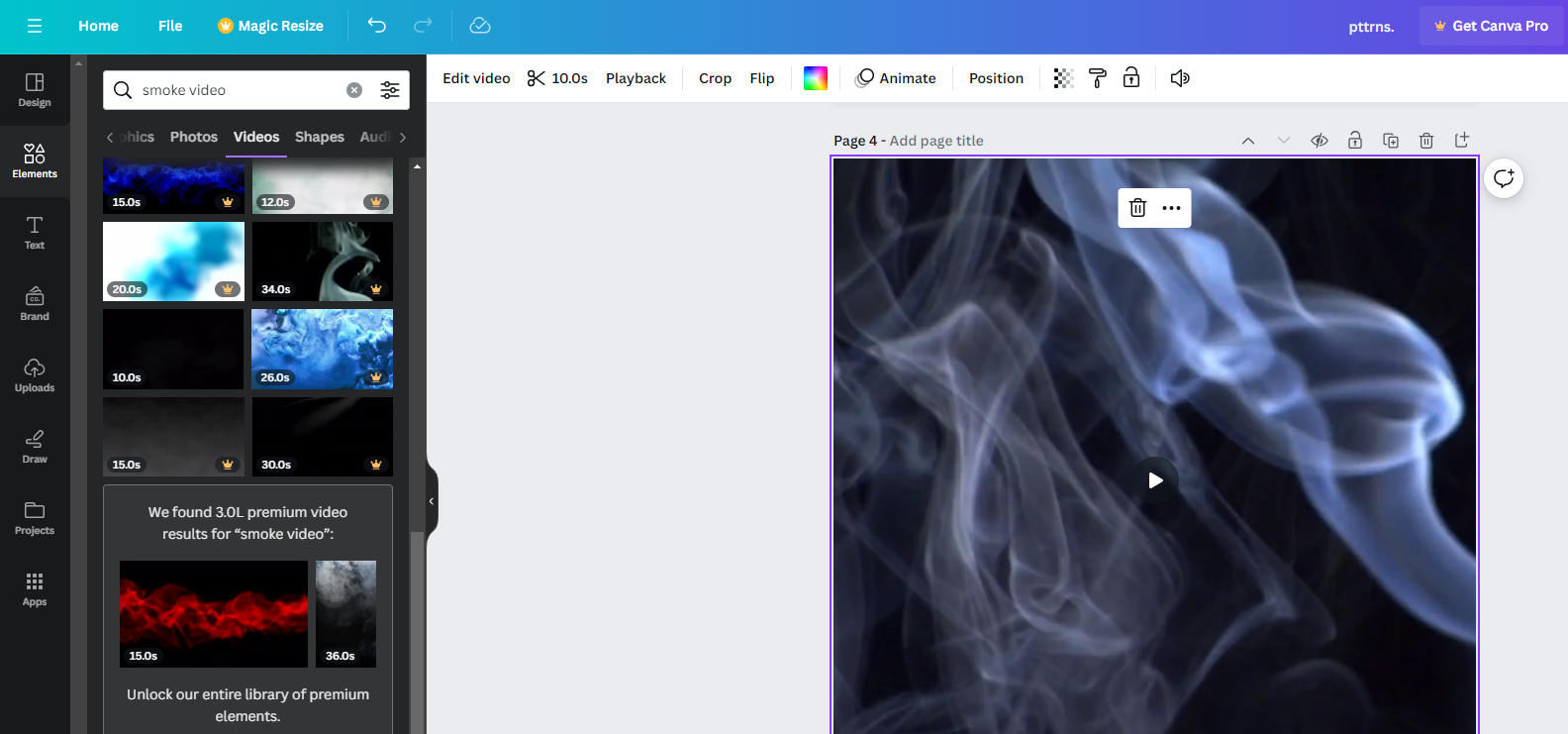
- With the video added to the design, navigate to the Editor panel and click on Elements. Now, use the search box, type Blur Effect, and hit Enter.
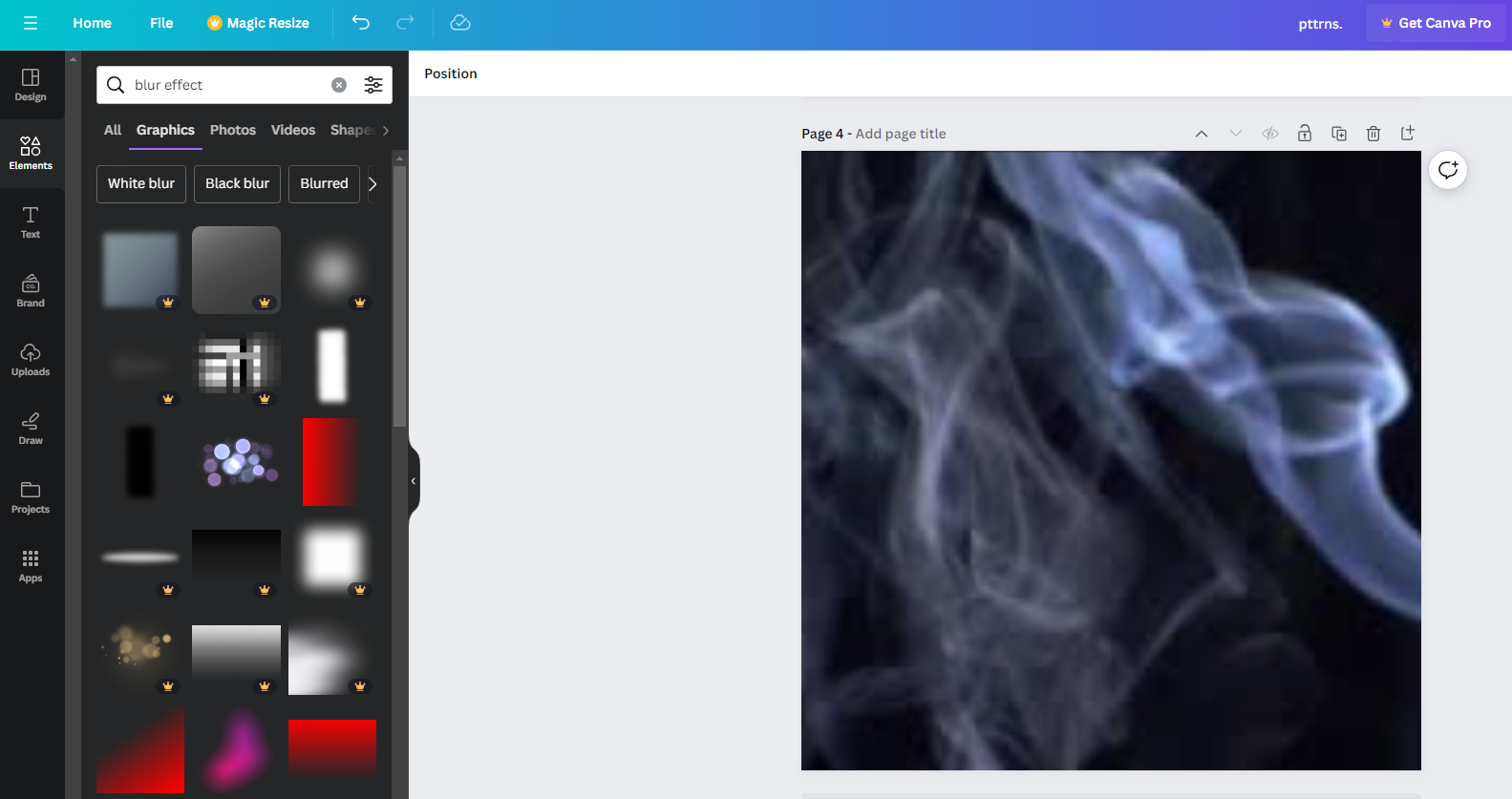
- Once the results are displayed, click on the one that matches your requirements. As the video is dynamic, we suggest choosing the blur effect that can be modified so that you can adjust the shape and size of the element with ease.
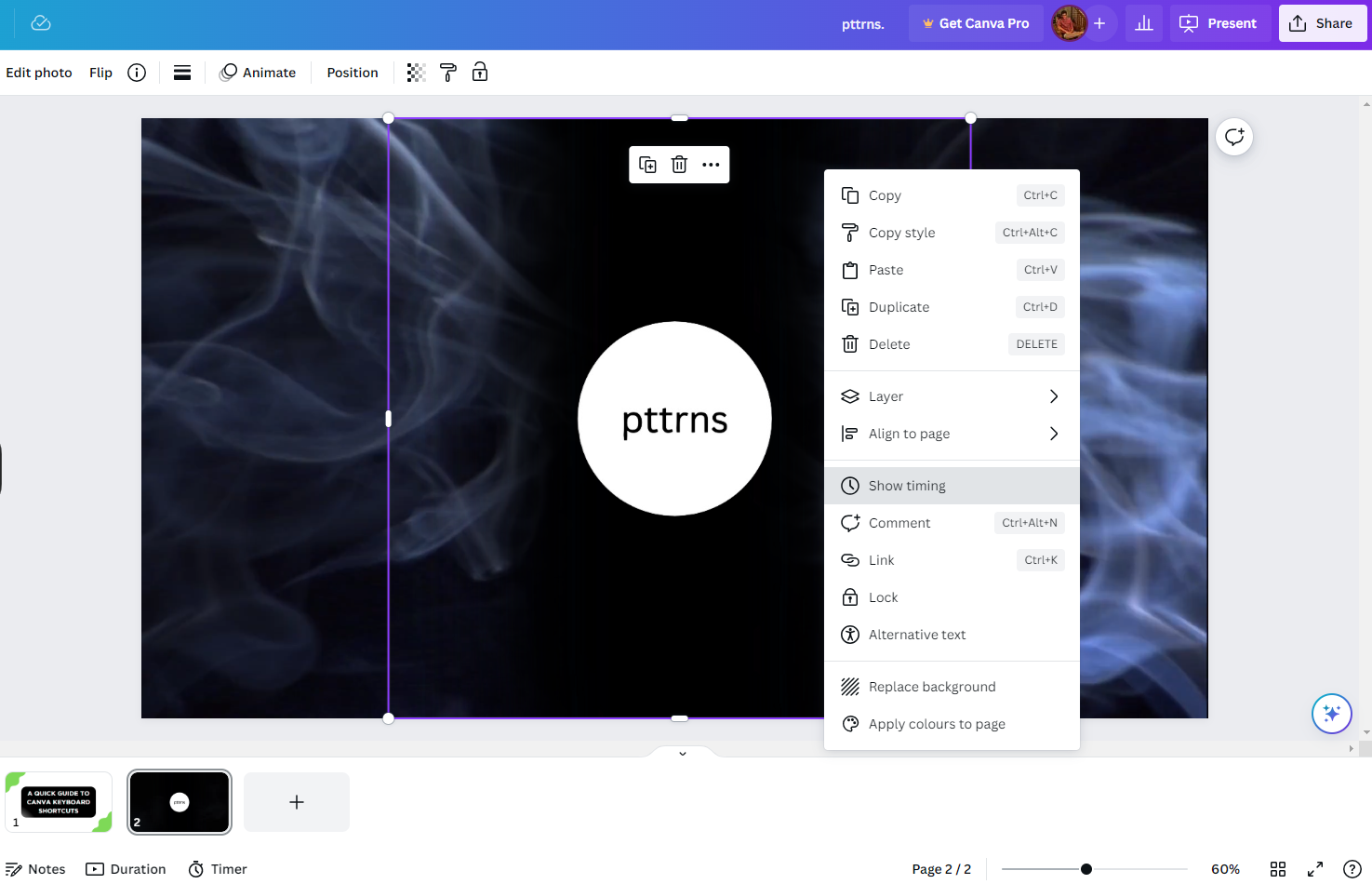
- For an engaging result, we suggest adjusting the timing and getting creative by adjusting the transparency or using filters.
Note: While we leave this to your creativity, if you aren’t aware of adjusting timing, do it by selecting the element and clicking on three horizontal dots to open its associated options. Now, click on Show timing and adjust the blur effect to a certain duration if needed.
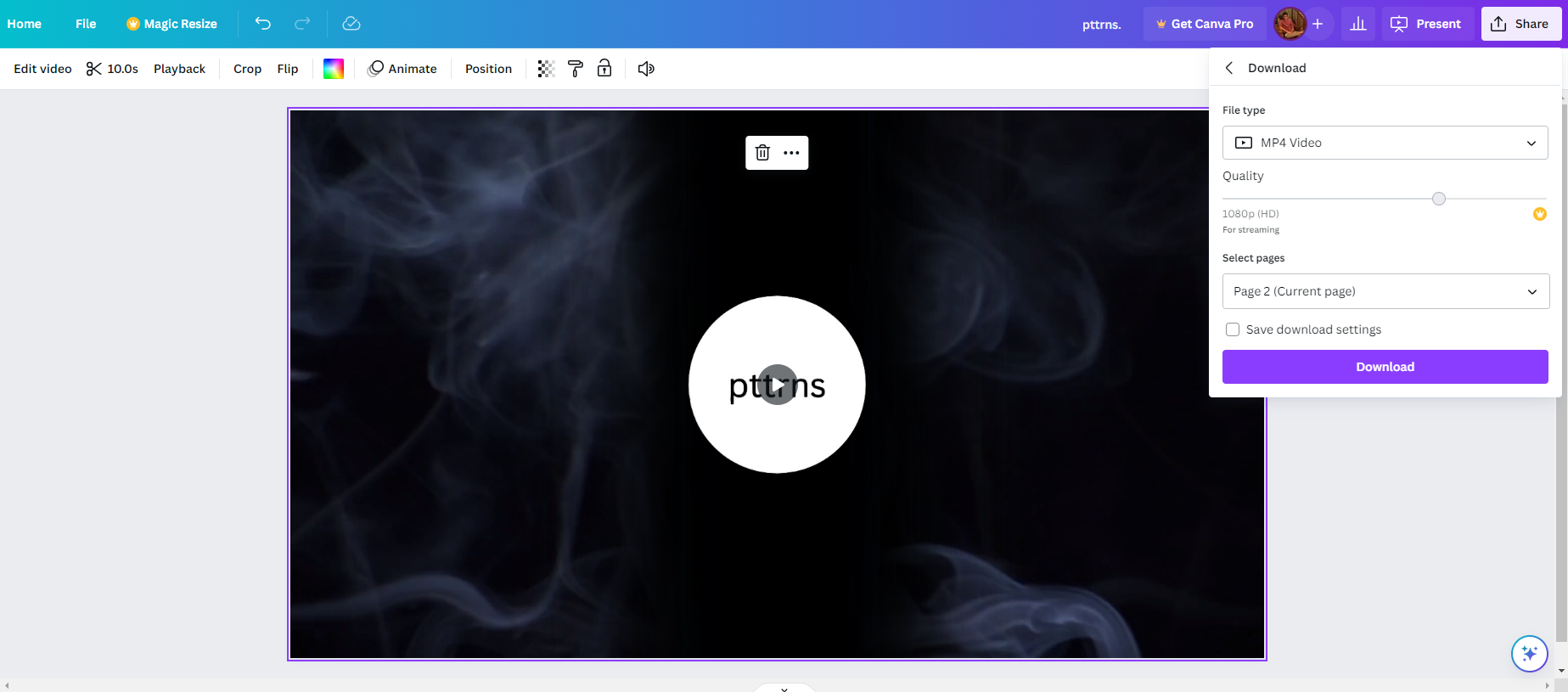
- With all changes made and you’re happy with the result, navigate to the top right corner and click on Share. Now, click on Download from the options displayed, then set the File type to MP4 Video and click on the Download button.
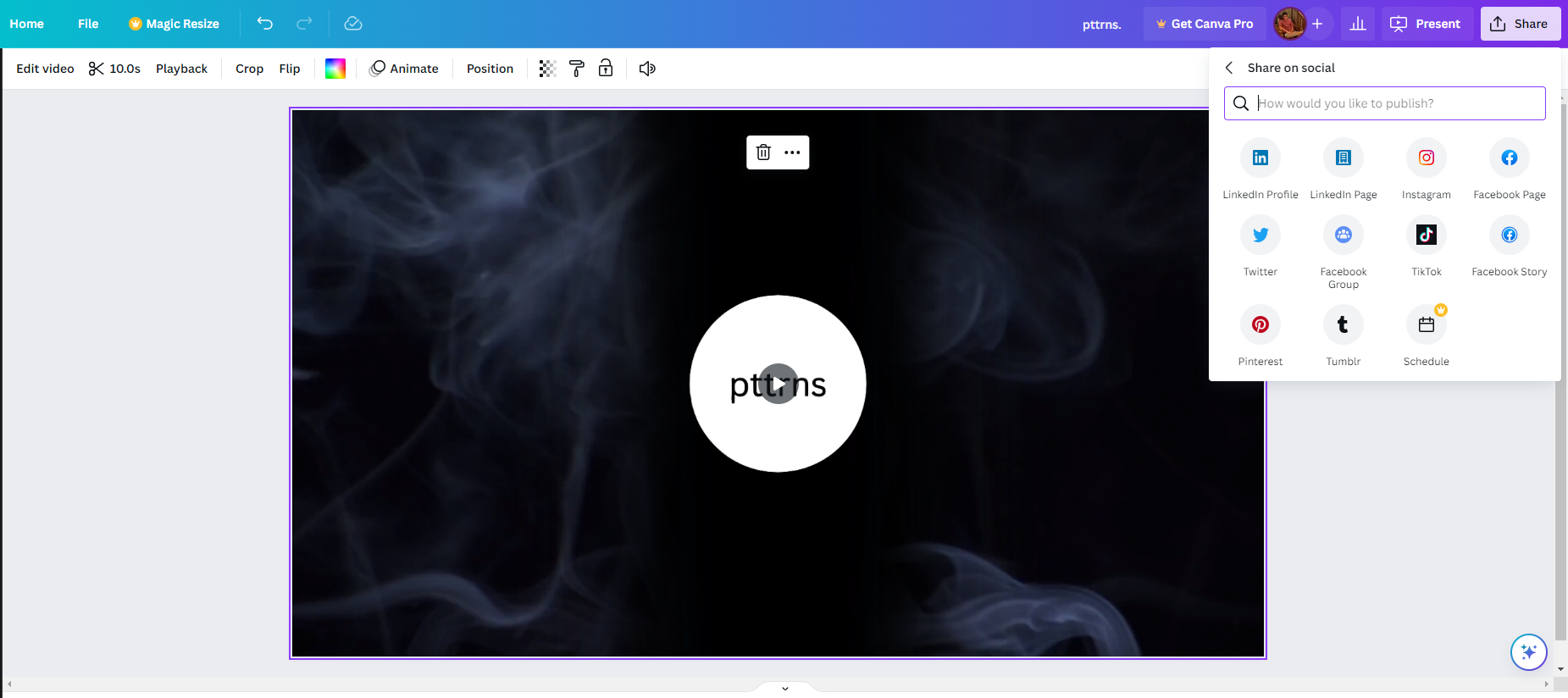
Quick Tip: If you don’t want to save the design on your local storage and want to share it with others, click on the Share button and then Share on Social. Next, select the platform, and you’re done.
Wrapping Up
Congratulations on learning how to blur a video in Canva!
While the above steps can help you blur the video in Canva, it isn’t reliable for all scenarios. Hence, if you aren’t satisfied with the result or are looking for more flexibility, try online video editors like veed.io or conventional video editors like Adobe Premiere Pro.
Related Reading
How To Blur Edges of Photo in Canva





