
 Pttrns

Canva is loaded with multiple tools and features, but sometimes it falls short. However, on the bright side, its exclusive tools can be used to mimic the desired output.
In this scenario of creating rainbow text (gradient text), there isn’t a tool dedicated to it, but worry not, as there is a way around and here are steps for it.
What we cover
Create Rainbow Text in Canva
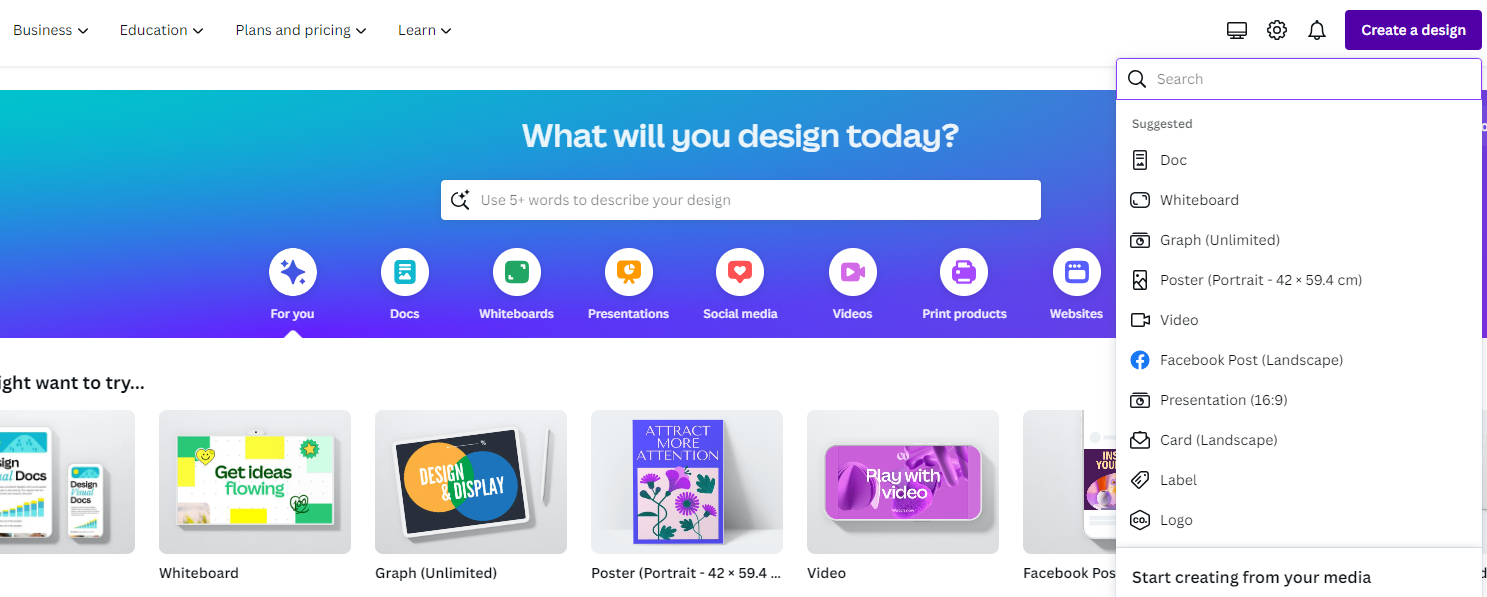
- Start by navigating to Canva on your browser and sign in with credentials. To get started, we suggest creating a new project. To do it, click on the Create a design button present at the top right corner and select a design that matches your requirements.
- Once the design is loaded, navigate to the Editor panel on the left and click on Elements. Now, search for Rainbow background in its associated search box and hit Enter.

- From the results, pick any that matches your requirements. For the demonstration, we considered a Graphic and added it to the design.
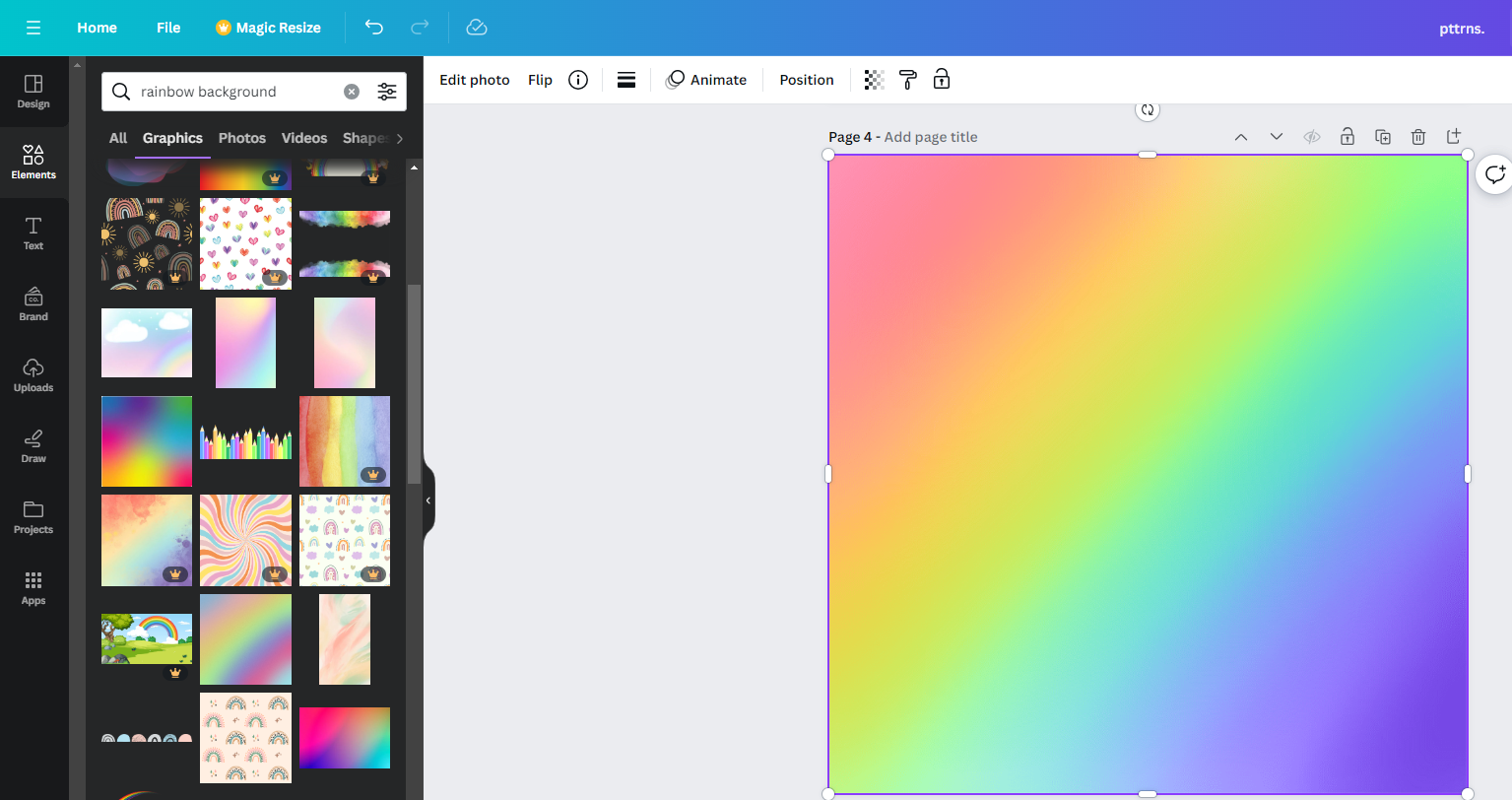
- With the graphic added to the design, press T to add a text box to the design, and once it is added, type the text and ensure the font size is large and the font type is engaging.

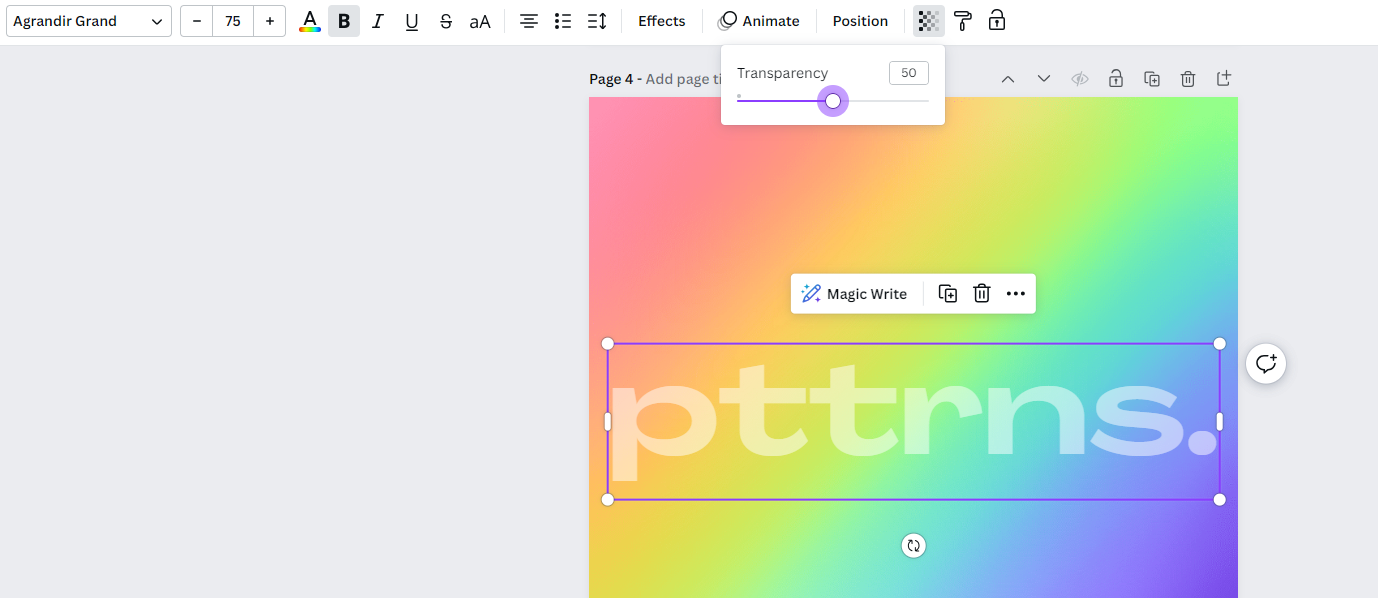
- If you notice the above image, the text is filled with white, and to get the rainbow colors in it, reduce the transparency. To do this, click on the text box to display options at the top. Next, click on the Transparency icon and adjust the slider accordingly.
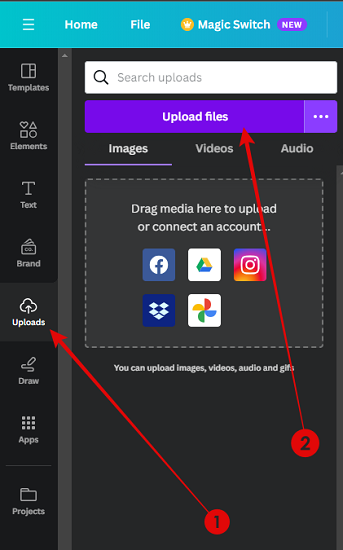
- Now, download the result and crop the image so that it features only the text. Next, upload it on Canva from the Uploads tab on the editor panel by clicking on the Upload Files button.
- Once the image is uploaded, remove the background using the BG remover tool present in the Effects tab, which is displayed on clicking Edit photo.
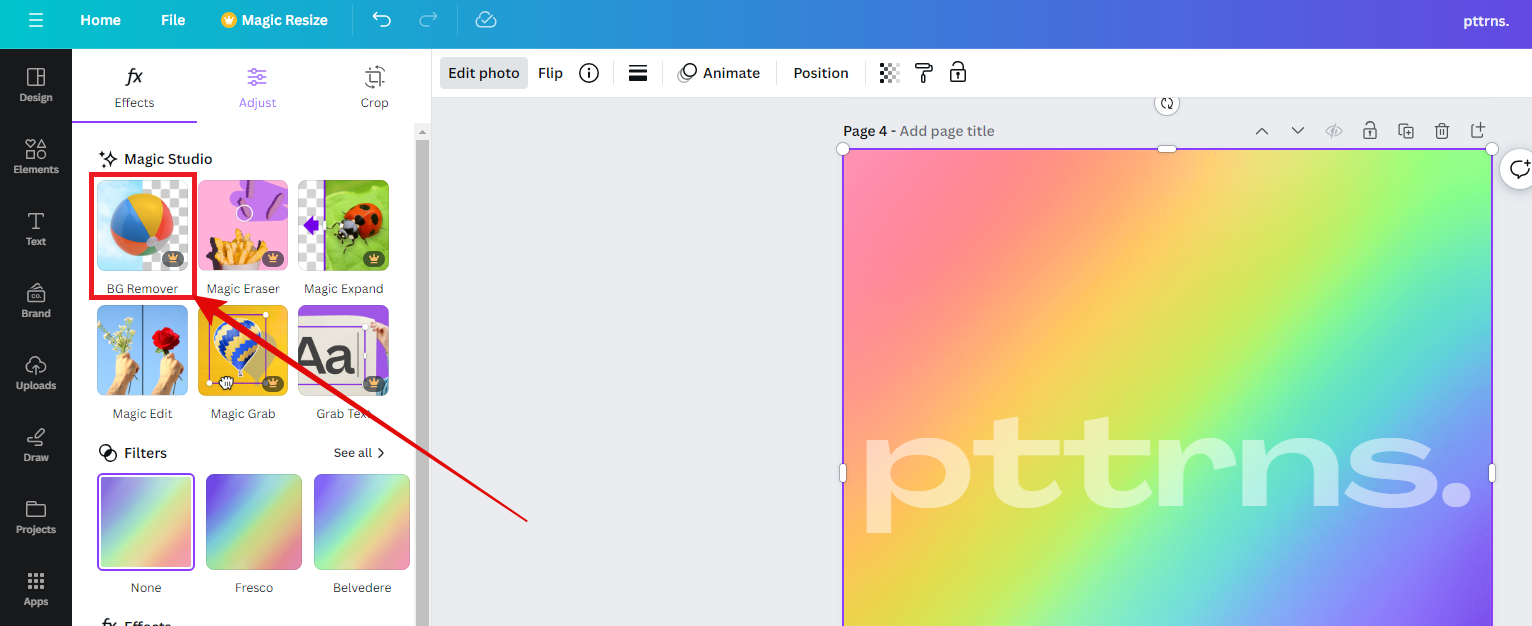
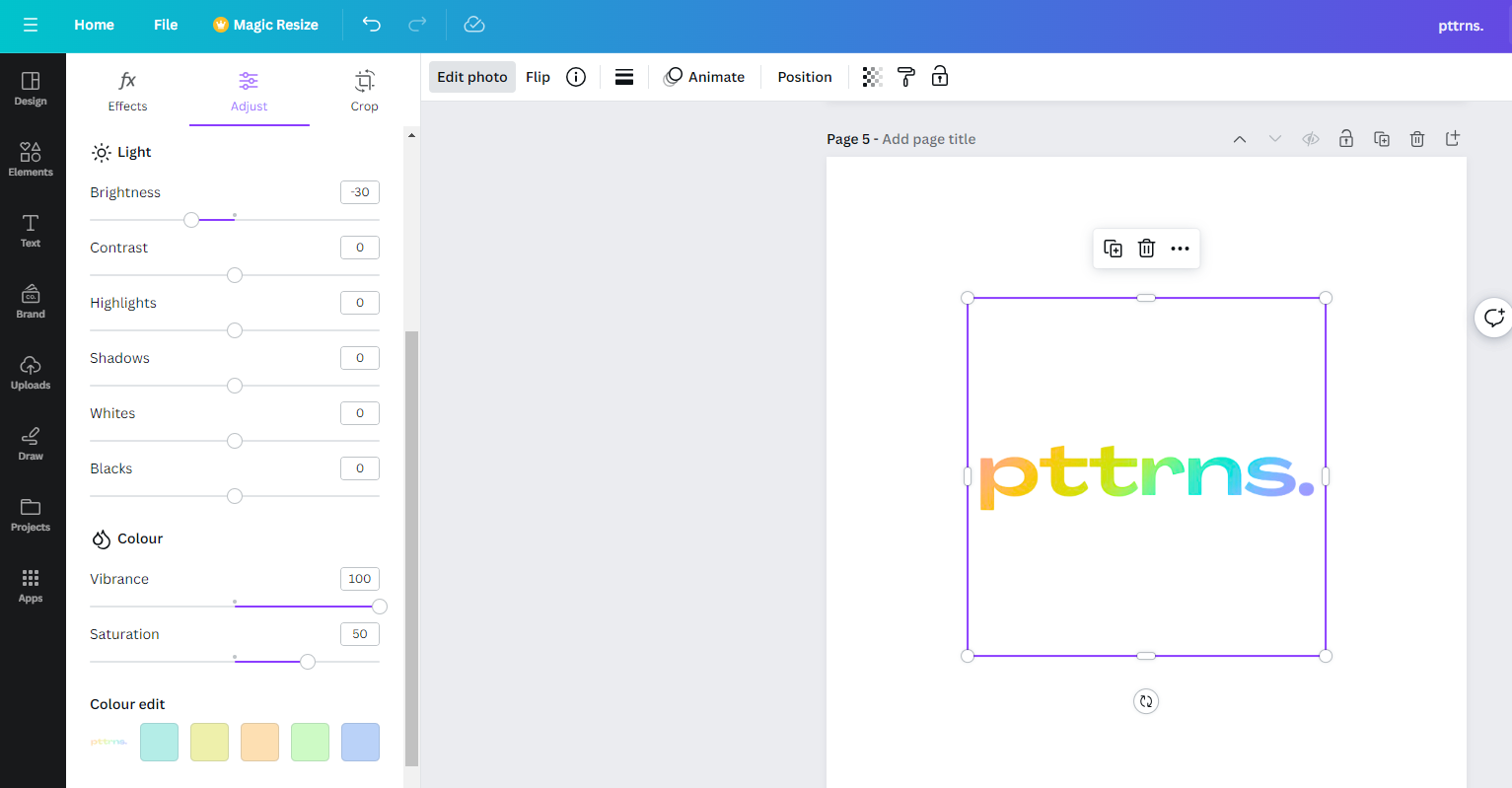
- By doing so, you’re left with the Rainbow text, and if you find the text appears too dull, adjust its color and brightness for the Adjust panel by setting values or managing the sliders.
Don’t have access to Canva Pro?
The above approach uses the BG remover tool, a special tool made available to Canva Pro users. If you’re working on Canva Free, you might struggle with the above approach.
To address this, we have found a way around a here are steps for it:
- Follow Steps 1-5 from the above approach, and once the design is ready, download it by clicking Share > Download > Set File type as PNG and then click the Download button.
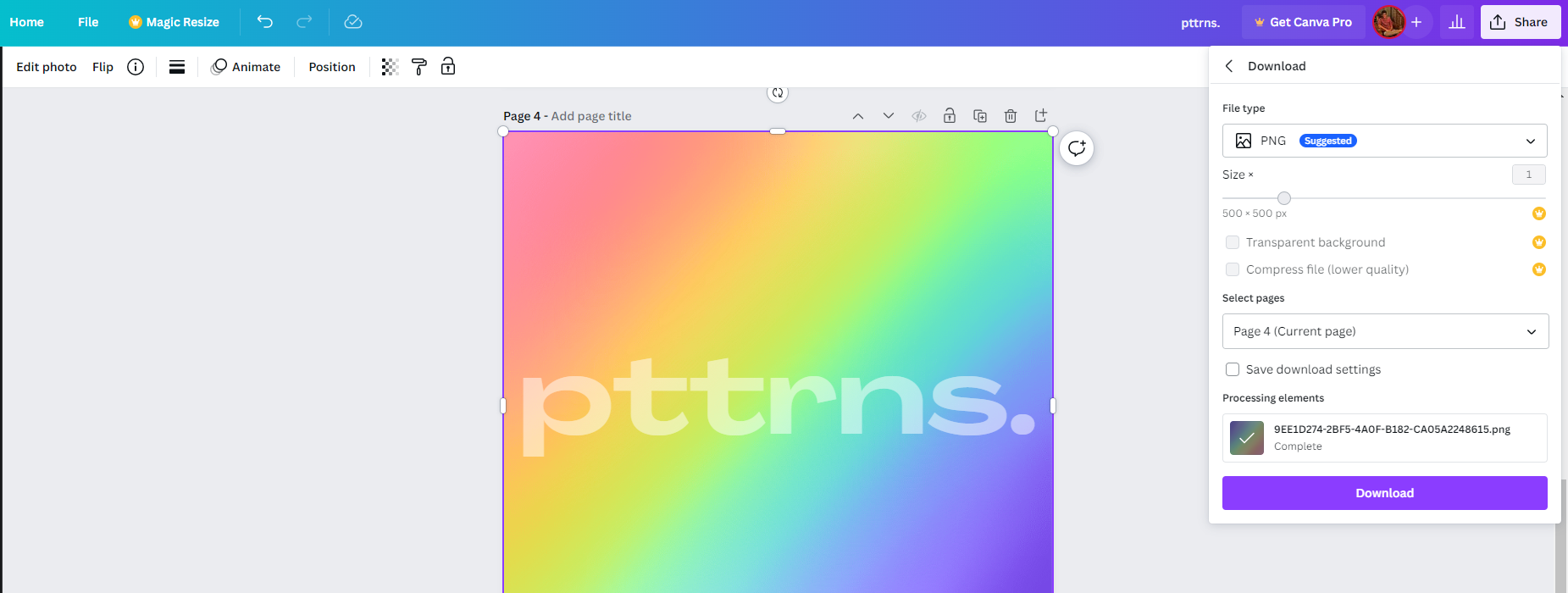
- Once the image is downloaded, crop it and navigate to remove.bg to remove the background of it.

- Now, download the image from remove.bg and upload it to Canva. Next, repeat Step 8 from the above approach, and you’re left with an engaging rainbow text.

Wrapping Up
Congratulations on creating rainbow text on Canva!
While the above steps generate decent results, if you find them too complex or don’t match your expectations, we suggest working with conventional photo editors like Adobe Photoshop for better results and flexibility.
Related Reading
How To Create Sublimation Designs in Canva





