
 Pttrns

Learning how to highlight text comes in handy for situations like highlighting changes and indicating edits or removal. Doing so enhances the overall clarity of the design, and here’s how you can do it on Canva.
What we cover
Strikethrough Text in Canva
- Start by navigating to Canva and sign in with your credentials. Next, navigate to Recent designs to open the design you’re working on. If you haven’t started anything, click on Create a design to get started.

- After the design is loaded, click on the text you want to strikethrough and then double-click to select the text. Doing so, you’re displayed with options on the top. Now, navigate to the Strikethrough icon and click on it, and you’re done.

Custom Strikethrough in Canva
While achieving the strikethrough effect is easy with the Strikethrough tool, it lacks flexibility. For instance, if you want the strikethrough to feature a color other than the text color, it wouldn’t be possible.
To address this, we have provided the steps below where you can do custom strikethrough the text or any element on Canva:
- Start by opening the design you’re working on (Refer to Step 1 in the above approach), and once it is loaded, navigate to the options on the left and click on Elements.
- Now, navigate to the Shapes section displayed in the Elements tab and pick the straight line.
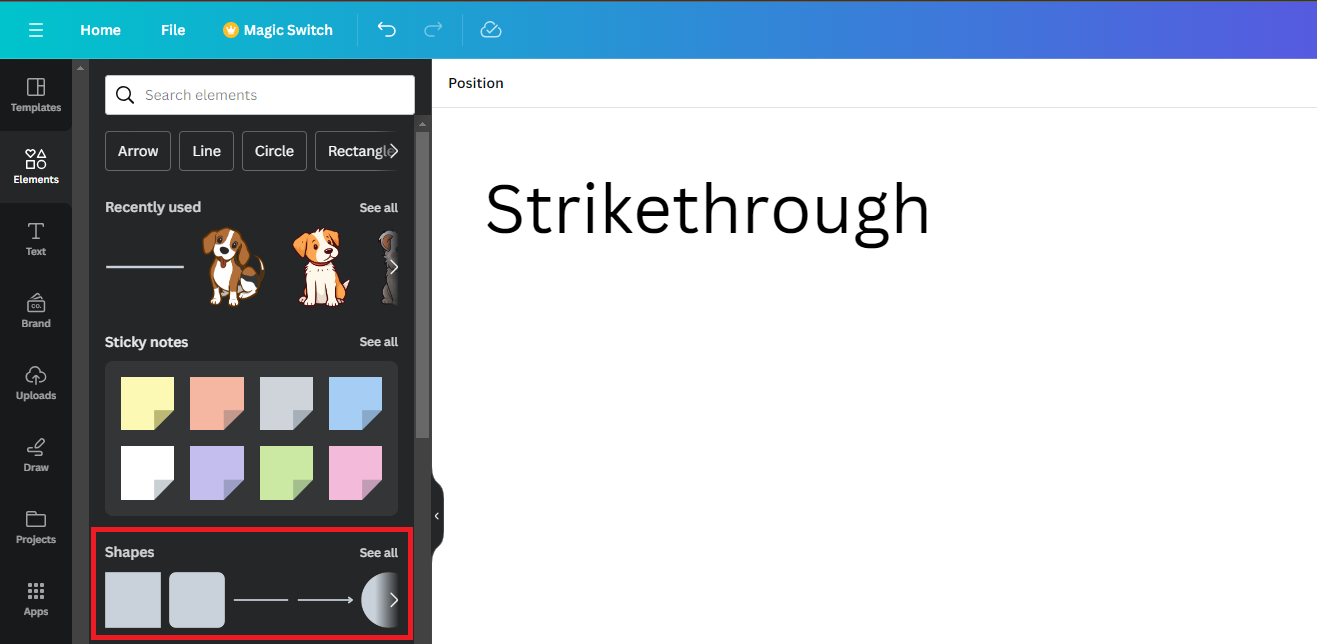
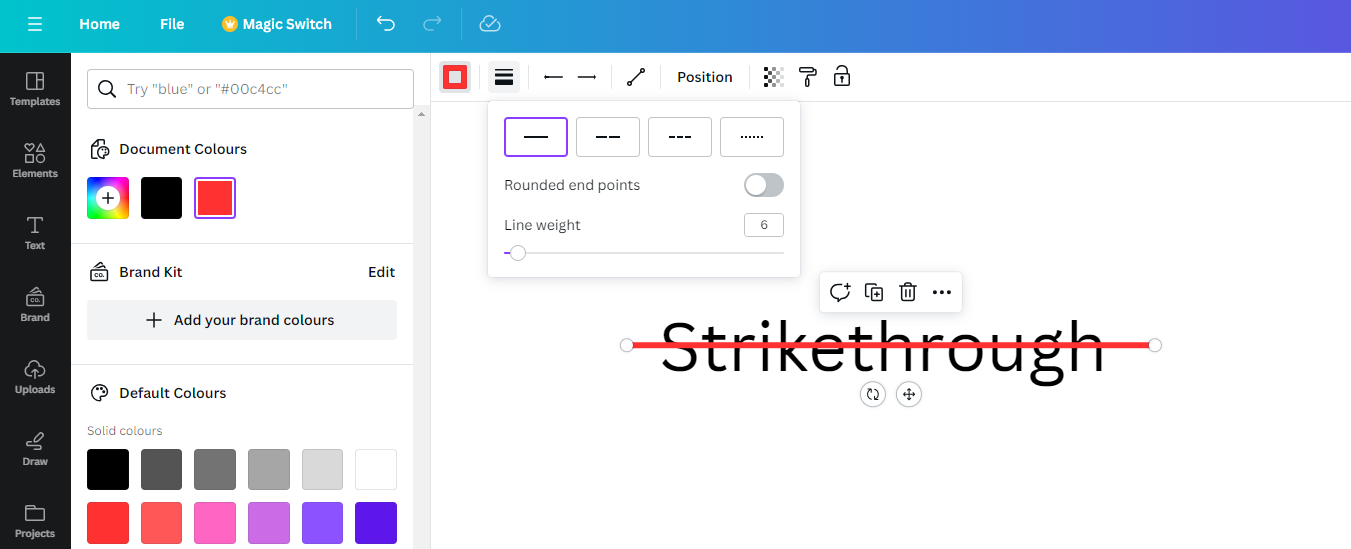
- With the straight line added to the design, you can place it on an element and adjust its size to create a strikethrough effect. The best part about it is you get to customize its color, styles, and effects.
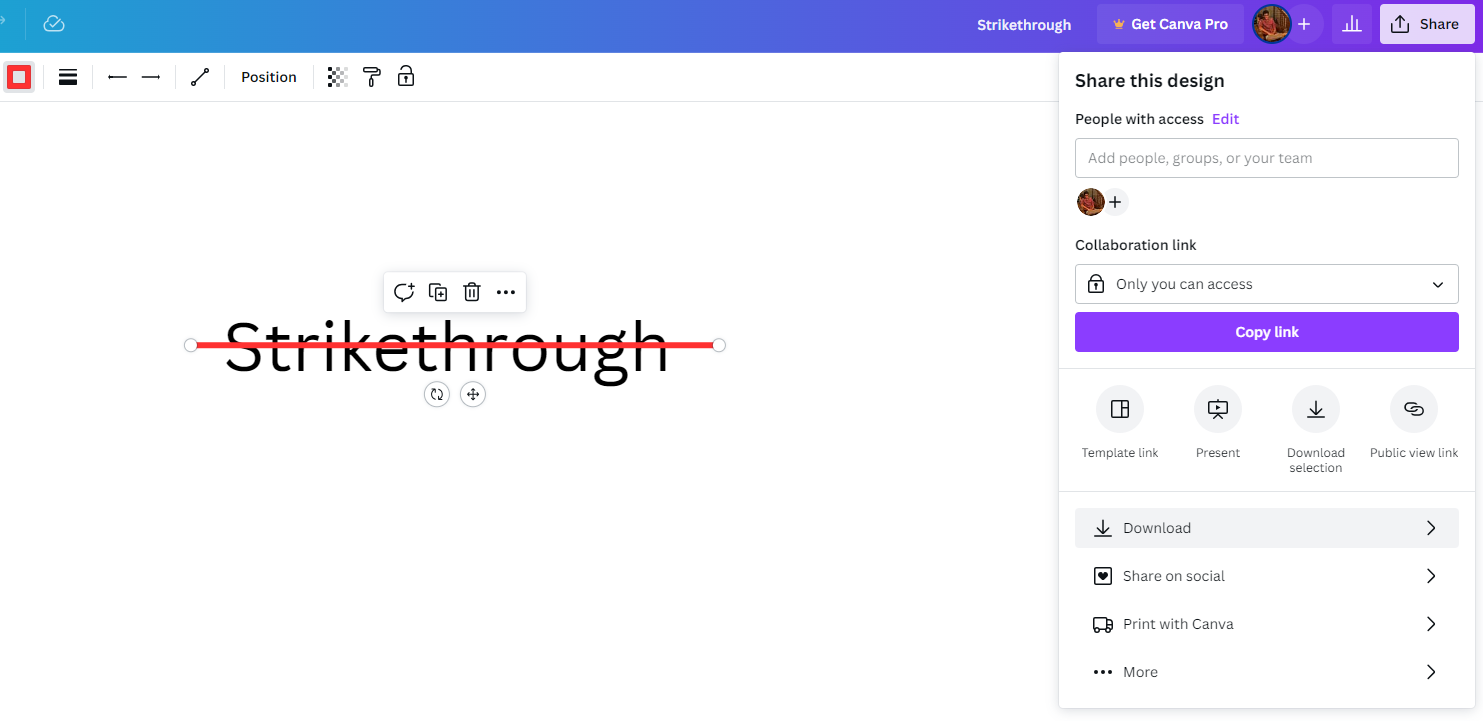
- Once you’re happy with the result, navigate to the Share button in the top right corner and click on Download from the available options.
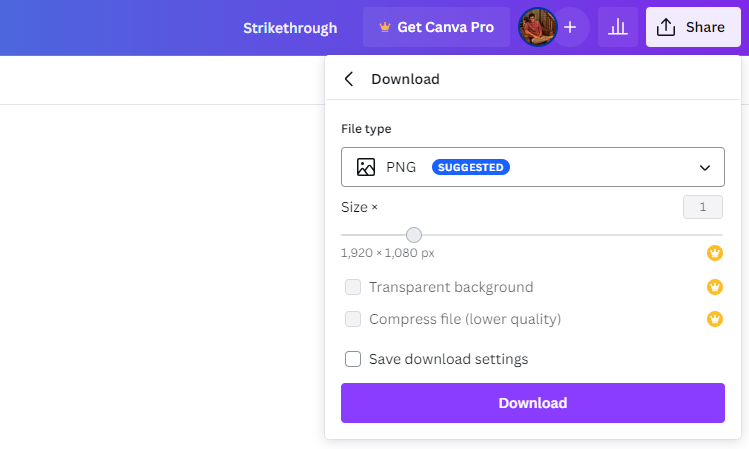
- Next, you’re displayed with a Download box, from which you select the File type based on your requirement, and you’re done.
Wrapping Up
Congratulations on making a successful strikethrough on an element in Canva!
While these are the only available ways to make a strikethrough in Canva, if you aren’t happy with the result while working on elements other than text, consider working with photo editing tools like GIMP, Adobe Photoshop, or online image editors.





