
 Harsha Vardhan N

If you’re working on a design file and cannot edit text due to a missing font message, the fix is easy. In this guide, we will present a demonstration of how to fix this issue with simple steps to get you covered.
Fix Missing Fonts in Figma
- Click on the text inside the design file for the missing font message to appear.

- There are two ways to fix this issue – Adding the missing font to Figma or using the existing fonts as replacements.
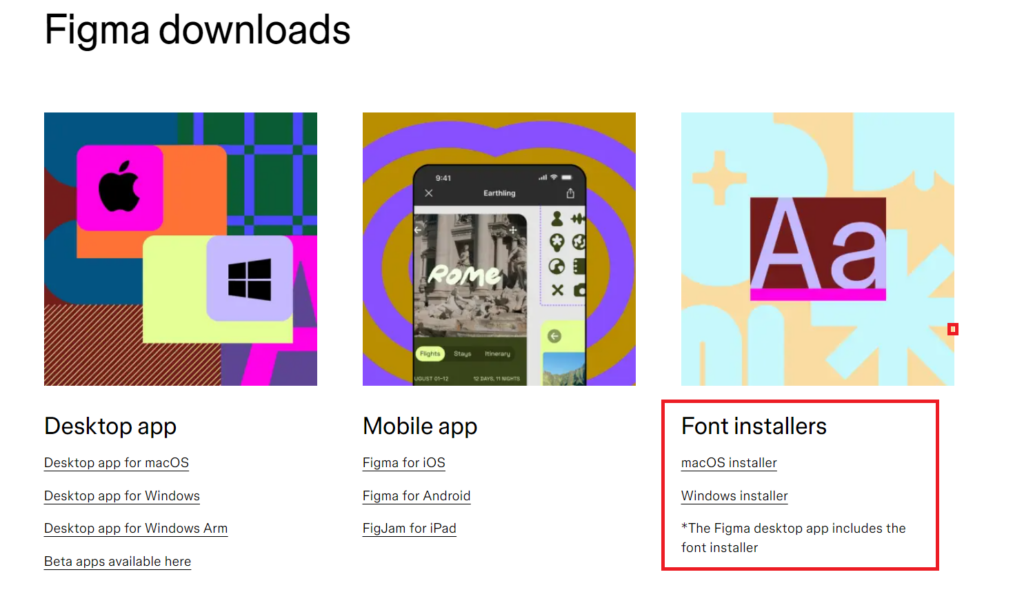
- To add the missing fonts, you need to download the font, install it on your PC, and use the Figma Font Installer tool to load the font onto Figma. Here is a detailed guide – How to Add Fonts to Figma.
- If you don’t have access to the font or don’t want to add fonts, choose a font in the Missing Fonts message and click on the Replace fonts button.

- If there isn’t a “Missing fonts” message, navigate to the Typography section and change the font to fix the missing font issue.

- After changing the font, you can see that the issue/error isn’t displayed anymore.

Wrapping Up
Congratulations on learning how to fix missing fonts in Figma!
If you have chosen to add a font to Figma using a font installer and the missing font error isn’t fixed, we suggest you reload the design file. In case it doesn’t work, reboot your PC.
Related Reading
How To Change All Fonts in Figma
How To Add Google Fonts to Figma






