
 Pttrns
A design can feature multiple layers and be challenging if you aren’t aware of the order they are placed. To make this easier, Canva has provided a dedicated layer panel to display the elements and their order.
In this guide, we will help you find the layers panel and arrange them, so you can work on the design seamlessly.
What we cover
Finding Layers in Canva
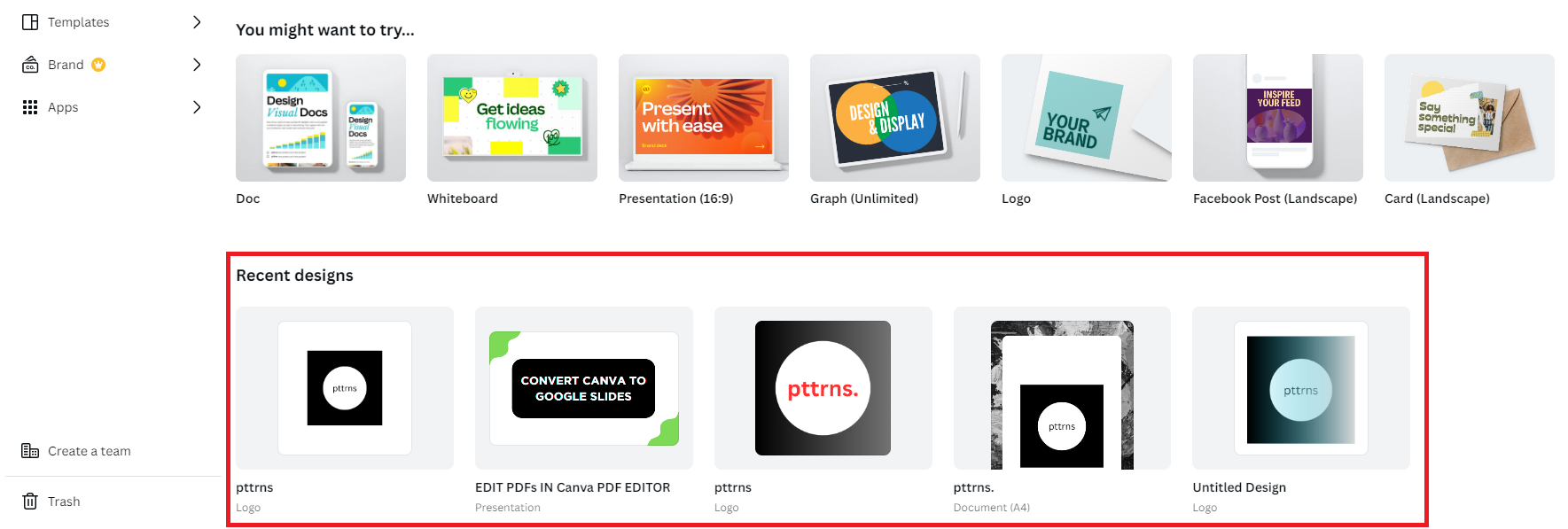
- To gain access to the layer panel, open the design you’re working on by clicking on it from the Recent designs section displayed on Canva Home.
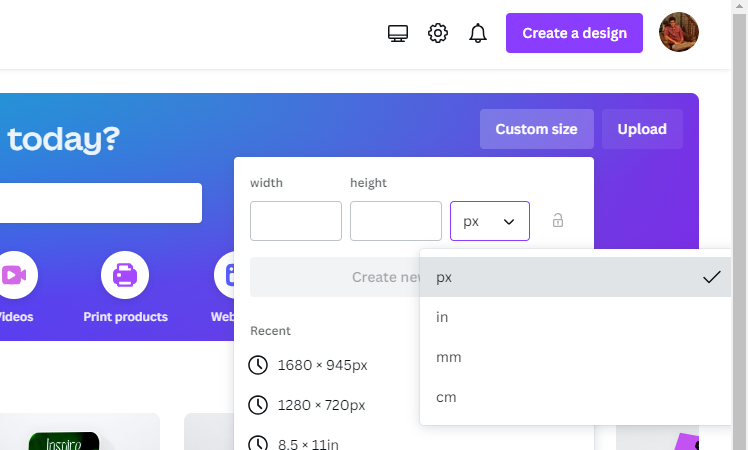
- However, if you have not started yet, we suggest creating a new design by clicking on the Create a design button and choosing a design. Alternatively, you can also create the custom design by clicking on the Custom size button.
- If you have a design ready to work with, skip this step. However, if you have created a new one, start from scratch and use free Templates from the Design panel on the Editor panel to ease the process.

With the design ready, you can proceed with adjusting its layers by accessing the Layers panel, and here are multiple ways to do it:
By right-clicking on the design:
- Start by navigating to the design and select it.
- Once it is selected, right-click on it to display options.
- Now, from the available options click on Layer and then Show layers [Refer to the below image for better understanding].
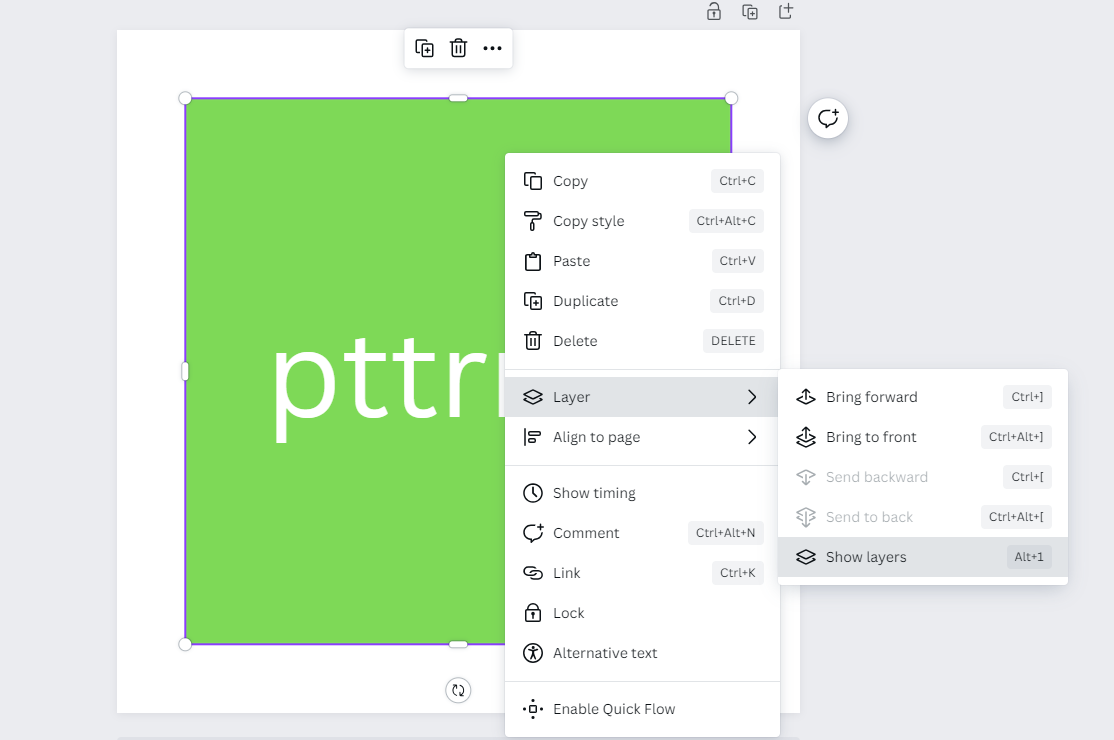
- If you do it right, you’re displayed with the Layers panel on the left.
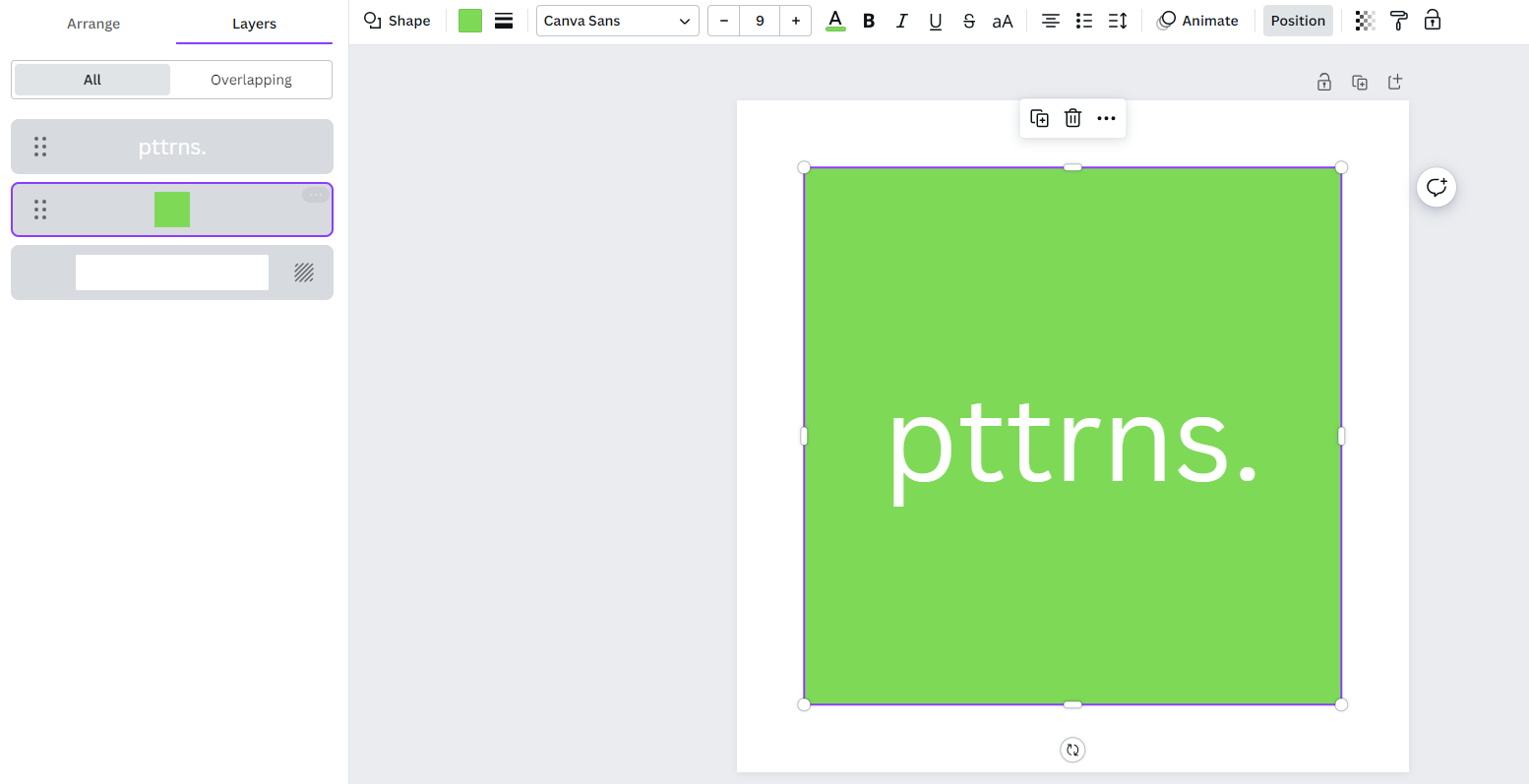
By clicking on Position:
- After the design is added to the canvas, click on it to select it.
- By doing so, you’re displayed with multiple options on the top.
- Now, from the available options, click on Position and you’re displayed with the Arrange panel on the left.
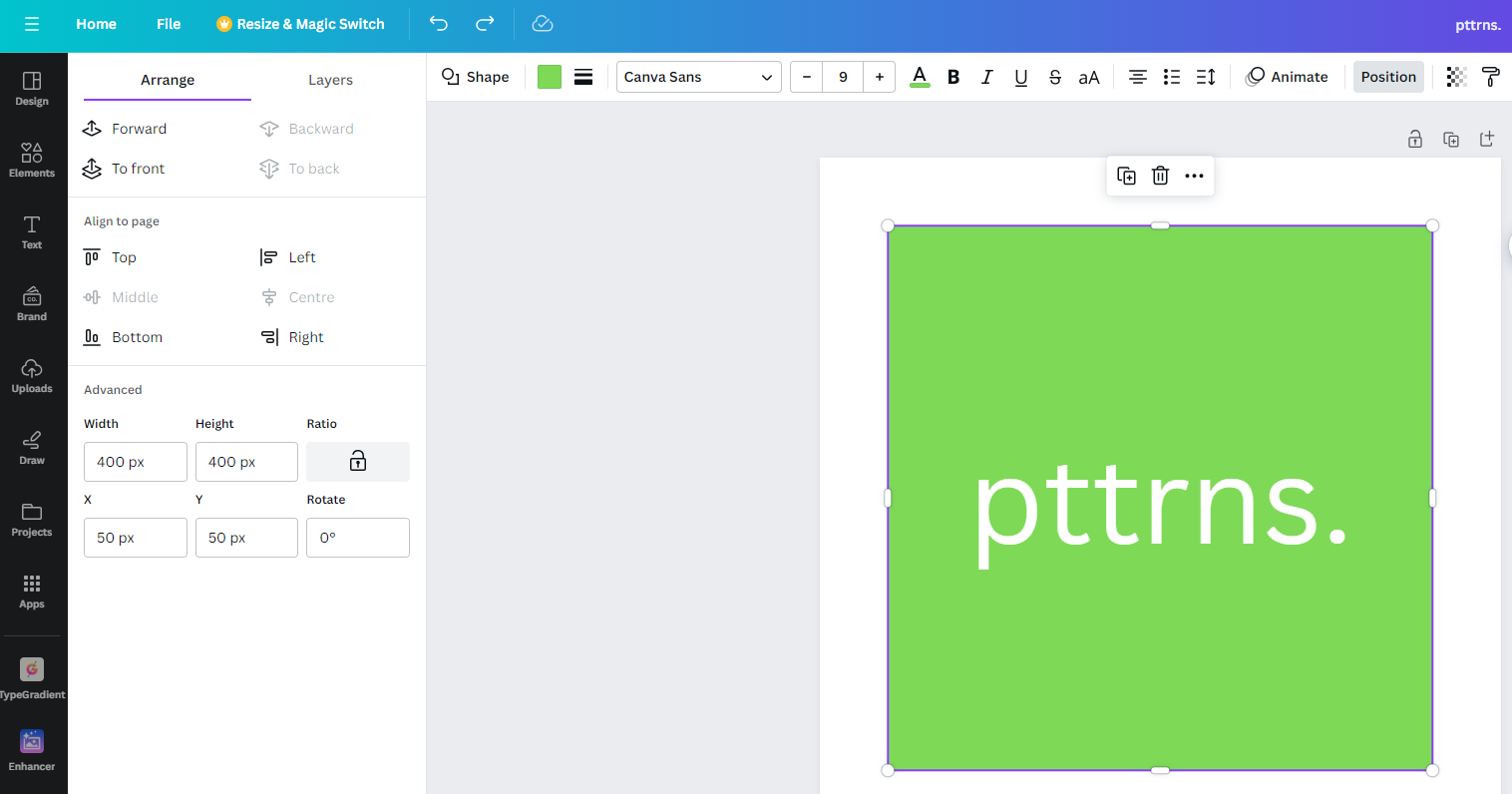
- However, as we are looking for the layers panel, click on Layers present on the right of Arrange to open the Layers panel [Refer to the below image for better understanding].
Pro Tip: The above approaches can be time-consuming if you’re working on a large design. To address this, Canva has offered a keyboard shortcut – Alt + 1 and with this, the Layers panel is displayed right away on the left.
Arranging Layers in Canva
Arranging layers is arguably the easiest, thanks to the dedicated Layers panel on offer. Here are steps on how you can arrange layers:
- Begin by navigating to the Layers panel and click on the layer you want to arrange.
- Next, click and hold on a layer, and drag it up or down the panel according to your requirements.
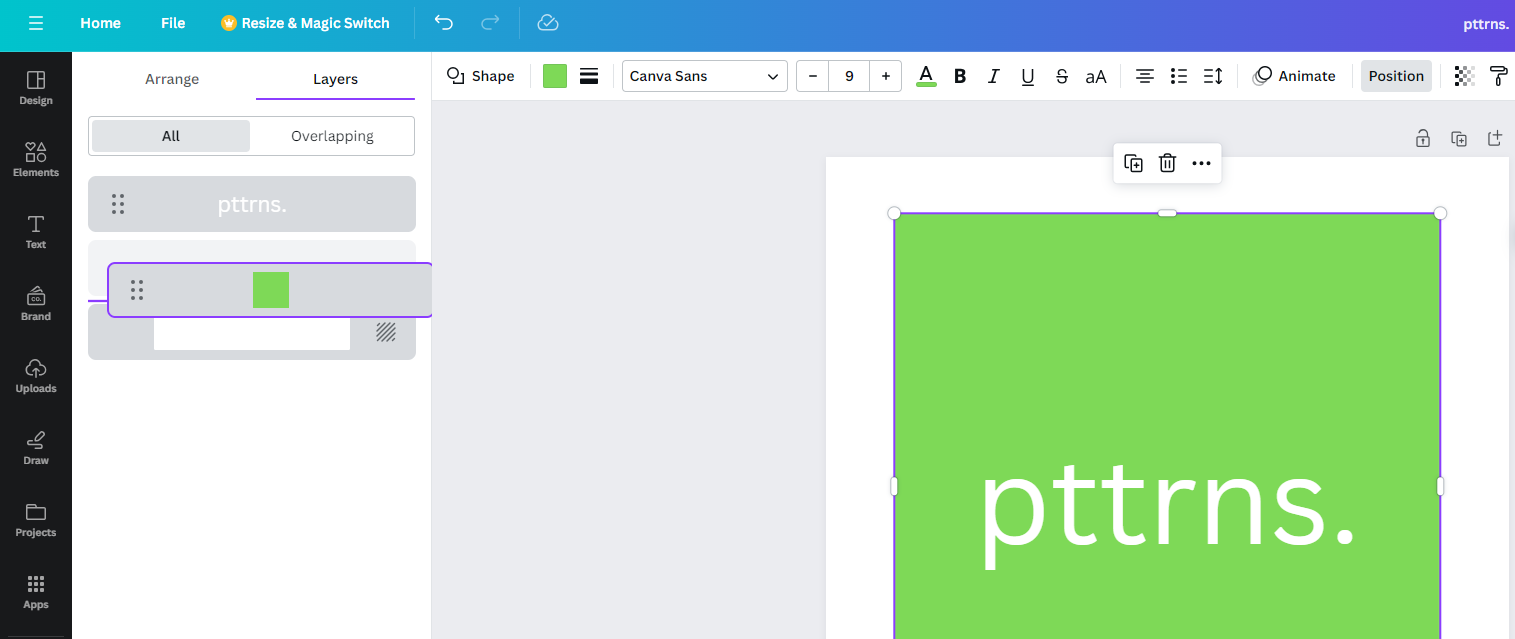
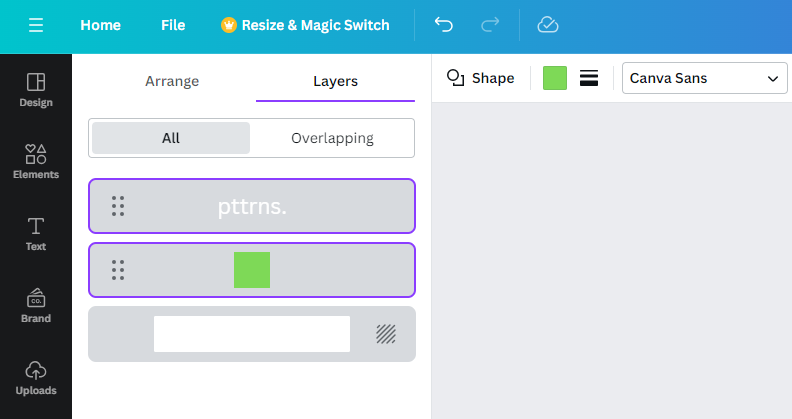
Pro Tip: It can be time-consuming if you want to adjust layers individually. To ease the process, select multiple layers at once by clicking on the layers while holding the Shift key. If you do it right, you will find the layers selected which can be adjusted at once.
Wrapping Up
Congratulations on learning how to find and arrange layers!
While there are no complaints with layers, you can ease the arranging process by grouping the elements. However, keep in mind that grouping is ideal only when moving multiple elements at once.

Related Reading
How To Overlay Images in Canva





