
 Pttrns
Canva offers the flexibility to work with several designs and also provides the ability to create custom designs. In this guide, we will help you with changing to landscape size for a new and existing design, and here are the steps for it:
What we cover
Change to Landscape Size for a New Design
- Start by navigating to Canva and sign in with your credentials. Once you’re logged in and are on the Canva Home, navigate to the Create a design button and click on it.
- Next, type the design name you want to work with in the search box associated and you’re displayed with portrait and landscape versions if available. For demonstration, we have looked for A4, and in the results, we could find the landscape versions for it.
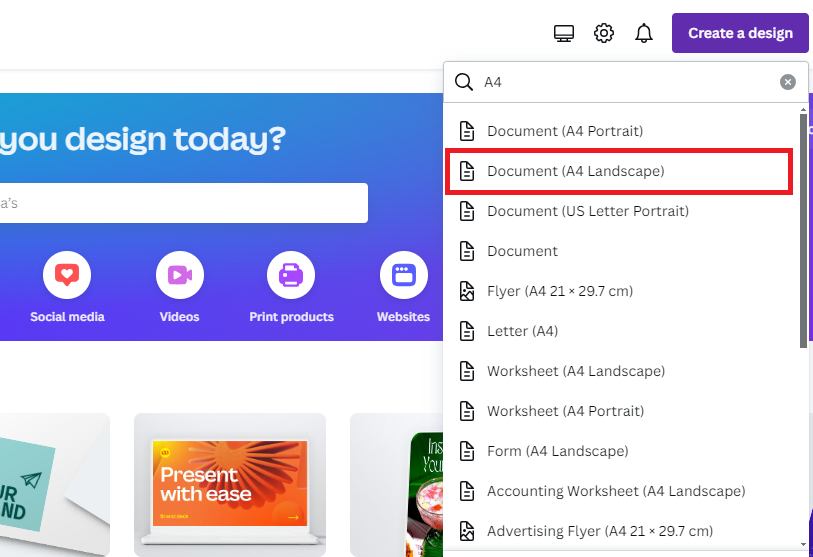
Note: All designs might not feature a landscape version and in this scenario, it is important to create a custom design.
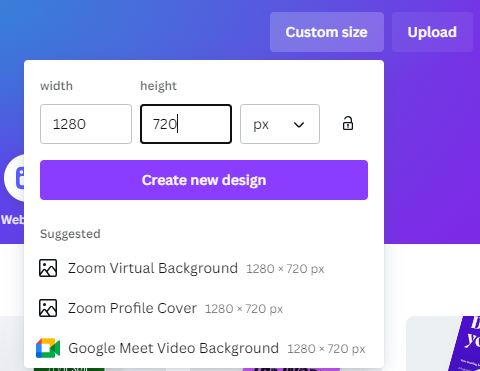
- To create a custom design, navigate to the Custom size button on the homescreen and enter the dimensions. For demonstration, we have created a custom landscape design [Width > Height] with 1080×720 pixels.
Change to Landscape Size for an Existing Design
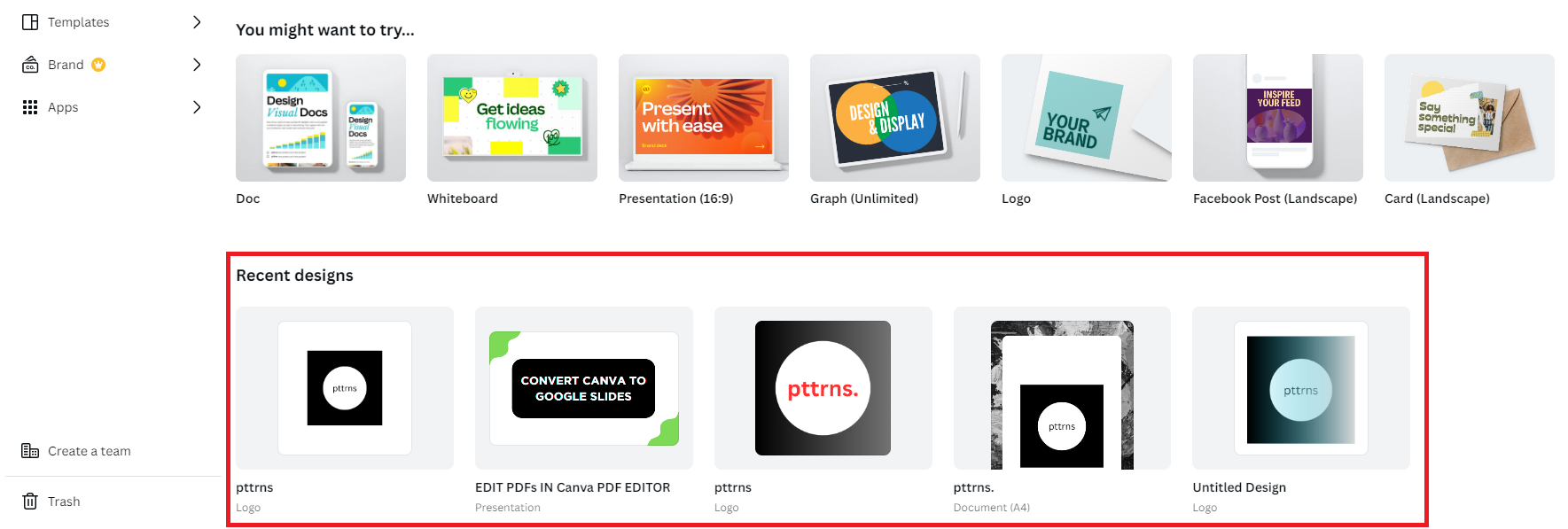
- Begin by navigating to Canva and sign in with your credentials. Once you’re logged in open the design you’re working on from the Recent designs section present on the Canva Home.
- Once the design you’re working with is loaded, go to Resize & Magic Switch positioned in the top left corner, and select it. By doing so, you will find three choices from which to click on Resize.
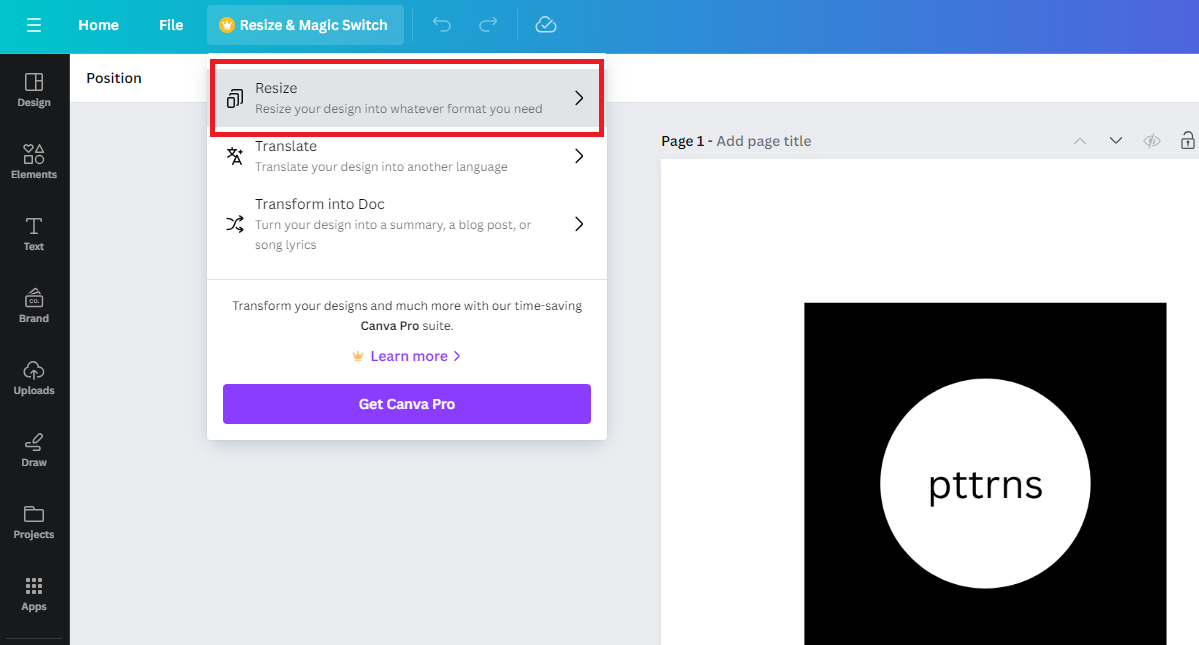
- Upon doing this, multiple options will appear to resize the size of your design. Now, proceed to the Browse by category section and choose Custom size.

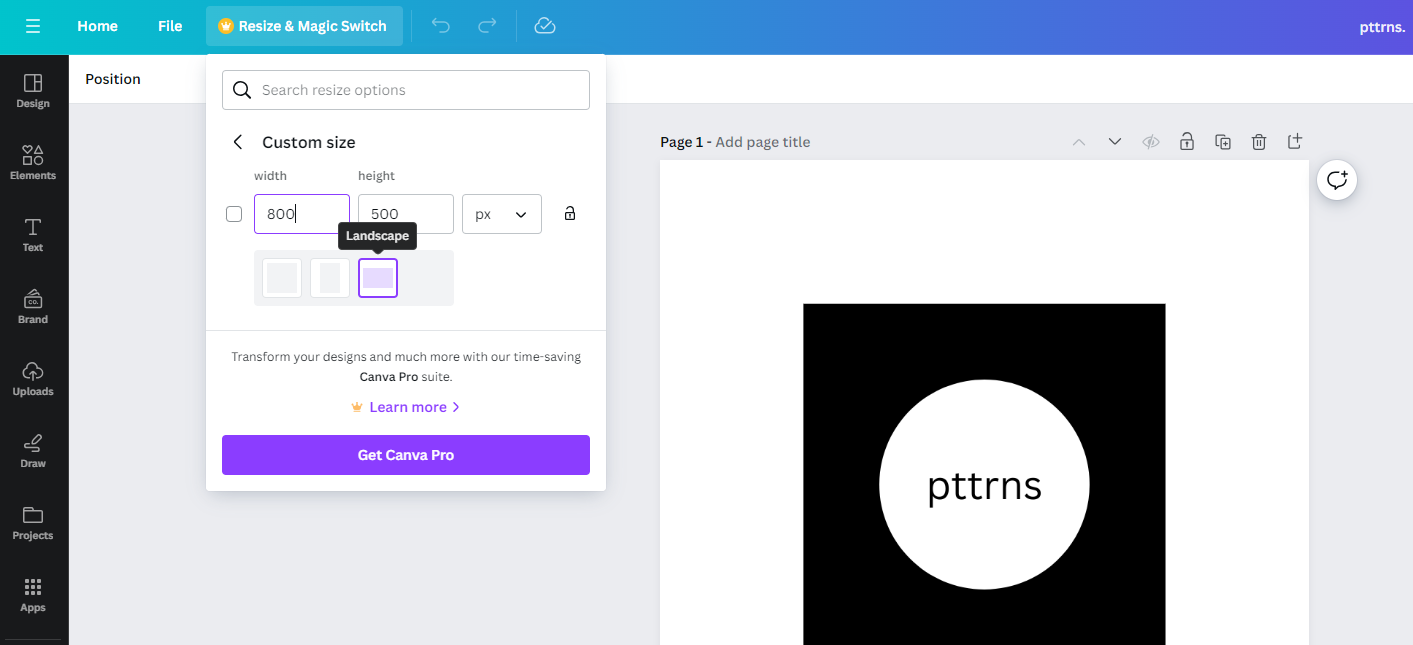
- Once the Custom size tab is visible, input the desired values in the Width and Height boxes. As you’re trying to change it to landscape, ensure Width > Height. Once the input values are provided, click on the Resize button to generate a custom design size.
Wrapping Up
Congratulations on learning how to change to landscape size in Canva!
While Canva offers the flexibility to change to landscape size with the Resize & Magic Switch option, it is restricted to Canva Pro users. Hence to avoid this happening, ensure you enter the right dimensions when creating a custom design through the Custom size button.
Related Reading
How To Adjust Design Orientation in Canva
How To Create Custom Size on Canva





