
 Pttrns
Canva features multiple tools to edit images, and while most can be accessed right away, some stay hidden. In this scenario, there isn’t a tool in Canva dedicated to turning photos into line drawings. However, there is a way around to mimic it, and here are steps for it:
Note: The steps listed below might be confusing as it involves a lot of navigating. Hence, pay close attention to the images provided for each step and work on your image.
Turn Photo Into Line Drawing in Canva
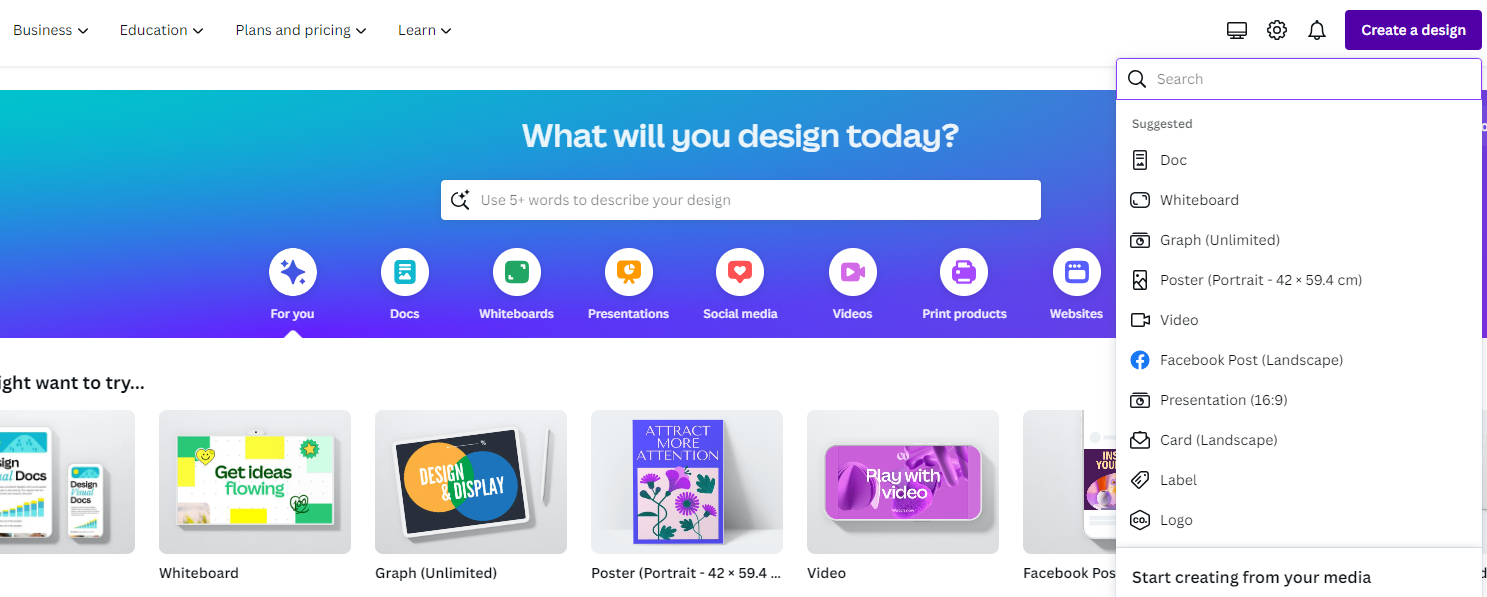
- Start by navigating to Canva and opening the project you’re working on from the Recent Designs section. If you haven’t started yet, get started with a new design by clicking on the Create a design button and choosing the design.
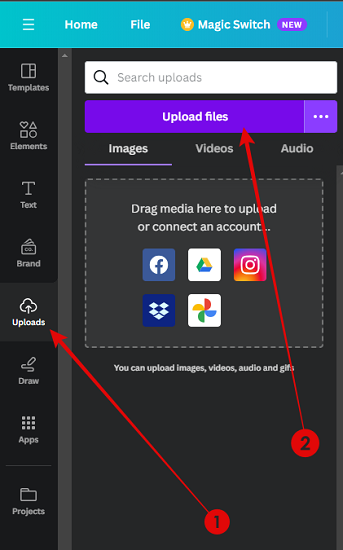
- Once the new or existing design is loaded, navigate to the Editor panel on the left and click on Uploads. If you haven’t uploaded anything, click on Upload files. Now, from the uploaded photos, click on the one you want to turn into a line drawing.
Pro Tip: Ensure the photo you’re trying to convert to a line drawing doesn’t feature a background for best results. To do this, use an inbuilt background removal tool or use an online tool like remove.bg.
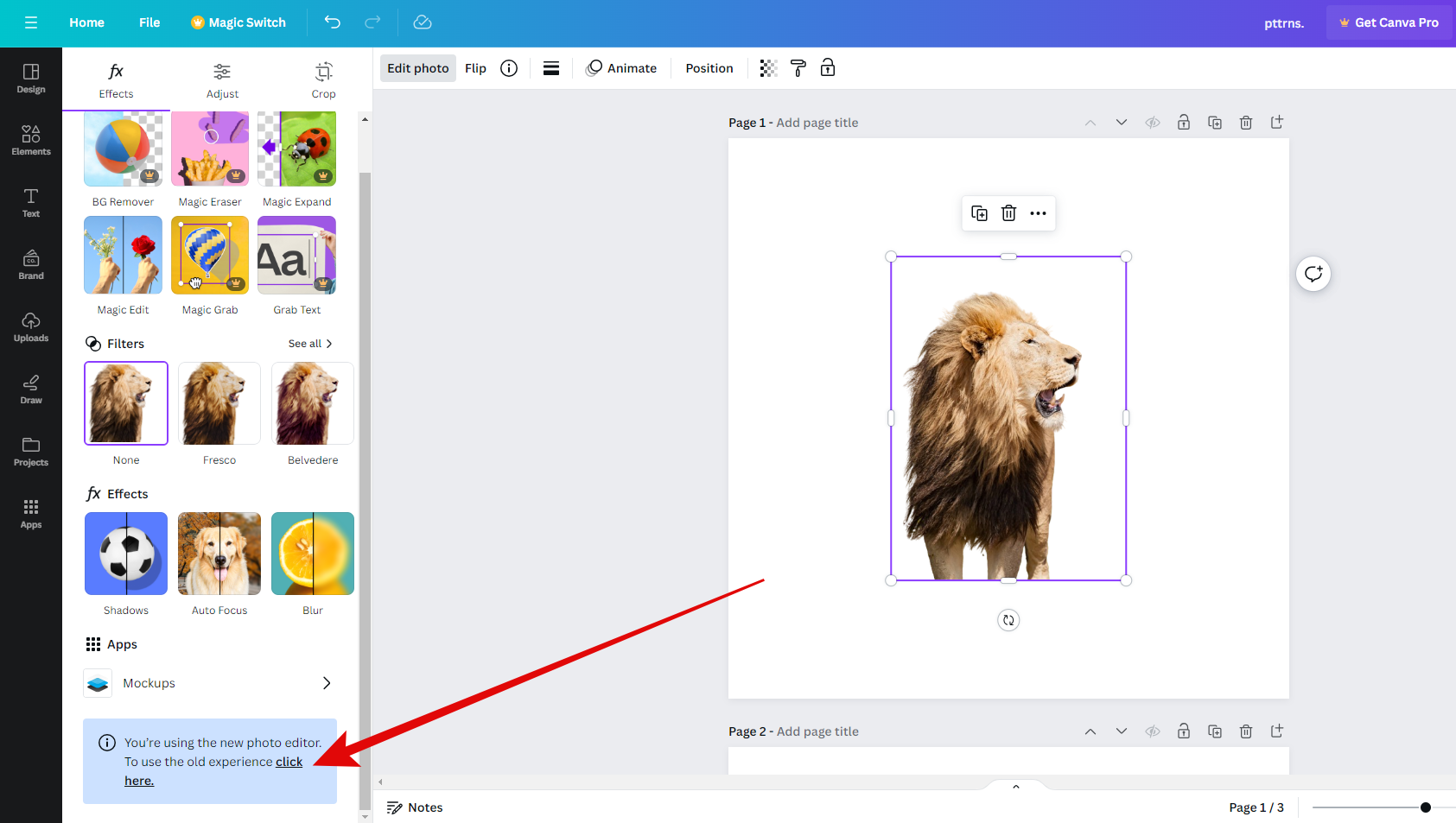
- By doing so, the image is added to the design, and the options are displayed on the top. Now, click on Edit image to open the Effects panel on the left.
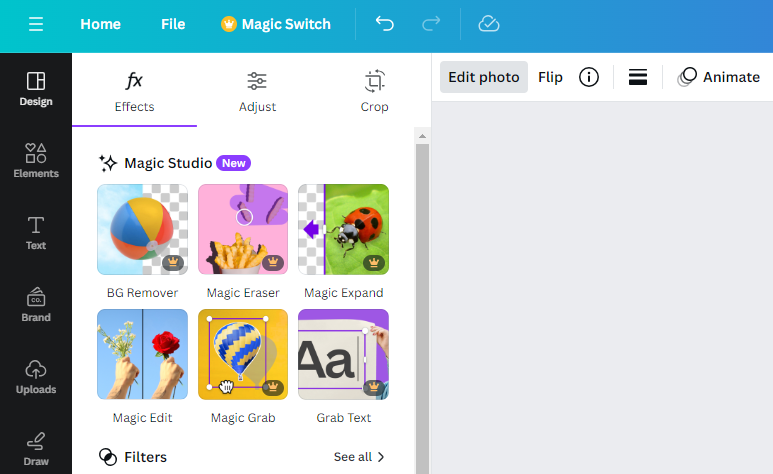
- Turning the photo into a line drawing requires special effects, and unfortunately, they aren’t listed in the new editor. For a way around, scroll down to the bottom of the panel and revert to the old editor by clicking on the message featuring underlined click here text.
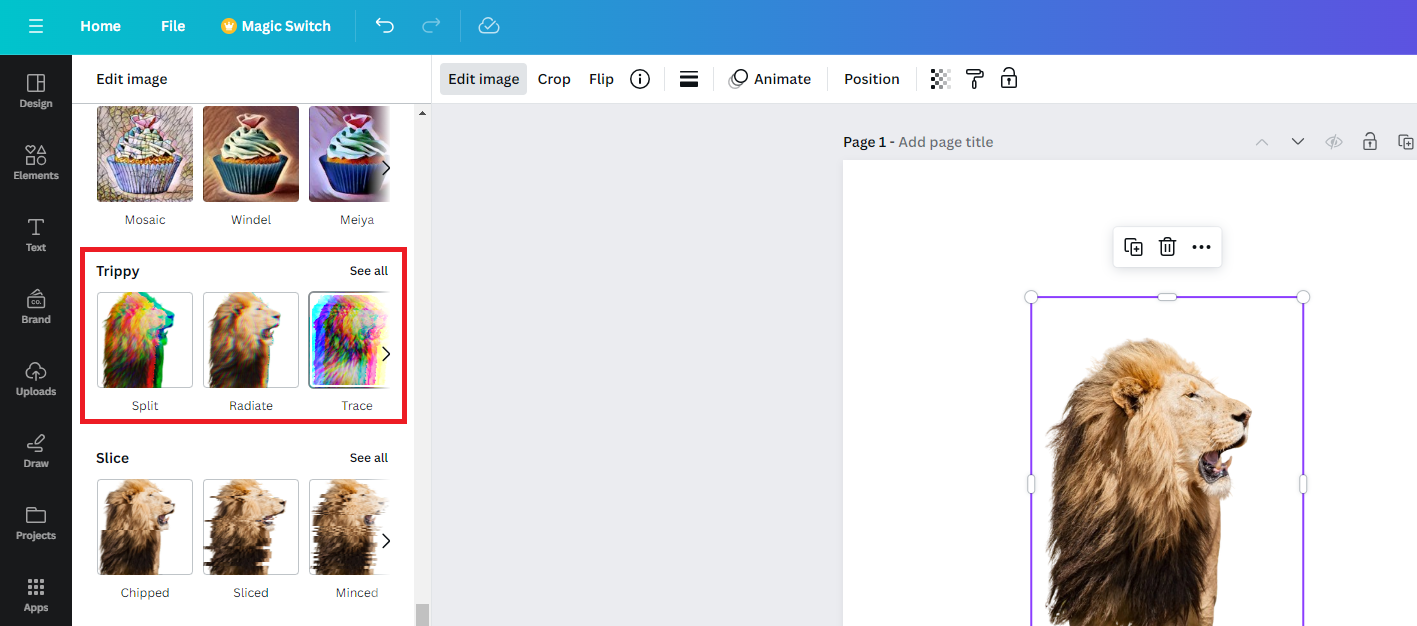
- With the old editor loaded, click on Edit image to open the editing options on the left. Next, scroll down to the Trippy section and click on See all to get access to all effects under this section.
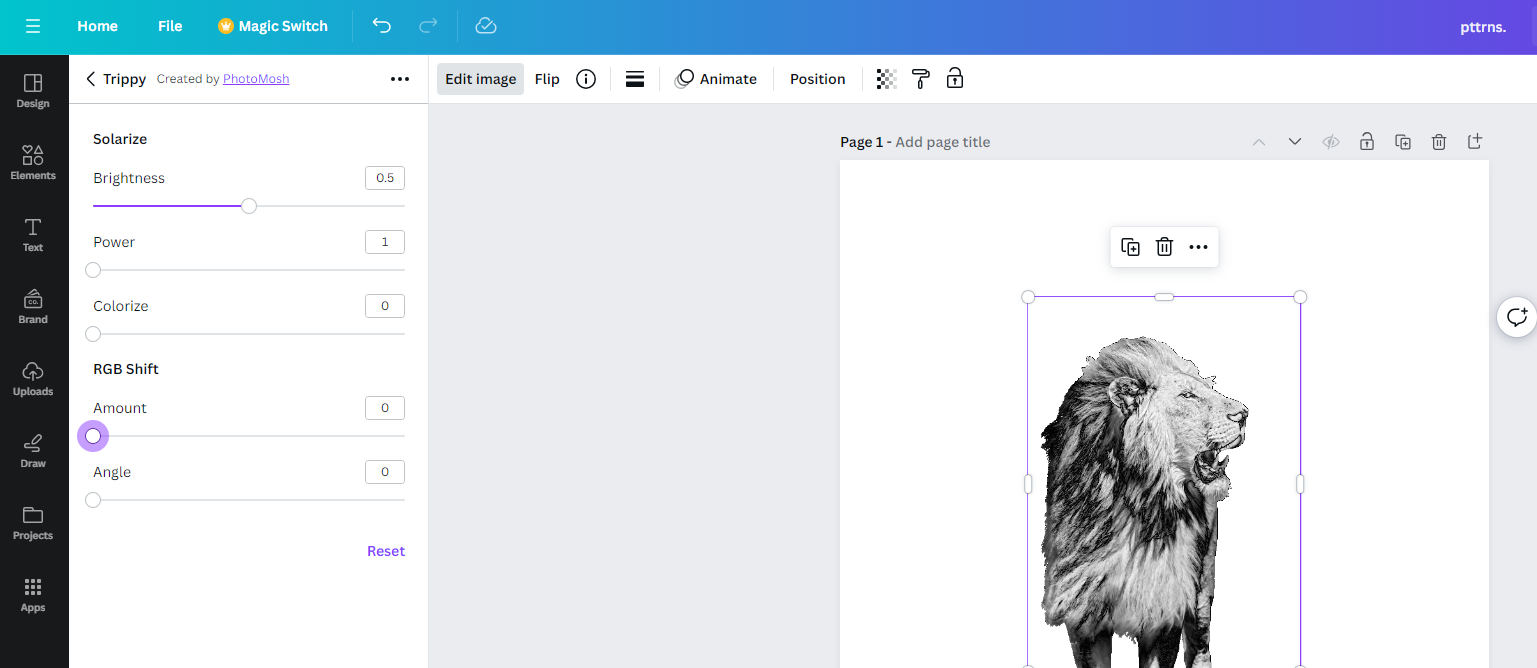
- After the available effects are displayed, click on Trace, and once it is applied, click on it again to open the settings associated with the effect. Now, set RGB Shift Amount & Colorize to 0 and click on Apply.
- Once the changes are made, click on the Edit image option again, and from the editing options, click on Adjust.
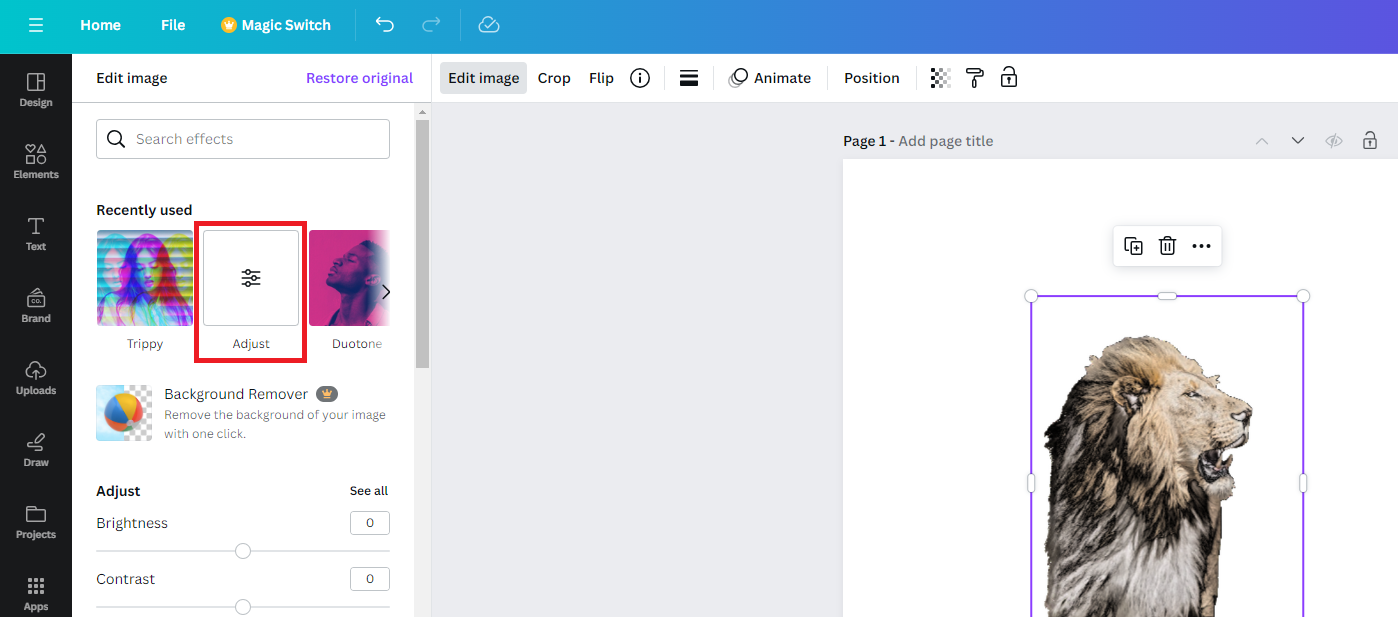
- By doing so, multiple sliders are displayed on the left. Now, ensure you set the Blur to -100. For a more realistic line drawing effect, set the Vignette to 20 – 30, if needed.
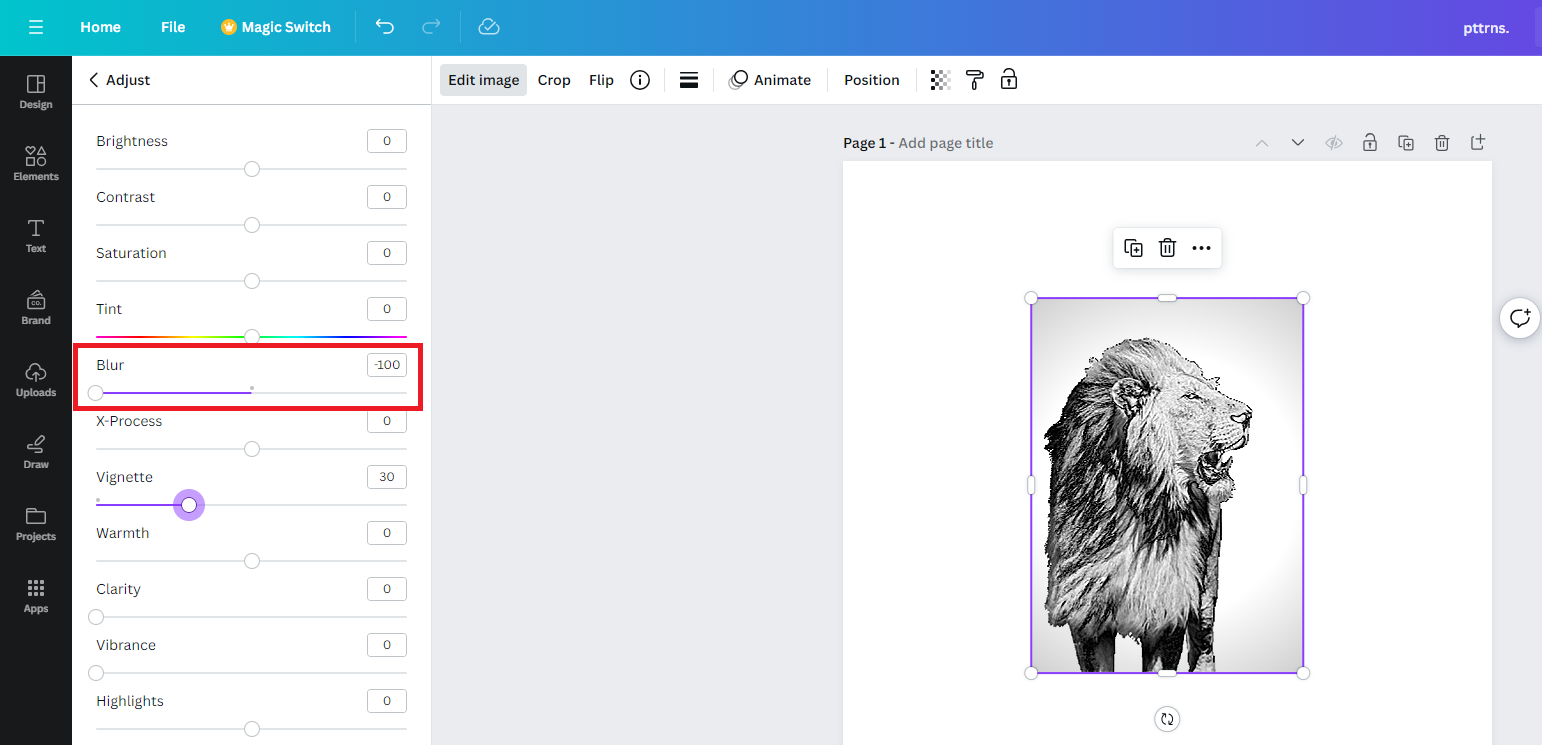
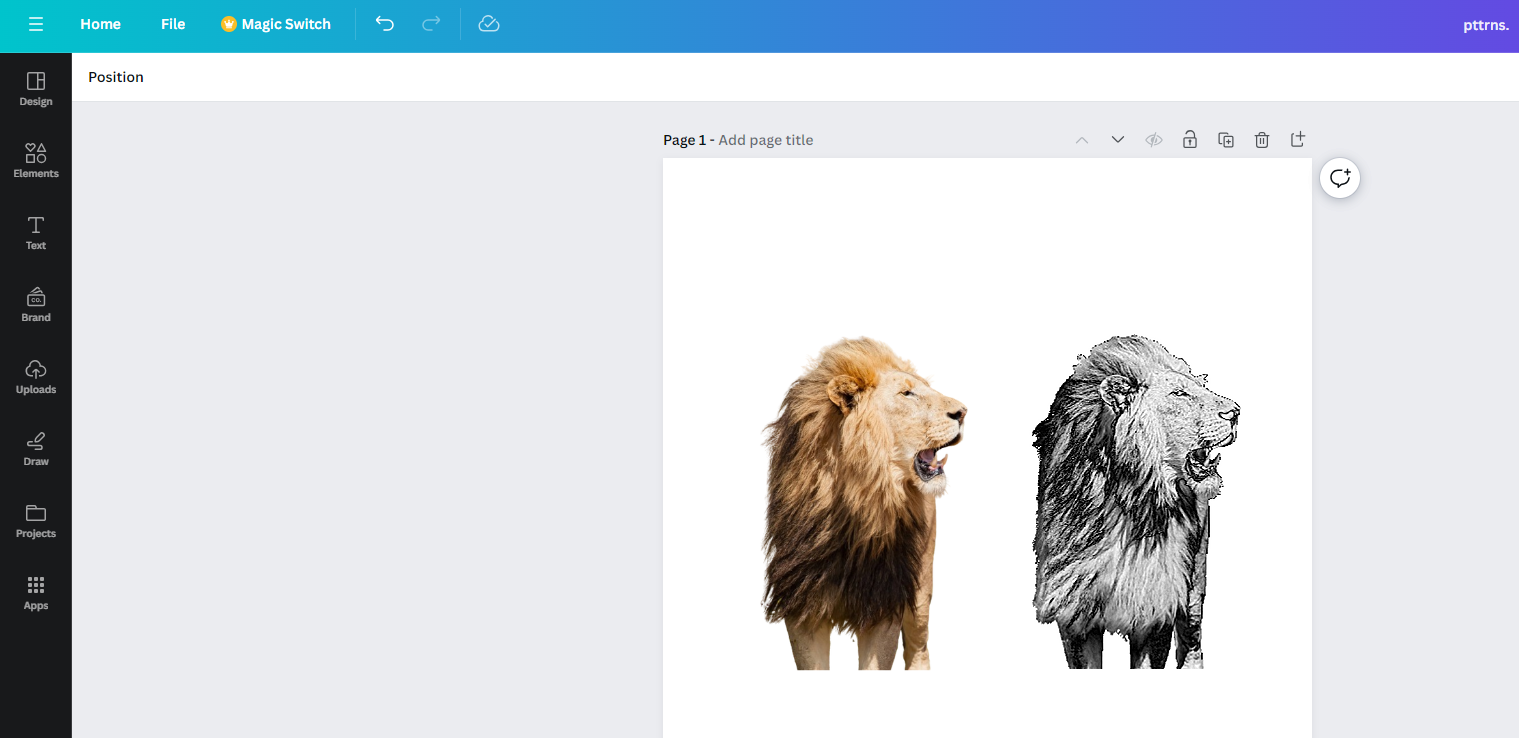
If you have done it right, you will have a result like below. For better comparison, we have placed the unedited and edited images next to each, and here are the results.
Wrapping Up
Congratulations on turning your photo into a line drawing in Canva!
While Canva does the job exceptionally well, it fails miserably with certain images. Hence, as an alternative, we suggest using the apps/software developed specifically for this purpose.
However, if you have tried and are not happy with them, use conventional photo editing tools for better results, but at the disadvantage of learning.
Related Reading
How To Create Cartoon Effect in Canva





