
 Harsha Vardhan N
Figma offers the flexibility to share files with others, but there isn’t a direct option to copy Figma files from one account to another. However, there is a way around using the Share options, and with this demonstration, you can successfully copy Figma files to another account using the detailed steps included.
Copy Figma Files to Another Account
- Start by navigating to Figma and sign in with your credentials. Now, open the file you want to share from the Recents.

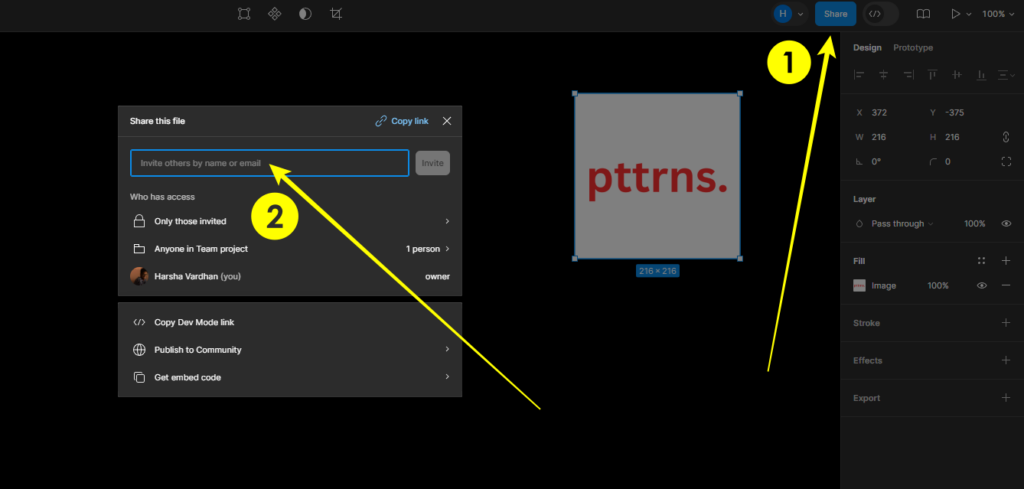
- Once the design file is loaded, navigate to the top right corner and click on Share to open the Share this file box. Next, in the input field provided, enter the email address of your other account that is associated with Figma.
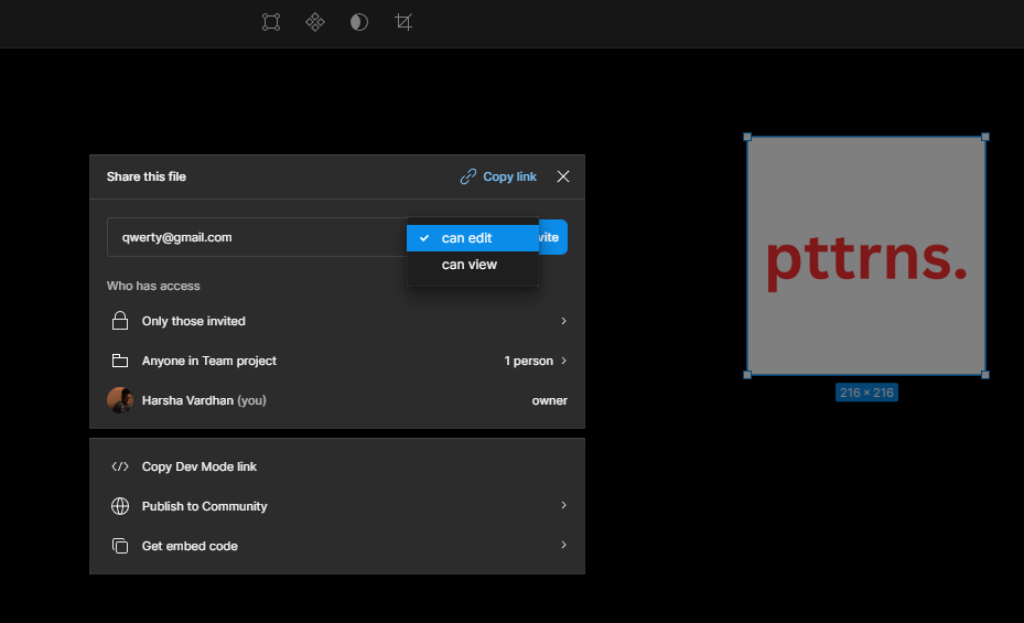
- After entering the email address and before clicking on Invite, ensure you set the permission to can edit.
- After the invite has been sent, log in to the other Figma account and, from the home screen, check the notifications. If you have followed the above steps correctly, you will find the invite request in the notifications, and clicking on Accept opens the design in a new tab.

- Now, you can work on the file shared, but to copy it into the account, navigate to the file name, open the drop-down, and from the options displayed, click on Duplicate to your drafts to successfully copy the file.

Wrapping Up
Congratulations on learning how to copy Figma files to another account!
By following the above steps, the file shared is copied to another account and can be accessed from the drafts. While this is the easiest approach, you can save the file locally, open it from the account, and repeat Step 5 to add the file to drafts.






