
 Pttrns

Canva offers the flexibility to add text and manage the font, size, and colors, as well as allows you to apply styles and shapes. In this guide, we will help you curve the text easily through an easy demonstration below.
Curve Text in Canva
- Open Canva on your browser and sign in with your credentials. Once you’re on the home screen, create a new design by clicking the Create a design button at the top right corner.
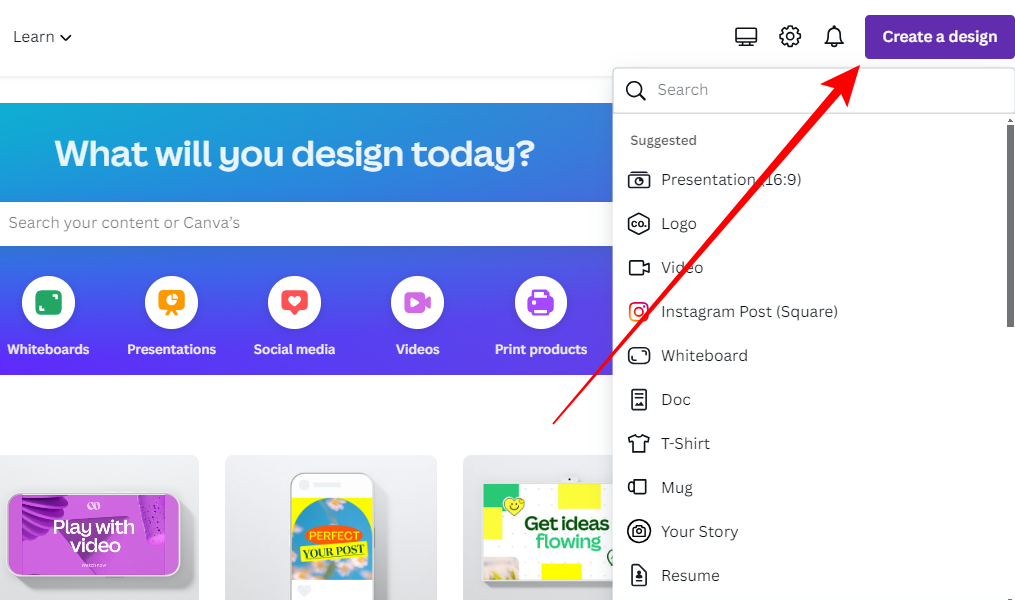
- Alternatively, you can open an existing design you’re working on from the Recent designs. After loading the new/existing design, press T to add a text box.

- Next, replace the text inside the box and select it to display its associated options in the Editor toolbar. Now, from the available options, click on Effects.

- By doing so, the Effects tab is displayed on the left. Now, navigate to the Shape section and click on Curve.

- When clicking Curve, the text inside the text box is curved. For more flexibility, adjust the curve radius using the slider provided.

Wrapping Up
Congratulations on learning how to curve text in Canva!
Learning to curve text can be helpful in multiple situations while working on Canva. However, ensure that the curve radius is the right amount so you don’t have to worry about the text being difficult to read.
Related Reading
How To Add a Border to a Text Box in Canva





