
 Pttrns
Learning how to create vertical text can come in handy as it adds visual interest, optimizes space, and emphasizes key information in a design. If you get creative with it, you can create captivating and creative graphics across various platforms.
If you’re trying to do it on Canva for the first time, here how you can do it two ways:
What we cover
Make Vertical Text by Adjusting Text Box
- Start by opening the design you’re working on from the Recent design section on the Canva home. If you haven’t started with any, click on the Create a design button at the top right corner and select a design.
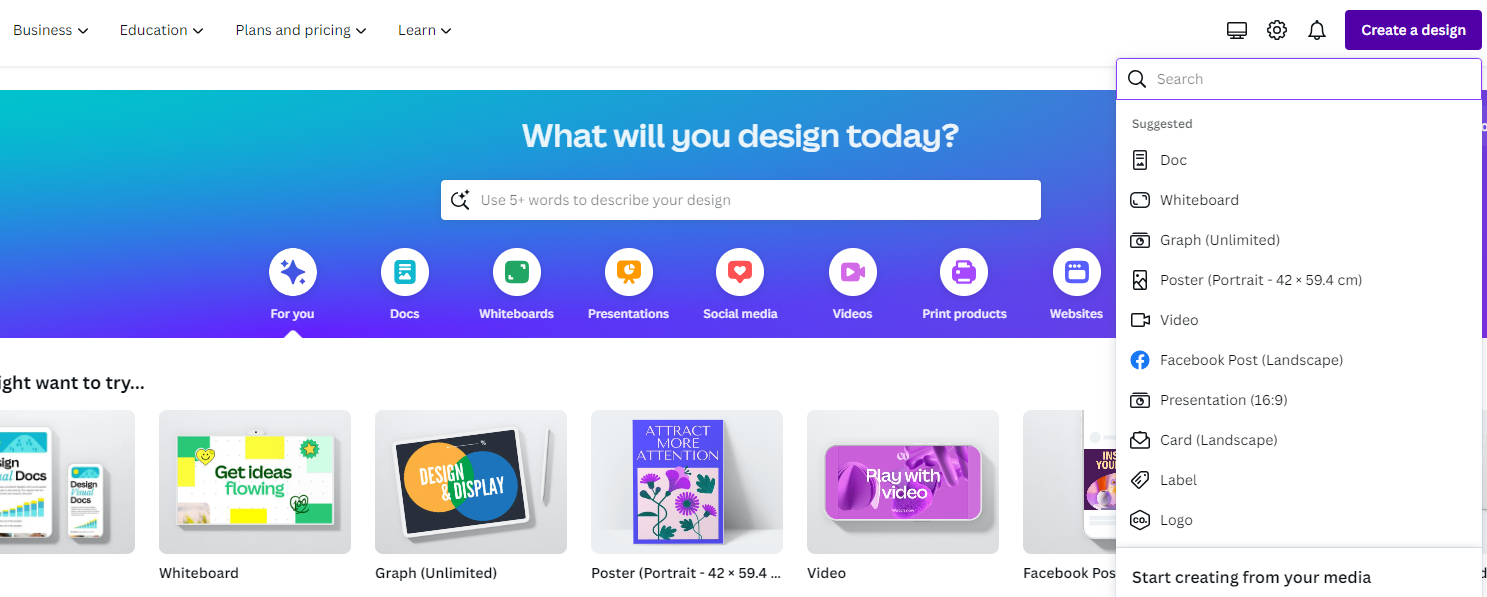
- With the existing/new design loaded, press T to add a text box to it. Now, type the text and make changes to its size, font, color, and effects if needed.
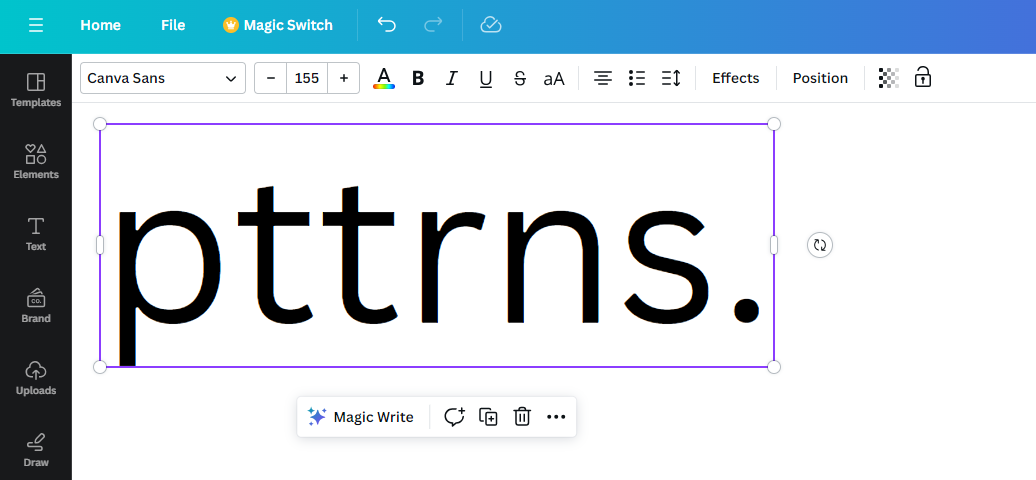
- Once the text is added, drag the pill on any end to reduce its size so the text goes from horizontal orientation to vertical.
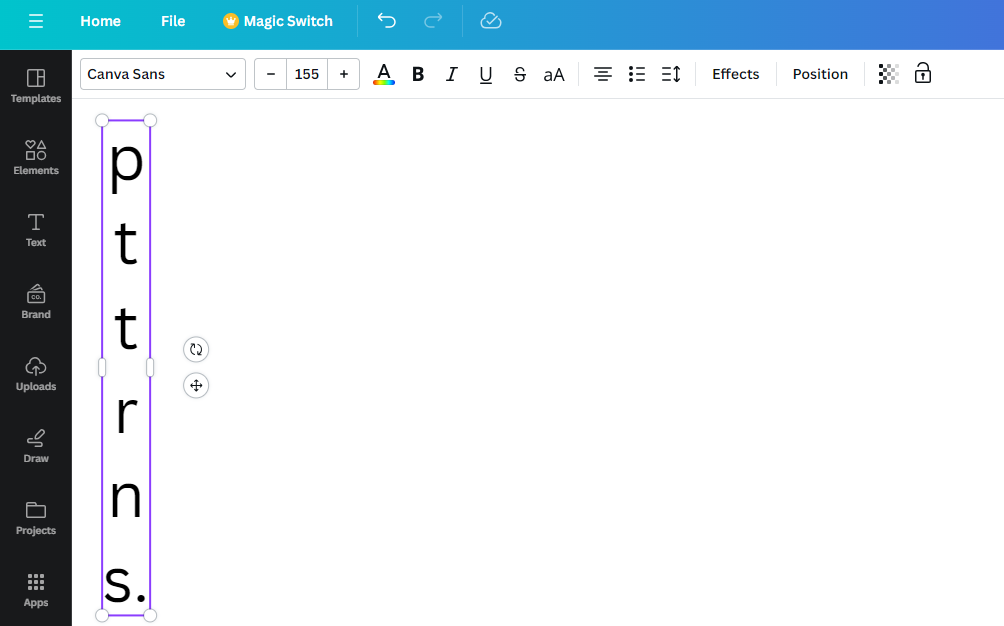
Make Vertical Text by Adding Individual Alphabet
The above approach creates a vertical text by reducing the size of the text box. While the vertical text looks great, it lacks customization. In such a scenario, add the individual alphabet of the text in a vertical orientation. Confused? Here’s how to do it:
- Begin by pressing T to add a text box to the design, and instead of typing the entire text, add the first alphabet like below.
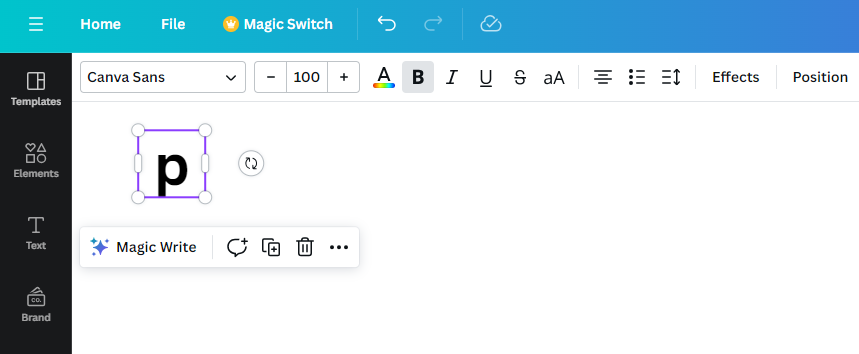
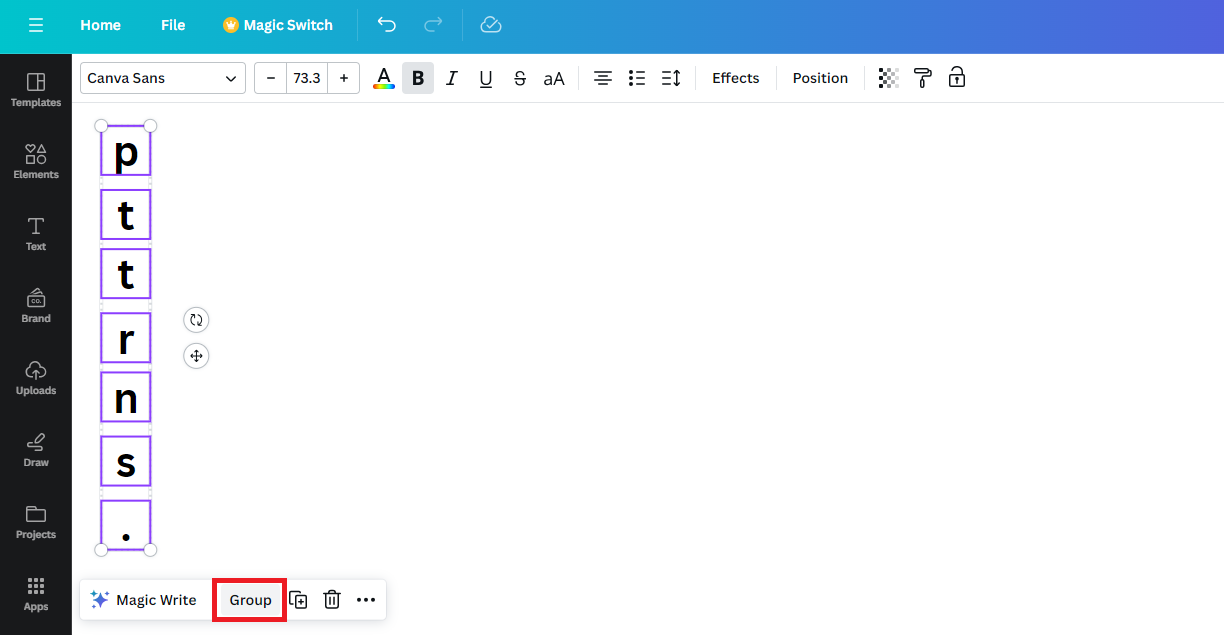
- Now, duplicate the existing text box or add a new text box and insert the second alphabet. Keep on doing it until the entire text is added to the design.

- Once you’re done making changes like adjusting the color, spacing, and effects, use the Group option to combine all to move them together around the design with ease.
Wrapping Up
Congratulations on learning how to make vertical text in Canva!
While both approaches work well, we suggest adding the text individually to gain more flexibility with each alphabet font, color, and spacing. However, if the text is large, it would take forever to add each alphabet. Hence, consider the approach according to the text you’re working on.
If you aren’t happy with both approaches, try using text editors like Word to create engaging vertical text. Next, capture it using a Snipping tool and add it to the design on Canva.





