
 Pttrns
Including slice effects in a design can come in handy if you’re trying to grab the attention of the viewer/reader. While it can be tricky to create the slice effect on a text, Canva makes it easier on images with its dedicated tool.
Steps to Create Slice Effect in Canva
- Begin by opening the design you’re working on by going to Canva and selecting it from the Recent designs. If you haven’t already created one, click on the Create a design button and choose a design to get started.
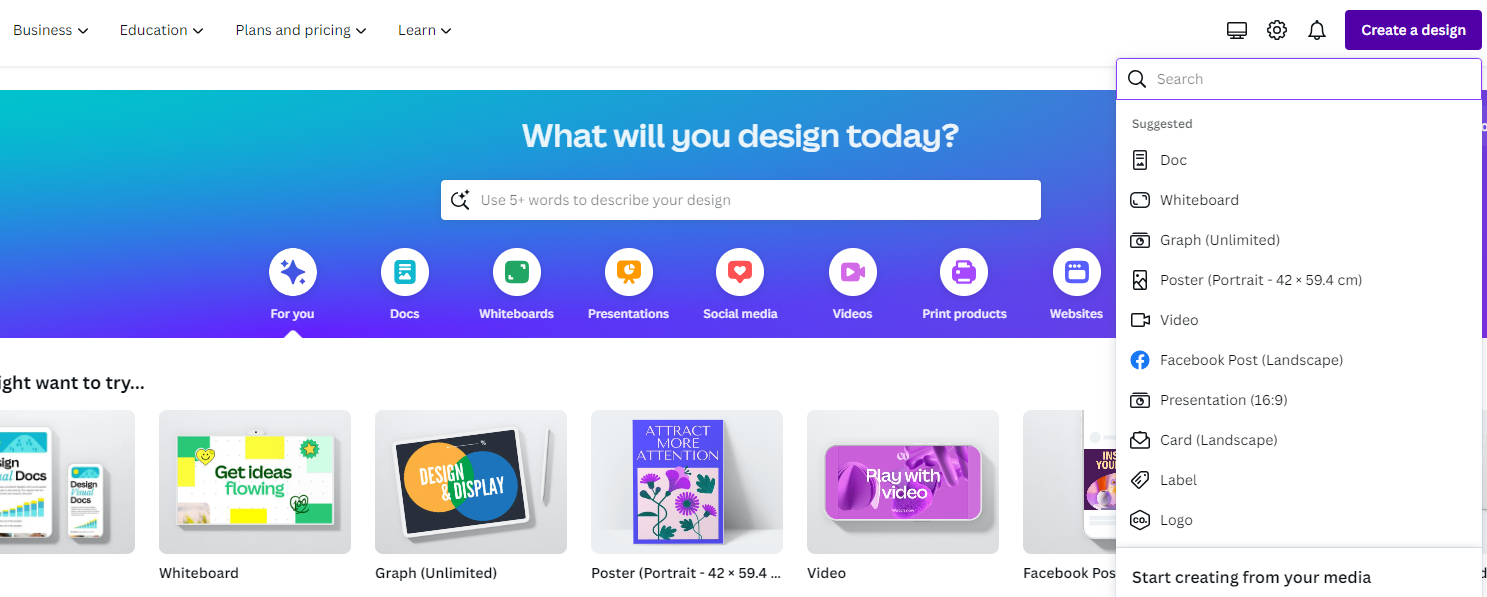
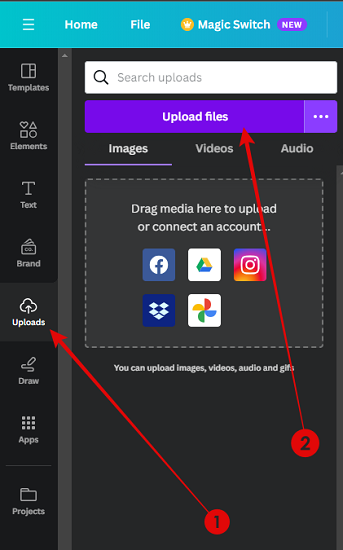
- Now, add an image to the design by uploading it using the Upload files button, which displays after clicking on Uploads from the options on the left.
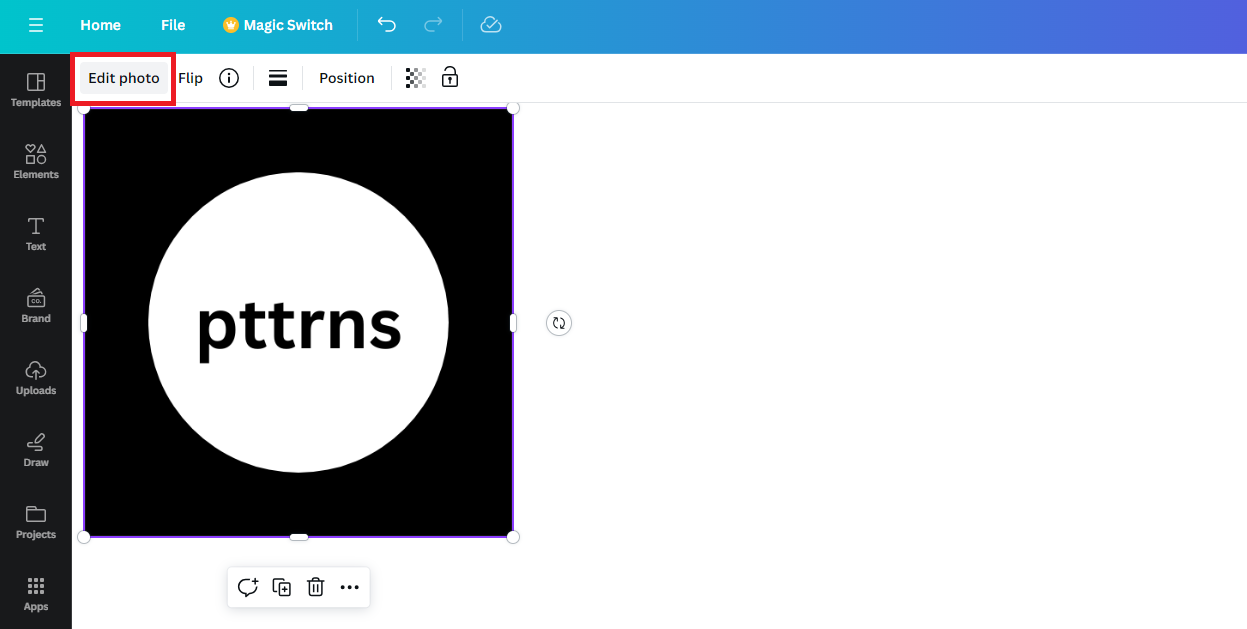
- Once the image is added to the design after it has been uploaded, click on it. Doing so displays the options at the top, from which you select Edit photo.
- If the Effects tab appears after clicking on Edit photo you’re on the new editor and must revert to the old editor as Slice effect is available in it. To do it, scroll down to the bottom of the Effects tab and click on the click here text associated with the highlighted message.
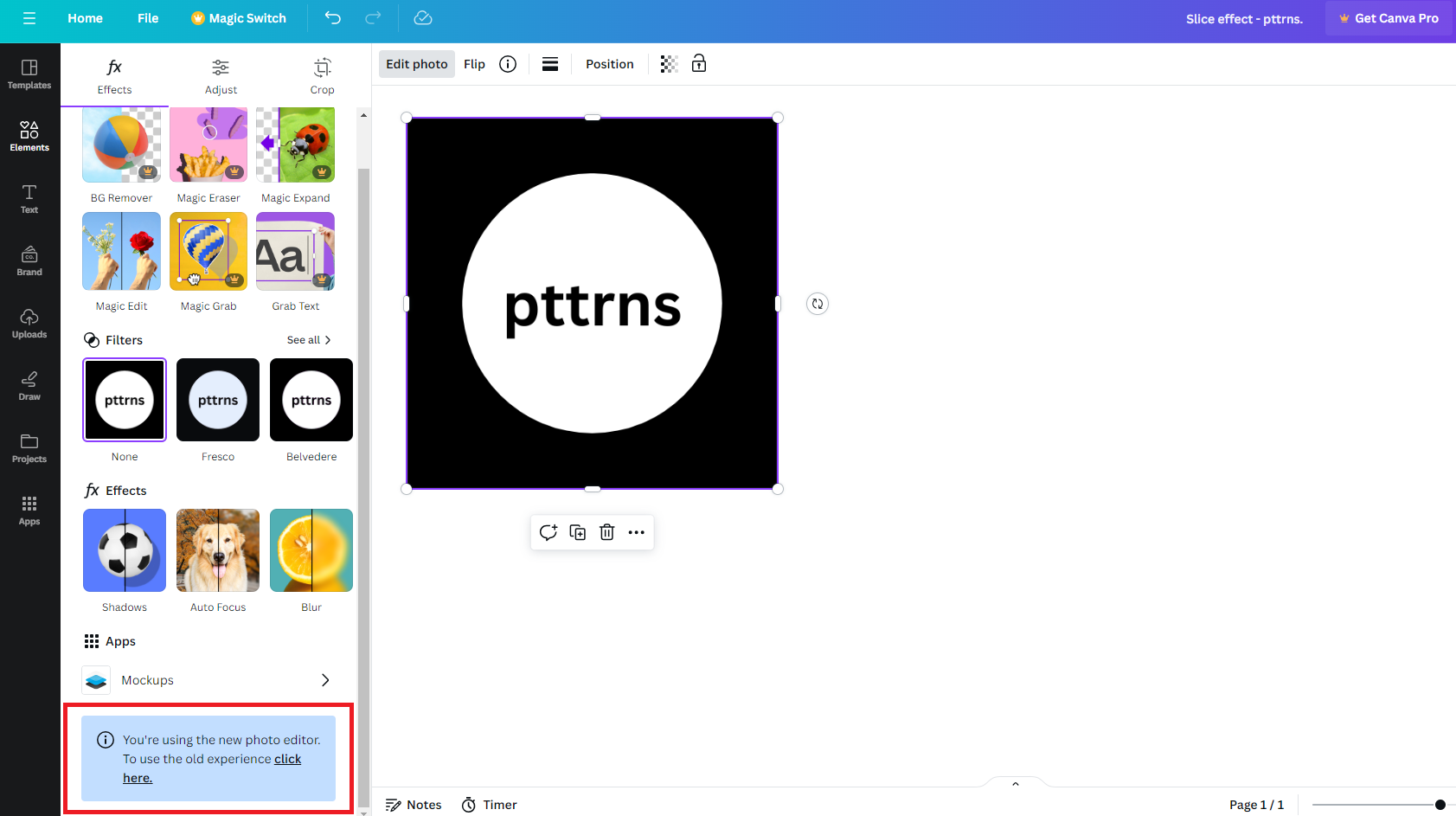
- By doing so, you’re displayed with two options. As we are trying to use the old editor, click on Revert to the old editor.

- Now select the image again and choose Edit photo to access the old editor. Once it opens, navigate to the search box, type – Slice, and hit Enter. After the results are displayed, click on See all next to Slice to gain access to all its effects.
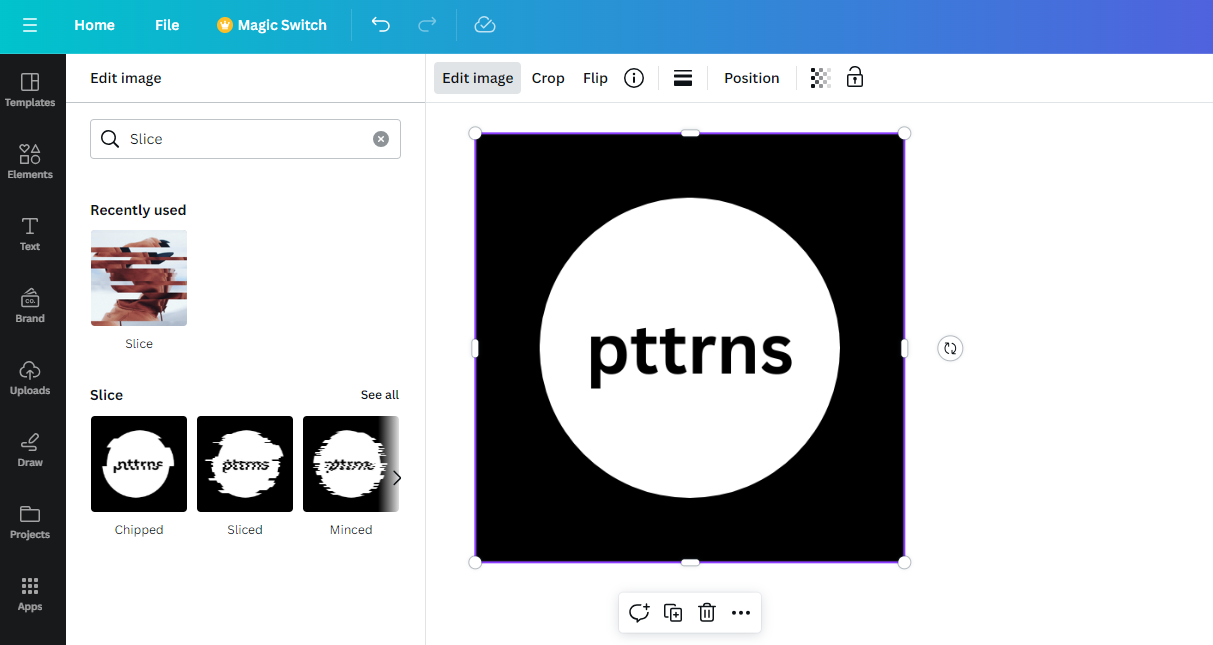
- Once all effects are displayed, try experimenting with all. If you ask us, select Sliced as it gets the closest to creating a slice effect.
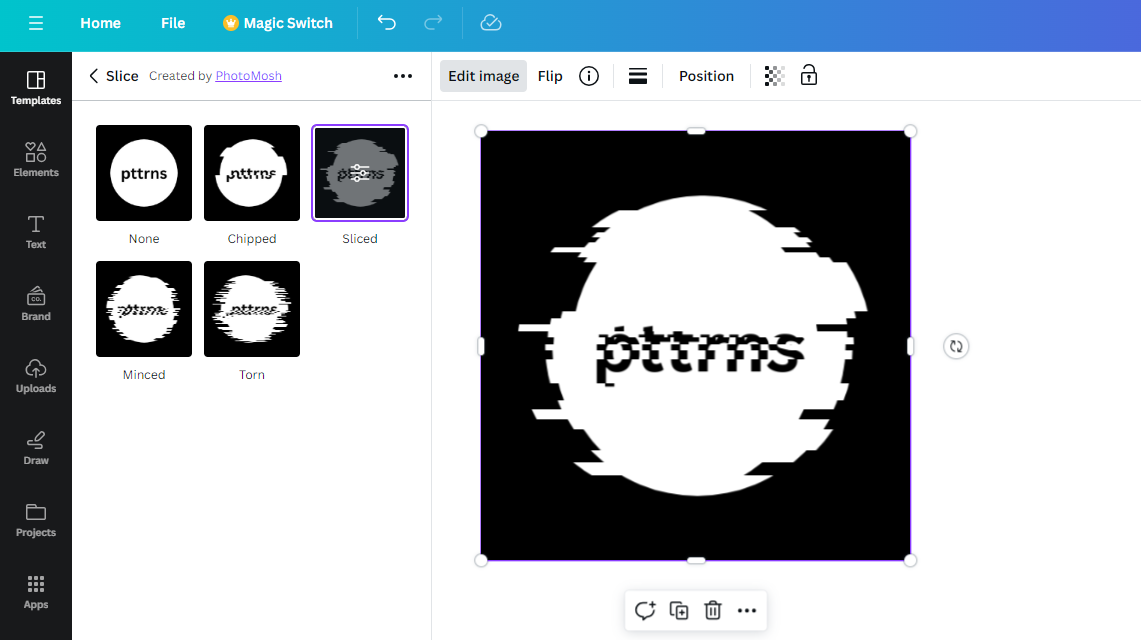
- If you notice, the above effect is over-sliced and isn’t a proper slice effect. To address this, click on the Settings icon present on the selected effect and customize the values by adjusting the sliders to create a Slice effect.

Wrapping up
Congratulations on creating a slice effect on Canva!
While the slice effect works great for certain images, most images fail to fit perfectly with the set position. In such a scenario, you need to manually create this effect by taking an image, splitting it into half, and merging them by leaving an imperfection.
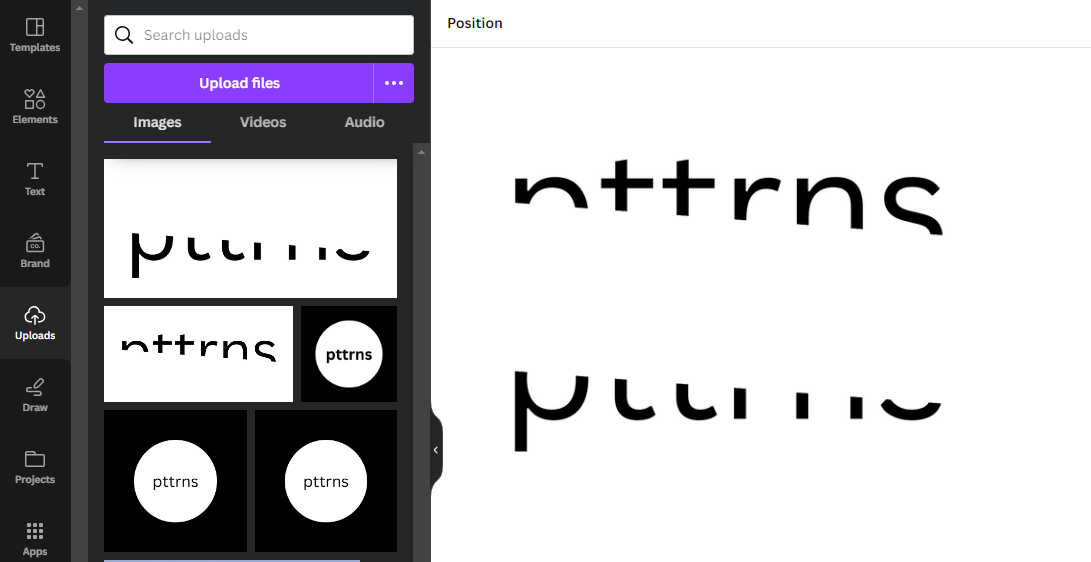
We suggest avoiding this hard approach and consider checking out dedicated image editors like Adobe Photoshop as you get more flexibility and ready tools to achieve the slice effect with ease.





