
 Pttrns

Canva is known for its flexibility, and as a result, most tools it offers come in handy while working with the elements. In this guide, we will help you add a text box to the design and fill in the text/color through the easy steps below.
What we cover
Fill a Text Box with Text in Canva
- Start by accessing Canva and logging in with your credentials. Once logged in, choose the Create a design option from the main screen and select a design.

- If you have started working on a design, navigate to the Recent design from the home screen and click on the project you want to work with.
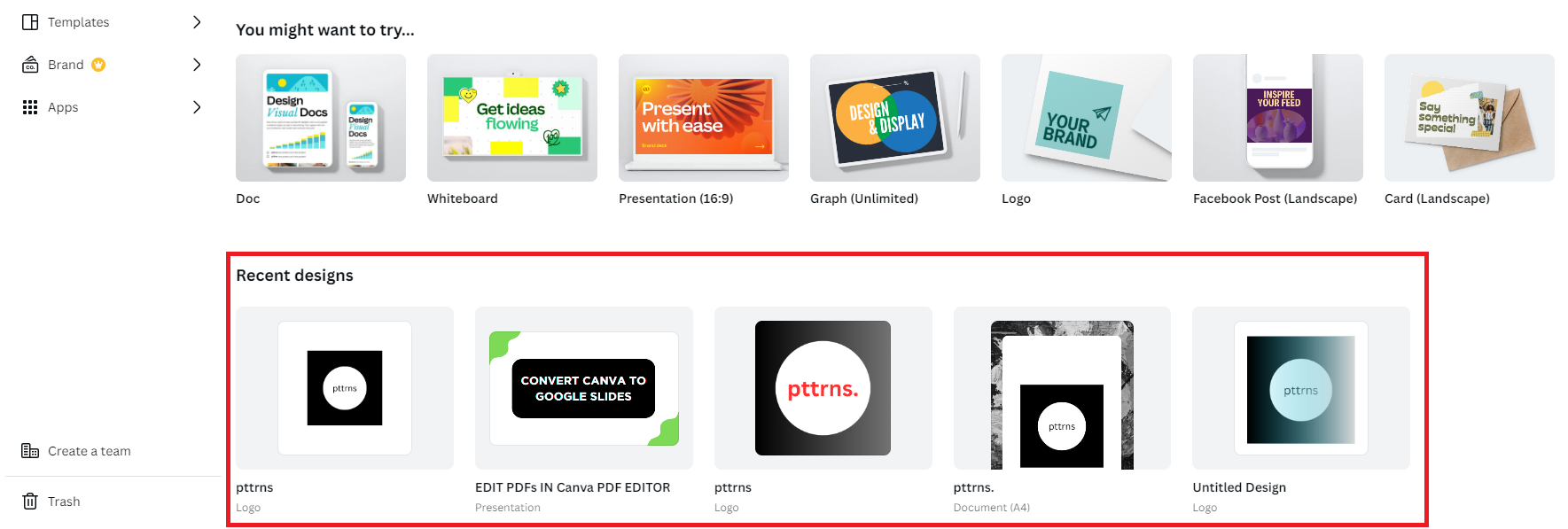
- Once the new/existing design is loaded, navigate to the blank canvas and press T to add a text box. If you’re adding it for the first time, you can immediately enter the text into the text box.
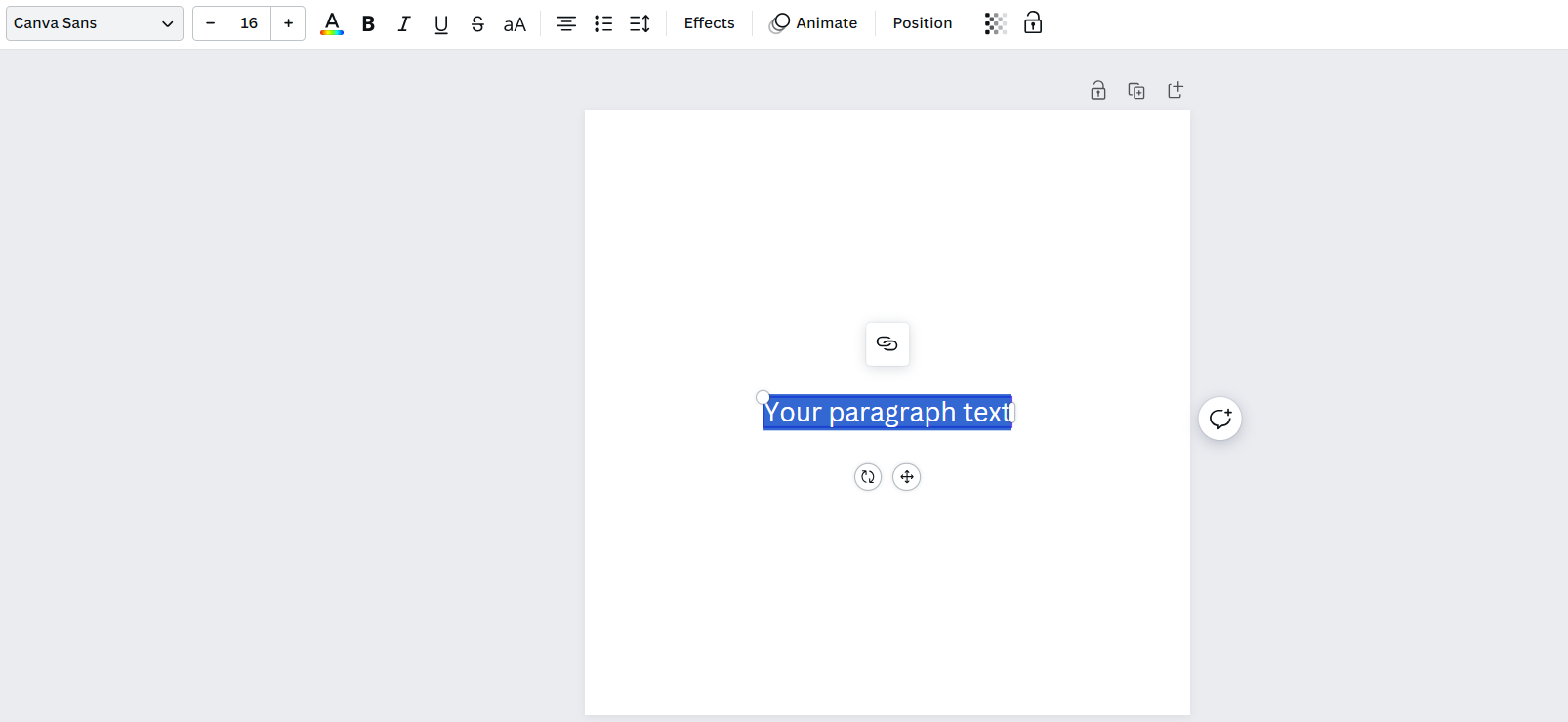
- However, if the text box has already been added, double-click on it to select and edit the text inside the text box.
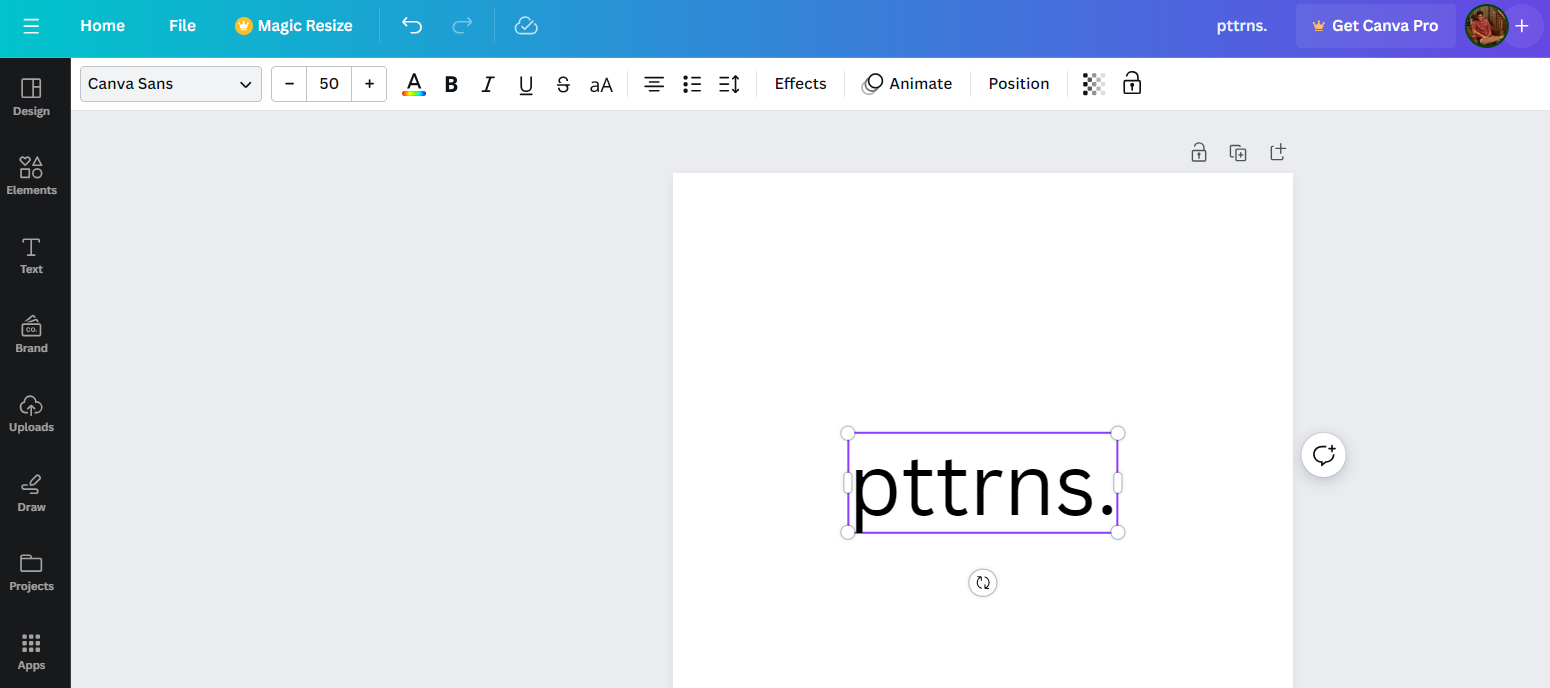
Fill a Text Box with Color in Canva
- Repeat Steps 1-3 from the above approach to get started with a design and add a text box.
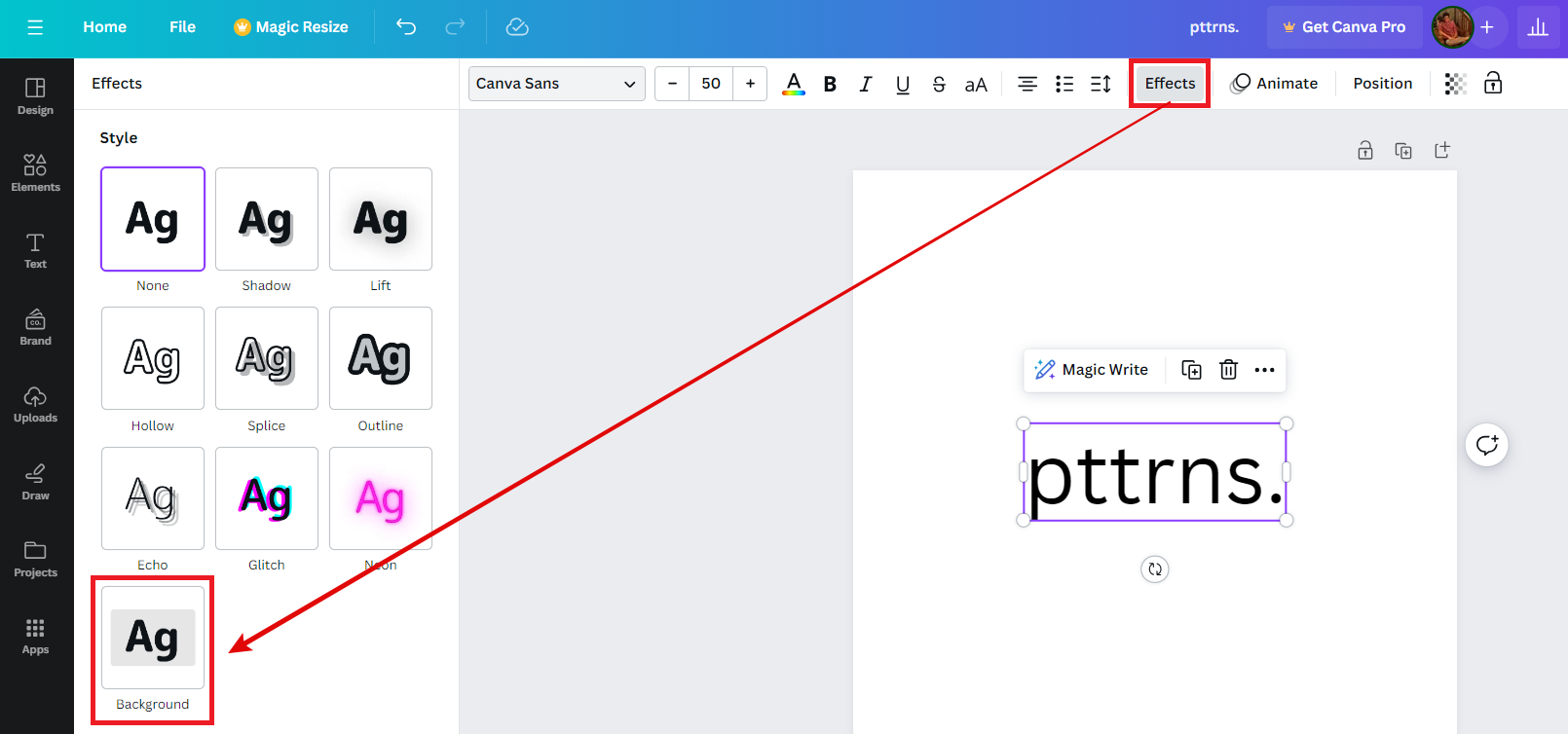
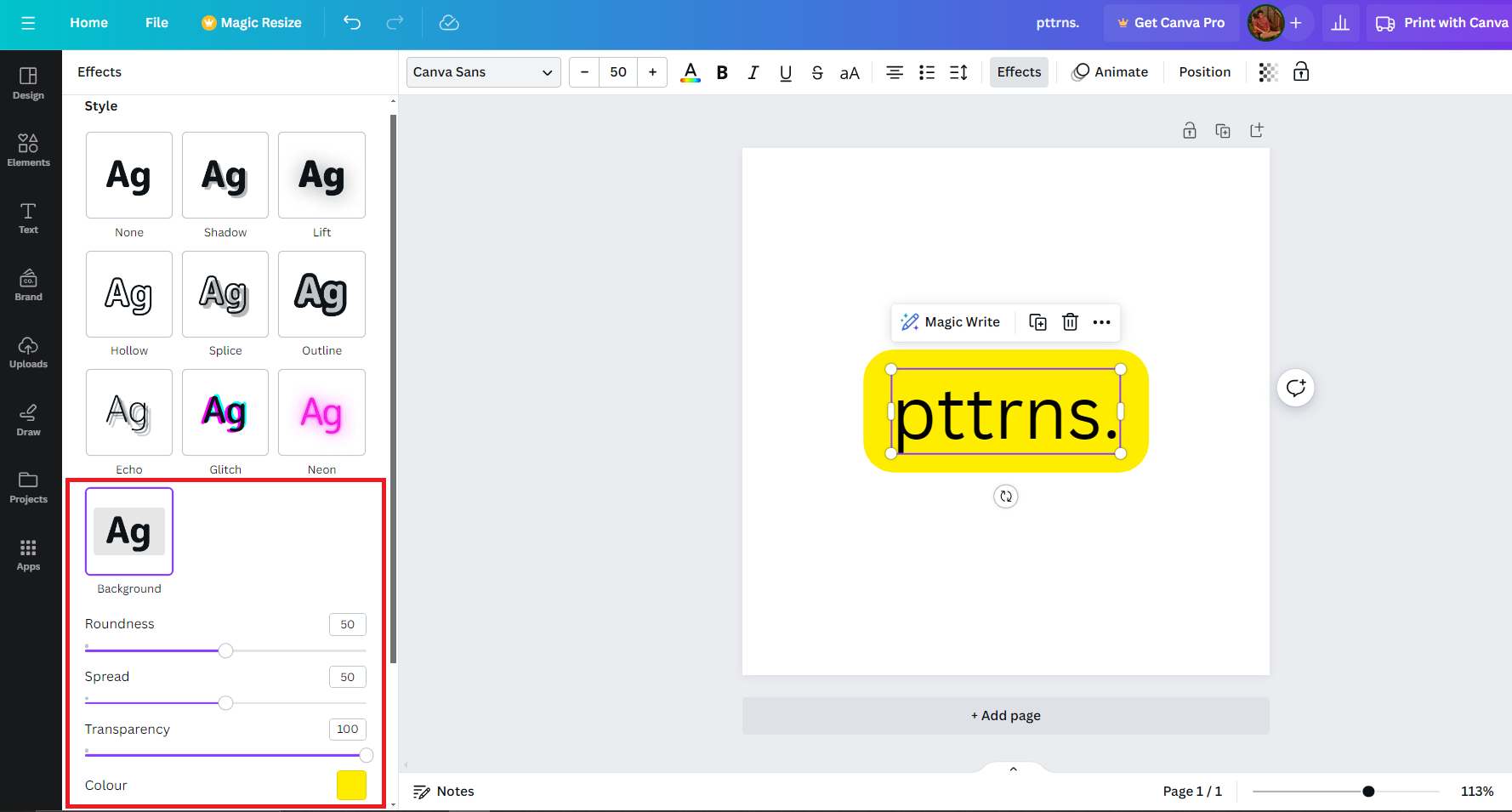
- Once the text box is added, you will find options on the top. Now, navigate to the Effects option and click on it.
- By doing so, you’re displayed with the Effects tab on the left, from which you can look for Background under the Style section and click on it.
- Next, adjust the sliders and pick the color to create a text box filled with color.
Wrapping Up
Congratulations on learning how to fill a text box with text and color!
While Canva does it without any restrictions or limitations, try using the Shapes or Frames it offers if you find it using text box limiting. However, if none works, prefer image editors like Adobe Photoshop or text editors like Microsoft Word.
Related Reading
How To Add a Border to a Text Box in Canva





