
 Pttrns

Canva offers the flexibility to manage and modify text through its tools. In this guide, we will help you highlight text in Canva through a simple demonstration to get you all covered.
Highlight Text in Canva
Before adding and using the text box, navigate to Canva on your browser and sign in with your credentials. Now, start with an existing design listed in Recent designs, or start fresh using the Create a design button.
- Start by pressing T to add a text box to the design. Alternatively, navigate to the Editor panel on the left, click on Text, and click on Add a text box or the default text styles/ Font combinations.

- With the text box added, you will find it selected. Now, start typing on the text, and you will notice the added text.
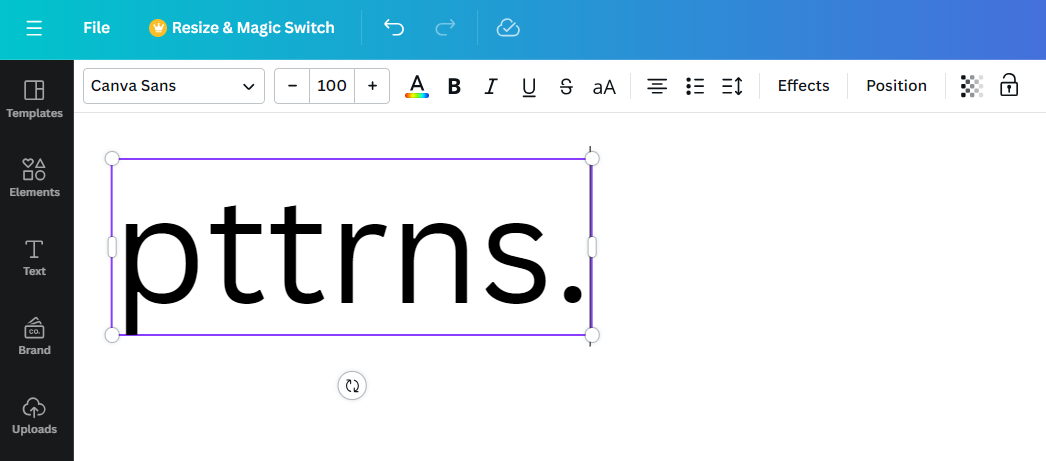
- With the text box added and text inserted, navigate to the Editor toolbar at the top and click on Effects.

- After the effects tab is displayed on the left, navigate to the Style section and click on Background.

- By doing so, you will find the text highlighted. To manage it more, adjust the sliders (Roundness, Spread, Transparency, and Color) associated with the background tool, and you will find the text highlighted according to your requirements.

Wrapping Up
Congratulations on learning how to highlight text in Canva!
In this guide, we included everything necessary to highlight the text. If you aren’t happy with the result, try using text editors like Word or photo editors like Adobe Photoshop to get more reliable results.





