Pttrns

The best part about GIMP is it offers multiple tools to work with and fortunately, there are tools dedicated to rotating an image. In this guide, we will provide we will help you get started by adding an image to GIMP and then suggest two approaches for you to gain complete control over the image rotation.
Rotate an Image in GIMP
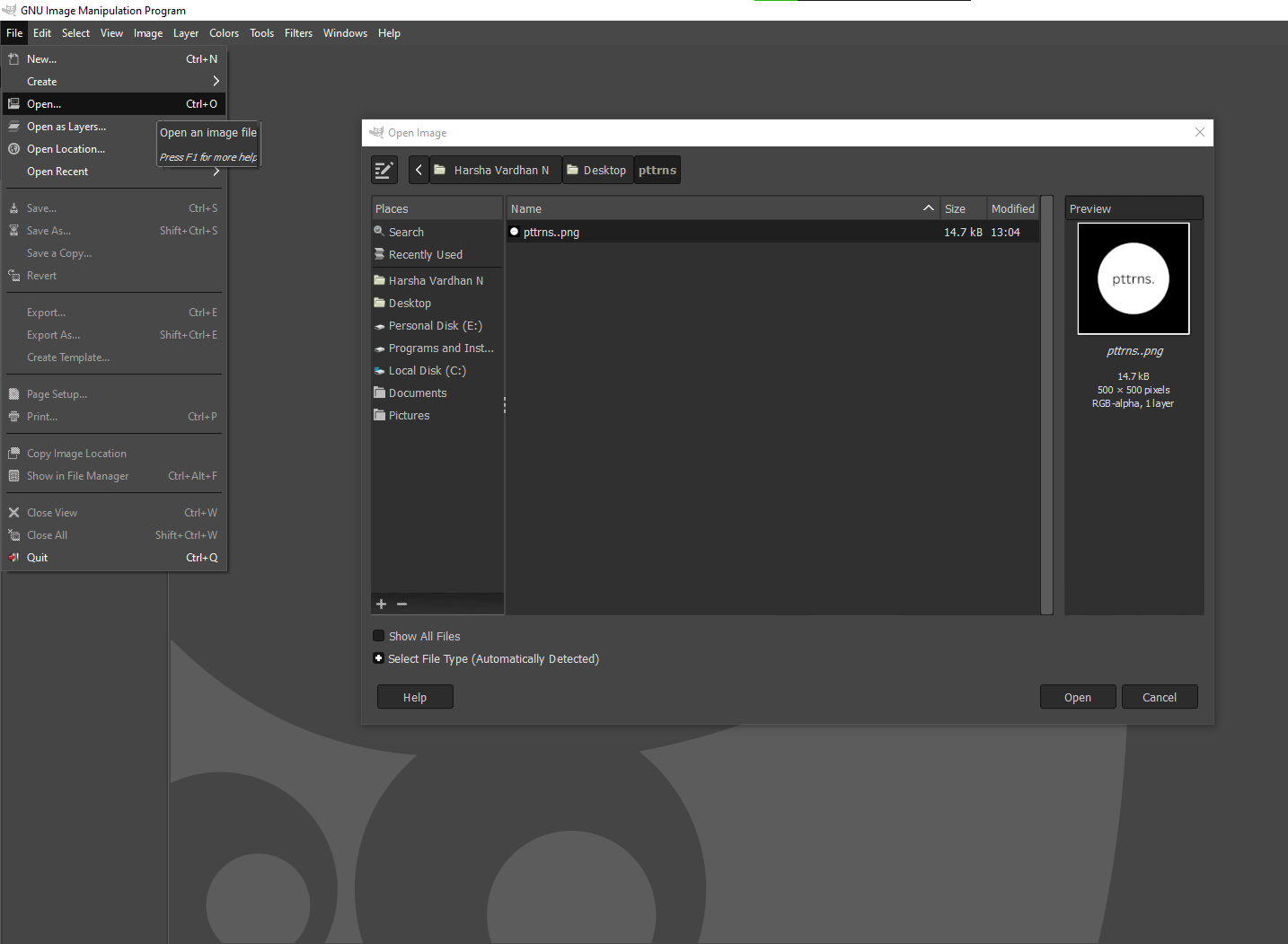
Getting Started: Begin by opening GIMP on your PC and wait for it to load completely. Once everything is loaded, navigate to the Menu Bar, click on File, and then Open. By doing so, you’re displayed with an Open Image dialog box from which you select the image by navigating to its path to load it on the canvas.
Rotate an Image using the Image Tool
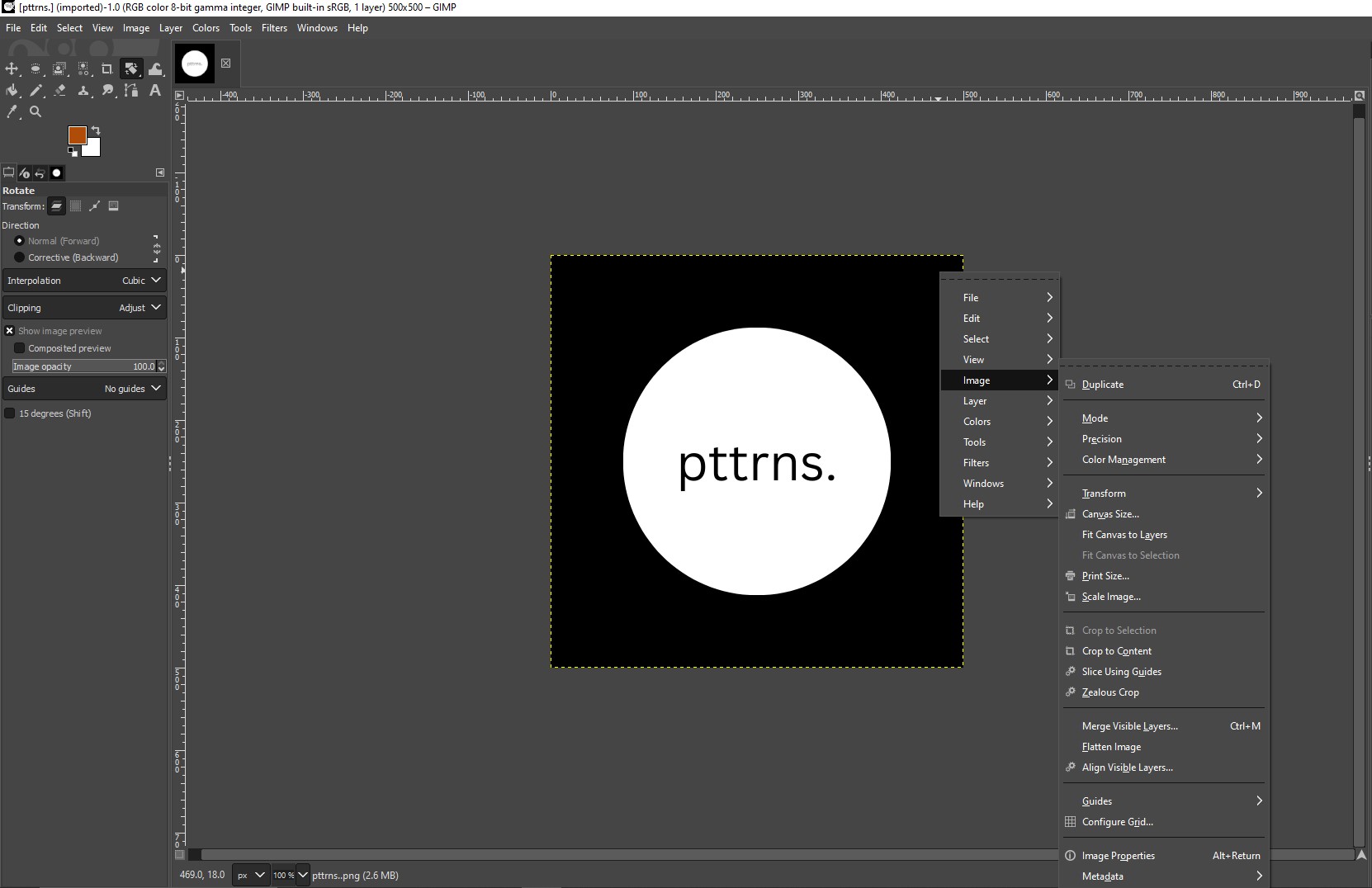
- With the image loaded onto the canvas, right-click on it to reveal options. Now, from the available options look for Image and hover your cursor on to it.
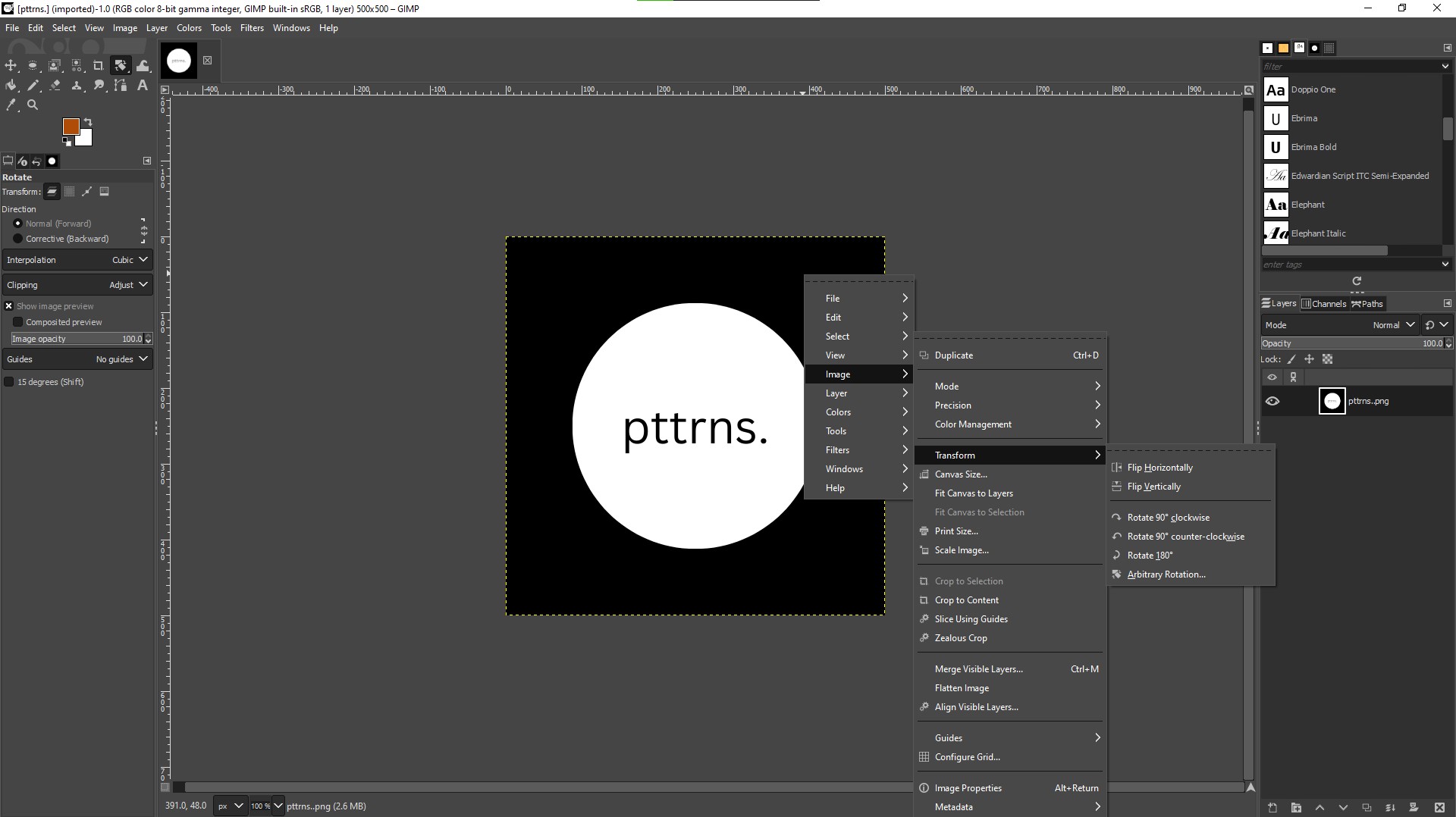
- By doing so, you’re displayed with all options under Image from which hover the cursor to Transform.
- If you notice from the above image you can find multiple options to rotate an image. Now, select the option by checking the direction specified to rotate the image according to your requirements.
Rotate an Image using the Rotate Tool
While the above approach image is ideal for a quick image rotation, it lacks the flexibility to rotate the image to a specific angle. To address this, we have included steps that include the use of the Rotate tool which can rotate the image to your exact requirement here are the steps for it:
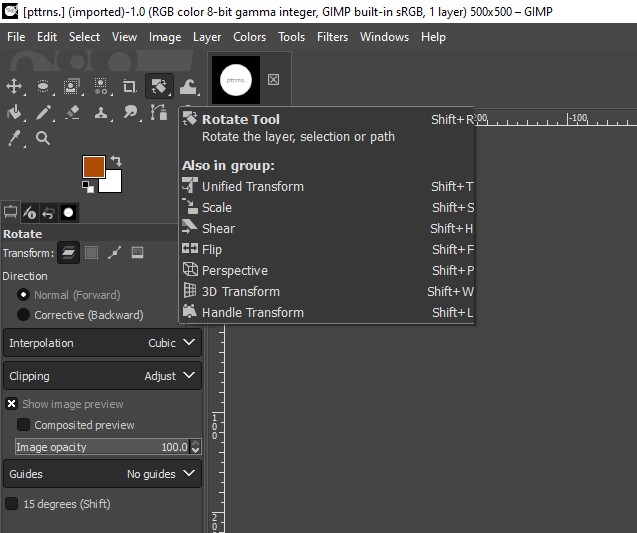
- After the image is added to the canvas, press Shift + R or navigate to the toolbox on the top left corner and click on the Rotate tool [Refer to the image below to identify the Rotate tool icon].
- On selecting the Rotate tool you will find its rotate dialog box appears on the top right of the image. Now, adjust the slider to change the angle or manually enter the rotation angle provided.
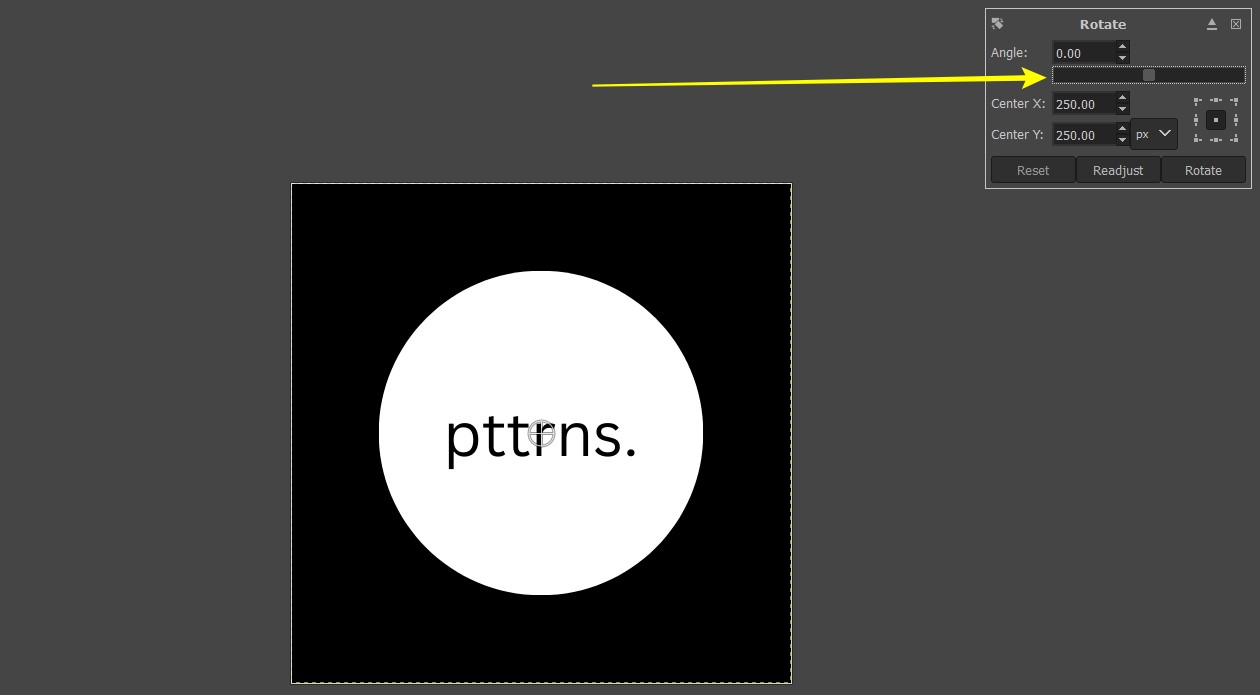
Pro Tip: If you pay close attention to the frame-like structure in the rotate dialog box, you can select the preset points to make it a pivot and change the rotation [Refer to the video below for better understanding].
Wrapping Up
Congratulations on learning how to rotate an image in GIMP!
While GIMP is arguably one of the best tools to rotate an image, if you find it complex try using online image editors or rotation tools. However, if you aren’t happy with the result, try checking out Canva to rotate the image as it offers flexibility close to GIMP.