Pttrns
GIMP offers multiple tools to work with, and the Crop tool is one among them. In this guide, we will help you get started by adding an image and using the Crop tool to standard crop and Paths to freehand crop it.
What we cover
Crop an Image using the Crop Tool
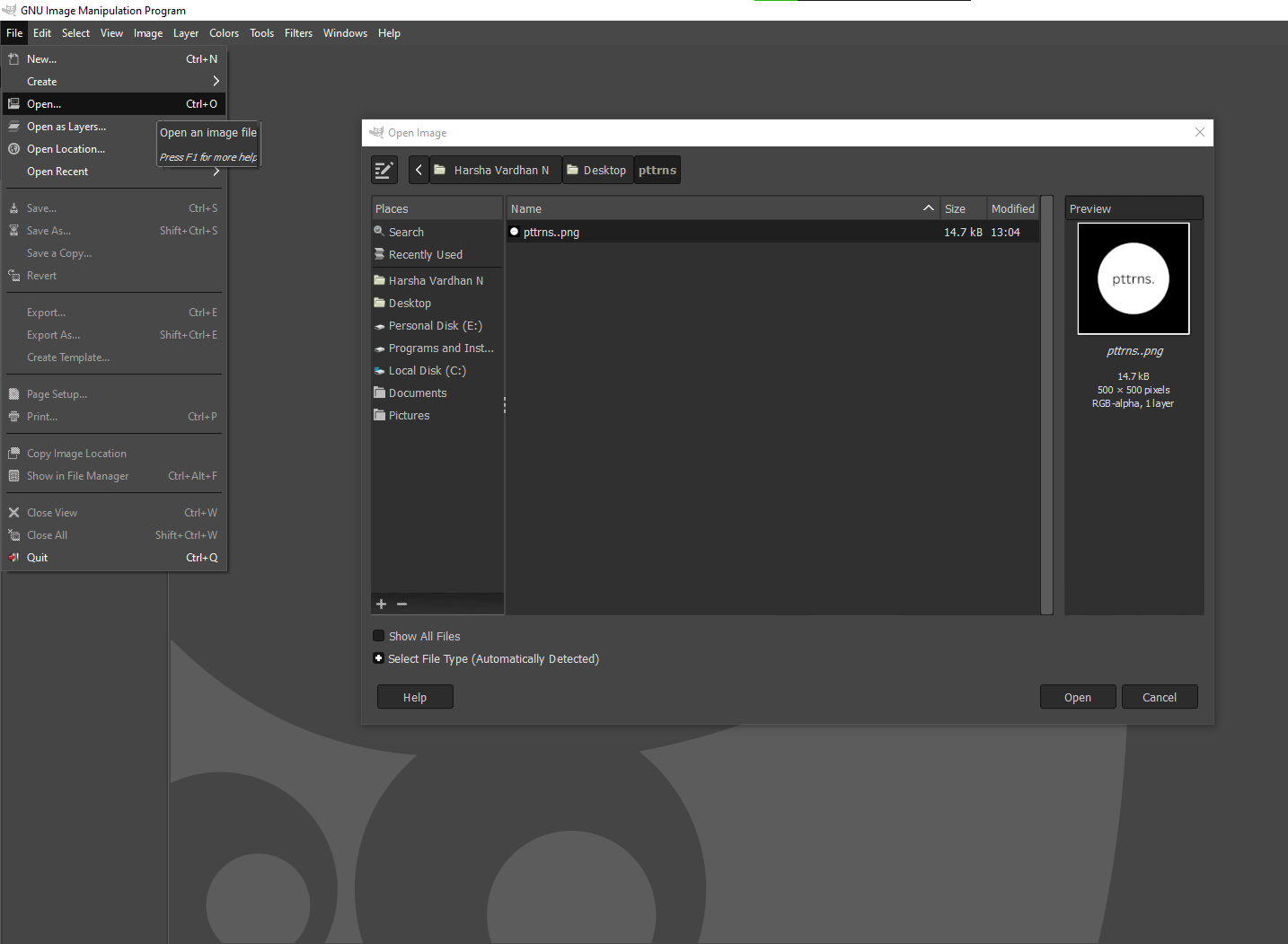
- Begin by opening GIMP on your PC, and once loaded, navigate to the Image Menu and click on File. By doing so, you’re displayed with multiple options from which click on Open [Ctrl+O] and then select the image you want to resize.
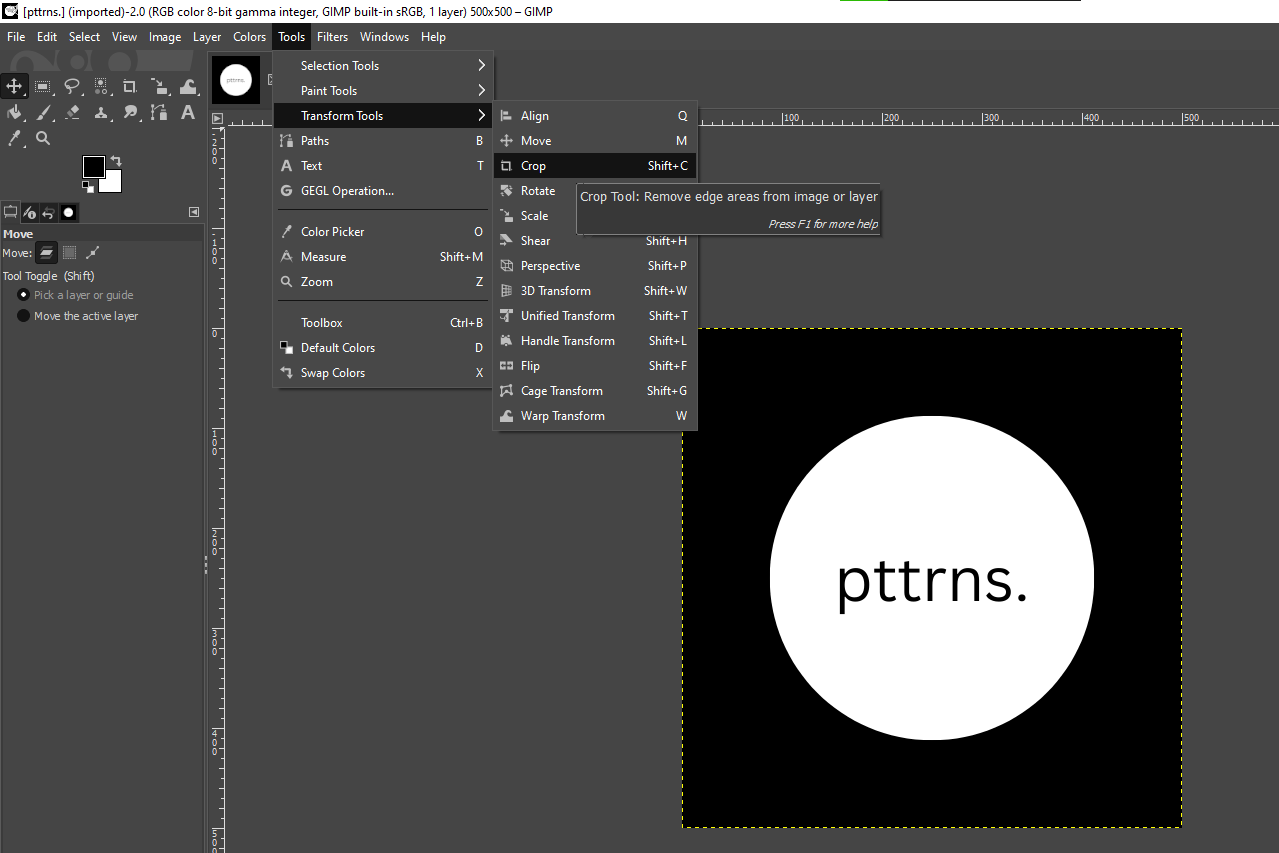
- After the image is added to the canvas, navigate to the Image Menu click on Tools and then Transform Tools. Next, from the available options, click on Crop [Shift+C].
- If you do it right, you will have the Crop tool icon attached to the cursor. Now, drag the cursor by holding the left button on the mouse/trackpad to select the area on the image you wish to crop.
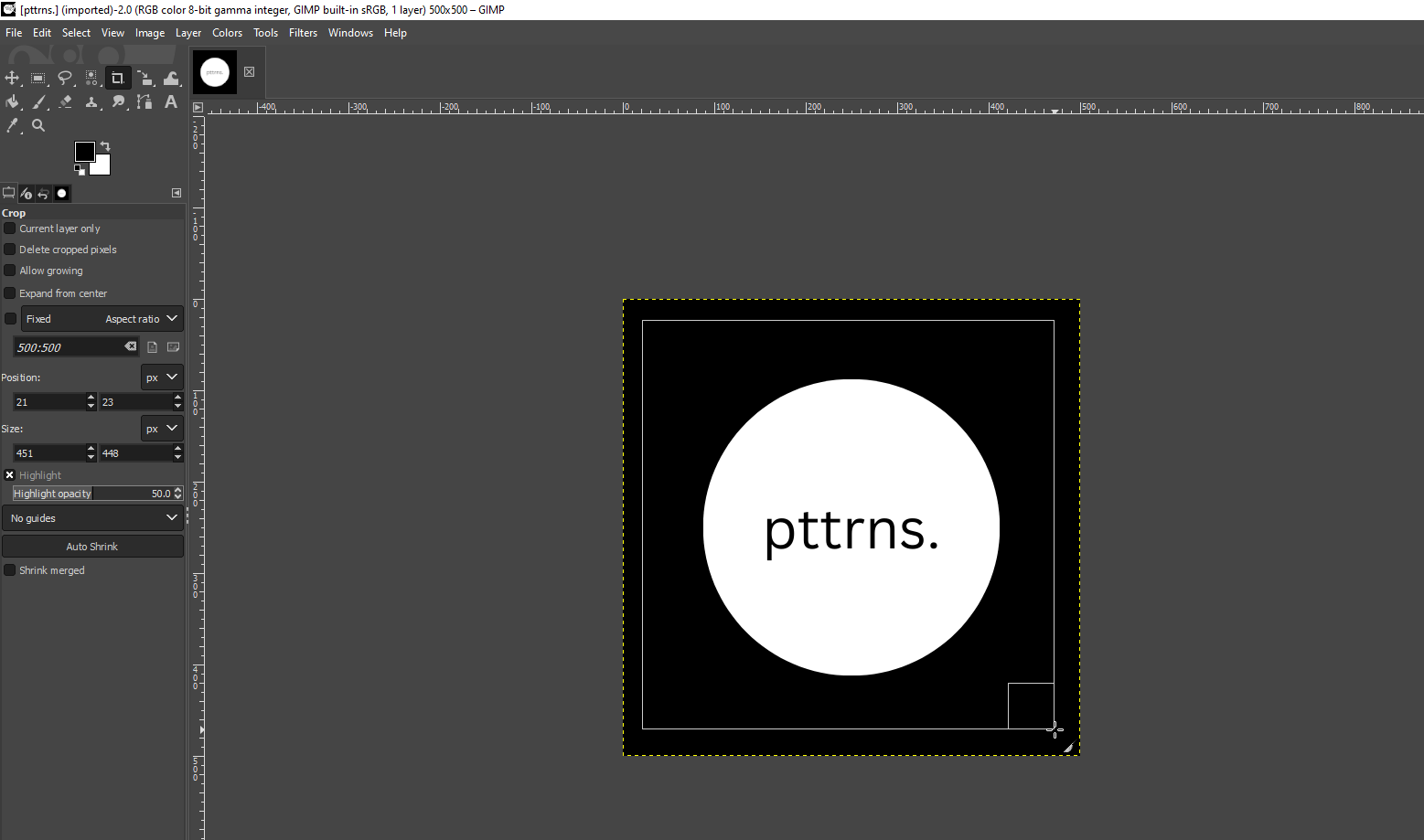
- After the area is selected, hit Enter to crop the image. Alternatively, if you have specific dimension requirements, you can manage the dimensions manually by adjusting the Crop tool options on the left.

Freehand Crop an Image using Paths
While the crop tool offered by GIMP works flawlessly, if you want to crop to freehand crop, you need to rely on Paths. Follow the steps below on how to use Paths to crop the image.
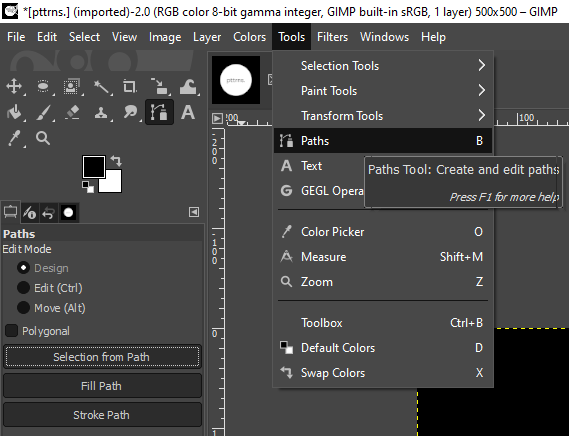
- Refer to Step 1 from the above approach to add an image. Once done, navigate to the Image menu and click on Tools and then Paths.
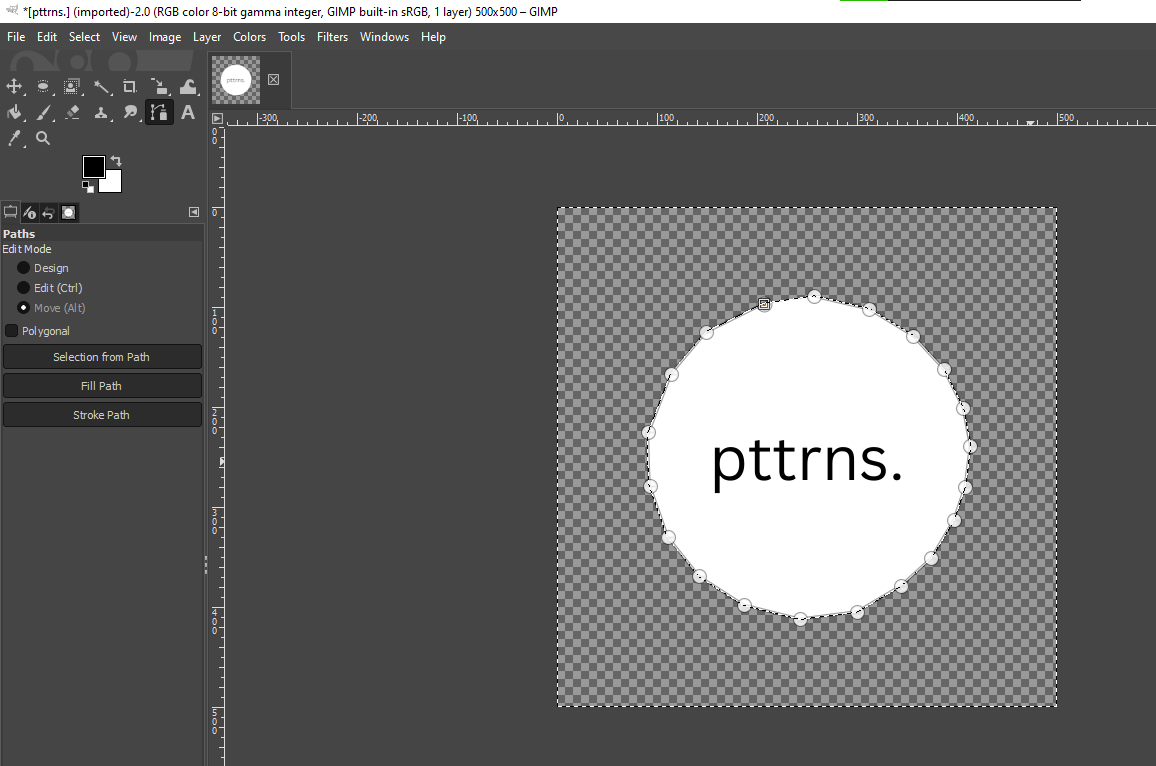
- After the Paths tool is selected, begin creating a path like depicted in the image below.
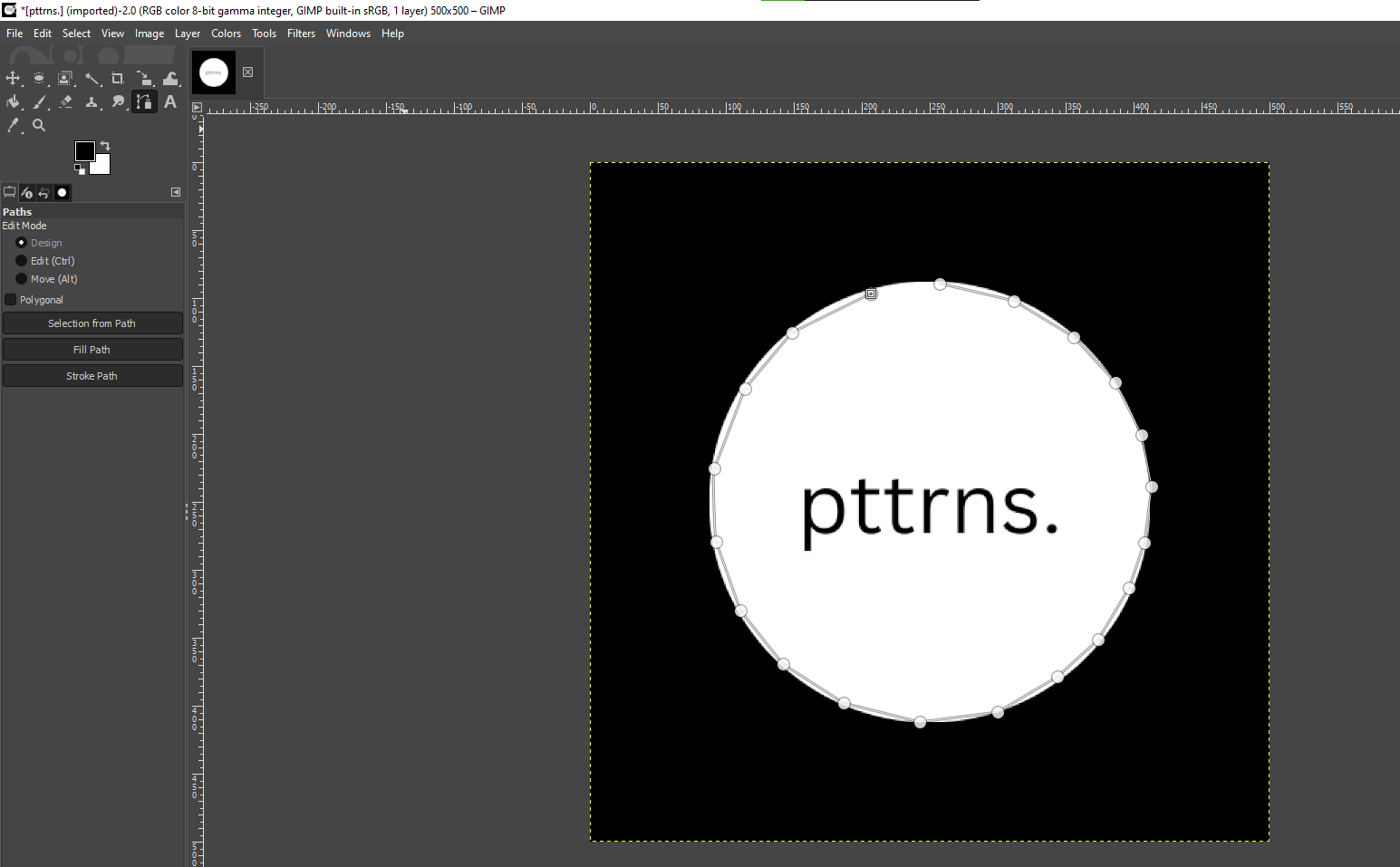
- Once the path is created, look to the options on the left and click on Selection from Path.
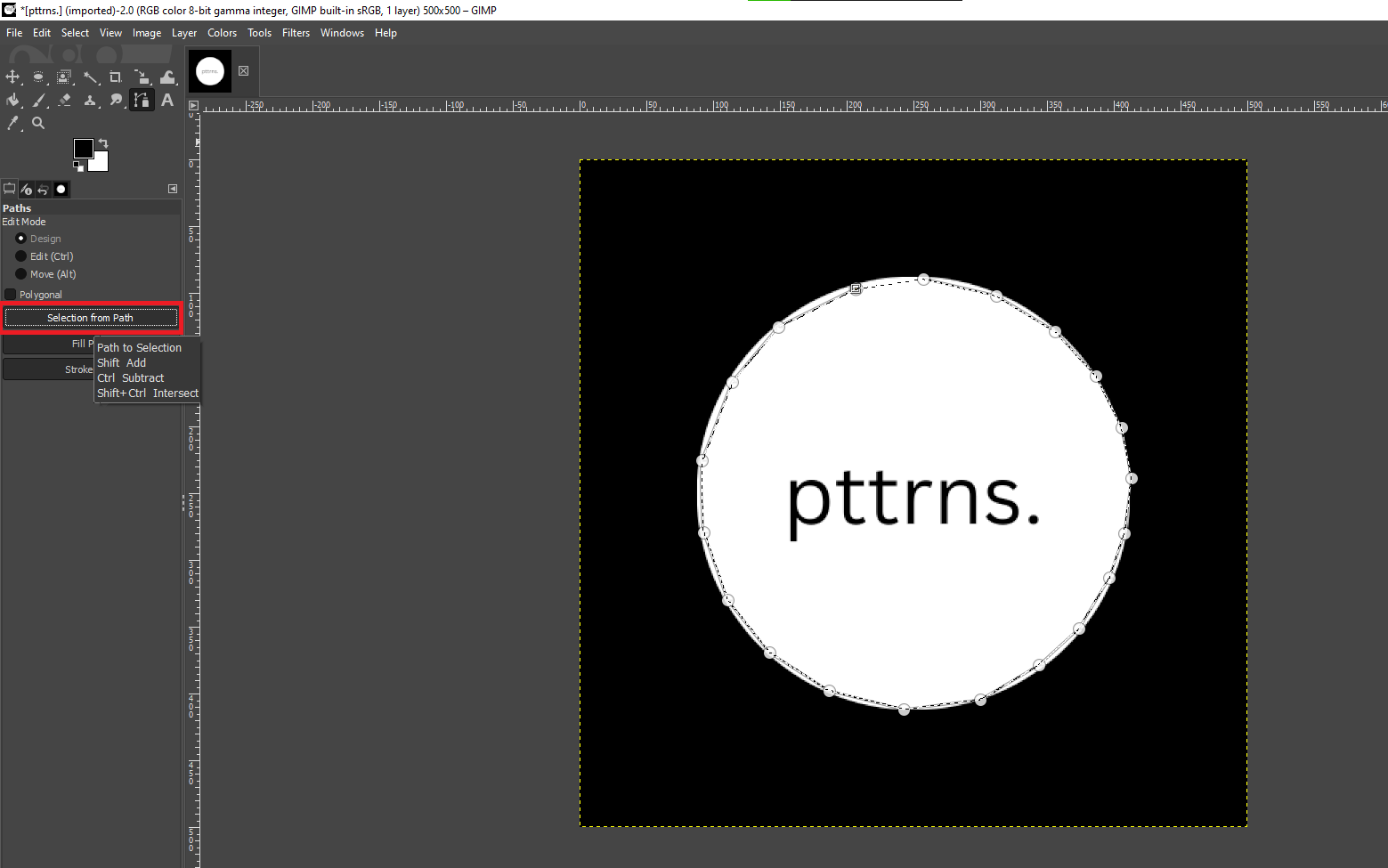
- After the path is selected, right-click on the image to reveal options. Now click on Select and then Invert.

- After the tool is inverted, press the Delete button, and the selected area is cropped from the image.
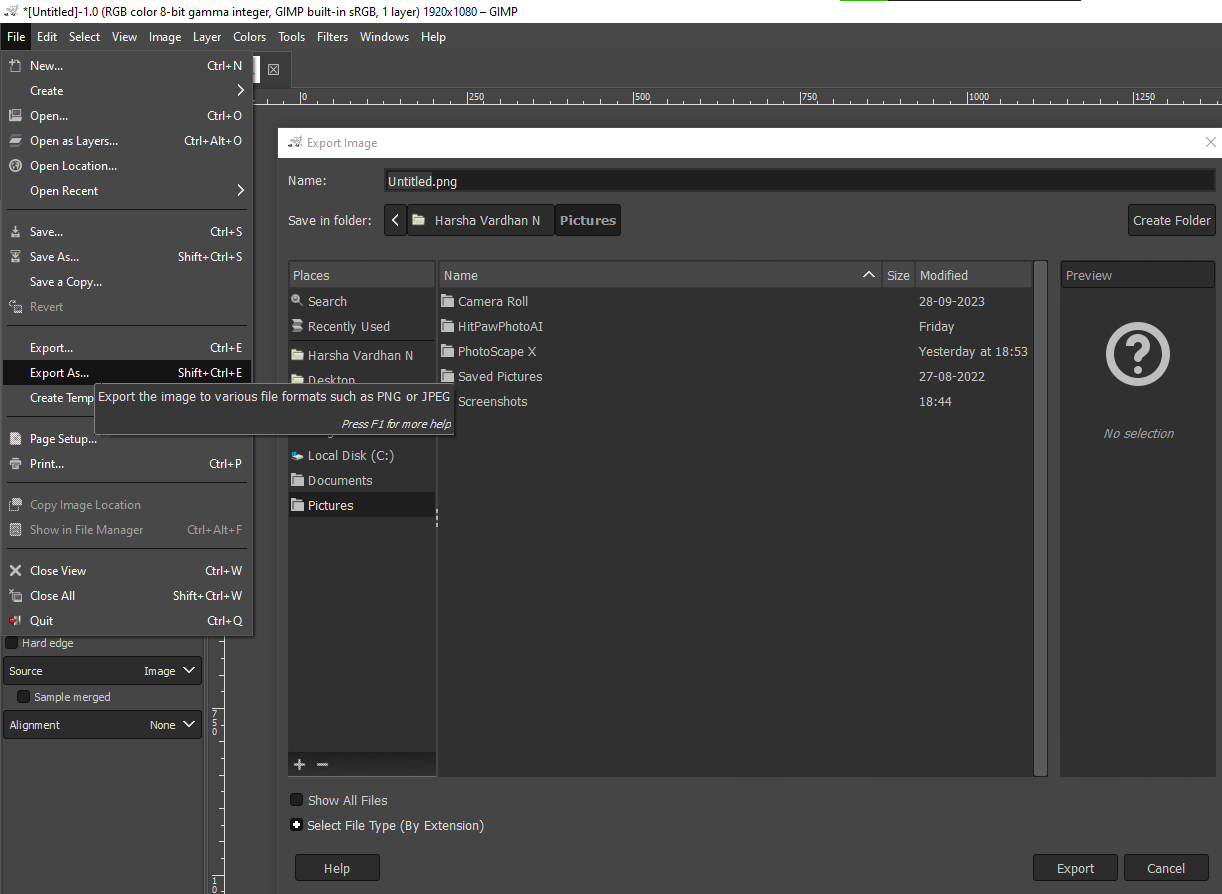
Once you get the desired result, by using the Crop Tool or Paths, navigate to the Image Menu and click on File. Next, from the options displayed, click on Export As to open the dialog box. Now, set the file type and click on the Export button and you’re done.
Wrapping Up
Congratulations on learning how to crop an image in GIMP!
While GIMP offers you the flexibility to crop the image to your liking, it can be complex for many. As an alternative try using Canva or other online image crop tools to make the process easier.