
 Harsha Vardhan N

If you’re trying to build screens for an iPhone, the frame presets can ease the process without needing to create custom screens. In this guide, we will teach you how to access iPhone frames and add them to canvas through a simple demonstration to get you covered.
Add iPhone Frame in Figma
- Open Figma on your browser and sign in with your credentials. Now, access the design file you’re working on from Recently viewed. If you haven’t started yet, click on the Create new file button.

- After the new or existing design is loaded, click on the Frame button on the toolbar or press F to access the frames.

- Doing so, you will find all available frame presets on the right under the Design tab. Now, click on Phone to find the iPhone and Android frames.
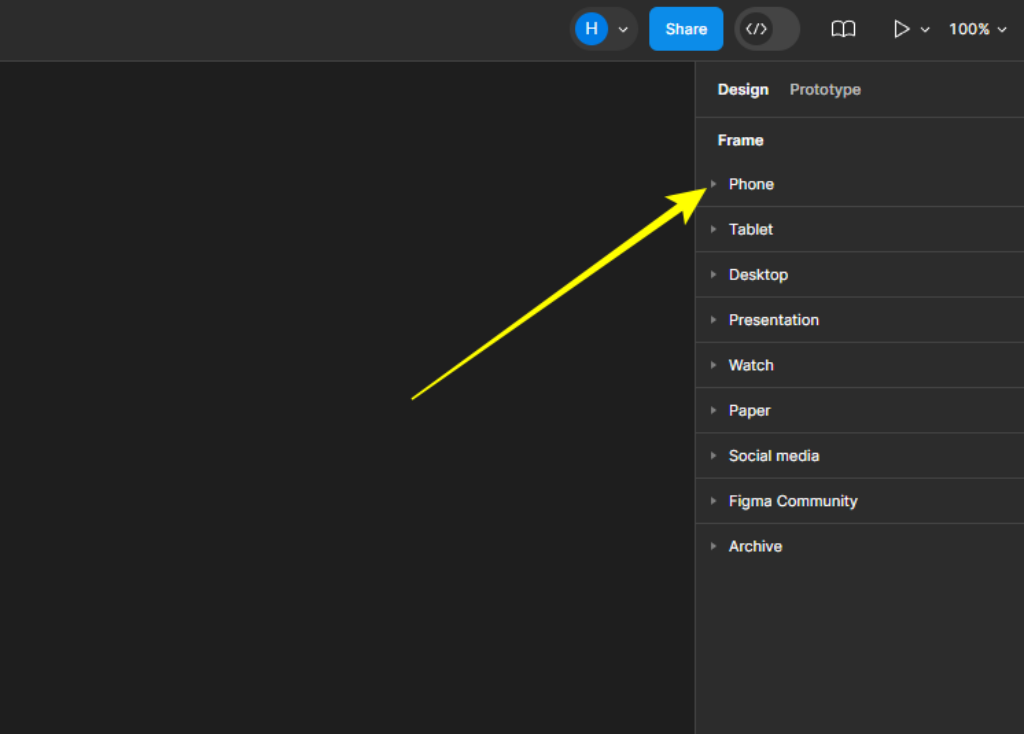
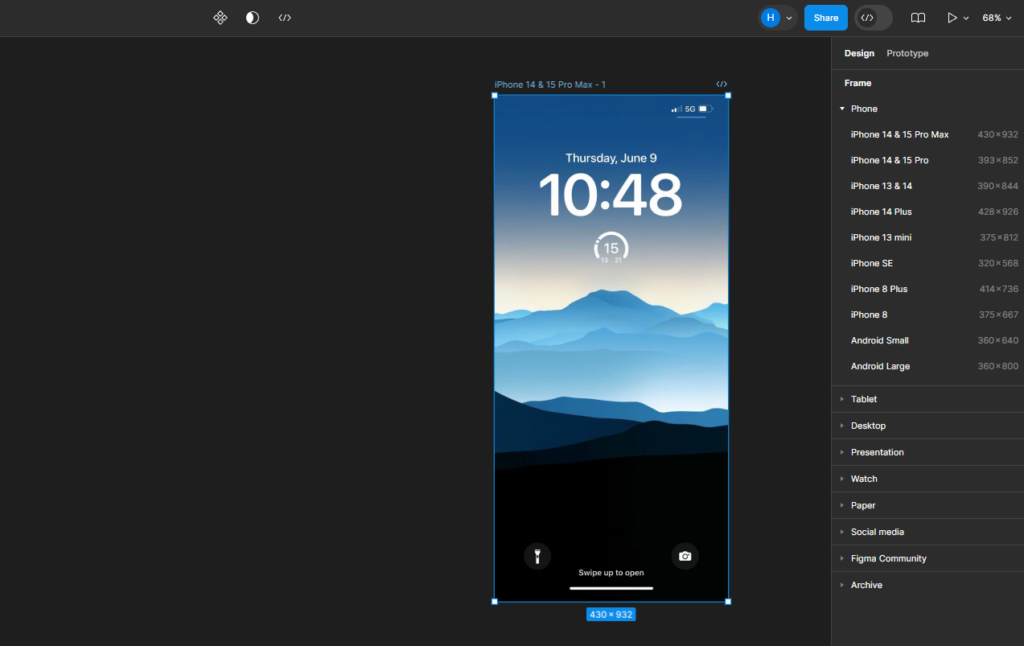
- From the list of available iPhone frames, click on the desired model to add it to the canvas.

- Once added, work on it by adding layers or images, and you will have an iPhone screen ready like the one below.
Wrapping Up
Congratulations on learning how to add an iPhone frame in Figma!
Figma’s frame presets make screen creation easier and save time by avoiding the need to create them from scratch. However, if you’re looking to create mockups, Figma lacks a built-in tool, so you’ll need to use plugins like the Mockup Plugin.
Related Reading
How To Create a Frame in Figma






