Pttrns

Adding an alpha channel in GIMP introduces a transparency layer to your images. Doing this is important as it enables selective transparency, allowing you to create designs with opacity, smooth edges, and the ability to layer images seamlessly.
In this guide, we will help you add an alpha channel by adding an image to GIMP and then add the alpha channel in multiple ways by offering detailed steps for each.
Add an Alpha Channel in GIMP
Getting Started: Start by opening GIMP on your PC and wait for it to fully load. Once loaded, navigate to the Menu Bar and click on File. Next, from the available options, click on Open and then select the image to load it onto canvas.
Add Alpha Channel using Layers Dialog
- With the image added to canvas, navigate to the Layers Dialog present in the bottom right of the window [Refer to the image for better understanding.]

- After the image is added to the layers dialog, navigate to it and right-click on it to reveal options. Now, from the available options, click on Add Alpha Channel and you’re done.

Add Alpha Channel from the Menu Bar
If you’re looking for an alternative to the above approach or couldn’t find the Layers dialog, check out the below steps to add an alpha channel from the menu bar:
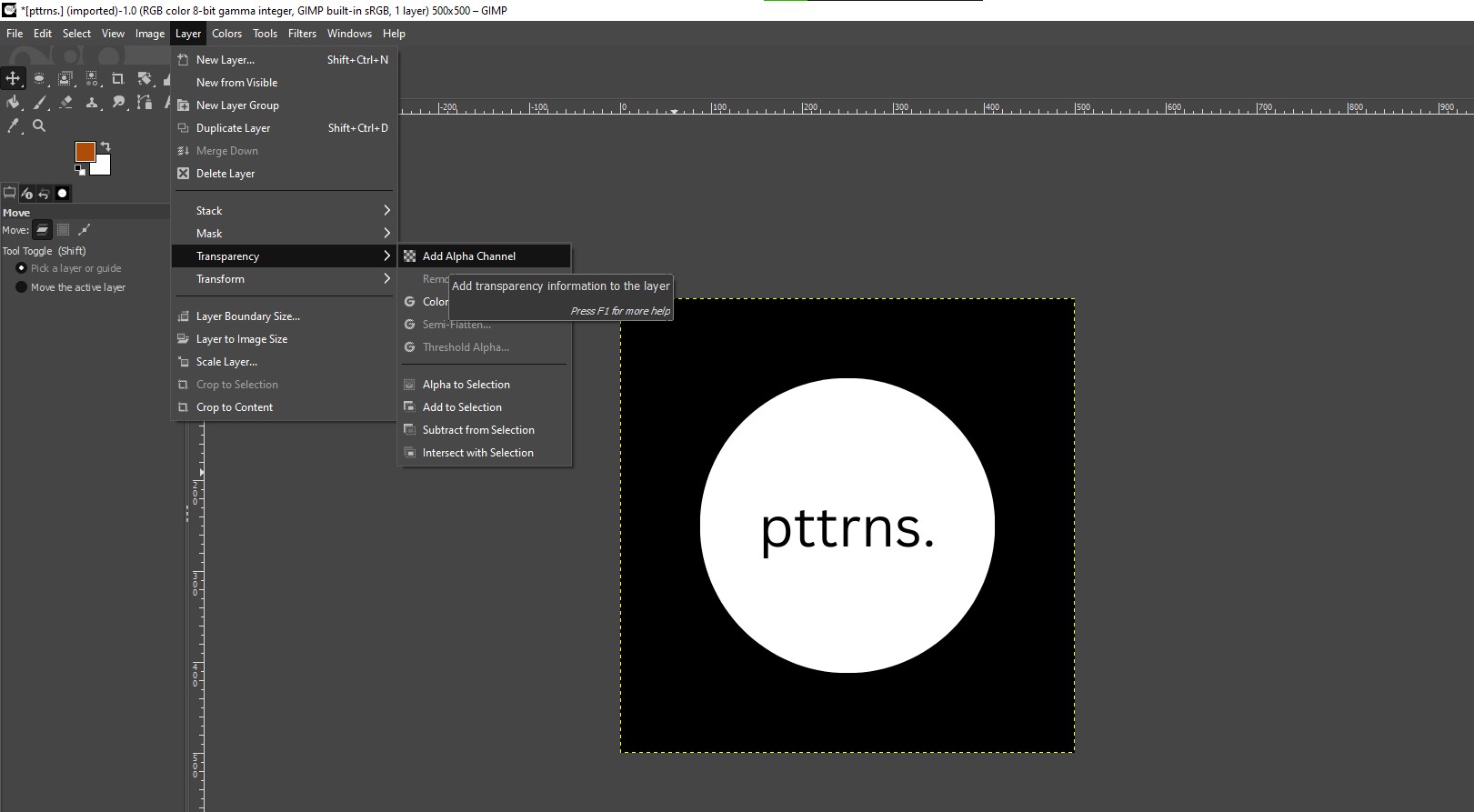
- Once the image is added to the canvas, start by navigating to the menu bar at the top and click on Layer.
- By doing so you’re displayed with multiple options, from which click on Transparency and then Add Alpha Channel to add the alpha channel.
Let GIMP Automate Alpha Channel
GIMP features an ability to automate Alpha channel and this can be handy if you don’t want to add it manually or have difficulty with the above approaches. Here are steps to let GIMP automate the alpha channel:
- Start by adding the image to GIMP and once done, add a second layer to your image. To do this, navigate to the Layers dialog and right-click on the empty area.
- By doing so you’re displayed with multiple options. Now, click on New Layer to add a new layer.
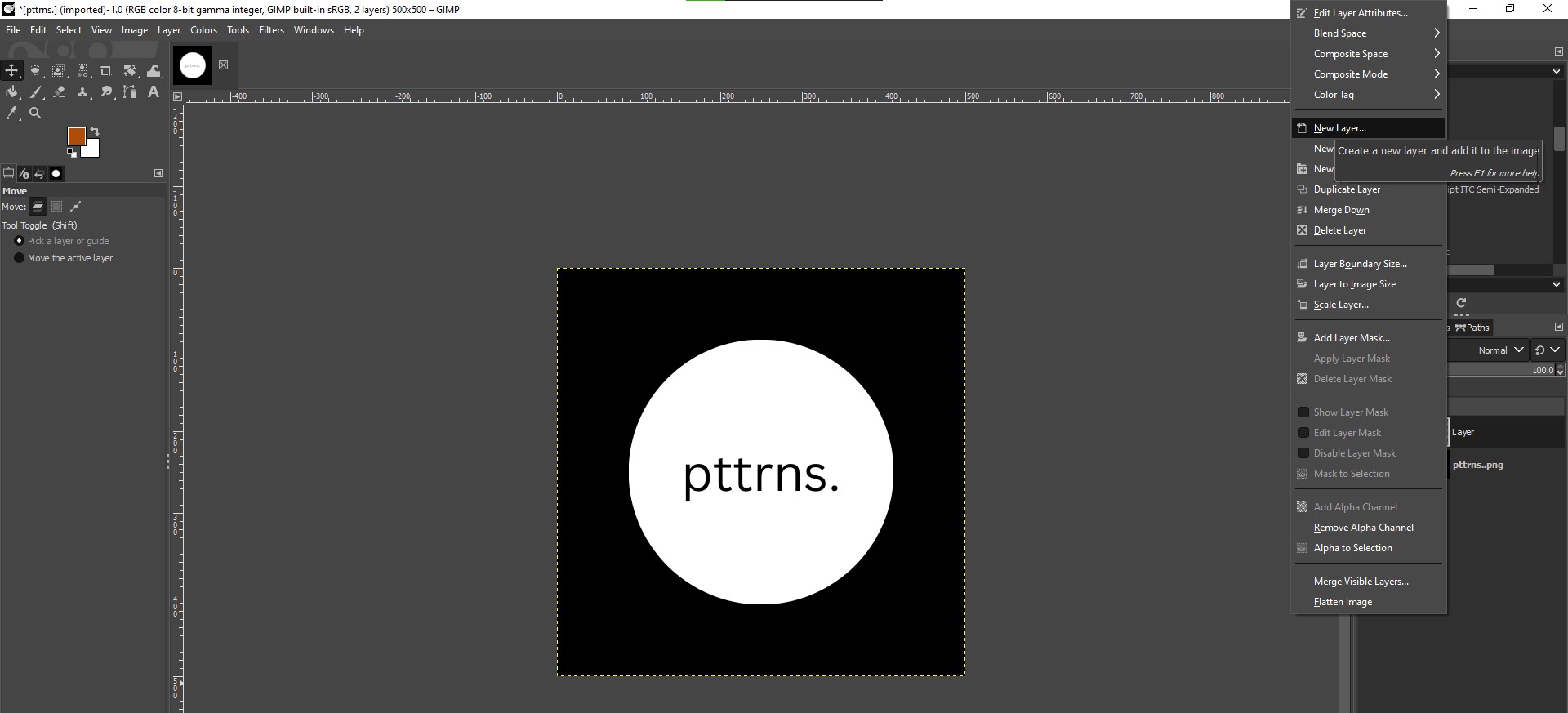
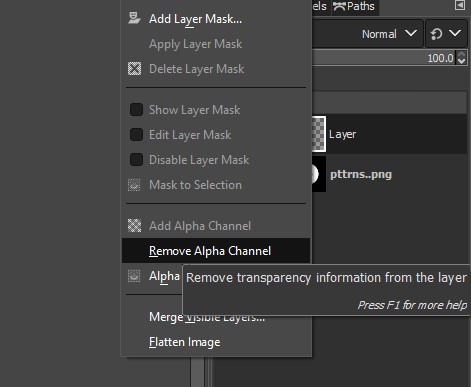
- Once the new layer is added, the alpha channel is added automatically and the Add Alpha Channel option is greyed out.
Wrapping Up
Congratulations on learning how to add Alpha Channel to an image in GIMP!
We suggest letting GIMP add the alpha channel unless you have to work with a single image. While adding the alpha channel is easy, it can be difficult to work on the next steps like creating designs with opacity. Hence, we suggest experimenting with multiple designs before getting on the actual project.
Related Reading
How To Resize an Image in GIMP